
Machenike K500A-B84
Machenike K500A 75% Mechanical Keyboard
User Manual
Introduction
Welcome to the user manual for your new Machenike K500A 75% Mechanical Keyboard. This guide provides comprehensive instructions on setting up, operating, maintaining, and troubleshooting your keyboard to ensure optimal performance and longevity. Please read this manual carefully before using the product.
Package Contents
Please verify that all items listed below are included in your package:
- Machenike K500A 75% Mechanical Keyboard
- USB Cable
Product Overview
The Machenike K500A is a compact 75% mechanical keyboard designed for gaming and general use. It features 84 keys, hot-swappable linear red switches, and customizable RGB LED backlighting.
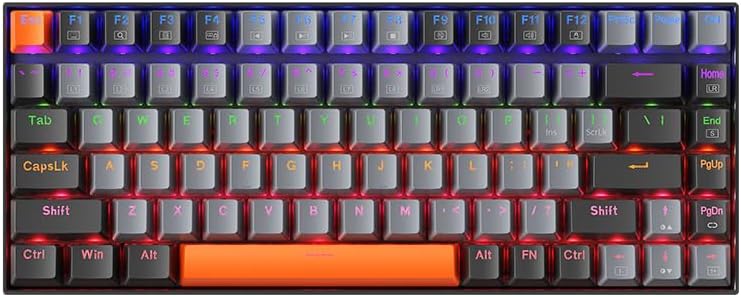
Figure 1: Top view of the Machenike K500A 75% Mechanical Keyboard, showcasing its compact 84-key layout and rainbow LED backlighting.
Key Features:
- 75% Compact Form Factor:
This keyboard features a space-saving 75% layout with 84 keys, providing essential keys while maintaining a compact design. This makes it portable and suitable for various desk setups.

Figure 2: Illustration of the 75% compact form factor (84 keys) compared to a standard full-sized 104-key keyboard, highlighting its space-saving design.
- Hot-Swappable Linear Red Switches:
Equipped with linear red switches, the keyboard offers a smooth and quiet typing experience. The hot-swappable design allows users to change switches without soldering, enabling customization of typing feel.
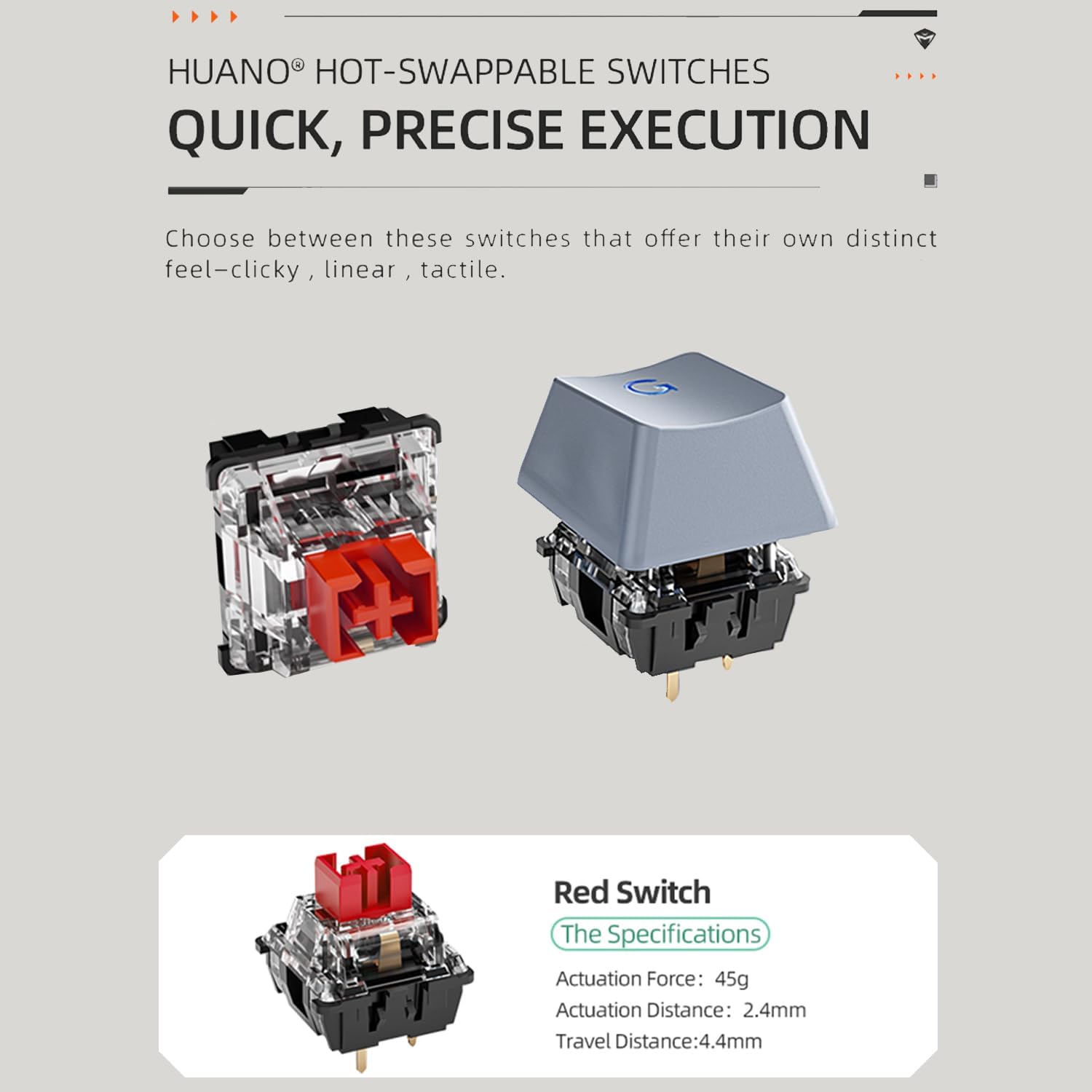
Figure 3: Diagram showing the components of a hot-swappable mechanical switch, emphasizing the ease of replacement without soldering. Specifications for the red switch are also shown: Actuation Force: 45g, Actuation Distance: 2.4mm, Travel Distance: 4.4mm.
- Rainbow LED Backlight:
The keyboard features vibrant rainbow LED backlighting with 9 preset lighting effects. These effects can be cycled and adjusted for speed and brightness directly from the keyboard.

Figure 4: Close-up view of the keyboard keys illuminated by the rainbow LED backlight, demonstrating the visual effects.
- Detachable USB Cable:
The keyboard connects via a detachable USB cable, ensuring a stable and lag-free wired connection. This design also enhances portability and makes cable management easier.

Figure 5: Image illustrating the detachable USB cable connected to the keyboard, highlighting its convenience for setup and transport.
- Double-Shot PBT Keycaps:
The durable double-shot PBT keycaps resist wear and shine, ensuring legends remain clear and legible over time.
- Anti-slip Feet and EVA Foam:
Features height-adjustable anti-slip feet for ergonomic positioning and EVA foam for sound dampening, reducing hollow sounds during typing.

Figure 6: Diagram showing the anti-slip feet for height adjustment and the internal EVA foam layer designed to reduce typing noise.
Setup
Follow these steps to set up your Machenike K500A keyboard:
- Unpack the Keyboard: Carefully remove the keyboard and USB cable from the packaging.
- Connect the USB Cable: Insert one end of the provided USB cable into the USB-C port on the keyboard and the other end into an available USB-A port on your computer.
- Driver Installation: The keyboard is plug-and-play and typically does not require additional drivers. Your operating system should automatically detect and install the necessary drivers.
- Adjust Height: If desired, extend the adjustable feet on the underside of the keyboard to achieve a comfortable typing angle.
Operating Instructions
Basic Functions:
- Typing: Use the standard QWERTY layout for typing.
- Function Keys (F1-F12): Access multimedia controls and system functions by pressing the Fn key in combination with the corresponding F-key. Refer to the keycap legends for specific functions (e.g., Fn+F1 for Media Player, Fn+F2 for Volume Down).
LED Backlight Control:
The Machenike K500A features 9 preset LED lighting effects. Use the following key combinations to control the backlight:
- Cycle Lighting Effects: Press Fn + \ | to cycle through the 9 different lighting modes.
- Adjust Brightness: Press Fn + ↑ to increase brightness and Fn + ↓ to decrease brightness.
- Adjust Speed: Press Fn + ← to slow down the lighting effect speed and Fn + → to speed up the lighting effect.
Hot-Swapping Switches:
The keyboard supports hot-swappable switches, allowing you to replace the existing switches with compatible 3-pin or 5-pin mechanical switches without soldering. Use a switch puller tool (not included) to carefully remove switches. When inserting new switches, ensure the pins align correctly with the sockets to avoid bending them.
Maintenance
Proper maintenance can extend the life of your keyboard:
- Cleaning Keycaps: Use a soft, damp cloth to wipe down the keycaps. For deeper cleaning, keycaps can be carefully removed using a keycap puller (not included) and washed with mild soap and water. Ensure they are completely dry before reattaching.
- Cleaning the Keyboard Body: Use a soft, dry cloth to wipe dust and debris from the keyboard body. Avoid using harsh chemicals or abrasive materials.
- Dust Removal: Use compressed air to blow out dust and crumbs from between the keycaps.
- Cable Care: Avoid sharp bends or excessive pulling on the USB cable to prevent damage.
Troubleshooting
If you encounter issues with your keyboard, refer to the following common problems and solutions:
| Problem | Possible Cause | Solution |
|---|---|---|
| Keyboard not responding | Loose USB connection; Faulty USB port; Driver issue. | Ensure the USB cable is securely connected to both the keyboard and the computer. Try a different USB port. Restart your computer. |
| Backlight not working or inconsistent | Backlight turned off; Brightness set to minimum; Software glitch. | Press Fn + ↑ to increase brightness. Cycle through lighting modes using Fn + \ |. Disconnect and reconnect the keyboard. |
| Certain keys not working | Dust/debris under keycap; Faulty switch; Keycap not properly seated. | Remove the keycap and clean underneath. Ensure the keycap is pressed down firmly. If hot-swapping, ensure the switch is fully seated and pins are not bent. Consider replacing the switch if it's faulty. |
Specifications
| Feature | Detail |
|---|---|
| Brand | Machenike |
| Model Number | K500A-B84 |
| Layout | 75% (84 Keys) |
| Switch Type | Hot-swappable Linear Red Switches |
| Keycap Material | Double-Shot PBT |
| Backlight | Rainbow LED (9 preset effects) |
| Connectivity | Wired USB |
| Product Dimensions | 12.23 x 4.86 x 1.4 inches |
| Item Weight | 5 pounds |
| Compatible Devices | PC |
Warranty and Support
Machenike products are manufactured to high quality standards. For information regarding warranty coverage, please refer to the warranty card included with your product or visit the official Machenike website. If you encounter any issues not covered in this manual or require further assistance, please contact Machenike customer support through their official channels.
For the latest drivers, software, and support resources, please visit the official Machenike support page.
Related documentsK500A-B84


Ask a question about this manual
Ask about setup, troubleshooting, compatibility, parts, safety, or missing instructions. Manuals+ will review the question and use this page’s manual context to help answer it.