
1. Introduction
This manual provides comprehensive instructions for the installation, operation, and maintenance of your Goolsky Tracker F405 V2 Flight Control FC and BLS-65A 4-in-1 ESC Stack. This high-performance stack is designed for FPV drones and aircraft, offering advanced control and power management capabilities. Please read this manual thoroughly before use to ensure proper functionality and safety.
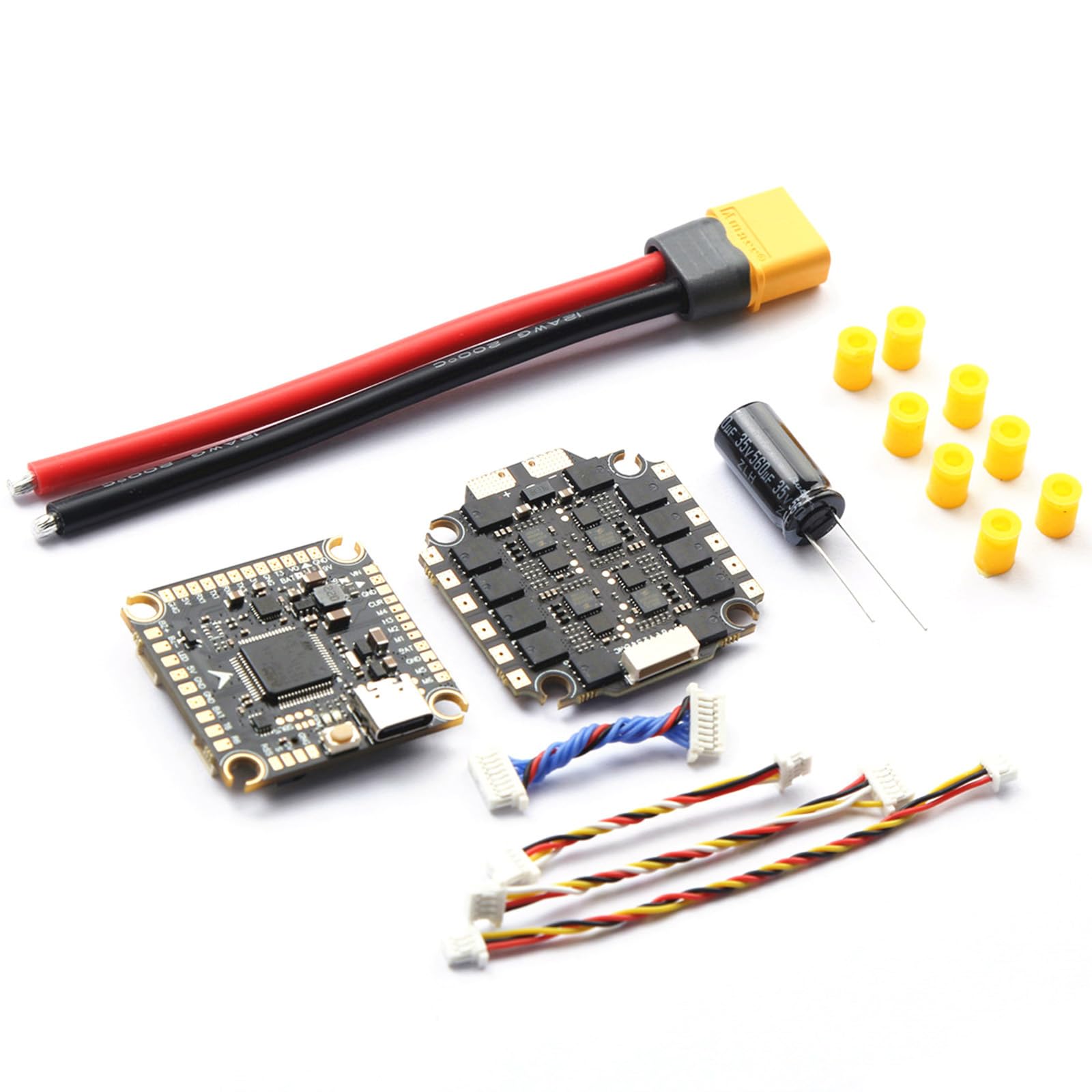
Image 1.1: The Goolsky Tracker F405 V2 Flight Control FC and BLS-65A 4-in-1 ESC Stack. This image displays the compact design of the flight controller and electronic speed controller unit, highlighting its integrated nature for FPV drone applications.
2. Safety Information
Always prioritize safety when working with electronic components and FPV equipment. Failure to follow safety guidelines can result in injury or damage to equipment.
- Power Disconnection: Always disconnect the battery before performing any installation, maintenance, or repair work.
- Correct Polarity: Ensure all power connections are made with correct polarity to prevent damage to the components.
- Soldering Safety: Use appropriate soldering tools and techniques. Work in a well-ventilated area and wear protective eyewear.
- Firmware Updates: Only use official and compatible firmware. Incorrect firmware can lead to malfunction.
- Environmental Conditions: Avoid exposing the components to moisture, extreme temperatures, or static electricity.
3. Product Overview
The Goolsky Tracker F405 V2 Flight Control FC and BLS-65A 4-in-1 ESC Stack is an integrated solution for FPV drone builds. It combines a powerful flight controller with a robust electronic speed controller into a compact unit.
3.1. F405 V2 Flight Controller (FC)
The F405 V2 FC is the brain of your drone, processing flight commands and sensor data. It features a high-performance microcontroller and supports various receiver types.
3.2. BLS-65A V2 4-in-1 Electronic Speed Controller (ESC)
The BLS-65A V2 4-in-1 ESC manages power delivery to your drone's motors. It provides high continuous current and supports various drive signals for precise motor control.
4. Specifications
4.1. F405 V2 Flight Controller Specifications
| Feature | Specification |
|---|---|
| Microcontroller | STM32 F405 |
| Gyroscope | MPU6500 |
| Barometer | BMP280 |
| OSD | Drag-and-Drop (Betaflight configurable) |
| Blackbox | MicroSD Card support |
| BEC Output | 5V3A / 9V3A |
| Receiver Support | ELRS/CRSF/SBUS/IBUS PPM/Spektrum DSMX, etc. |
| Dimensions | 36x36mm |
| Mounting Hole | 30.5x30.5mm |
| Weight | 13g |
| Firmware | Betaflight (INAV not supported) |
4.2. BLS-65A V2 4-in-1 ESC Specifications
| Feature | Specification |
|---|---|
| Input Voltage | LIPO 2-6S |
| Continuous Current | 65A |
| Maximum Current | 70A (10 seconds) |
| Processor | EF8BB21 |
| Drive Signal Support | DShot150-300-600/Multishot/Oneshot/PMW |
| Current Sensor | Supported |
| Firmware | BLHELI-S |
| Dimensions | 41x39x5mm |
| Mounting Hole | 30.5x30.5mm (3mm after shock absorber ball installation) |
| Weight | 15g |
5. Setup
5.1. Installation
Mount the FC/ESC stack securely onto your drone frame using appropriate standoffs and screws. Ensure proper isolation from carbon fiber to prevent short circuits. The mounting holes are 30.5x30.5mm.
5.2. Wiring
Connect the motors to the ESC pads according to your motor rotation direction. Connect the receiver, VTX, camera, and GPS (if applicable) to the designated pads on the F405 V2 FC. Refer to the wiring diagram provided with your drone frame or specific components for detailed connections. Pay close attention to power and signal lines.
5.3. Firmware Flashing (Betaflight)
The F405 V2 Flight Controller exclusively supports Betaflight firmware. Do not attempt to flash INAV firmware.
- Download and install the latest Betaflight Configurator software on your computer.
- Connect the FC to your computer via a USB cable.
- In Betaflight Configurator, navigate to the 'Firmware Flasher' tab.
- Select the correct target for your F405 V2 FC (e.g., 'OMNIBUSF4SD' or similar F405 target).
- Choose the latest stable Betaflight firmware version.
- Click 'Load Firmware [Online]' and then 'Flash Firmware'.
- After flashing, disconnect and reconnect the FC.
6. Operating
6.1. Initial Configuration (Betaflight)
After flashing, connect to Betaflight Configurator to perform initial setup.
- Ports Tab: Configure UARTs for your receiver, VTX, GPS, etc.
- Configuration Tab: Set up ESC protocol (DShot600 recommended), accelerometer calibration, board alignment, and other basic settings.
- Receiver Tab: Verify receiver input and channel mapping.
- Modes Tab: Assign arming, flight modes, and other switches.
- Motors Tab: Test motor direction (without propellers) and ensure they spin correctly.
- OSD Tab: Customize your On-Screen Display elements using the drag-and-drop interface.
6.2. Pre-Flight Checks
Before every flight, perform the following checks:
- Ensure all propellers are securely attached and undamaged.
- Verify battery is fully charged and securely mounted.
- Check all wiring connections for looseness or damage.
- Confirm radio control link is established and working correctly.
- Perform a quick visual inspection for any foreign objects or debris.
7. Maintenance
Regular maintenance ensures the longevity and reliable performance of your FC/ESC stack.
- Cleaning: Periodically clean the components with a soft brush or compressed air to remove dust and debris. Avoid using liquids.
- Inspection: Regularly inspect solder joints and wiring for any signs of fatigue, corrosion, or damage.
- Firmware Updates: Keep your Betaflight and BLHELI-S firmware updated to benefit from performance improvements and bug fixes.
- Storage: Store the components in a dry, cool environment away from direct sunlight and static electricity.
8. Troubleshooting
This section addresses common issues you might encounter.
- No Power: Check battery connection, polarity, and ensure no short circuits. Inspect power cables for damage.
- FC Not Connecting to Betaflight: Ensure correct USB drivers are installed. Try a different USB cable or port. Put the FC into DFU mode if necessary for flashing.
- Motors Not Spinning: Verify ESC connections to motors and FC. Check ESC firmware and configuration in Betaflight. Ensure motors are armed.
- Unstable Flight: Recalibrate accelerometer. Check PID tuning. Inspect propellers for damage or imbalance. Ensure frame is rigid.
- OSD Not Displaying: Check VTX and camera connections. Ensure OSD is enabled and configured correctly in Betaflight.
9. Warranty and Support
For warranty information and technical support, please refer to the official Goolsky website or contact your retailer. Keep your proof of purchase for warranty claims.
Manufacturer: Goolsky
Model Number: VVD4424381355949CD