
Introduction
Thank you for choosing the JOMAA Foldable Bluetooth Keyboard. This portable, ultra-slim, and rechargeable keyboard is designed for seamless compatibility with Windows, iOS, Android, and Mac devices, offering a silent and efficient typing experience on the go. Its unique double-folding design makes it highly portable for business trips and mobile office setups.
Package Contents
- JOMAA Foldable Bluetooth Keyboard
- USB Charging Cable (Type-C)
- User Manual (This document)
Specifications
| Feature | Detail |
|---|---|
| Model Number | 1505 |
| Connectivity | Bluetooth |
| Compatible Devices | Laptop, Smartphone, Tablet (Windows, iOS, Android, Mac) |
| Keyboard Description | Flexible, Foldable |
| Number of Keys | 64 |
| Battery Type | 1 Lithium Ion battery (included) |
| Material | Faux Leather |
| Item Weight | 10.6 ounces |
| Package Dimensions | 7.5 x 4.2 x 1 inches |
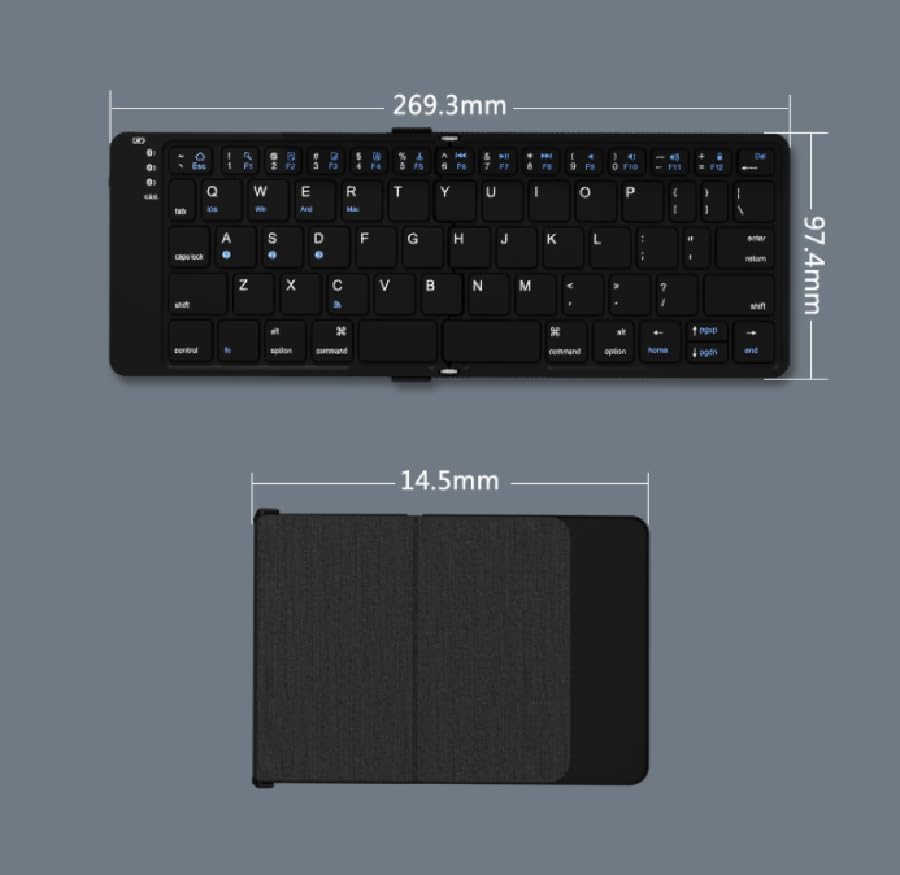
Figure 1: Keyboard dimensions when unfolded and folded.
Setup
1. Charging the Keyboard
Before first use, fully charge the keyboard. Connect the provided Type-C USB cable to the keyboard's charging port and the other end to a USB power source (e.g., computer, wall adapter). The charging indicator light will illuminate. When the battery is low, a red light will flash.

Figure 2: Charging the JOMAA Foldable Bluetooth Keyboard.
2. Bluetooth Pairing
- Power On: Unfold the keyboard to automatically power it on.
- Enter Pairing Mode: Press the Fn key simultaneously with one of the Bluetooth channel keys (Q for BT1, W for BT2, E for BT3) for 3-5 seconds until the corresponding Bluetooth indicator light flashes rapidly. This indicates the keyboard is in pairing mode.
- Enable Bluetooth on Device: On your device (smartphone, tablet, laptop), go to Bluetooth settings and turn on Bluetooth.
- Select Keyboard: Search for "Bluetooth Keyboard" or similar in the list of available devices and select it to connect.
- Confirm Pairing: Once connected, the Bluetooth indicator light on the keyboard will stop flashing and remain solid for a few seconds, then turn off. The keyboard is now paired and ready for use.

Figure 3: Bluetooth channel keys for multi-device connection.
Operating Instructions
Multi-Device Switching
The keyboard supports connection with up to three Bluetooth devices simultaneously. To switch between connected devices:
- Press Fn + Q to switch to Device 1.
- Press Fn + W to switch to Device 2.
- Press Fn + E to switch to Device 3.
Ensure the desired device's Bluetooth is active and the keyboard was previously paired with it on the selected channel.
Figure 4: Switching between multiple devices.
System Compatibility Keys
The keyboard is compatible with various operating systems. Use the following key combinations to optimize functionality for your specific OS:
- Press Fn + A for iOS devices.
- Press Fn + S for Android devices.
- Press Fn + D for Windows devices.
- Press Fn + F for Mac devices.

Figure 5: System compatibility key combinations.
Special Keys and Functions
The keyboard features a standard QWERTY layout with additional function keys. Refer to the keycaps for specific symbols and functions. The scissor shaft structure ensures a soft and silent typing experience.

Figure 6: Updated key layout for smooth folding and typing.
Maintenance
- Cleaning: Use a soft, dry cloth to wipe the keyboard surface. For stubborn dirt, slightly dampen the cloth with water or a mild, non-abrasive cleaner. Avoid excessive moisture.
- Storage: When not in use, fold the keyboard to protect the keys and conserve battery. Store in a cool, dry place away from direct sunlight and extreme temperatures.
- Battery Care: To prolong battery life, avoid fully discharging the keyboard frequently. Charge it regularly, especially if it will be stored for an extended period.
- Handling: The keyboard features a robust magnetic folding mechanism. While designed for durability (tested over 200 times folding), avoid forceful or improper folding to prevent damage.
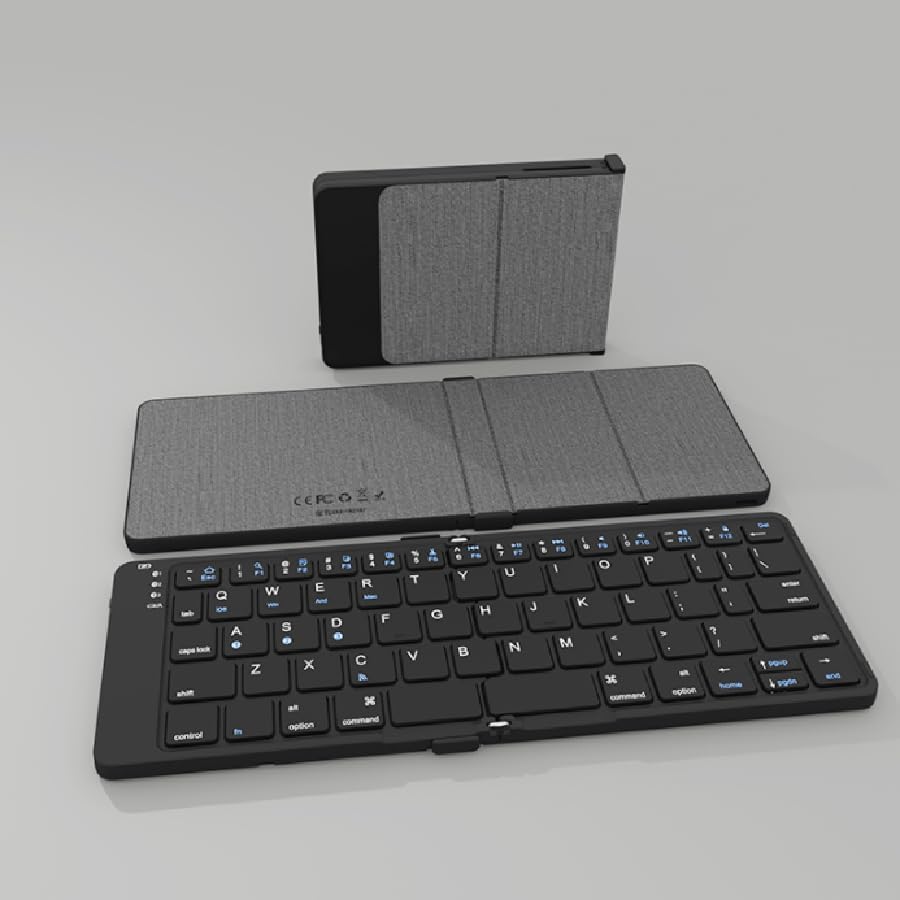
Figure 7: Magnetic folding mechanism and durability.

Figure 8: High-quality faux leather case for protection.
Troubleshooting
| Problem | Possible Cause | Solution |
|---|---|---|
| Keyboard does not power on. | Low battery; Keyboard not unfolded. | Charge the keyboard fully. Ensure the keyboard is fully unfolded to power on. |
| Cannot pair with device. | Keyboard not in pairing mode; Device Bluetooth off; Interference. | Ensure keyboard is in pairing mode (flashing light). Turn on Bluetooth on your device. Move closer to the device. Try restarting both devices. |
| Keyboard disconnects frequently. | Low battery; Too far from device; Interference. | Recharge the keyboard. Keep the keyboard within Bluetooth range (approx. 10 meters). Avoid strong electromagnetic interference. |
| Keys not responding correctly. | Incorrect OS mode; Software glitch. | Ensure you have selected the correct OS mode (Fn+A/S/D/F). Try unpairing and re-pairing the keyboard. |
Warranty and Support
JOMAA products are designed for reliability and performance. For warranty information or technical support, please refer to the warranty card included with your purchase or visit the official JOMAA store on Amazon:
Visit the JOMAA Store on Amazon
For returns or replacements, please contact your seller (Vadendream) or Amazon customer service within the specified return period (typically 30 days).


