
Introduction
Thank you for choosing the TECKNET Ergonomic Wireless Rechargeable Mouse. This manual provides essential information for setting up, operating, and maintaining your new mouse. Please read it carefully to ensure optimal performance and longevity of your device.
Product Overview
Key Features:
- Ergonomic Design: Vertical orientation to reduce wrist strain and promote a natural hand posture.
- Rechargeable Battery: Built-in 600 mAh battery, providing up to 2 months of use on a 1.5-hour charge.
- Adjustable DPI: Five sensitivity levels (800/1600/2400/3200/4800 DPI) for precise control.
- Silent Clicks: Reduces click noise by over 90% for a quiet working environment (forward/backward buttons are not silent).
- 2.4G Wireless Connectivity: Stable connection with a range of up to 10 meters.
- 6 Buttons: Left, Right, Scroll Wheel, DPI Switch, Forward, and Backward buttons.
- Wide Compatibility: Supports Windows 11/10/8/7/XP/2003/2000, Mac, PC, and Linux systems. (Note: Side buttons are not available for Mac or iOS systems).
Package Contents:
- TECKNET Ergonomic Wireless Rechargeable Mouse
- 2.4G USB Receiver
- USB Charging Cable
- User Manual

Image: The TECKNET Ergonomic Wireless Rechargeable Mouse in black, showcasing its vertical design.
Setup Instructions
- Charge the Mouse: Before first use, connect the mouse to a USB power source using the provided USB charging cable. The LED indicator will show charging status. A full charge takes approximately 1.5 hours.
- Insert USB Receiver: Locate the 2.4G USB receiver stored in the compartment at the bottom of the mouse. Plug the receiver into an available USB port on your computer.
- Power On: Turn on the mouse using the ON/OFF switch located on the bottom of the mouse.
- Automatic Connection: The mouse should automatically connect to your computer. If it does not, ensure the receiver is securely plugged in and the mouse is powered on.

Image: The ergonomic mouse connected to a charging cable, illustrating the charging process.

Image: A visual representation of the 2.4G wireless connection, showing the mouse and the USB receiver plugged into a laptop.
Operating Instructions
Button Functions:

Image: A diagram illustrating the location and function of each button on the ergonomic mouse.
- Left Button: Standard left-click function.
- Right Button: Standard right-click function.
- Scroll Wheel: Scroll up/down, middle-click.
- DPI Switch Button: Located on top, cycles through DPI settings (800/1600/2400/3200/4800).
- Forward Button: Navigates forward in web browsers or file explorers. (Not available for Mac/iOS).
- Backward Button: Navigates backward in web browsers or file explorers. (Not available for Mac/iOS).
DPI Adjustment:
Press the DPI switch button (located behind the scroll wheel) to cycle through the five available DPI settings: 800, 1600, 2400, 3200, and 4800. Each press changes the sensitivity, allowing you to adjust cursor speed to your preference or task requirements.
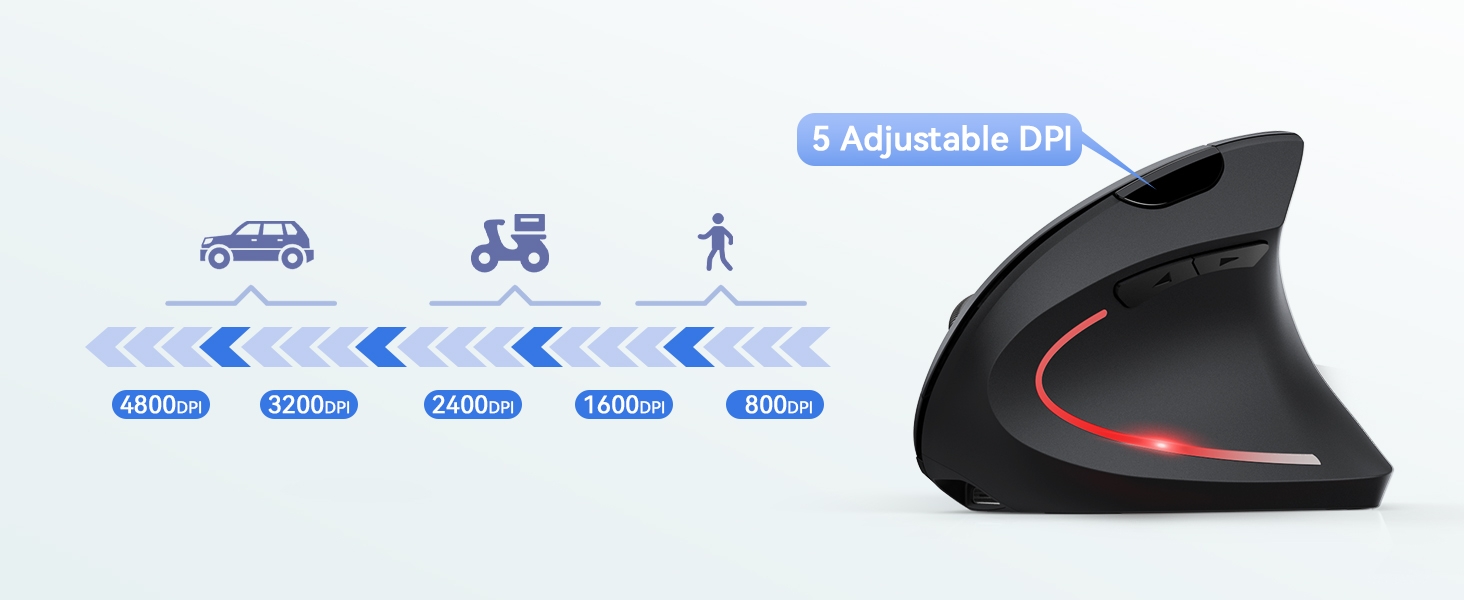
Image: A diagram illustrating the 5 adjustable DPI levels (800-4800) and the DPI switch button.
Ergonomic Usage:
The vertical design of this mouse is intended to promote a more natural hand and wrist posture, reducing pronation and potential discomfort associated with traditional mice. Position your hand comfortably over the mouse, allowing your wrist to remain in a neutral, handshake-like position.

Image: A technical diagram showing the 52-degree ergonomic grip angle of the mouse, with illustrations of correct and incorrect hand positions.

Image: A woman using the ergonomic mouse at a desk, highlighting the natural wrist alignment.
Maintenance
- Cleaning: Use a soft, dry cloth to clean the mouse. Avoid using harsh chemicals or abrasive materials.
- Storage: When not in use for extended periods, turn off the mouse to conserve battery life. Store it in a cool, dry place.
- Battery Care: Recharge the mouse when the battery indicator is low. Avoid fully draining the battery frequently to prolong its lifespan.
Troubleshooting
| Problem | Solution |
|---|---|
| Mouse not responding |
|
| Cursor movement is erratic or slow |
|
| Side buttons not working on Mac/iOS | The forward and backward buttons are not supported on Mac or iOS operating systems due to system limitations. This is normal operation. |
Specifications
| Feature | Detail |
|---|---|
| Model Name | TK-MS007 |
| Connectivity Technology | 2.4G Wireless (USB Receiver) |
| Movement Detection Technology | Optical |
| DPI Levels | 800 / 1600 / 2400 / 3200 / 4800 |
| Number of Buttons | 6 |
| Hand Orientation | Right |
| Battery Type | Rechargeable (600 mAh) |
| Charging Time | Approx. 1.5 hours |
| Battery Life | Up to 2 months (average use) |
| Wireless Range | Up to 10 meters |
| Weight | 120 Grams |
| Dimensions (L x W) | 12L x 7.5W cm |
| Compatible Operating Systems | Windows, Mac, PC, Linux |
Warranty and Support
TECKNET offers a 36-month warranty for this product from the date of purchase. This warranty covers manufacturing defects and ensures reliable performance under normal use.
For technical support, warranty claims, or any questions regarding your TECKNET product, please visit the official TECKNET website or contact their customer service. You can find more information and contact details on the TECKNET brand store page: TECKNET Store.