
soundcore A3134
Soundcore Boom 2 Plus Outdoor Bluetooth Speaker User Manual
Model: A3134
Brand: soundcore
1. Introduction
Thank you for choosing the Soundcore Boom 2 Plus Outdoor Bluetooth Speaker. This manual provides essential information for setting up, operating, and maintaining your speaker to ensure optimal performance and longevity. The Soundcore Boom 2 Plus is a powerful, portable, and waterproof speaker designed to deliver exceptional audio quality in various outdoor environments.
Key features include:
- Powerful 140W Max Bass: Experience deep and clear bass with two woofers and BassUp 2.0 technology, boosting output to 140W.
- 2+2 Stereo Clarity: Two 50W woofers and two 20W tweeters provide crisp highs and deep lows, balanced by intelligent Crossover technology.
- 20-Hour Playtime & Fast Charging: Enjoy extended music playback and fully charge the speaker in just 3 hours with a 30W charger.
- Built-in Power Bank: Charge your phone and other essential devices with the integrated 10W power bank.
- IPX7 Waterproof & Floatable: Designed to withstand water immersion and float, making it perfect for beach or pool use.
- Customizable EQ & PartyCast 2.0: Tailor your sound with the professional customizable EQ and connect up to 100 speakers for an enhanced party experience.
2. Package Contents
Ensure all items are present in your package:
- Soundcore Boom 2 Plus Speaker
- USB-C Charging Cable
- Quick Start Guide (This manual serves as a comprehensive guide)
3. Product Overview

Figure 3.1: Soundcore Boom 2 Plus Speaker
This image shows the Soundcore Boom 2 Plus speaker from the front, highlighting its robust design, integrated handle, and detachable shoulder strap. The speaker grille is visible, along with the illuminated side panel.
Controls and Ports:
The Soundcore Boom 2 Plus features intuitive controls and essential ports for connectivity and charging:
- Power Button: Located on the top panel, used for turning the speaker on/off.
- Bluetooth Button: Initiates Bluetooth pairing mode.
- Volume Buttons (+/-): Adjusts the playback volume.
- Multi-function Button: Controls playback (play/pause, skip tracks) and answers/ends calls.
- BassUp Button: Activates or deactivates BassUp 2.0 technology for enhanced bass.
- Light Mode Button: Cycles through different light show modes.
- PartyCast Button: Connects to other PartyCast compatible Soundcore speakers.
- USB-C Charging Port: Used for charging the speaker.
- USB-A Output Port: Functions as a power bank to charge external devices.
- AUX Input Port: For wired audio connection via a 3.5mm audio cable (not included).
4. Setup
4.1 Charging the Speaker
Before first use, fully charge the Soundcore Boom 2 Plus. A full charge takes approximately 3 hours with a 30W charger (not included).
- Open the protective rubber flap on the back of the speaker.
- Connect one end of the provided USB-C charging cable to the speaker's USB-C port.
- Connect the other end to a compatible USB wall charger (30W recommended).
- The charging indicator lights will show the charging status. Once fully charged, the lights will turn solid or off depending on the model's specific indicator behavior.
- Ensure the rubber flap is securely closed after charging to maintain IPX7 waterproof rating.
4.2 Powering On/Off
- To Power On: Press and hold the Power button for 2 seconds. You will hear an audible prompt.
- To Power Off: Press and hold the Power button for 2 seconds. You will hear an audible prompt.
4.3 Bluetooth Pairing
The Soundcore Boom 2 Plus will automatically enter Bluetooth pairing mode when powered on for the first time or if no device is connected.
- Power on the speaker. The Bluetooth indicator light will flash blue.
- On your Bluetooth-enabled device (e.g., smartphone, tablet), go to the Bluetooth settings.
- Search for "Soundcore Boom 2 Plus" in the list of available devices and select it.
- Once connected, the Bluetooth indicator light will turn solid blue, and you will hear a confirmation sound.
- To pair with another device, press and hold the Bluetooth button for 2 seconds to enter pairing mode again.
5. Operating the Speaker
5.1 Audio Playback
- Play/Pause: Press the Multi-function button once.
- Next Track: Press the Multi-function button twice.
- Previous Track: Press the Multi-function button three times.
- Volume Up: Press the Volume + button.
- Volume Down: Press the Volume - button.
5.2 BassUp 2.0 Technology

Figure 5.1: Enhanced Bass with BassUp 2.0
This image visually represents the powerful bass output of the Soundcore Boom 2 Plus, with sound waves radiating from the speaker, emphasizing the 1.6X stronger bass feature.
BassUp 2.0 enhances the low frequencies for a deeper and more impactful bass experience. Press the BassUp button on the speaker to toggle this feature on or off. The Soundcore app allows for further customization of the EQ settings.
5.3 Beat-Synced Colorful Light Show
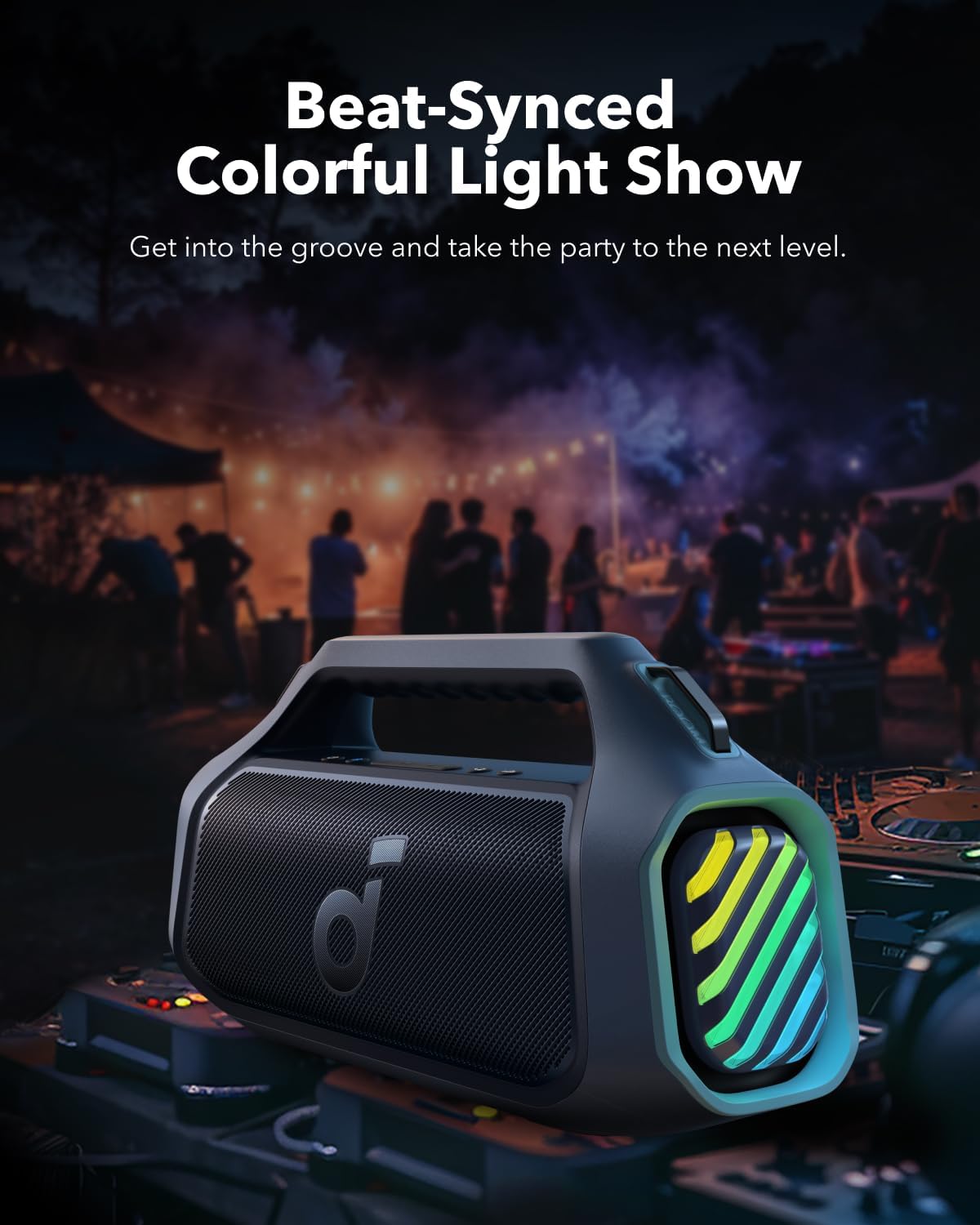
Figure 5.2: Beat-Synced Light Show
This image captures the Soundcore Boom 2 Plus in a dynamic party environment, showcasing its colorful, beat-synced light show emanating from the side panels, enhancing the overall atmosphere.
The speaker features dynamic RGB lights that sync with the music. Press the Light Mode button to cycle through different light patterns or turn the lights off. More light customization options are available via the Soundcore app.
5.4 PartyCast 2.0
PartyCast 2.0 allows you to connect up to 100 Soundcore speakers (with PartyCast 2.0 compatibility) for synchronized audio and light shows.
- Ensure all speakers are powered on and not connected to any Bluetooth device.
- On the primary speaker (connected to your device), press the PartyCast button. It will flash white.
- On the secondary speakers, press the PartyCast button. They will connect to the primary speaker.
- Once connected, the PartyCast indicator light on all speakers will turn solid white.
5.5 Using as a Power Bank
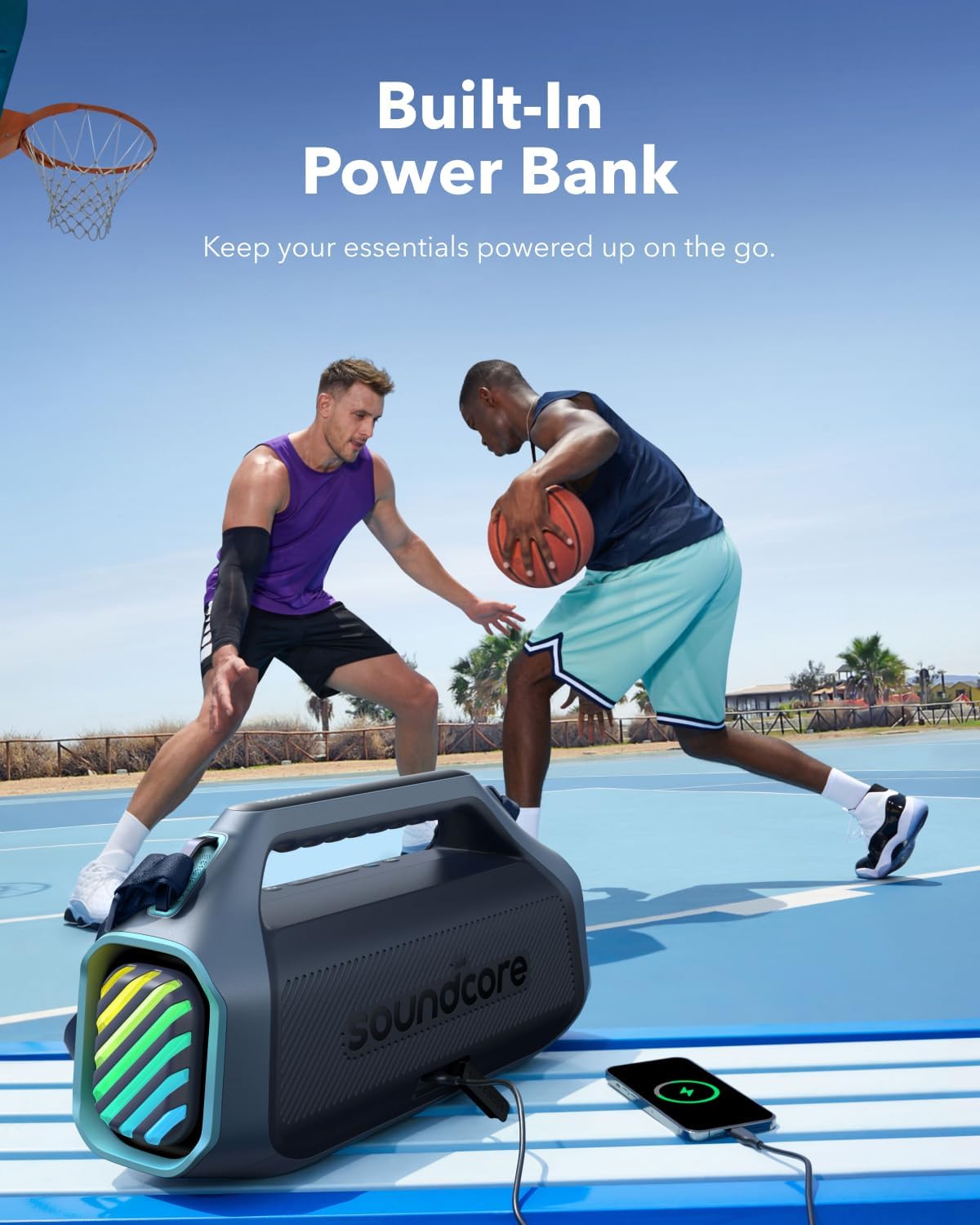
Figure 5.3: Built-in Power Bank Functionality
This image shows the Soundcore Boom 2 Plus speaker being used to charge a smartphone, demonstrating its built-in power bank feature via the USB-A output port.
The Soundcore Boom 2 Plus can charge your mobile devices via its USB-A output port (10W output).
- Open the protective rubber flap on the back of the speaker.
- Connect your device's charging cable to the USB-A output port on the speaker.
- Your device will begin charging automatically.
- Ensure the rubber flap is securely closed after use to maintain IPX7 waterproof rating.
6. Maintenance
6.1 Waterproofing (IPX7)

Figure 6.1: IPX7 Waterproof and Floatable Design
This image shows the Soundcore Boom 2 Plus speaker partially submerged and floating in water, highlighting its IPX7 waterproof and floatable design, suitable for use near pools or at the beach.
The Soundcore Boom 2 Plus is IPX7 rated, meaning it can be submerged in up to 1 meter of water for 30 minutes. To maintain its waterproof integrity:
- Always ensure the rubber flap covering the charging and output ports is securely closed before exposing the speaker to water.
- Do not expose the speaker to saltwater or chlorinated water for extended periods. Rinse with fresh water after exposure to such liquids.
- Do not use the speaker while submerged.
6.2 Cleaning
Clean the speaker with a soft, damp cloth. Do not use any abrasive cleaners or solvents.
6.3 Storage
Store the speaker in a cool, dry place away from extreme temperatures and direct sunlight when not in use for extended periods.
7. Troubleshooting
| Problem | Possible Cause | Solution |
|---|---|---|
| Speaker does not power on. | Low battery. | Charge the speaker fully. |
| Cannot pair with Bluetooth device. | Speaker not in pairing mode; device too far; interference. | Ensure speaker is in pairing mode (flashing blue light). Move device closer. Avoid interference from other wireless devices. Try resetting Bluetooth on your device. |
| No sound. | Volume too low; incorrect input source; speaker not connected. | Increase volume on both speaker and connected device. Ensure speaker is properly connected via Bluetooth or AUX. |
| Sound distortion. | Volume too high; low battery; poor connection. | Reduce volume. Charge the speaker. Ensure stable Bluetooth connection. |
| Power bank not charging device. | Speaker battery low; cable issue. | Ensure speaker has sufficient charge. Try a different USB cable. |
8. Specifications
| Feature | Detail |
|---|---|
| Model Number | A3134 |
| Brand | soundcore |
| Speaker Output Power | 140 Watts (Max) |
| Connectivity Technology | Bluetooth |
| Bluetooth Range | Up to 100 meters (330 feet) |
| Audio Output Mode | Stereo (2.0 or 2.1 channel configuration) |
| Battery Life | 20 hours (varies by volume and content) |
| Charging Time | 3 hours (with 30W charger) |
| Waterproof Rating | IPX7 |
| Power Bank Output | 10W (USB-A) |
| Dimensions (L x W x H) | 44.2 x 15.1 x 22.8 cm (17.4 x 5.9 x 9 inches) |
| Item Weight | 8.38 pounds (3.8 kg) |
| Battery Composition | Lithium-ion |
| Recommended Use | Indoor/Outdoor |
| Included Components | Soundcore Boom 2 Plus Speaker |
9. Warranty and Support
For warranty information and customer support, please refer to the documentation included with your product packaging or visit the official Soundcore website. You may also contact Soundcore customer service directly for assistance with product registration, troubleshooting, or warranty claims.
Please note that information regarding spare parts availability and software updates is not explicitly provided in the product specifications. For the most current information, please contact Soundcore support.
Related documentsA3134


Ask a question about this manual
Ask about setup, troubleshooting, compatibility, parts, safety, or missing instructions. Manuals+ will review the question and use this page’s manual context to help answer it.