
1. Introduction
This manual provides detailed instructions for the safe and effective use of your Glazata R80-N Wireless Audio Receiver. Please read this manual thoroughly before using the product and retain it for future reference.
2. Product Overview

Image 2.1: Front and side view of the Glazata R80-N Wireless Audio Receiver, showing its compact design and control buttons.

Image 2.2: Detailed diagram of the Glazata R80-N receiver, labeling its buttons and ports such as volume controls, power switch, charging connector, 3.5mm jack, and multi-button.
2.1. Components
- Glazata R80-N Wireless Audio Receiver
- USB Type-C Charging Cable
- User Manual
2.2. Key Features
- Qualcomm Smart Chip: Equipped with a high-performance Qualcomm earphone amplifier chip for optimized audio performance.
- aptX & aptX-LL Support: Compatible with AAC and aptX codecs, including aptX Low Latency for reduced audio delay.
- MEMS High-Sensitivity Microphone: Integrated omnidirectional microphone for clear hands-free calls and reduced ambient noise.
- Wireless Conversion: Transforms non-Bluetooth audio devices (e.g., car audio, home stereos, wired headphones) into Bluetooth-enabled systems.
- Compact and Portable: Lightweight design with a clip for easy attachment.
- Long Battery Life: Extended standby, talk, and music playback times.
3. Setup
3.1. Charging the Device
Before first use, fully charge the receiver. Connect the supplied USB Type-C cable to the charging port on the receiver and the other end to a USB power source (e.g., computer, wall adapter). The LED indicator will show charging status.

Image 3.1: Illustration of the Glazata R80-N receiver's battery life and Type-C charging port.
3.2. Pairing with a Bluetooth Device
- Ensure the receiver is charged and powered off.
- Press and hold the power button until the LED indicator flashes, indicating pairing mode.
- On your smartphone, tablet, or other Bluetooth-enabled device, go to Bluetooth settings and search for new devices.
- Select "Glazata R80-N" from the list of available devices.
- Once connected, the LED indicator will change to a steady light or flash slowly.
3.3. Connecting to Wired Audio Devices
Plug your wired headphones, car AUX input, or home stereo's AUX input into the 3.5mm audio jack on the Glazata R80-N receiver.

Image 3.2: The Glazata R80-N receiver connected to a smartphone and wired earphones.
4. Operating Instructions
4.1. Power On/Off
- Power On: Press and hold the power button until the LED indicator lights up.
- Power Off: Press and hold the power button until the LED indicator turns off.
4.2. Music Playback
- Play/Pause: Press the multi-function button once.
- Next Track: Press the 'Next' button.
- Previous Track: Press the 'Previous' button.
- Volume Up: Press the '+' button.
- Volume Down: Press the '-' button.
4.3. Call Management
- Answer Call: Press the multi-function button once.
- End Call: Press the multi-function button once during a call.
- Reject Call: Press and hold the multi-function button.
- Redial Last Number: Double-press the multi-function button.

Image 4.1: Using the receiver for telework or online learning.

Image 4.2: Using the receiver for hands-free calls or car navigation.
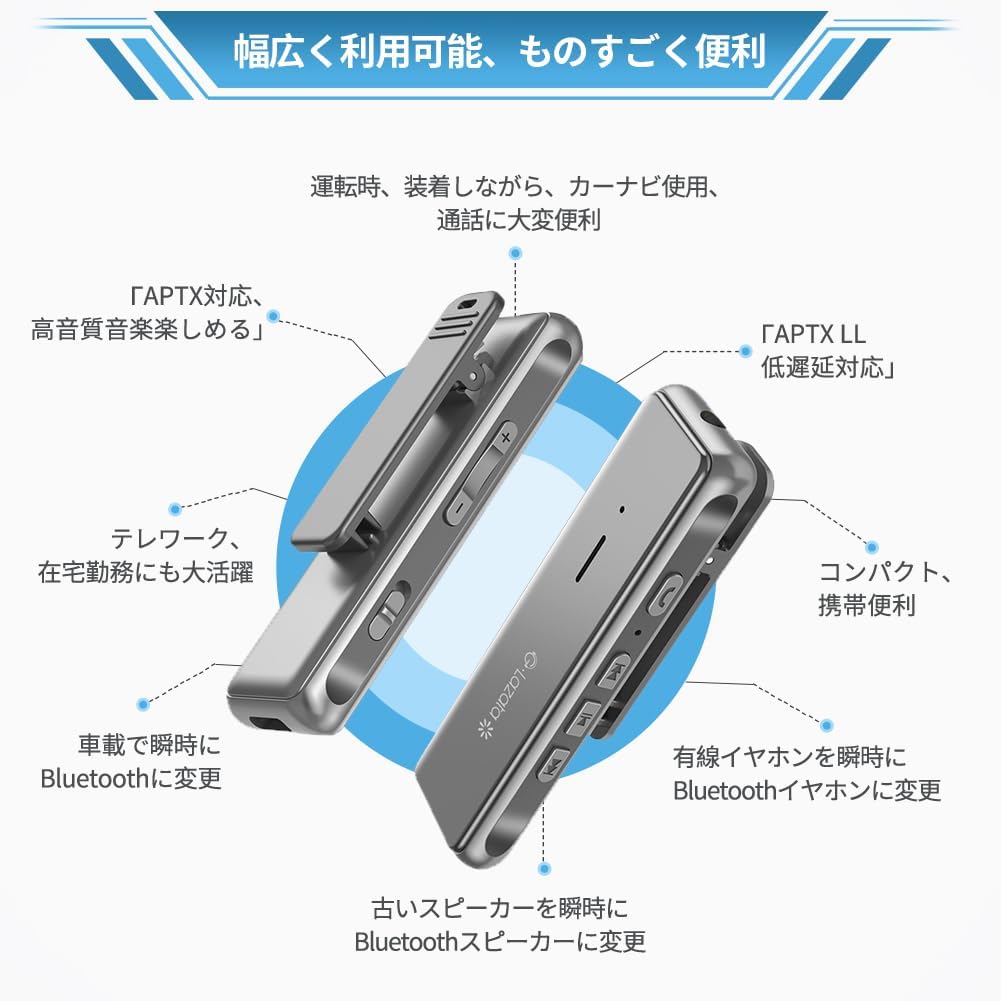
Image 4.3: Receiver use during mobile gaming for enhanced audio and communication.
5. Maintenance
- Keep the device dry. Moisture can damage the internal circuits.
- Do not expose the device to extreme temperatures.
- Clean the device with a soft, dry cloth. Avoid using harsh chemicals or abrasive cleaners.
- Store the device in a clean, dust-free environment when not in use.
6. Troubleshooting
6.1. No Sound After Connecting
- Ensure the receiver is properly paired with your device.
- Check the volume levels on both the receiver and your connected device.
- Verify that your smartphone or PC's operating system is up to date.
- In your Bluetooth settings, ensure that "Phone audio" and "Media audio" are enabled for the Glazata R80-N.

Image 6.1: Bluetooth settings for enabling audio output.
6.2. Call Functionality with Apps (e.g., LINE)
When making calls through certain communication applications (e.g., LINE), incoming call notifications may be heard through the earphones. However, functions such as microphone control, volume adjustment, answering calls, or hanging up may need to be managed directly from your smartphone, not the headset buttons. This is due to the software design of the application itself, not a defect in the earphone or receiver. This behavior is common across many wireless headsets.

Image 6.2: Information regarding call functionality with specific applications.
6.3. Other Issues
- Connection Instability: Ensure there are no obstructions between the receiver and the paired device. Reduce the distance between devices.
- Poor Audio Quality: Confirm that your source device supports aptX for optimal sound. Ensure the wired earphones are fully plugged into the receiver.
- Device Not Responding: Try resetting the device by powering it off and on. If issues persist, ensure the battery is charged.
7. Specifications
| Feature | Detail |
|---|---|
| Brand | Glazata |
| Model Number | R80-N |
| Connectivity Technology | Bluetooth |
| Compatible Devices | Speakers, Smartphones, Tablets |
| Audio Output Type | Speaker |
| Special Features | Built-in Bluetooth, MEMS High-Sensitivity Microphone, aptX/aptX-LL Support |
| Control Method | Remote |
| Batteries Included | Yes |
| Batteries Required | Yes |
| Color | Gray |
| Product Dimensions | 11.6 x 9.1 x 2.7 cm; 100 g |
8. Safety Information
- Do not disassemble, repair, or modify the device.
- Keep the device away from water, fire, and high temperatures.
- Dispose of batteries and the device according to local regulations.
- Avoid prolonged listening at high volume levels to prevent hearing damage.
9. Warranty and Support
For warranty information and customer support, please refer to the contact details provided with your purchase or visit the official Glazata website. Please retain your proof of purchase for warranty claims.