
OMOTON B0CYZH9WSN
OMOTON Ergonomic Wireless Keyboard User Manual
Model: B0CYZH9WSN
1. Introduction
This manual provides detailed instructions for the setup, operation, and maintenance of your OMOTON Ergonomic Wireless Keyboard. Please read this manual thoroughly before using the product to ensure proper function and longevity.
2. Product Overview
The OMOTON Ergonomic Wireless Keyboard is designed for comfort and efficiency, featuring a split layout and cushioned wrist rest to reduce strain during extended use. It connects wirelessly via a 2.4G USB receiver and includes a rechargeable battery.
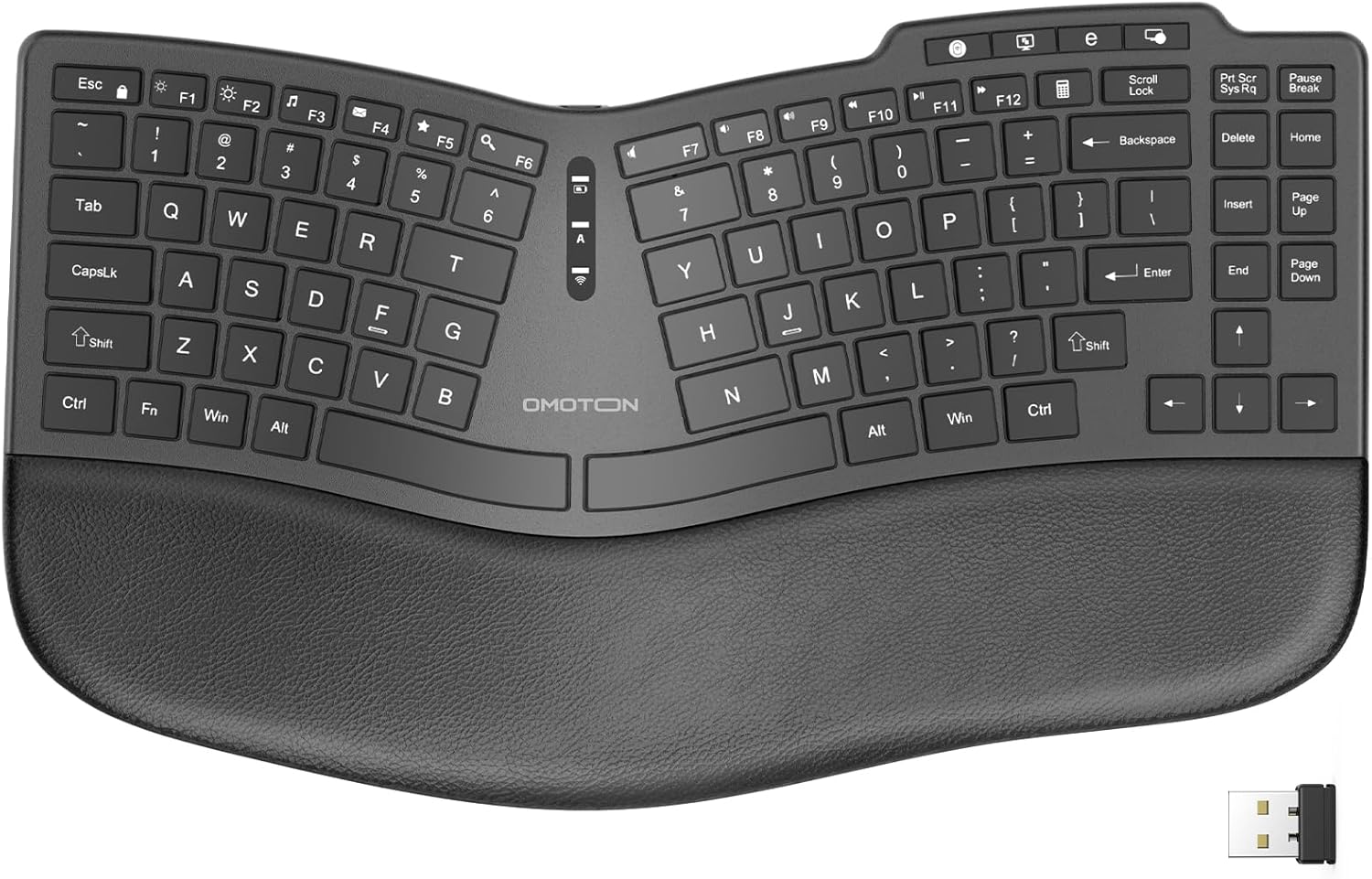
Figure 2.1: OMOTON Ergonomic Wireless Keyboard with its 2.4G USB receiver.
Key Features:
- Ergonomic Split Design: Promotes a natural hand and wrist posture.
- Cushioned Wrist Rest: Integrated soft memory foam for comfort.
- 2.4G Wireless Connectivity: Stable connection up to 10 meters.
- Rechargeable Battery: Built-in 500mAh battery with Type-C charging.
- Quiet Typing: Membrane key switches for reduced noise.
- Adjustable Tilt: 4 foldable feet for customizable typing angles.
3. Package Contents
Verify that all items are present in the package:
- OMOTON Ergonomic Wireless Keyboard
- 2.4G USB Receiver (located in the battery compartment on the back of the keyboard)
- USB-C Charging Cable
- User Manual (this document)
4. Setup Instructions
4.1 Charging the Keyboard
- Locate the USB-C charging port on the keyboard.
- Connect the provided USB-C cable to the keyboard and the other end to a USB power source (e.g., computer USB port, USB wall adapter).
- The charging indicator light will illuminate. Allow approximately 2-3 hours for a full charge. The indicator light will change or turn off once fully charged.
- A full charge typically provides about 1 month or longer of use, depending on usage frequency.
4.2 Connecting to Your Device
- Locate the 2.4G USB receiver. It is stored in a compartment on the back of the keyboard for safekeeping.
- Insert the USB receiver into an available USB port on your computer (desktop or laptop).
- The keyboard should automatically connect to your device. No additional drivers are typically required for Windows/PC systems.
- Ensure the keyboard's power switch (usually located on the back or side) is in the "ON" position.
5. Operating Instructions
5.1 Ergonomic Design Benefits
The split design and integrated wrist rest are engineered to promote a more natural hand and wrist position, reducing muscle strain and discomfort during prolonged typing sessions. Adjust the keyboard's tilt using the foldable feet to find your optimal typing angle.

Figure 5.1: Demonstrating comfortable typing posture with the ergonomic design.

Figure 5.2: Construction of the cushioned wrist rest for enhanced comfort.
5.2 Adjustable Tilt Angles
The keyboard features four foldable feet on the underside, allowing you to adjust the typing angle for personalized comfort. Experiment with different angles to find what works best for your posture.

Figure 5.3: Keyboard adjustable tilt angles.
5.3 Multimedia Keys and Function (Fn) Key Usage
The keyboard includes dedicated multimedia keys and function keys (F1-F12). By default, some keys may perform multimedia functions. To switch between multimedia functions and standard F1-F12 functions:
- Way 1: Press Fn + F1-F12 simultaneously for the desired function.
- Way 2: Press Fn + Esc to toggle the F1-F12 keys between multimedia and standard function modes.

Figure 5.4: Instructions for switching between multimedia and F1-F12 functions.
6. Maintenance
- Cleaning: Use a soft, dry, lint-free cloth to clean the keyboard surface. For stubborn dirt, slightly dampen the cloth with water or a mild cleaning solution. Avoid excessive moisture.
- Storage: When not in use for extended periods, store the keyboard in a cool, dry place.
- Battery Care: To prolong battery life, avoid fully discharging the keyboard frequently. Charge it when the low battery indicator appears.
- Avoid Liquids: Do not expose the keyboard to liquids, as this can cause damage.
7. Troubleshooting
| Problem | Possible Cause | Solution |
|---|---|---|
| Keyboard not responding | Low battery; USB receiver not connected; Keyboard power off; Driver issue. | Charge the keyboard; Ensure USB receiver is firmly plugged in; Turn on the keyboard; Try a different USB port; Restart your computer. |
| Lag or intermittent connection | Interference; Distance from receiver; Low battery. | Move closer to the receiver (within 10m); Ensure no large metal objects are between keyboard and receiver; Charge the keyboard. |
| Multimedia keys not working as expected | Function key mode is active. | Press Fn + Esc to toggle between multimedia and standard F1-F12 functions. |
8. Specifications
- Model: B0CYZH9WSN
- Connectivity: 2.4G Wireless USB
- Battery: 500mAh Lithium Polymer (Rechargeable)
- Charging Port: USB-C
- Operating Range: Up to 10 meters (33 feet)
- Keyboard Type: Ergonomic Split, Membrane
- Compatible Devices: PC, Laptops (Windows OS)
- Dimensions: Approximately 14.8 x 8.7 x 1.6 inches (L x W x H)
- Weight: Approximately 1.85 pounds
- Material: Plastic with cushioned wrist rest (fine grain leather, high-density support, memory foam)
9. Warranty and Support
OMOTON products come with a standard manufacturer's warranty. For specific warranty details, please refer to the product packaging or contact OMOTON customer support directly. If you encounter any issues or have questions not covered in this manual, please visit the official OMOTON website or contact their customer service for assistance.
OMOTON Official Website: Visit OMOTON Store on Amazon
Related documentsB0CYZH9WSN


Ask a question about this manual
Ask about setup, troubleshooting, compatibility, parts, safety, or missing instructions. Manuals+ will review the question and use this page’s manual context to help answer it.