
1. Introduction
The Hoco UA28 USB Bluetooth Adapter is designed to provide Bluetooth connectivity to your computer or laptop. This compact device allows you to connect various Bluetooth-enabled peripherals such as headphones, speakers, keyboards, mice, and gamepads wirelessly. It supports Bluetooth v5.1 and is backward compatible with older Bluetooth versions.
Key features include Plug and Play technology for easy installation, support for multiple simultaneous device connections, and automatic reconnection to previously paired devices.
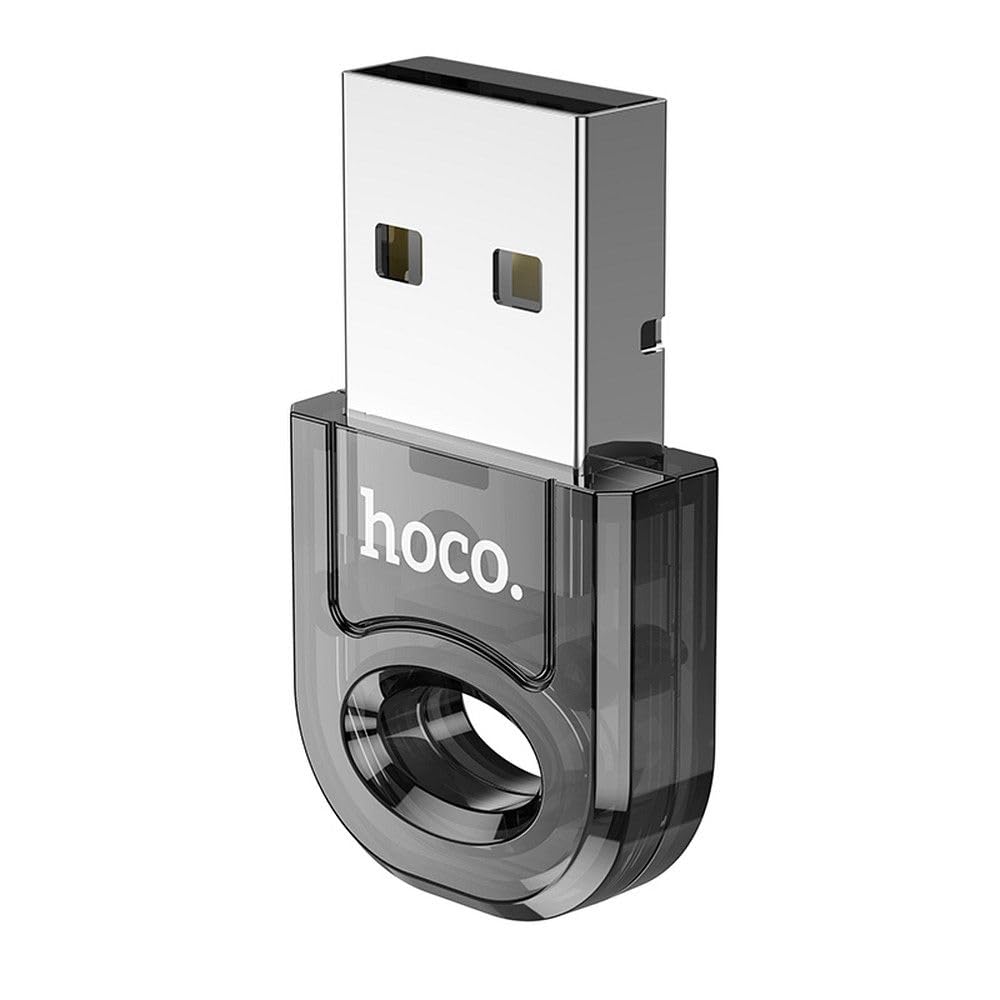
Image 1: The Hoco UA28 USB Bluetooth Adapter, a compact device for adding Bluetooth functionality to computers.
2. Setup and Installation
The Hoco UA28 USB Bluetooth Adapter is designed for straightforward installation using Plug and Play technology. Follow these steps to set up your adapter:
- Insert the Adapter: Plug the Hoco UA28 USB Bluetooth Adapter into an available USB-A port on your desktop computer or laptop.
- Automatic Recognition: For most modern operating systems (Windows 8 and above, macOS, Linux), the system will automatically detect and install the necessary drivers. No manual driver installation is typically required.
- Windows 7 Driver Installation: If you are using Windows 7, driver installation may be necessary. Please refer to the troubleshooting section or the product packaging for driver download instructions. You can also visit the official Hoco website for support.

Image 2: The Hoco UA28 USB Bluetooth Adapter plugged into a laptop's USB port, ready for use.
3. Operating Instructions
Once the Hoco UA28 adapter is installed, you can begin connecting your Bluetooth devices:
- Enable Bluetooth: Ensure Bluetooth is enabled on your computer. This is usually found in your operating system's settings or control panel.
- Pairing Mode: Put your Bluetooth device (e.g., headphones, speaker, mouse) into pairing mode. Refer to your device's manual for specific instructions on how to do this.
- Search for Devices: On your computer, search for new Bluetooth devices. The Hoco UA28 adapter will facilitate this search.
- Select and Connect: Select your device from the list of available Bluetooth devices and follow any on-screen prompts to complete the pairing process.
- Multi-Device Support: The adapter can connect to multiple Bluetooth devices simultaneously.
- Automatic Reconnection: The adapter remembers previously connected devices and will automatically attempt to reconnect to them when they are within range and Bluetooth is enabled.
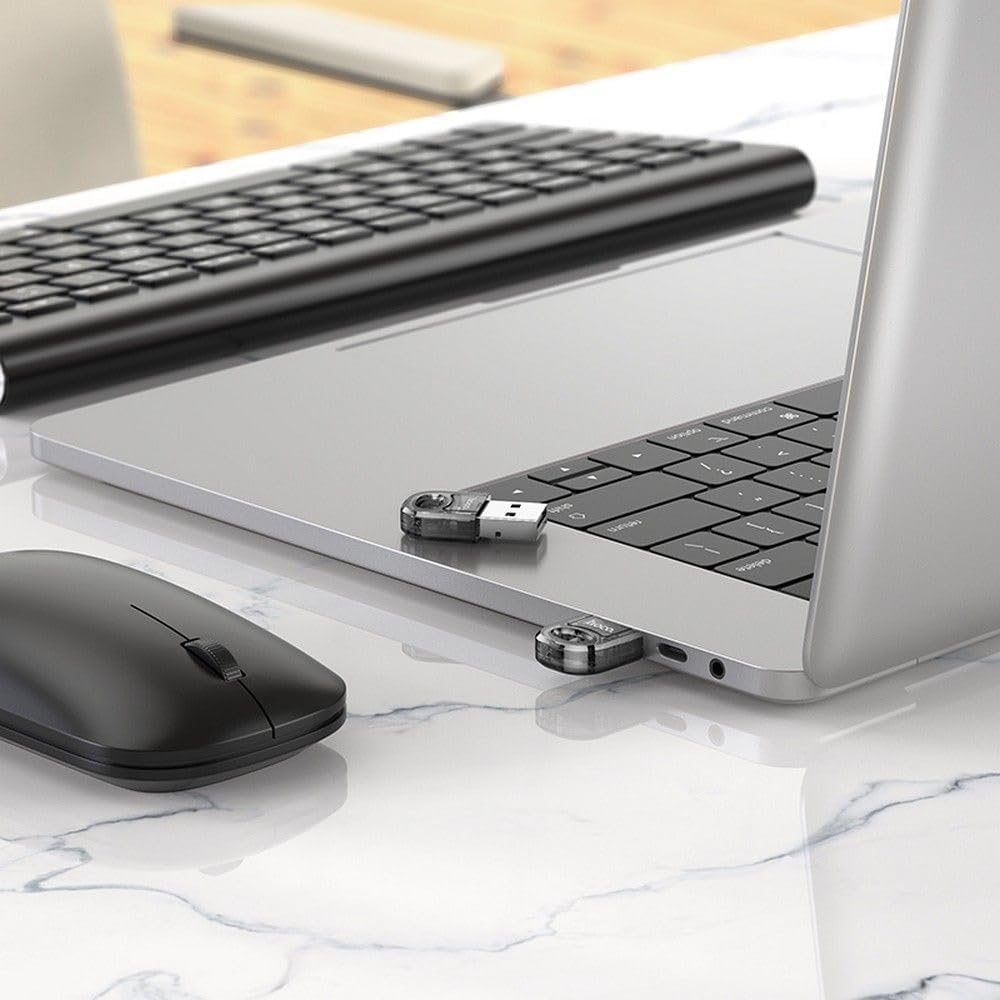
Image 3: The Hoco UA28 USB Bluetooth Adapter enabling wireless connectivity for a mouse and keyboard with a laptop.
4. Specifications
Below are the technical specifications for the Hoco UA28 USB Bluetooth Adapter:
| Feature | Detail |
|---|---|
| Brand | Hoco |
| Model Number | UA28 |
| Interface | USB-A |
| Bluetooth Version | v5.1 (backward compatible) |
| Range | 10-20 meters |
| Material | Synthetic material |
| Compatible Devices | Desktop, Laptop |
| Data Transfer Rate | 3 Mbps |
| Number of Items | 1 |
| Part Number | 6942007618335 |
| ASIN | B0CYYF2LBH |
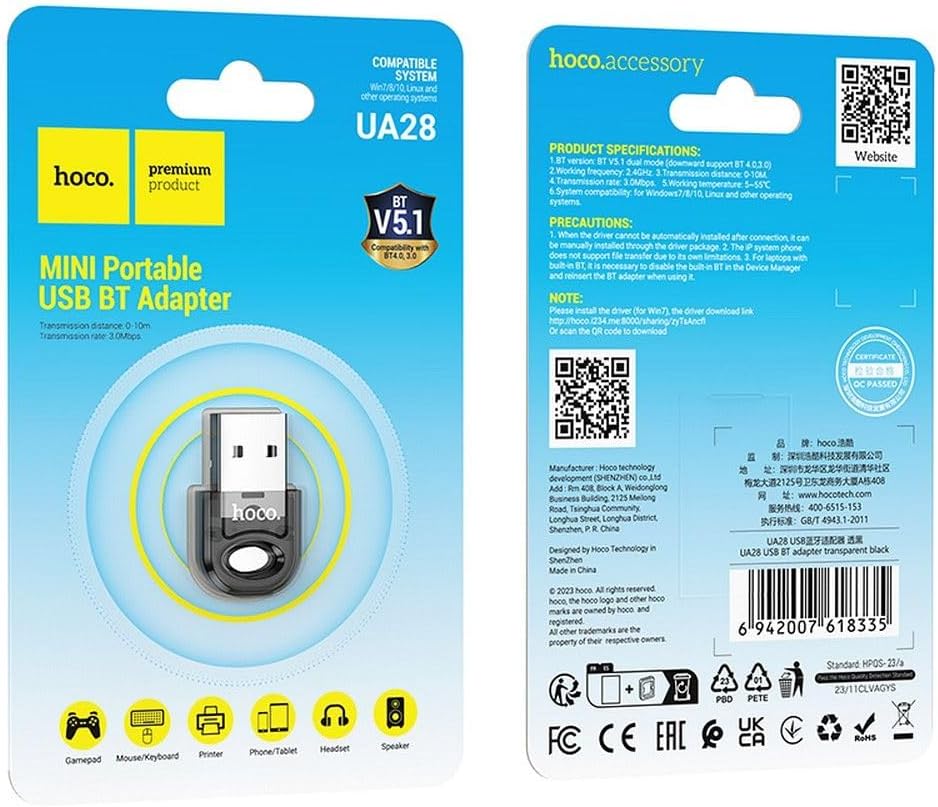
Image 4: Product packaging displaying detailed specifications and compatibility information for the Hoco UA28 adapter.
5. Troubleshooting
If you encounter issues with your Hoco UA28 USB Bluetooth Adapter, consider the following troubleshooting steps:
- No Bluetooth Devices Found:
- Ensure the adapter is securely plugged into a USB port.
- Verify that Bluetooth is enabled in your computer's settings.
- Make sure the device you are trying to connect is in pairing mode and within the 10-20 meter range.
- Driver Issues (Windows 7):
- For Windows 7, manual driver installation is required. You can download the driver from the official Hoco website or use the provided link: http://hoco.i234.me:8000/sharing/zyTsAncfl. Alternatively, scan the QR code found on the product packaging.
- Interference with Built-in Bluetooth (Laptops):
- If your laptop has a built-in Bluetooth 4.0 module, it is recommended to disable the built-in Bluetooth in your computer's Device Manager before using the Hoco UA28 adapter. Reinsert the UA28 adapter after disabling the internal Bluetooth.
- File Transfer Limitations:
- Note that IP system phones may not support file transfer via Bluetooth due to their inherent limitations. This is not a defect of the Hoco UA28 adapter.
6. Maintenance
To ensure the longevity and optimal performance of your Hoco UA28 USB Bluetooth Adapter, follow these simple maintenance guidelines:
- Keep Clean: Regularly wipe the adapter with a soft, dry cloth to remove dust and debris. Avoid using liquid cleaners.
- Store Properly: When not in use, store the adapter in a cool, dry place away from direct sunlight and extreme temperatures.
- Handle with Care: Avoid dropping the adapter or subjecting it to strong impacts, which could damage internal components.
- Avoid Moisture: Do not expose the adapter to water or high humidity.
7. Warranty and Support
The Hoco UA28 USB Bluetooth Adapter comes with a Hoco Standard Warranty. For detailed information regarding warranty terms and conditions, please refer to the warranty card included with your product or visit the official Hoco website.
For further assistance, technical support, or to access additional resources, please visit the official Hoco website:


