
WREANU Wireless Bluetooth Mouse
WREANU Dual Mode Wireless Bluetooth Mouse User Manual
Model: Wireless Bluetooth Mouse
Brand: WREANU
1. Product Overview
The WREANU Dual Mode Wireless Bluetooth Mouse offers versatile connectivity and ergonomic design for enhanced productivity. Featuring both Bluetooth (BT5.2/3.0) and 2.4G wireless modes, it allows seamless switching between two devices. Its silent click design ensures a quiet working environment, while the vibrant LED breathing lights add a stylish touch. The mouse is rechargeable, eliminating the need for disposable batteries, and offers adjustable DPI levels for precise control.

Image 1.1: Overview of the WREANU Dual Mode Wireless Bluetooth Mouse.

Image 1.2: Detailed view of mouse components including Left Button, Anti-Slip Scroller, DPI Switch, Mode Switch, Ting USB Receiver, and Durable Smooth Gliding Pad.
2. Setup Instructions
2.1. Charging the Mouse
Before first use, ensure the mouse is fully charged. Connect the included USB charging cable to the mouse's charging port and to a USB power source (e.g., computer USB port, USB wall adapter). A full charge takes approximately 2 hours.
Note: Do not use a high-power or fast charger.

Image 2.1: The mouse being charged via its USB charging cable.
2.2. Connecting via 2.4G Wireless Mode
- Locate the 2.4G USB receiver stored inside the back of the mouse.
- Plug the USB receiver into an available USB port on your computer or device.
- Slide the mode switch on the bottom of the mouse to the '2.4G' position.
- The mouse will automatically connect. No driver installation is required.
2.3. Connecting via Bluetooth Mode (BT5.2/3.0)
- Slide the mode switch on the bottom of the mouse to the 'Bluetooth' position.
- On your device (laptop, iPad, tablet, etc.), turn on Bluetooth.
- Search for new Bluetooth devices and select 'Wireless Mouse' (or similar name) from the list.
- The mouse will pair automatically.
Note: Bluetooth mode and 2.4G mode cannot be used simultaneously.

Image 2.2: Illustration of the dual mode connectivity, supporting both 2.4G wireless and Bluetooth 3.0/5.2.
3. Operating Instructions
3.1. Adjusting DPI (Sensitivity)
The mouse features 3 adjustable DPI levels (800 / 1200 / 1600 DPI) for customized cursor speed and precision. Press the 'DPI Switch' button (located behind the scroll wheel) to cycle through the available DPI settings.
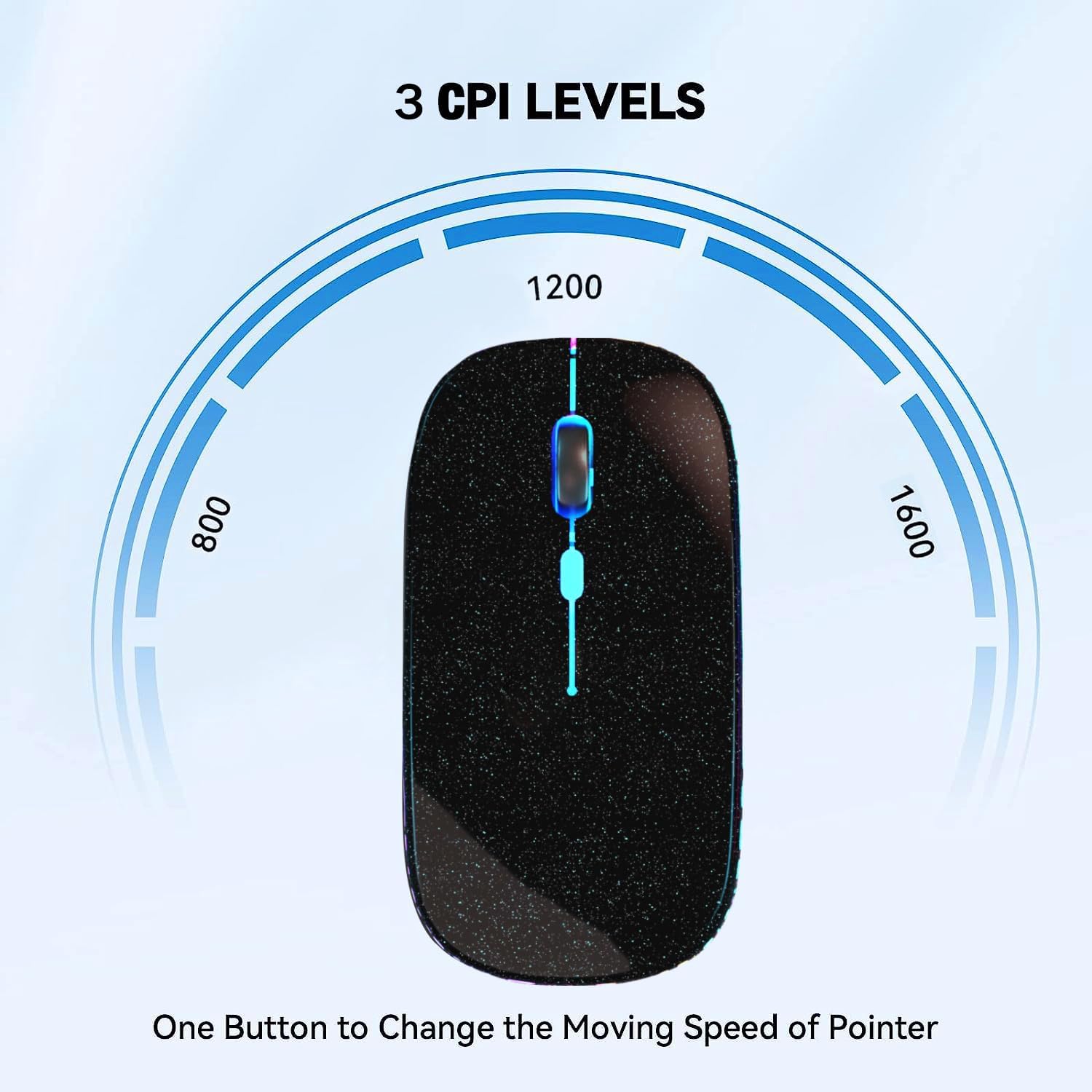
Image 3.1: Visual representation of the three adjustable DPI levels (800, 1200, 1600).
3.2. Silent Click Feature
The mouse is designed with silent click technology, reducing click noise by up to 90%. This feature is ideal for quiet environments such as libraries, offices, or late-night use, ensuring you can focus on your work without disturbing others.
3.3. LED Breathing Lights
The mouse incorporates 7 different LED colorful breathing lights that change randomly during use, creating a dynamic and visually appealing atmosphere. These lights enhance the aesthetic appeal of your workspace.
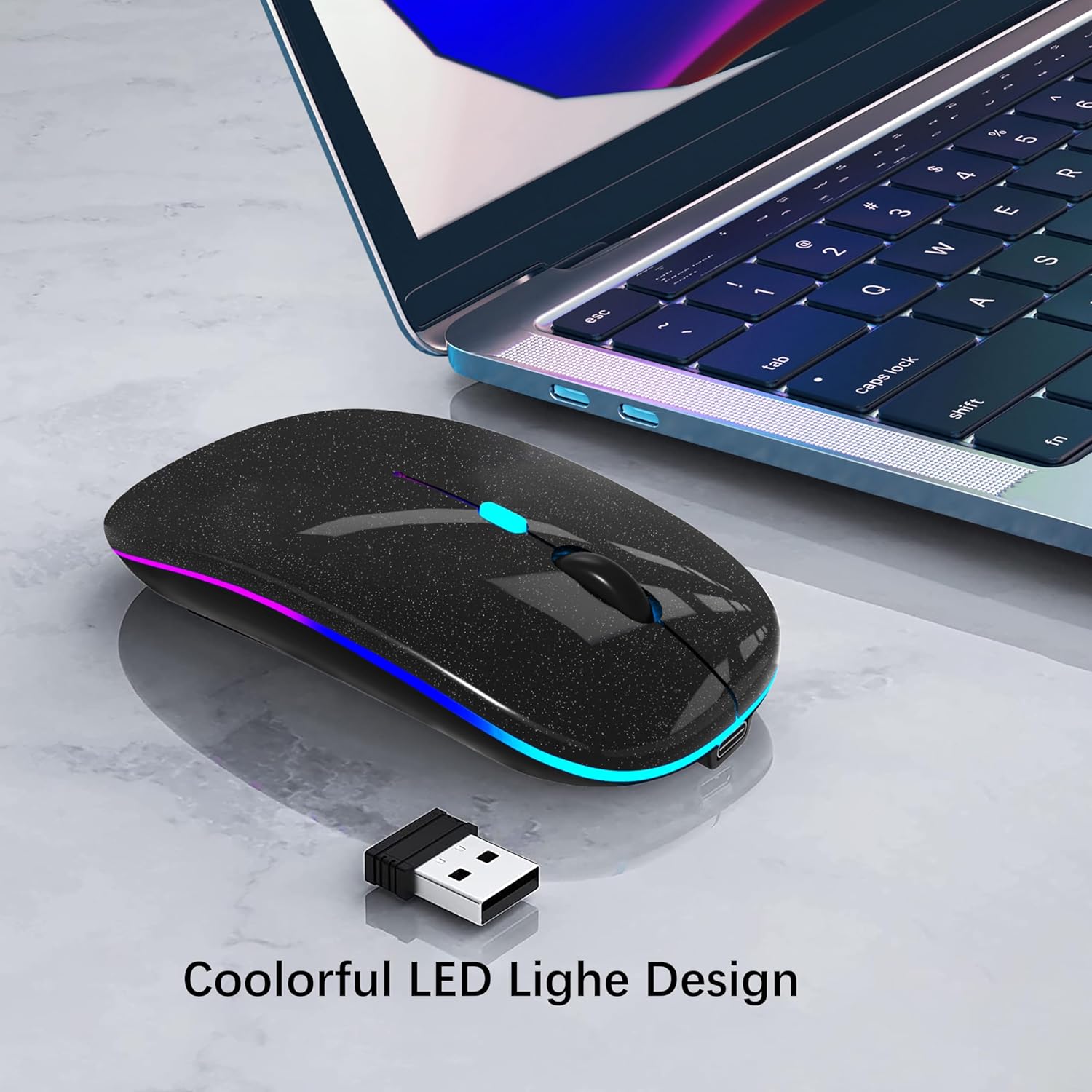
Image 3.2: The mouse showcasing its colorful LED breathing light design.
4. Battery and Charging
The mouse is equipped with a durable 500 mAh rechargeable battery. A single 2-hour charge can provide over 7 days of working time and up to 30 days of standby time.
4.1. Power Saving Mode
To conserve power, the mouse will enter a sleep state after 5 minutes of inactivity. To wake the mouse, simply click any button.
5. Compatibility
This wireless Bluetooth mouse offers wide compatibility with various devices and operating systems, including:
- Laptops
- PCs
- Tablets (iPad, Android tablets)
- Mac devices (Mac OS)
- iPhones
- Chromebooks
- Windows (Vista and newer)
- Linux
6. Maintenance and Care
- Cleaning: Use a soft, dry cloth to clean the mouse surface. Avoid harsh chemicals or abrasive materials.
- Storage: When not in use for extended periods, store the mouse in a cool, dry place.
- Handling: The mouse features an anti-fingerprint surface coating for comfort. Handle with care to maintain its appearance and functionality.
7. Troubleshooting
| Problem | Possible Cause | Solution |
|---|---|---|
| Mouse not connecting/responding | Low battery; Incorrect mode selected; USB receiver not properly inserted; Bluetooth not enabled/paired. | Charge the mouse; Ensure mode switch is correct (2.4G or Bluetooth); Re-insert USB receiver; Re-pair via Bluetooth settings. |
| Cursor lag or erratic movement | Low battery; Surface not suitable; Interference. | Charge the mouse; Use on a smooth, non-reflective surface or mouse pad; Move closer to the receiver/device; Reduce other wireless interference. |
| Scroll wheel not working | Low battery; Software issue. | Charge the mouse; Restart your device; Check device settings for mouse scroll options. |
| LED lights not working | Mouse is off or in sleep mode. | Turn on the mouse or click a button to wake it from sleep. |
8. Specifications
- Product Dimensions: 4.4 x 2.3 x 0.1 inches
- Item Weight: 2.3 ounces
- Connectivity Technology: Wireless, Bluetooth (BT5.2/3.0), USB (2.4G receiver)
- Special Features: Rechargeable, LED Lights, Silent Click, Dual Mode
- Movement Detection Technology: Optical
- Battery: Built-in 500 mAh Rechargeable Lithium Battery
- DPI Levels: 800 / 1200 / 1600
9. What's in the Box
- 1 x Dual Mode Optical Computer Mouse
- 1 x 2.4G USB Receiver (Stored inside the back of the mouse)
- 1 x USB Charging Cable
- 1 x User Manual
10. Warranty and Support
For warranty information or technical support, please contact WREANU customer service through the retailer's platform or visit the official WREANU website. Please retain your proof of purchase for warranty claims.
Ask a question about this manual
Ask about setup, troubleshooting, compatibility, parts, safety, or missing instructions. Manuals+ will review the question and use this page’s manual context to help answer it.