
VGN N75BLUE
VGN N75 Gaming Keyboard User Manual
Model: N75BLUE | Brand: VGN
1. Introduction
Welcome to the user manual for your VGN N75 Gaming Keyboard. This manual provides essential information on setting up, operating, maintaining, and troubleshooting your new keyboard. The VGN N75 is a compact, numeric keyless mechanical keyboard designed for an optimal gaming and typing experience.

Figure 1.1: VGN N75 Gaming Keyboard with RGB lighting enabled.

Figure 1.2: Angled view of the VGN N75 keyboard, highlighting its compact form factor.
2. Safety Information
Please read the following safety guidelines carefully before using your VGN N75 keyboard:
- Keep the keyboard away from liquids and excessive moisture to prevent damage.
- Avoid exposing the keyboard to extreme temperatures (hot or cold).
- Do not attempt to disassemble or modify the keyboard. This may void your warranty and cause damage.
- Use only the provided USB-C cable for connection.
- Handle with care to prevent physical damage from drops or impacts.
3. Product Features
The VGN N75 keyboard is engineered with several features to enhance your typing and gaming experience:
- Compact 75% Layout: The US82 key numeric keyless design offers a space-saving solution compared to full-size keyboards, providing more desk space for mouse movement.
- Advanced Internal Construction: Features multiple buffer layers and specially tuned stabilizers for a smooth, quiet, and consistent typing experience.
- VGN "Dynamic Silver" Mechanical Switches: Equipped with VGN's original linear mechanical switches, offering a responsive feel and vibrant RGB illumination.
- Distinctive Design: The "Caribbean Blue" model features striking keycap colors, adding a unique aesthetic to your setup.
- Integrated Metal Volume Knob: A conveniently located metal rotary knob allows for quick and precise volume adjustments, useful for both work and gaming.
- Customizable RGB Lighting: Enjoy dynamic and customizable RGB backlight options to personalize your keyboard's appearance.

Figure 3.1: The compact 75% layout of the VGN N75, demonstrating its space-saving advantage over a traditional full-size keyboard.

Figure 3.2: Detail of the VGN N75's unique "Dynamic Silver" mechanical switches, known for their linear feel and RGB compatibility.

Figure 3.3: An exploded diagram illustrating the multiple buffer layers and components within the VGN N75 keyboard, contributing to its smooth and quiet operation.

Figure 3.4: Close-up of the metal volume knob, providing convenient audio control.
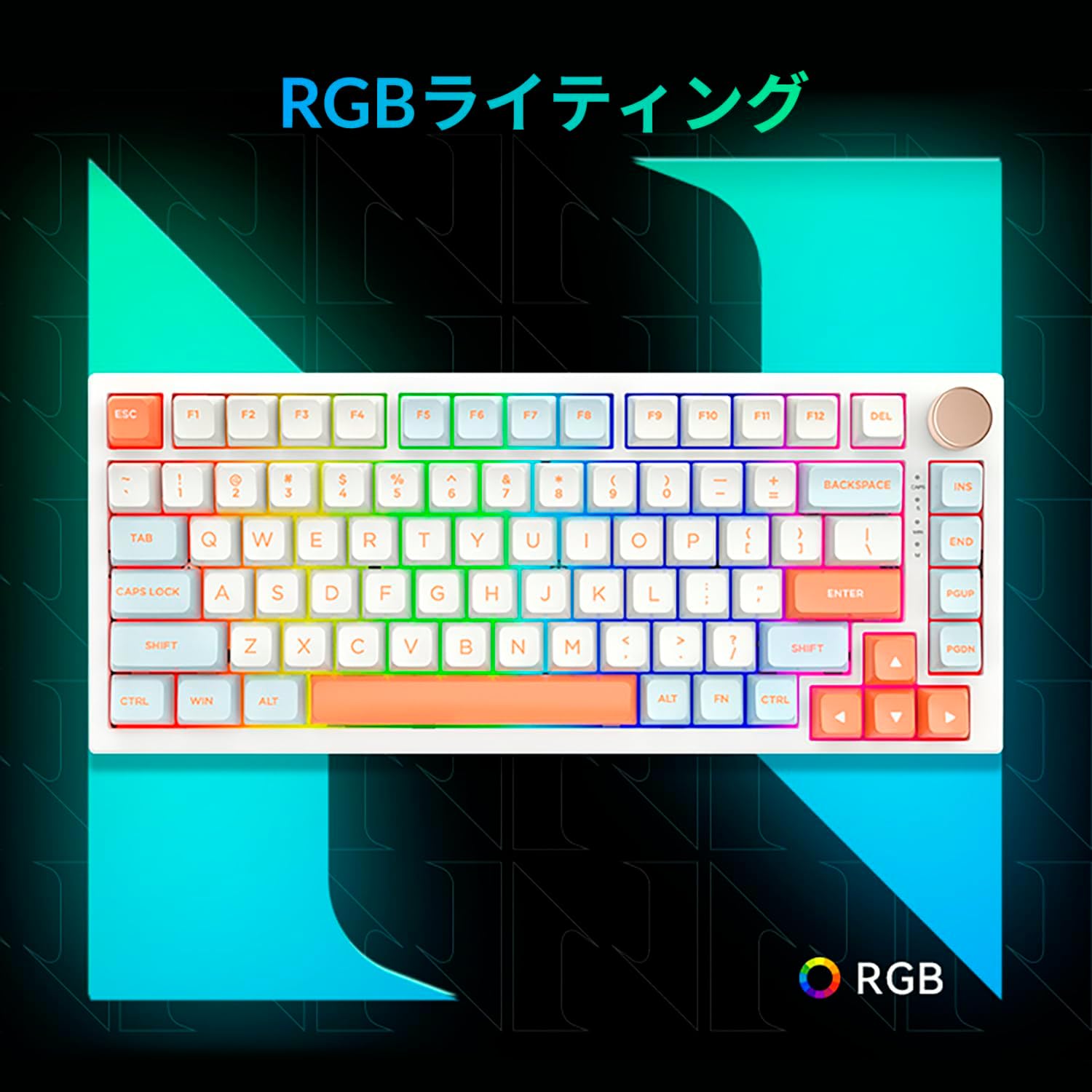
Figure 3.5: The VGN N75 keyboard displaying its customizable RGB lighting, enhancing the visual appeal.
4. Setup Guide
Follow these steps to set up your VGN N75 keyboard:
- Unpack the Keyboard: Carefully remove the keyboard and all included accessories (USB cable, keycap puller, replacement key) from the packaging.
- Connect the USB-C Cable: Insert one end of the provided USB-C cable into the USB-C port on the keyboard.
- Connect to Your Device: Plug the other end of the USB-C cable into an available USB port on your computer or laptop.
- Driver Installation (Automatic): The keyboard is plug-and-play. Your operating system should automatically detect and install the necessary drivers. No manual driver installation is typically required.
- Initial Test: Open a text editor or any application to test the keys and ensure all functions are working correctly.
5. Operating Instructions
This section details the basic operation of your VGN N75 keyboard:
5.1. Basic Key Functions
The VGN N75 features a standard US82 key layout. All keys function as labeled. For specific key combinations or software-defined macros, refer to any accompanying software documentation (if applicable, not included in this manual).
5.2. Using the Rotary Knob
- Volume Control: Rotate the knob clockwise to increase volume and counter-clockwise to decrease volume.
- Mute/Unmute: Press the knob to mute or unmute audio.
5.3. RGB Lighting Control
The VGN N75 supports RGB lighting. While specific key combinations for lighting modes are not provided in the product description, most RGB keyboards allow cycling through effects using function key combinations (e.g., Fn + F-keys or dedicated lighting keys). Experiment with the 'Fn' key in combination with other keys (like arrow keys or Ins/Del/Home/End/PgUp/PgDn) to discover lighting controls.
6. Maintenance
Proper maintenance will extend the lifespan of your keyboard:
- Cleaning:
- Disconnect the keyboard from your computer before cleaning.
- Use a soft, lint-free cloth slightly dampened with water or a mild cleaning solution to wipe the keycaps and frame.
- For dust and debris between keys, use compressed air.
- Do not spray liquid directly onto the keyboard.
- Keycap and Switch Replacement:
- The keyboard comes with a keycap puller and a replacement key.
- To remove a keycap, gently use the keycap puller to grip the keycap and pull upwards.
- To replace a keycap, align it with the switch stem and press down firmly until it clicks into place.
- Note: The VGN N75 features hot-swappable switches, allowing for easy replacement without soldering. To remove a switch, use a switch puller (not explicitly listed as included, but implied by "hot-swappable") to gently pry it out. Align the new switch's pins with the sockets and press firmly until it seats correctly.
7. Troubleshooting
If you encounter issues with your VGN N75 keyboard, try the following solutions:
- Keyboard Not Responding:
- Ensure the USB-C cable is securely connected to both the keyboard and your computer.
- Try plugging the keyboard into a different USB port on your computer.
- Restart your computer.
- Test the keyboard on another computer to rule out a system-specific issue.
- Keys Not Registering:
- Check for any physical obstructions under the keycap.
- If a specific key is not working, consider replacing its switch if you have a switch puller and replacement switches.
- RGB Lighting Issues:
- Ensure the keyboard is properly powered.
- Try cycling through lighting modes using the keyboard's function key combinations.
- Rotary Knob Not Working:
- Check for any physical obstructions around the knob.
- Ensure the keyboard is properly connected.
8. Specifications
| Attribute | Detail |
|---|---|
| Brand | VGN |
| Model Number | N75BLUE |
| Series | N75 |
| Colour | Blue |
| Keyboard Description | Mechanical |
| Number of Keys | 82 |
| Connectivity Technology | USB-C |
| Power Source Type | USB power |
| Compatible Devices | Laptop |
| Recommended Product Uses | Gaming |
| Keyboard Backlight Colour Support | RGB |
| Material | Plastic |
| Included Components | Keycap Puller, Replacement Key, USB Cable |
| Package Dimensions | 42.1 x 18.8 x 6.5 cm; 1.1 kg |
| Date First Available | 22 March 2024 |
9. Warranty and Support
The VGN N75 Gaming Keyboard comes with a 1-year warranty from the date of purchase, as indicated in the product listing. This warranty covers manufacturing defects under normal use.
For warranty claims, technical support, or further inquiries, please contact your point of purchase or the official VGN support channels. Keep your proof of purchase for warranty validation.
Note: Unauthorized disassembly or modification of the product may void the warranty.
Ask a question about this manual
Ask about setup, troubleshooting, compatibility, parts, safety, or missing instructions. Manuals+ will review the question and use this page’s manual context to help answer it.