
1. Introduction
This manual provides detailed instructions for the RALAN Wireless Controller. Please read this manual carefully before using the product to ensure proper operation and to maximize your gaming experience. This controller is designed for use with Xbox One S/X, Xbox Series S/X, and Windows PC.
2. Package Contents
- RALAN Wireless Controller
- 2.4G Wireless Adapter
- USB Charging Cable
- Interchangeable Button Sets (5 sets)
- Instruction Manual (this document)
3. Product Overview
Familiarize yourself with the controller's layout and functions.
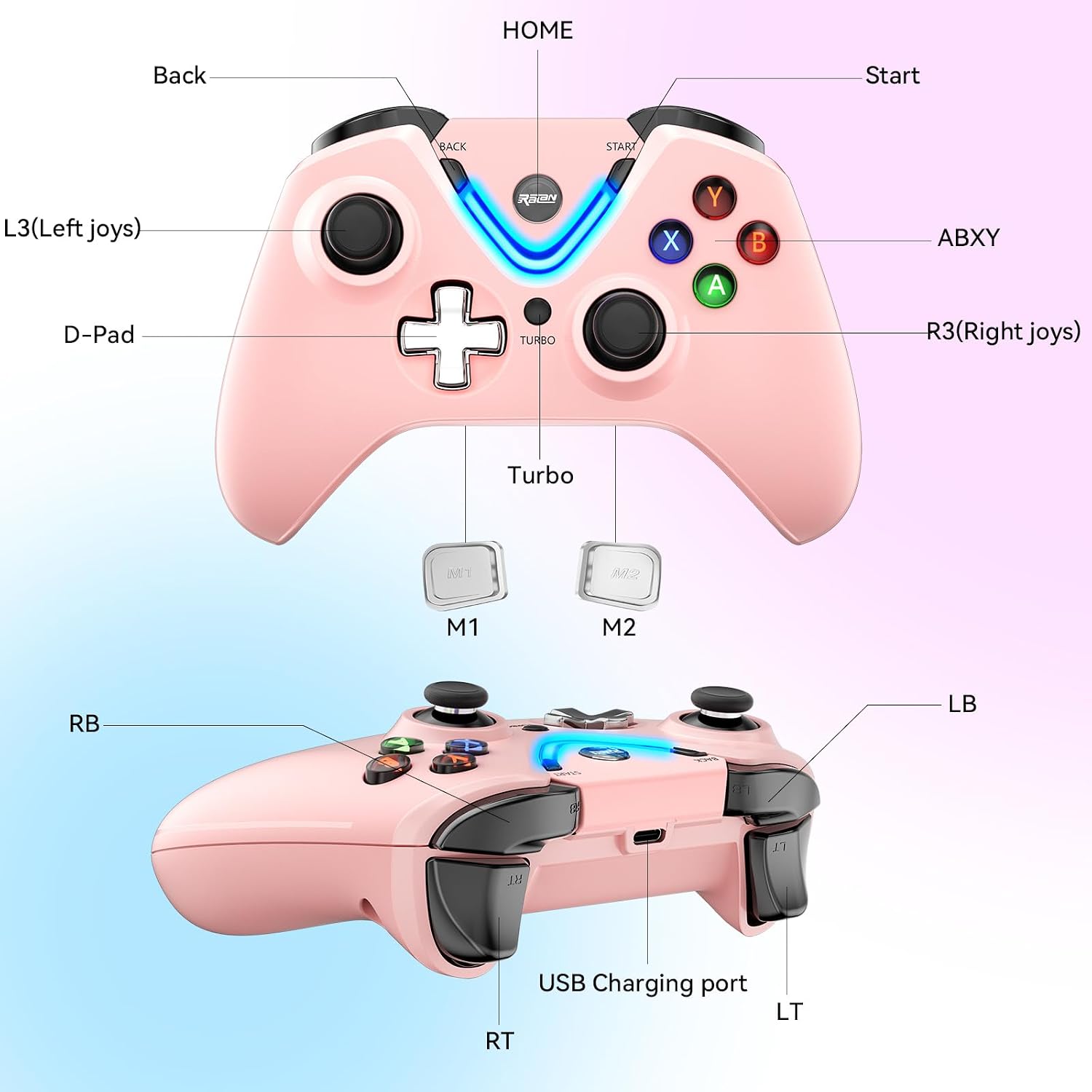
Figure 3.1: Controller Layout - This image displays the RALAN Wireless Controller from a top-down and angled view, with various buttons and ports clearly labeled. Key labels include HOME, Start, Back, L3 (Left joystick), R3 (Right joystick), D-Pad, ABXY buttons, Turbo button, M1/M2 paddles, RB/LB (shoulder buttons), RT/LT (triggers), and the USB Charging port.
Key Components:
- HOME Button: Powers on/off the controller and accesses system menus.
- Start/Back Buttons: Standard menu navigation.
- ABXY Buttons: Standard action buttons.
- D-Pad: Directional pad for precise movement.
- L3/R3 Joysticks: ALPS joysticks with Hall Effect sensing triggers for precise control and durability.
- LB/RB Buttons: Left and Right Bumper buttons.
- LT/RT Triggers: Left and Right Trigger buttons.
- Turbo Button: Activates/deactivates turbo function for rapid button presses.
- M1/M2 Paddles: Programmable back paddles.
- USB Charging Port: For charging the controller's internal battery.
- 3.5mm Audio Jack: For connecting compatible headsets.
4. Setup and Connection
4.1 Charging the Controller
Before first use, fully charge the controller. Connect the USB charging cable to the controller's USB charging port and to a power source (e.g., console, PC, USB wall adapter). The charging indicator will show the charging status and turn off when fully charged. A full charge takes approximately 2 hours.
4.2 Connecting to Xbox One S/X or Xbox Series S/X
- Insert the 2.4G wireless adapter into an available USB port on your Xbox console.
- Press the HOME button on the controller to power it on. The controller will automatically attempt to connect to the wireless adapter.
- Once connected, the indicator light on the controller will become solid.
4.3 Connecting to Windows PC
- Insert the 2.4G wireless adapter into an available USB port on your Windows 10 PC.
- The PC will automatically install the necessary drivers. This may take a few moments.
- Press the HOME button on the controller to power it on. The controller will automatically attempt to connect to the wireless adapter.
- Once connected, the indicator light on the controller will become solid, and it will be recognized as a gamepad by your PC.

Figure 4.1: Compatibility Overview - This image illustrates the RALAN Wireless Controller's compatibility with Xbox One, Xbox Series S, Xbox Series X, and Windows PC, showing the controller and its 2.4G wireless adapter alongside each system.
5. Operating Instructions
5.1 Headset Connection
The controller features a 3.5mm audio jack. Plug any compatible headset directly into this port for in-game audio and chat functionality.

Figure 5.1: 3.5mm Audio Jack Usage - This image shows a person playing a game with the RALAN Wireless Controller, highlighting the 3.5mm audio jack where a headset is connected.
5.2 Macro Programming Function
The controller includes a macro programming function for executing a series of commands quickly. Refer to the specific instructions below for programming the M1 and M2 back paddles:
- Press and hold the Macro Program Button (refer to Figure 3.1 for location) until the indicator light blinks.
- Press the M1 or M2 paddle you wish to program. The indicator light will blink slower.
- Input the sequence of buttons you want to record (e.g., A, B, X, Y).
- Press the Macro Program Button again to save the macro. The indicator light will stop blinking.
- To use the macro, simply press the programmed M1 or M2 paddle.
5.3 Turbo Function
The Turbo button allows for rapid, repeated input of a specific button. To activate or deactivate the Turbo function:
- Press and hold the button you wish to apply Turbo to (e.g., A button).
- While holding the button, press the Turbo button (refer to Figure 3.1). The button will now rapidly repeat its input when held down.
- To deactivate Turbo for that button, repeat the process: hold the button and press the Turbo button again.
5.4 Vibration Adjustment
The controller features dual-motor vibration feedback. The intensity of the vibration can be adjusted:
- To adjust vibration intensity, press and hold the R3 (Right Stick) and simultaneously move the Left Stick up or down.
- Moving the Left Stick up will increase vibration intensity.
- Moving the Left Stick down will decrease vibration intensity.

Figure 5.2: Dual-Motor Vibration - This image displays the RALAN Wireless Controller with visual indicators of dual-motor vibration, emphasizing the realistic gaming experience provided by this feature.
5.5 Interchangeable Buttons
The controller comes with five sets of interchangeable buttons, offering different tactile sensations and heights. To change buttons:
- Gently pull the existing button caps off the joysticks.
- Select your preferred button caps from the provided sets.
- Align the new button caps with the joystick shafts and press them firmly into place.

Figure 5.3: Interchangeable Buttons - This image shows the RALAN Wireless Controller alongside several sets of interchangeable buttons, demonstrating the customization options for tactile feel and height.
6. Maintenance
- Keep the controller clean by wiping it with a soft, dry cloth. Avoid using harsh chemicals or abrasive materials.
- Store the controller in a dry place, away from direct sunlight and extreme temperatures.
- Avoid dropping the controller or subjecting it to strong impacts.
- Do not attempt to disassemble the controller, as this may void the warranty and cause damage.
7. Troubleshooting
7.1 Controller Not Connecting
- Ensure the 2.4G wireless adapter is securely plugged into the console/PC.
- Make sure the controller is powered on and has sufficient battery charge.
- Try restarting your console/PC and the controller.
- Ensure the controller is within the 9-meter operating range of the wireless adapter.
- If on PC, check Device Manager to ensure the controller drivers are installed correctly.
7.2 Input Lag or Disconnections
- Move closer to the wireless adapter to ensure a strong signal.
- Ensure there are no strong sources of interference (e.g., other wireless devices, microwaves) nearby.
- Check for any physical obstructions between the controller and the adapter.
7.3 Buttons or Joysticks Not Responding
- Ensure the controller is fully charged.
- Restart the controller and reconnect it.
- For joysticks, the ALPS joysticks and Hall Effect sensing triggers are designed for high precision and durability (up to 50 million clicks) to prevent dead zones or drift. If issues persist, contact support.
7.4 Headset Audio Issues
- Ensure the headset is fully plugged into the 3.5mm audio jack.
- Check the audio settings on your console/PC to ensure the controller's audio output is selected and volume levels are appropriate.
- Test the headset with another device to confirm it is functioning correctly.
8. Specifications
| Feature | Description |
|---|---|
| Model Number | RALAN |
| Compatibility | Xbox One S/X, Xbox Series S/X, Windows PC (Windows 10) |
| Connectivity | 2.4G Wireless Adapter |
| Wireless Range | Up to 9 meters (30 feet) |
| Battery | Built-in 3.7V 700mAh Lithium-ion |
| Charging Time | Approximately 2 hours |
| Playtime | 8-10 hours (approximate) |
| Audio Port | 3.5mm Headphone Jack |
| Joysticks | ALPS Joysticks with Hall Effect Sensing Triggers |
| Joystick Lifespan | Up to 50 million clicks |
| Special Features | Macro Programming (M1/M2 paddles), Turbo Function, Dual-Motor Vibration (adjustable), Interchangeable Buttons, Anti-skid Design |
| Dimensions (L x W x H) | 10.16 x 7.62 x 0.25 cm |
| Weight | 350 grams |
| Country of Origin | China |
9. Warranty and Support
For warranty information and technical support, please refer to the documentation provided with your purchase or contact RALAN customer service through the retailer where the product was purchased. Keep your proof of purchase for warranty claims.
