Introduction
This manual provides essential information for the installation, operation, and maintenance of your Kingston Fury Beast RGB 64GB (2x32GB) 6400MT/s DDR5 CL32 Desktop Memory kit. Please read these instructions carefully before proceeding to ensure optimal performance and system stability.
Product Overview
The Kingston Fury Beast RGB DDR5 memory kit is designed to deliver high-speed performance and enhanced aesthetics for desktop systems. Key features include:
- Enhanced RGB lighting with a new heat spreader design.
- Patented Kingston FURY Infrared Sync Technology for synchronized lighting effects.
- Improved stability for overclocking.
- Intel XMP 3.0 certified for easy overclocking on compatible platforms.
- AMD EXPO certified for seamless compatibility and performance on AMD platforms.
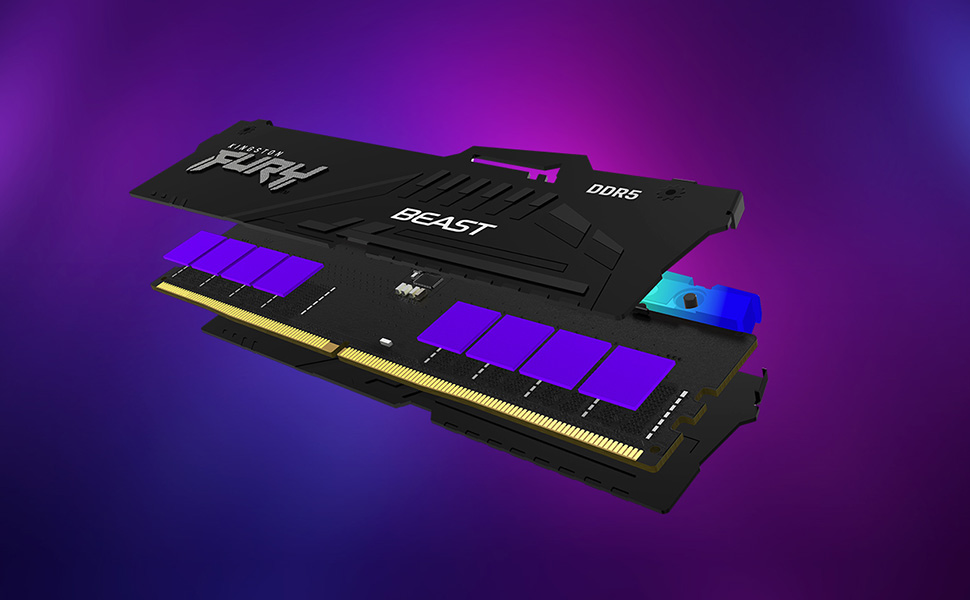
Image: Kingston Fury Beast RGB memory modules showcasing enhanced RGB lighting with a new heat spreader design.
Setup & Installation
Before installing the memory modules, ensure your system is powered off and unplugged from the power source. Consult your motherboard's manual for specific instructions on memory slot population, especially for dual-channel configurations.
- Prepare Motherboard: Locate the DDR5 DIMM slots on your motherboard. For optimal dual-channel performance with two modules, typically slots A2 and B2 are recommended. Refer to your motherboard's manual for the exact recommended slots. Gently push open the retention clips at both ends of the selected DIMM slots.
- Align Memory Module: Hold the memory module by its edges, avoiding contact with the gold contacts. Align the notch on the memory module with the key in the DIMM slot. The module is designed to fit in only one orientation.
- Insert Memory Module: Place the module into the slot and apply firm, even pressure to both ends until the retention clips snap into place. Ensure both clips are fully closed and the module is securely seated.
- Repeat for Second Module: Install the second memory module into the corresponding recommended slot (e.g., B2 if A2 was used for the first).

Image: A Kingston Fury Beast RGB memory module being carefully aligned and inserted into a DIMM slot on a motherboard.

Image: Multiple Kingston FURY Beast RGB memory modules correctly installed in a desktop PC, displaying their vibrant RGB lighting.
Operating Instructions
After successful installation, power on your system. The memory modules will operate at their default JEDEC speed. To achieve the advertised 6400MT/s speed and enable RGB lighting customization, follow these steps:
1. Activating XMP/EXPO Profiles
Your Kingston Fury Beast RGB DDR5 memory supports both Intel XMP 3.0 and AMD EXPO profiles for easy overclocking. These profiles contain pre-configured settings for optimal speed and timings.
- Access BIOS/UEFI: During system startup, repeatedly press the designated key (commonly Del, F2, F10, or F12) to enter your motherboard's BIOS/UEFI settings.
- Enable XMP/EXPO: Navigate to the overclocking or memory settings section. Look for options like 'XMP Profile', 'EXPO Profile', 'D.O.C.P.', or 'A-XMP'. Select the appropriate profile (e.g., Profile 1) to enable the 6400MT/s speed.
- Save and Exit: Save the changes and exit the BIOS/UEFI. Your system will restart with the new memory settings applied.

Image: A Kingston Fury Beast RGB memory module highlighting its Intel XMP 3.0 Ready certification.
2. RGB Lighting Control
The vibrant RGB lighting on your memory modules can be customized using Kingston FURY CTRL software or compatible motherboard RGB control software (e.g., MSI Mystic Light Sync, ASUS Aura Sync, ASRock Polychrome Sync, Gigabyte RGB Fusion 2.0).
- Install Software: Download and install the Kingston FURY CTRL software from the official Kingston website, or use your motherboard's dedicated RGB control application.
- Customize Effects: Use the software interface to select various lighting effects, colors, patterns, and synchronization options. Kingston's patented FURY Infrared Sync Technology ensures smooth and synchronized lighting across all modules.
Video: Official Kingston FURY RGB DDR5 Product Video, demonstrating various RGB lighting effects and features of the memory modules.
Video: Official Kingston FURY Beast DDR5 RGB video, showcasing the design and dynamic lighting of the memory modules.
Maintenance
Kingston Fury Beast RGB DDR5 memory modules are designed for durability and require minimal maintenance. To ensure longevity and optimal performance:
- Keep your computer's interior clean and free of dust to prevent overheating.
- Ensure adequate airflow within your PC case.
- Avoid touching the gold contacts on the memory modules.
- Do not attempt to disassemble the heat spreaders, as this may void your warranty.
Troubleshooting
If you encounter issues after installing your memory, consider the following:
- No Display/Boot Issues: Double-check that the memory modules are fully seated in their DIMM slots. Ensure the retention clips are securely closed.
- Incorrect Speed: Verify that the XMP/EXPO profile is enabled in your motherboard's BIOS/UEFI settings. If issues persist, try updating your motherboard's BIOS to the latest version.
- System Instability: If your system is unstable after enabling XMP/EXPO, try resetting the BIOS to default settings and re-enabling the profile. Ensure your power supply unit (PSU) can adequately support all components, especially during overclocking.
- RGB Not Working: Ensure the Kingston FURY CTRL software or your motherboard's RGB control software is installed and up to date. Check for any conflicts with other RGB software.
- Single Module Detection: If only one module is detected, try swapping the modules between slots or testing them individually to identify a faulty module or slot.
Specifications
| Feature | Specification |
|---|---|
| RAM Capacity | 64 GB (2x32GB) |
| RAM Memory Technology | DDR5 SDRAM |
| Memory Speed | 6400 MT/s |
| CAS Latency | CL32 |
| Voltage | 1.4 Volts |
| Compatible Devices | Desktop |
| Form Factor | DIMM |
| Color | Black |
| Item Model Number | KF564C32BBEAK2-64 |
| Item Weight | 1.48 ounces |
| Product Dimensions | 5.25 x 0.26 x 1.66 inches |
Warranty and Support
Kingston Technology Company, Inc. provides a limited lifetime warranty for its memory products. For detailed warranty information, technical support, or to register your product, please visit the official Kingston website or contact their customer service. Keep your proof of purchase for warranty claims.
For further assistance, visit the Kingston Store on Amazon.


