
Apple Watch SE 2nd Generation User Guide
Your comprehensive guide to mastering your Apple Watch SE 2nd Generation.
1. Introduction
This manual provides detailed instructions for setting up, operating, and maintaining your Apple Watch SE 2nd Generation. It is designed to assist both new users and those upgrading their device, ensuring a smooth and efficient experience with WatchOS 10 features.
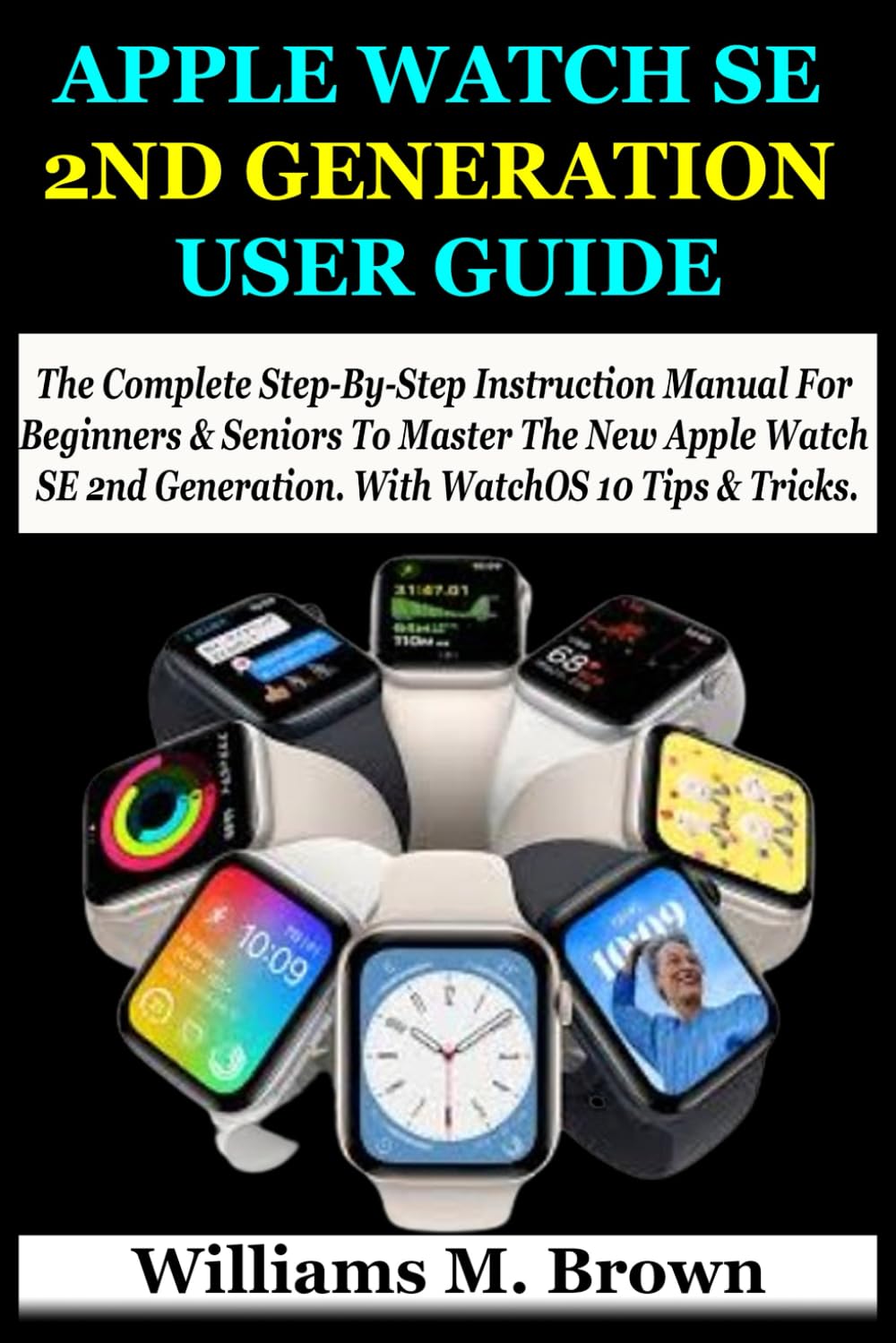
Image: Front cover of the user guide for Apple Watch SE 2nd Generation.
2. Setup and Initial Configuration
Follow these steps to set up your Apple Watch SE 2nd Generation and configure its essential settings.
- How to Set Up Your Apple Watch: Power on your Apple Watch and iPhone, then follow the on-screen instructions to pair them. Ensure both devices are connected to Wi-Fi or cellular data.
- How to Unpair and Erase Your Apple Watch: To unpair, open the Apple Watch app on your iPhone, select your watch, tap the information button (i), and choose 'Unpair Apple Watch'. To erase, go to Settings > General > Reset > Erase All Content and Settings on your watch.
- How to Add More Apple Watches to Your Account: Use the Apple Watch app on your iPhone to pair additional watches.
- How to Charge Your Apple Watch: Place your Apple Watch on its magnetic charging cable. Ensure the charger is connected to a power source.
- How to Turn On and Wake Apple Watch: Press and hold the side button to turn on. Raise your wrist or tap the screen to wake.
- How to Change Language and Orientation: Adjust these settings in the Apple Watch app on your iPhone under 'My Watch' > 'General'.
- How to Take Off, Swap Out, and Secure Bands: Press the band release buttons on the back of the watch to slide bands off. Slide new bands in until they click.
- How to Set Up a Family Member’s Apple Watch: Use Family Setup through the Apple Watch app on your iPhone to manage a watch for a family member who doesn't have their own iPhone.
- How to Set Up Screen Time: Manage Screen Time for yourself or family members via the Apple Watch app or iPhone settings.
- How to Get Started with Schooltime: Configure Schooltime schedules in the Apple Watch app to limit features during school hours.
- How to Configure Apple Watch for Handwashing: Enable automatic handwashing detection in the Settings app on your watch under 'Handwashing'.
- How to Connect Apple Watch to a Wi-Fi Network: Your watch automatically connects to known Wi-Fi networks your iPhone has joined. You can manually add networks in Settings > Wi-Fi on your watch.
- How to Connect Apple Watch to Bluetooth Headphones or Speakers: Go to Settings > Bluetooth on your watch and select your device.
- How to Set Up and Use Cellular Service: Activate cellular service through the Apple Watch app on your iPhone, typically requiring a plan from your carrier.
- How to Set Up and Use RTT (Real-time Text): Enable RTT in the Apple Watch app on your iPhone under 'My Watch' > 'Accessibility' > 'RTT/TTY'.
3. Operating Your Apple Watch
Learn how to navigate and utilize the various features of your Apple Watch SE 2nd Generation.
- How to Use Apple Watch Gestures: Familiarize yourself with taps, swipes, force touch, and the Digital Crown for navigation.
- The Apple Watch App: This iPhone app is central for managing settings, apps, and watch faces.
- How to Use a Controlled Apple Watch to Add and Play Podcasts: Manage podcast subscriptions and playback directly from your watch.
- How to Check Activity and Health Reports for Family Members: Access shared health data through the Health app on your iPhone.
- How to Transfer Funds to Another Apple Watch via Apple Cash Family: Use Apple Cash in the Wallet app to send money to family members.
- How to Organize Apps on Apple Watch: Arrange apps in Grid View or List View by pressing the Digital Crown.
- How to Get More Apps on Apple Watch: Download apps from the App Store directly on your watch or via the Apple Watch app on your iPhone.
- How to Tell Time on Apple Watch: View the time on your chosen watch face.
- How to Use Control Center on Apple Watch: Swipe up from the watch face to access quick settings like Wi-Fi, battery, and flashlight.
- How to Use Focus on Apple Watch: Sync Focus modes from your iPhone to manage notifications and distractions.
- How to Adjust Brightness, Text Size, Sounds, and Haptics: Customize these settings in the Settings app on your watch.
- How to Modify Apple Watch's Notification Preferences: Manage app notifications in the Apple Watch app on your iPhone.
- How to Use Smart Stack to Show Timely Widgets: Scroll the Digital Crown on the watch face to view Smart Stack widgets.
- How to Manage Your Apple ID Settings: Access Apple ID settings in the Settings app on your watch.
- How to Hand Off Tasks from Apple Watch: Use Handoff to continue tasks on your iPhone or Mac.
- Safety Features on Apple Watch: Includes Emergency SOS, Fall Detection, and Crash Detection.
- How to Access Your Medical ID Information: Set up Medical ID in the Health app on your iPhone for emergency access.
- How to Use Your Apple Watch to Get In Touch With Emergency Services: Press and hold the side button to activate Emergency SOS.
- How to Manage Fall Detection: Enable or disable Fall Detection in the Apple Watch app on your iPhone under 'Emergency SOS'.
- How to Manage Crash Detection: This feature is automatically enabled on supported models.
- How to Use Siri on Apple Watch: Raise your wrist and speak, or press and hold the Digital Crown to activate Siri.
- How to Use Your Apple Watch and Wireless Headphones Like AirPods or Beats to Listen To and Reply To Alerts: Pair your headphones and manage audio through your watch.
- How to Use Apple Watch's Siri to Announce Incoming Calls: Enable this feature in iPhone settings under 'Phone' > 'Announce Calls'.
- Explore the Face Gallery on Apple Watch: Customize watch faces directly on your watch or through the Apple Watch app.
- How to Change the Watch Face on Your Apple Watch: Swipe left or right on the watch face, or use the Face Gallery.
- How to Get Started with Apple Fitness+: Access Fitness+ workouts through the Fitness app on your watch and iPhone.
- How to Subscribe to Apple Fitness+: Subscribe via the Fitness app on your iPhone or iPad.
- Discover Meditations and Exercises on Apple Fitness+: Browse the Fitness+ library for various workout and meditation options.
- How to Create a Custom Plan in Apple Fitness+: Utilize the custom plan feature within the Fitness+ app.
- How to Modify Display Settings for Apple Fitness+ Sessions: Adjust metrics and display options during a workout.
- How to Use AssistiveTouch on Apple Watch: Enable AssistiveTouch in Settings > Accessibility on your watch for gesture-based control.
- How to Use Bluetooth Keyboard with VoiceOver: Pair a Bluetooth keyboard and enable VoiceOver in Accessibility settings.
- How to Modify Apple Watch's Font, Size, and Other Aesthetic Settings: Adjust these in Settings > Display & Brightness or Accessibility.
- How to Use Accessibility Features with Siri: Siri can assist with various accessibility functions.
4. Maintenance
Proper care and maintenance ensure the longevity and optimal performance of your Apple Watch.
- Cleaning Your Apple Watch: Wipe with a non-abrasive, lint-free cloth. Avoid harsh chemicals.
- Charging Best Practices: Use only Apple-approved charging accessories. Avoid extreme temperatures during charging.
- Band Care: Clean bands according to their material type. Ensure bands are securely attached.
5. Troubleshooting
Common issues and their solutions for your Apple Watch SE 2nd Generation.
- How to Restart Apple Watch: Press and hold the side button until the power off slider appears, then drag it. To force restart, hold both the side button and Digital Crown for about 10 seconds until the Apple logo appears.
- If You Forget Your Apple Watch Passcode: You will need to erase your watch and set it up again.
- How to Recover Apple Watch: If your watch is unresponsive, try a force restart. If issues persist, unpair and re-pair it with your iPhone.
- How to Restore Apple Watch From a Backup: During the setup process, you will have the option to restore from a recent backup.
- How to Update Apple Watch Software: Update WatchOS via the Apple Watch app on your iPhone under 'My Watch' > 'General' > 'Software Update'.
6. Specifications
| Model | Apple Watch SE 2nd Generation |
| Release Date | September 16, 2022 |
| Operating System | WatchOS 10 (as of manual publication) |
| Connectivity | Wi-Fi, Bluetooth, Cellular (optional) |
| Sensors | Optical Heart Sensor, Accelerometer, Gyroscope, Compass, Always-on Altimeter |
| Safety Features | Emergency SOS, Fall Detection, Crash Detection |
7. Warranty and Support
For warranty information and technical support, please refer to the official Apple website or contact Apple Support directly. Details regarding your specific warranty coverage can be found with your purchase documentation or by checking your device's serial number on Apple's support page.


