
PECSU G5
PECSU G5 32GB MP3 Player with Bluetooth and WiFi User Manual
Model: G5
1. Introduction
This manual provides detailed instructions for the operation and maintenance of your PECSU G5 32GB MP3 Player. Please read this manual thoroughly before using the device to ensure proper functionality and to maximize your user experience. The PECSU G5 is an Android-based music player designed for versatile media consumption, featuring parental controls, extensive app support, and robust connectivity.
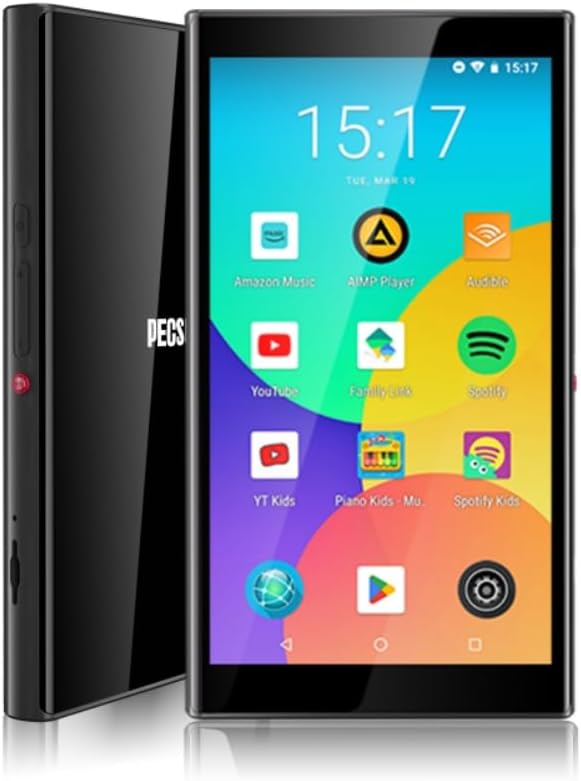
Image 1.1: Front and side view of the PECSU G5 MP3 Player, displaying its user interface with various application icons.
2. What's in the Box
Verify that all items are present in the package:
- 1 × PECSU G5 Music Player
- 1 × User Manual
- 1 × Extra Screen Protector
- 1 × Type-C Charging Cable
3. Product Overview
3.1 Physical Features

Image 3.1: A diagram illustrating the dimensions (5.24" height, 2.89" width, 0.47" thickness) and button layout of the PECSU G5. Labels indicate the On/Off button, Volume Up/Down, Recording Key, TF Card Port, Type-C Port, and 3.5mm Port.
The PECSU G5 features a sleek design with a 5-inch full touch screen. Key physical components include:
- On/Off Button: Located on the side for powering the device on or off.
- Volume Buttons: Separate buttons for increasing and decreasing volume.
- Recording Key: A dedicated button for one-touch voice recording.
- TF Card Port: Slot for inserting a Micro SD card to expand storage.
- Type-C Port: For charging and data transfer.
- 3.5mm Audio Jack: For connecting wired headphones.
3.2 Key Features
- Parental Controls: Pre-installed Family Link application allows monitoring, setting usage times, and disabling apps. All app downloads require parental permission.
- Operating System: Android 8.1 system with an Octa-core 64-bit MTK chipset.
- Google Play Store: Pre-installed for downloading popular music, video, and reading applications such as Spotify, YouTube, Amazon Music, Audible, and Libby.
- Display: 5-inch HD IPS full touchscreen with 1080P video playback (720*1280 PX resolution).
- Connectivity: Bluetooth 5.0 for stable connections to speakers, earphones, and car audio systems. Dual-band Wi-Fi (2.4G & 5G) for fast data transfer and online streaming.
- Battery: Built-in 3000mAh LCO Battery, providing approximately 15 hours of continuous music playback or 6 hours of video playback.
- Storage: 32GB internal ROM and 3GB RAM, expandable up to 1TB via Micro SD card (FAT32 format).
- Audio Quality: Supports HiFi lossless music playback.
- Voice Recorder: One-touch recording function.

Image 3.2: The PECSU G5 screen highlighting its 5-inch 1080P HD IPS display, emphasizing fast response, 720x1280 pixel resolution, and wider viewing angles.

Image 3.3: The PECSU G5 displaying its storage capabilities, including 3GB RAM, 32GB ROM, and support for up to 1TB TF Card expansion.

Image 3.4: An illustration of the PECSU G5's 3000mAh LCO battery, indicating up to 5 hours of video playback and up to 15 hours of music playback.

Image 3.5: A visual representation of the PECSU G5's 2-Way Bluetooth 5.0 feature, showing connections to headphones/earbuds, a portable speaker, and car audio systems.
4. Setup
4.1 Charging the Device
- Connect the provided Type-C charging cable to the device's Type-C port.
- Plug the other end of the cable into a compatible USB power adapter (not included) or a computer's USB port.
- The device will indicate charging status on the screen. A full charge typically takes 2-3 hours.
4.2 Powering On/Off
- To Power On: Press and hold the On/Off button located on the side of the device until the screen illuminates.
- To Power Off: Press and hold the On/Off button until a power menu appears on the screen. Select "Power off" and confirm.
- To Restart: From the power menu, select "Restart."
4.3 Initial Configuration
Upon first power-on, you will be guided through an initial setup process:
- Select your preferred language.
- Connect to a Wi-Fi network to enable internet access and app downloads.
- Sign in with your Google account. This is necessary for accessing the Google Play Store and utilizing parental controls.
- Follow on-screen prompts to complete the setup.
4.4 Inserting a Micro SD Card
To expand the device's storage:
- Locate the TF Card Port on the side of the device (refer to Image 3.1).
- Gently insert a Micro SD card (up to 1TB, FAT32 format recommended) into the slot until it clicks into place.
- The device will detect the new storage. You may need to format the card if prompted.
5. Operating Instructions
5.1 Navigation
The PECSU G5 features a full touchscreen interface. Use standard Android gestures:
- Tap: To select an item or open an app.
- Swipe: To scroll through lists or switch between screens.
- Pinch-to-zoom: In supported applications like image galleries or web browsers.
5.2 Connecting to Wi-Fi
- Go to Settings > Network & internet > Wi-Fi.
- Toggle Wi-Fi On.
- Select your desired network from the list and enter the password if required.
5.3 Bluetooth Pairing
- Go to Settings > Connected devices > Bluetooth.
- Toggle Bluetooth On.
- Ensure your Bluetooth accessory is in pairing mode.
- Tap Pair new device and select your accessory from the list.
5.4 Using Google Play Store
The Google Play Store allows you to download and install a wide variety of applications.

Image 5.1: The PECSU G5 screen displaying the Google Play Store icon prominently, surrounded by various popular app icons like Spotify, YouTube, and Amazon Music, indicating broad app compatibility.
- Tap the Play Store icon on the home screen.
- Search for desired apps (e.g., Spotify, Pandora, Amazon Music, Libby, Audible).
- Tap Install to download and install the app.
5.5 Parental Controls (Family Link)
The PECSU G5 is designed with parental controls via the pre-installed Family Link app.

Image 5.2: The PECSU G5 screen showing the Family Link parental control interface, with options for daily limits, downtime, and blocked apps. The image also depicts a child sleeping with the device nearby, suggesting its use for controlled media consumption.
- Ensure Family Link is set up on both the PECSU G5 (for children) and your personal smartphone (for parents).
- From your parent device, you can:
- Monitor app usage and screen time.
- Set daily usage limits and device downtime.
- Block specific applications.
- App downloads from the Play Store will require parental approval.
5.6 Music and Video Playback
- Use pre-installed music/video players or download your preferred apps from the Google Play Store.
- The device supports HiFi lossless audio formats and 1080P video playback.
5.7 Voice Recording
To use the voice recorder function:
- Press the dedicated Recording Key on the side of the device (refer to Image 3.1).
- Alternatively, open the pre-installed Recorder application.
- Follow the on-screen prompts to start, pause, and save recordings.
5.8 File Transfer
You can transfer files to and from the PECSU G5 using the Type-C cable or wirelessly.
- Via USB Cable: Connect the device to a computer using the Type-C cable. On the device, select "File transfer" when prompted. The device will appear as a removable drive on your computer.
- Wireless Transfer: Utilize pre-installed file sharing apps or download third-party apps from the Play Store for wireless file management.
6. Maintenance
6.1 Cleaning
- Use a soft, lint-free cloth to clean the screen and body of the device.
- Avoid using harsh chemicals or abrasive materials, as they may damage the screen or finish.
6.2 Battery Care
- To prolong battery life, avoid exposing the device to extreme temperatures.
- Do not allow the battery to fully discharge frequently. Charge the device when the battery level is low.
- If the device will not be used for an extended period, charge it to about 50% before storing.
6.3 Software Updates
- Periodically check for system updates to ensure optimal performance and security.
- Go to Settings > System > System update to check for and install available updates.
7. Troubleshooting
If you encounter issues with your PECSU G5, refer to the following common problems and solutions:
| Problem | Possible Solution |
|---|---|
| Device does not power on | Ensure the device is charged. Connect to a power source and try again. If unresponsive, press and hold the power button for 10-15 seconds to force a restart. |
| Device freezes or is unresponsive | Press and hold the power button for 10-15 seconds to force a restart. If the issue persists, consider performing a factory reset (backup data first). |
| No sound from speaker or headphones | Check the volume level. Ensure headphones are properly connected or Bluetooth device is paired and connected. Test with different headphones or speakers. |
| Battery drains quickly | Reduce screen brightness. Close unused background applications. Disable Wi-Fi and Bluetooth when not in use. Check for power-intensive apps. |
| Cannot connect to Wi-Fi or Bluetooth | Ensure Wi-Fi/Bluetooth is enabled in settings. Restart the device and your router/Bluetooth accessory. Verify network password. |
| App download issues from Play Store | Check Wi-Fi connection. Ensure sufficient storage space. Verify parental permissions if Family Link is active. Clear Play Store cache and data in settings. |
8. Specifications
| Feature | Detail |
|---|---|
| Model Name | G5 |
| Brand | PECSU |
| Operating System | Android 8.1 |
| Processor | Octa-core 64-bit MTK chipset |
| Internal Storage (ROM) | 32 GB |
| RAM | 3 GB |
| Expandable Storage | Up to 1 TB (Micro SD, Micro SDHC, Micro SDXC, FAT32 format) |
| Screen Size | 5 Inches |
| Screen Resolution | 1080P HD IPS (720*1280 PX) |
| Connectivity | Bluetooth 5.0, Dual-band Wi-Fi (2.4G & 5G) |
| Battery | 3000mAh LCO Lithium Polymer |
| Battery Life (Music) | Approx. 15 hours (Lab. Data) |
| Battery Life (Video) | Approx. 6 hours (Lab. Data) |
| Charging Time | 2-3 hours |
| Product Dimensions | 0.47 x 2.83 x 5.2 inches (12 x 72 x 133 mm) |
| Item Weight | 6.5 ounces |
| Special Features | Metal & Glass Back, One-Key Recording, Parental Controls, Split-screen Mode, App Store Support |
9. Warranty and Support
The PECSU G5 MP3 Player is covered by a manufacturer's warranty. For specific warranty terms and conditions, please refer to the documentation included with your purchase or contact PECSU customer support.
For technical assistance, troubleshooting, or warranty claims, please contact PECSU customer support through the retailer where the product was purchased or visit the official PECSU website for contact information.
Related documentsG5


Ask a question about this manual
Ask about setup, troubleshooting, compatibility, parts, safety, or missing instructions. Manuals+ will review the question and use this page’s manual context to help answer it.