
1. Product Overview
The UPERFECT Delta 15.6" Dual Portable Monitor is designed to enhance your productivity and viewing experience. It features two 15.6-inch 1080P HDR displays that can be used in various configurations to suit your needs.
- Plug & Play, Easy Setup: Driver-free design for seamless dual-screen display with a single Type-C cable.
- Independent Connection, Powerful Function: Connect two different devices simultaneously for multi-user collaboration.
- Ergonomic Design, Upgrade Workspace: 15.6" dual stacked monitors minimize scrolling and eye strain, featuring IPS matte screen, 100% sRGB, and eye care features.
- Versatile Folding Monitor: 0-360° rotation with built-in gravity sensors for 180° automatic rotation, supporting duplicate, expand, split, landscape, and portrait modes.
- Adjustable Stand: Built-in 180° adjustable stand for tilting, swiveling, and pivoting to achieve the perfect ergonomic position.
2. What's in the Box
Upon opening your UPERFECT Delta Dual Portable Monitor package, you will find the following components:
- UPERFECT Delta 15.6" Dual Portable Monitor Unit
- Power Adapter (30W)
- 2 x USB-C to USB-C Cables
- 2 x HDMI to Mini HDMI Cables
- User Manual

Image: Contents of the UPERFECT Delta Dual Portable Monitor box, including the main unit, cables, and power adapter.
3. Setup Guide
Initial Setup
- Carefully remove the monitor unit and all accessories from the packaging.
- Place the monitor on a stable, flat surface.
- Extend the built-in adjustable stand to your desired viewing angle. The hinges are designed to be stiff to ensure stability.
Connecting to Devices
The UPERFECT Delta monitor supports various connection methods for different devices:
- Single Type-C Cable (Recommended): For most modern laptops and devices with full-featured USB-C ports, a single USB-C to USB-C cable can provide both power and display. Connect one end to your device and the other to the monitor's USB-C port labeled 'Display'.
- HDMI + USB-C (Power): For devices with HDMI output, connect an HDMI cable from your device to the monitor's Mini HDMI port. Then, connect the power adapter to the monitor's 'Power Only' USB-C port to ensure sufficient power for optimal brightness.
- Dual Device Connection: You can connect two different devices simultaneously, one to each screen, using a combination of USB-C and HDMI cables. This allows for independent use of each display.
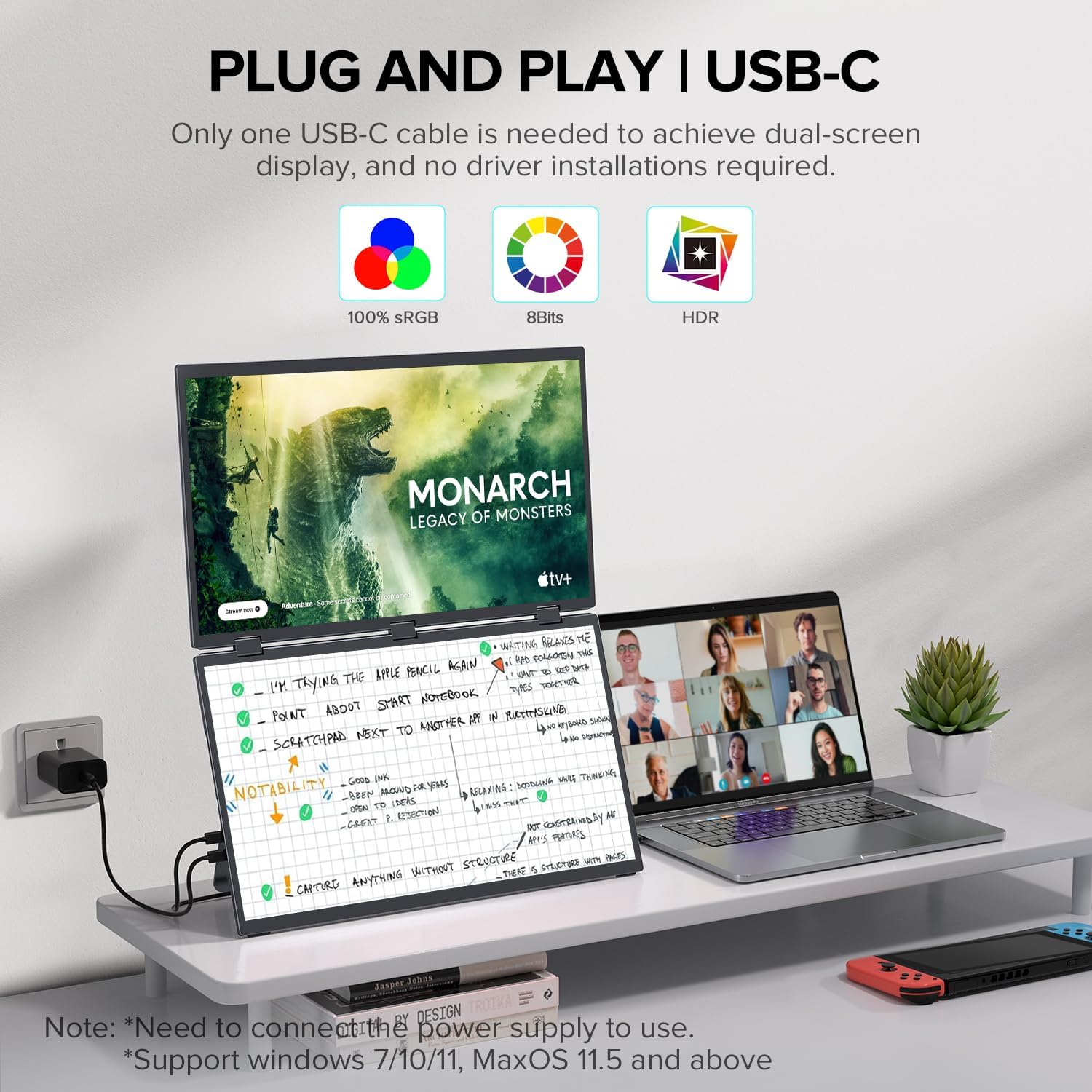
Image: Simple USB-C connection for dual-screen display.

Image: Independent connectivity for diverse usage scenarios.
4. Operating Instructions
Display Modes
The monitor supports various display modes to optimize your workflow:
- Clone Mode: Both screens display the same content, ideal for presentations or sharing.
- DP MST Mode (Extend Mode): The two screens can be used independently to display different content, expanding your workspace.
- Link Mode: The two screens can be combined into one overall larger screen, useful for wide applications or detailed work.

Image: Multiple display modes for versatile usage.
Rotation and Orientation
The monitor features a 0-360° rotation capability and built-in gravity sensors for 180° automatic rotation, allowing for flexible orientation (landscape or portrait) without manual settings.

Image: Foldable dual screen support 360° rotation for various scenarios.
On-Screen Display (OSD) Controls
Each screen has dedicated controls (buttons/dials) on its side to navigate the OSD menu. From here, you can adjust settings such as brightness, contrast, color profiles, and switch between display modes.
5. Maintenance
To ensure the longevity and optimal performance of your UPERFECT Delta monitor, follow these maintenance guidelines:
- Cleaning: Use a soft, lint-free cloth slightly dampened with water or a screen-cleaning solution. Avoid harsh chemicals or abrasive materials.
- Handling: Always handle the monitor with care, especially when folding or adjusting the stand. Avoid applying excessive force to the screens or hinges.
- Storage: When not in use, fold the monitor into its compact form and store it in a safe place to prevent scratches or damage.
- Ventilation: Ensure proper ventilation around the monitor to prevent overheating. Do not block the ventilation openings.
6. Troubleshooting
If you encounter any issues with your UPERFECT Delta monitor, refer to the following common troubleshooting steps:
- Dim Screen/Flickering: If the screen appears dim or flickers, it may be due to insufficient power. Ensure the monitor is connected to the power adapter, especially when using a single USB-C cable that might not provide enough power from the host device.
- No Display: Verify that all cables are securely connected to both the monitor and the host device. Try using different ports or cables if available. Ensure the host device's display settings are configured to extend or duplicate the display.
- Incorrect Display Mode: Use the OSD controls on the side of the monitor to manually switch between Clone, Extend (DP MST), or Link modes.
- Screen Orientation Issues: The monitor has a built-in gravity sensor for automatic rotation. If the orientation is incorrect, try rotating the monitor 180 degrees or check your device's display settings for manual rotation options.
- Sound Issues: If there is no sound, check the volume settings on both the monitor's OSD and your connected device. Ensure the correct audio output device is selected on your computer.
For further assistance, please contact UPERFECT customer support.
7. Specifications
| Feature | Specification |
|---|---|
| Product Dimensions | 0.8 x 14 x 8.7 inches |
| Item Weight | 5.33 pounds |
| Item Model Number | M156E15 |
| Standing Screen Display Size | 15.6 Inches |
| Image Brightness | 250 cd/m² |
| Screen Surface Description | Glossy |
| Image Contrast Ratio | 800:1 |
| Total HDMI Ports | 1 (Mini HDMI) |
| USB-C Ports | 2 (1 for Display/Power, 1 for Power Only) |
| Country of Origin | China |
8. Warranty and Support
UPERFECT is committed to providing excellent customer service. While specific warranty details are not provided in this manual, UPERFECT offers 24/7 support for their products.
For any product-related inquiries, technical support, or warranty claims, please visit the official UPERFECT website or contact their customer service team directly.


