
1. Introduction
This manual provides detailed instructions for the installation, operation, and maintenance of your ANJIELO SMART Wired Video Door Phone Apartment Intercom System. Please read this manual thoroughly before installation and use to ensure proper functionality and safety. This system enhances home security and communication with visitors.
2. Product Overview
The ANJIELO SMART Wired Video Door Phone Intercom System is designed for apartment and home security, offering clear video communication and multiple unlocking options. This specific package includes two indoor monitors, one doorbell unit, and one additional HD camera.
System Components:
- 10-inch TFT-LCD Touch Monitors (x2): For viewing visitors, communication, and system control.
- 1080P Doorbell Camera (x1): Outdoor unit with built-in infrared sensor, wide-angle lens, and RFID reader.
- HD Camera (x1): Additional camera for extended surveillance.
- Wiring and Power Supplies: Essential cables for system connection.
- RFID Cards (x5): For convenient unlocking.
Key Features:
- 10-inch touch screen for intuitive operation.
- 1080P doorbell camera with 148° wide-angle view.
- Infrared night vision for clear visibility in low light.
- Three unlocking methods: IC card, Tuya APP, and monitor.
- Two-way audio communication with visitors.
- Motion detection with adjustable areas and mobile notifications.
- Support for up to 2 doorbells and 6 indoor monitors.
- Compatibility with 12V electronic locks.
- Local recording to an SD card (not included, up to 1TB).

3. Setup
3.1 Wiring
The indoor monitors and doorbell unit require a wired connection. The main monitor supports Wi-Fi for network connectivity to your mobile phone. Use the provided 4-core cable for connecting the doorbell to the monitor. For extending distances, RVV4/Cat5/Cat6 wires can be used, supporting distances exceeding 300ft.
- Connect the doorbell to the indoor monitor using the 4-core cable.
- Connect additional monitors to the main monitor using 4-core wiring.
- Ensure all connections are secure and correctly aligned.
- Power the indoor monitors using the provided 12V DC power supplies.
3.2 Installation
Both the indoor monitors and the outdoor doorbell unit are designed for surface mounting. The doorbell unit includes a rain cover for protection.
- Doorbell Unit: Mount the doorbell unit at a suitable height near your entrance, ensuring a clear view of visitors. Use the provided screws for secure installation. Attach the rain cover for weather protection.
- Indoor Monitors: Install monitors on an interior wall at a convenient viewing height. Ensure they are within reach of a power outlet and wired connections.
- Additional Camera: Mount the HD camera in your desired location for extended surveillance, ensuring it is connected to the system.
3.3 Initial Configuration (Wi-Fi & Tuya App)
The main indoor monitor can connect to your home's 2.4GHz Wi-Fi network to enable mobile phone access via the Tuya app.
- Power on all components of the intercom system.
- On the main indoor monitor, navigate to the network settings.
- Select your 2.4GHz Wi-Fi network and enter the password.
- Download the 'Tuya Smart' app on your smartphone.
- Follow the in-app instructions to add your intercom system. This will allow you to view visitor information and control the system remotely.
4. Operating Instructions
4.1 Monitor Functions
The 10-inch touch screen monitor provides a user-friendly interface for managing your intercom system.
- Viewing: Tap the screen to view live feed from the doorbell or connected cameras.
- Settings: Access system settings to adjust volume, color, ringtones, and other preferences.
- Intercom: Initiate internal communication between indoor monitors.
- Call Forwarding: Forward calls to other indoor monitors.
4.2 Doorbell Functions
When a visitor presses the doorbell, all connected indoor monitors and your paired mobile phone will ring.
- Visitor Notification: Receive alerts on monitors and your smartphone.
- Night Vision: The doorbell camera automatically switches to infrared night vision in low-light conditions, providing clear images.

4.3 Two-Way Audio
Engage in real-time conversation with visitors at your door from any indoor monitor or your mobile phone.
- When the doorbell rings, answer the call from the monitor or Tuya app.
- Speak clearly into the monitor's microphone or your phone.
- The visitor's voice will be heard through the monitor's speaker.

4.4 Unlocking Methods
The system offers three convenient ways to unlock connected 12V electronic locks.
- IC Card Unlocking: Present one of the provided RFID cards to the doorbell unit's reader to unlock the door.
- Tuya App Unlocking: Use the Tuya Smart app on your mobile phone to remotely unlock the door.
- Monitor Unlocking: Press the unlock icon on the indoor monitor screen to open the door.

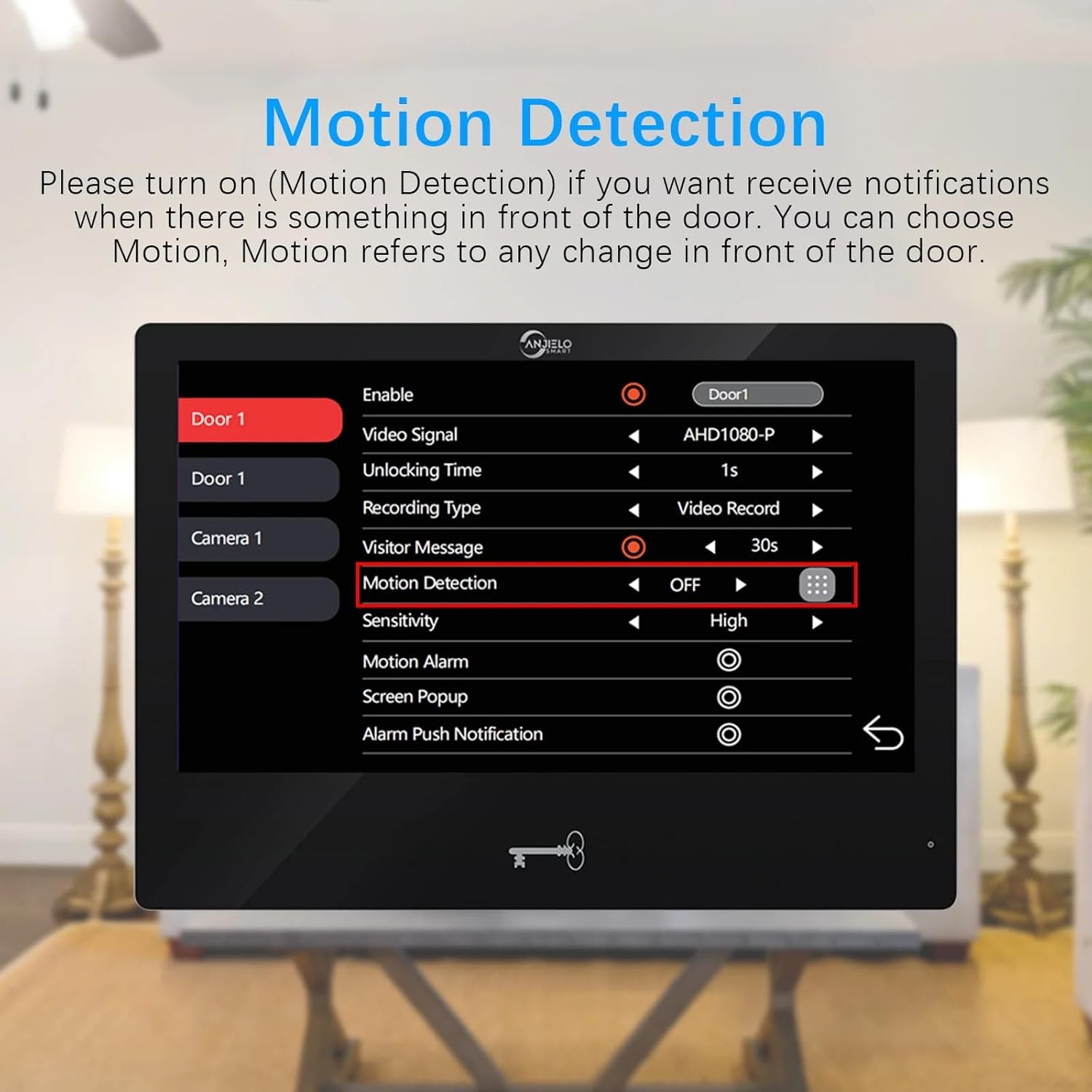
4.5 Motion Detection
The system can detect motion in specified areas and send notifications to your mobile phone.
- Enable Motion Detection: On the indoor monitor, navigate to the 'Motion Detection' settings for the doorbell or camera. Ensure it is set to 'ON'.
- Set Detection Area: By default, the entire viewable area is set for motion detection. To customize, click the grid icon to enter the area selection mode. Click squares to change them to transparent, indicating they are not motion detection areas. Click again to re-enable detection for that square.
- Sensitivity: Adjust the motion detection sensitivity (e.g., High, Medium, Low) in the settings.
- Notifications: When motion is detected, you will receive a push notification on your mobile phone via the Tuya app.


4.6 Recording
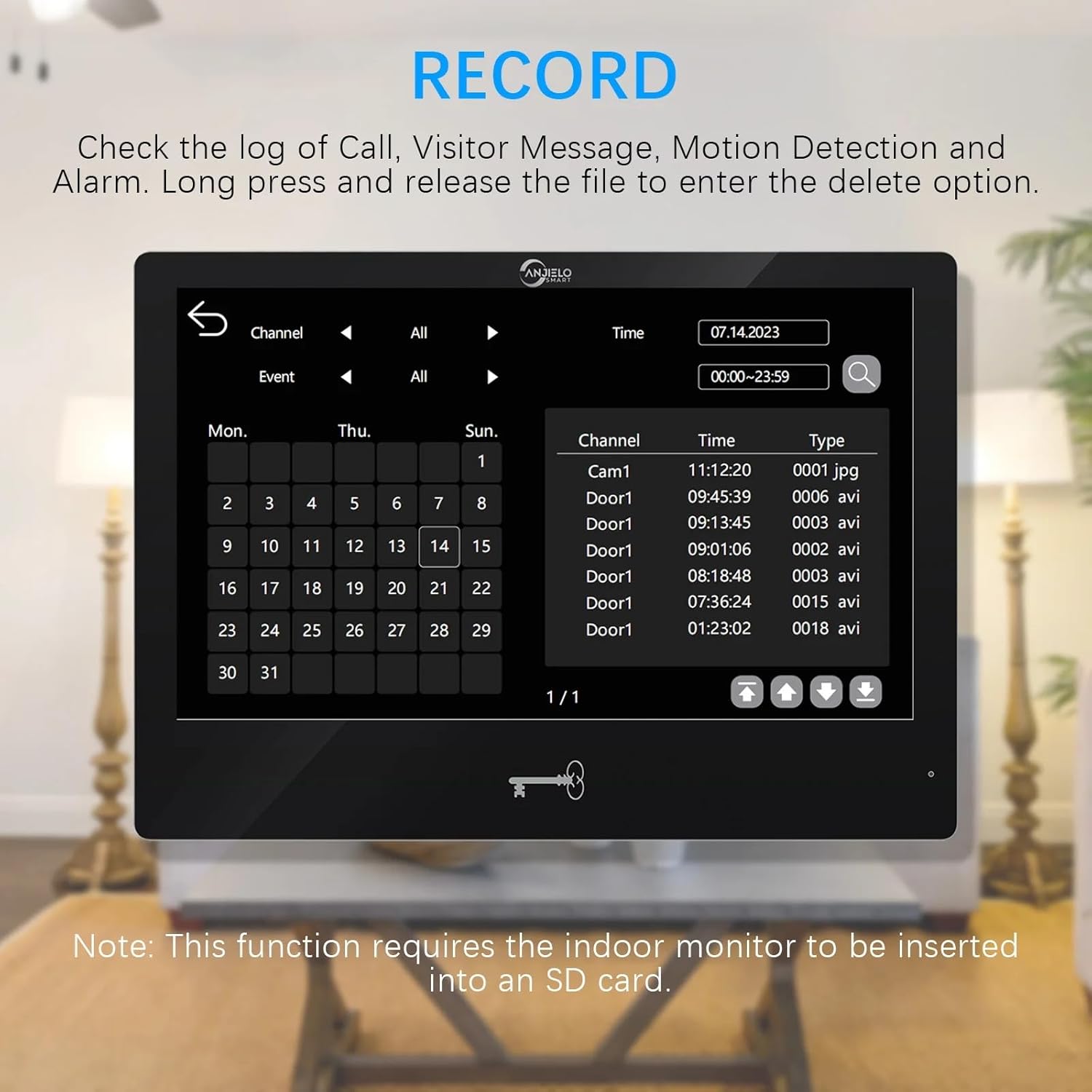
The system supports recording of calls, visitor messages, motion detection events, and alarms when an SD card is inserted into the indoor monitor.
- SD Card Insertion: Insert a Micro SD card (up to 1TB, not included) into the designated slot on the indoor monitor.
- Access Records: On the monitor, navigate to the 'Record' section to view a log of events.
- Playback/Delete: Select an event from the log to play back the recording. Long press on a file to access the delete option.

5. Maintenance
- Cleaning: Use a soft, dry cloth to clean the monitor screens and doorbell unit. Avoid abrasive cleaners or solvents.
- Firmware Updates: Periodically check the manufacturer's website or the Tuya app for available firmware updates to ensure optimal performance and security.
- Cable Inspection: Regularly inspect all wiring for any signs of wear or damage. Replace damaged cables immediately.
- Rain Cover: Ensure the doorbell's rain cover is properly positioned to protect it from weather elements.
6. Troubleshooting
Common Issues and Solutions:
- No Video/Audio from Doorbell:
- Check all wiring connections between the doorbell and the monitor. Ensure they are secure.
- Verify the power supply to the indoor monitor is active.
- Restart the system by disconnecting and reconnecting power. - Monitor Not Connecting to Wi-Fi:
- Ensure your Wi-Fi router is operating on a 2.4GHz band. The system does not support 5GHz.
- Check the Wi-Fi password entered on the monitor.
- Move the monitor closer to the Wi-Fi router to improve signal strength.
- Restart your Wi-Fi router. - No Mobile Notifications:
- Confirm the indoor monitor is successfully connected to Wi-Fi.
- Check your Tuya app settings to ensure notifications are enabled.
- Verify your phone's notification settings for the Tuya app are not blocked.
- Ensure motion detection is enabled and configured correctly on the monitor. - Door Not Unlocking:
- Check the connection between the monitor/doorbell and the electronic lock.
- Ensure the electronic lock is receiving power.
- Test all three unlocking methods (IC card, app, monitor) to isolate the issue. - Poor Night Vision:
- Ensure the doorbell camera lens is clean and free from obstructions.
- Verify there are no strong light sources directly interfering with the infrared sensor.
7. Specifications
Outdoor Doorbell Camera:
- Camera Sensor: 1/2.7 CMOS
- Definition: 1080P
- Lens: 3.2mm
- View Angle: 148°
- Night Vision: IR LEDs (120°)
- Power Consumption: 200mA max
- Power Supply: Supplied from indoor unit
- Operating Temperature: -40℃ to +50℃
- Installation: Surface mount with Rain Cover
- Dimensions: 137mm x 85.5mm x 23.5mm
Indoor Touch Monitor:
- Screen: 10 inch TFT-LCD touch screen
- Resolution: 1024 x 680
- Rings: 7-chord melody rings
- Adjustable: Volume, color
- Connection: 4-wires, WIFI TUYA solution
- Panel Material: Acrylic/ABS cover
- Installation: Surface mounting
- Input Voltage: AC 100-240V 50/60Hz
- Working Voltage: DC 12V, 2A
- Dimensions: 272mm x 170mm x 21mm (7.8×5.1×0.8 inch)
General System Specifications:
- Connectivity Technology: Wired (monitor to doorbell), Wi-Fi (monitor to network)
- Compatible Devices: Smartphone (via Tuya App)
- Mount Type: Wall Mount
- Installation Type: Screw In
- Alert Type: Audio and Motion
- Control Method: App, Monitor
- Power Source: Corded Electric
- Video Capture Format: MPEG-4
- Item Weight: 16 ounces (total system)
- Max Supported Monitors: 6
- Max Supported Doorbells: 2
- Mobile Phone Sharing: Supports 5 mobile phones
8. Warranty Information
Please refer to the ANJIELO SMART official website or your purchase documentation for detailed warranty terms and conditions. Typically, products come with a limited manufacturer's warranty covering defects in materials and workmanship for a specified period from the date of purchase.
9. Support
For technical assistance, troubleshooting beyond this manual, or customer service inquiries, please contact ANJIELO SMART customer support. Contact information can usually be found on the manufacturer's official website or within your product packaging.
ANJIELO SMART Store: Visit the ANJIELO SMART Store on Amazon

