
1. Introduction
This manual provides comprehensive instructions for the installation, operation, maintenance, and troubleshooting of your CARabc H3 Wireless CarPlay Android Auto Adapter. This device transforms your factory wired CarPlay system into a versatile multimedia hub, offering wireless CarPlay, wireless Android Auto, and a full Android operating system experience.

The CARabc H3 adapter, a compact black device, is shown alongside a digital representation of its user interface. The interface displays various application icons, including BT Phone, Home, BT Music, Settings, SpeedPlay, Gallery, Play Store, and YouTube, indicating its multimedia capabilities.
2. What's in the Box
Please verify that all items are present in the package:
- CARabc H3 AI Box (1 unit)
- User Manual (1 unit)
- USB-A to Type-C Cable (1 unit)
- Type-C to Type-C Cable (1 unit)
3. Specifications
| Brand | CARabc |
| Model | H3 |
| Processor | Qualcomm QCM2290 (8-core high-speed chip) |
| Memory | 2GB RAM + 16GB ROM |
| Operating System | Android 11 |
| Storage Expansion | Supports up to 128GB TF card |
| Connectivity | Bluetooth (4.2 & 5.0), Wi-Fi (2.4G & 5G), Built-in GPS |
| Power Source | USB Powered (from car's USB port) |
| Hardware Interface | USB (Type-C port on device) |
| Material | Plastic |
| Dimensions | 8 x 8 x 1.02 cm |
| Item Weight | 159 g |

A close-up view of the CARabc H3 adapter's side, clearly showing the TF card slot, Type-C port, and indicator lights.
4. Compatibility
4.1 Vehicle Compatibility
The CARabc H3 adapter is compatible with vehicles that meet the following criteria:
- Equipped with original factory wired Apple CarPlay.
- Features a touchscreen display.
Examples of compatible car brands: Honda, Chevrolet, Audi, Volkswagen, Peugeot, Suzuki, Mercedes-Benz, Mazda, Toyota, Nissan, Ford, Kia, Volvo, Lexus, Buick, Citroen, Jeep.
Important Note:
- Not compatible with cars that do not have OEM wired CarPlay.
- Not compatible with vehicles that have aftermarket CarPlay systems installed.
- BMW models are generally not compatible.
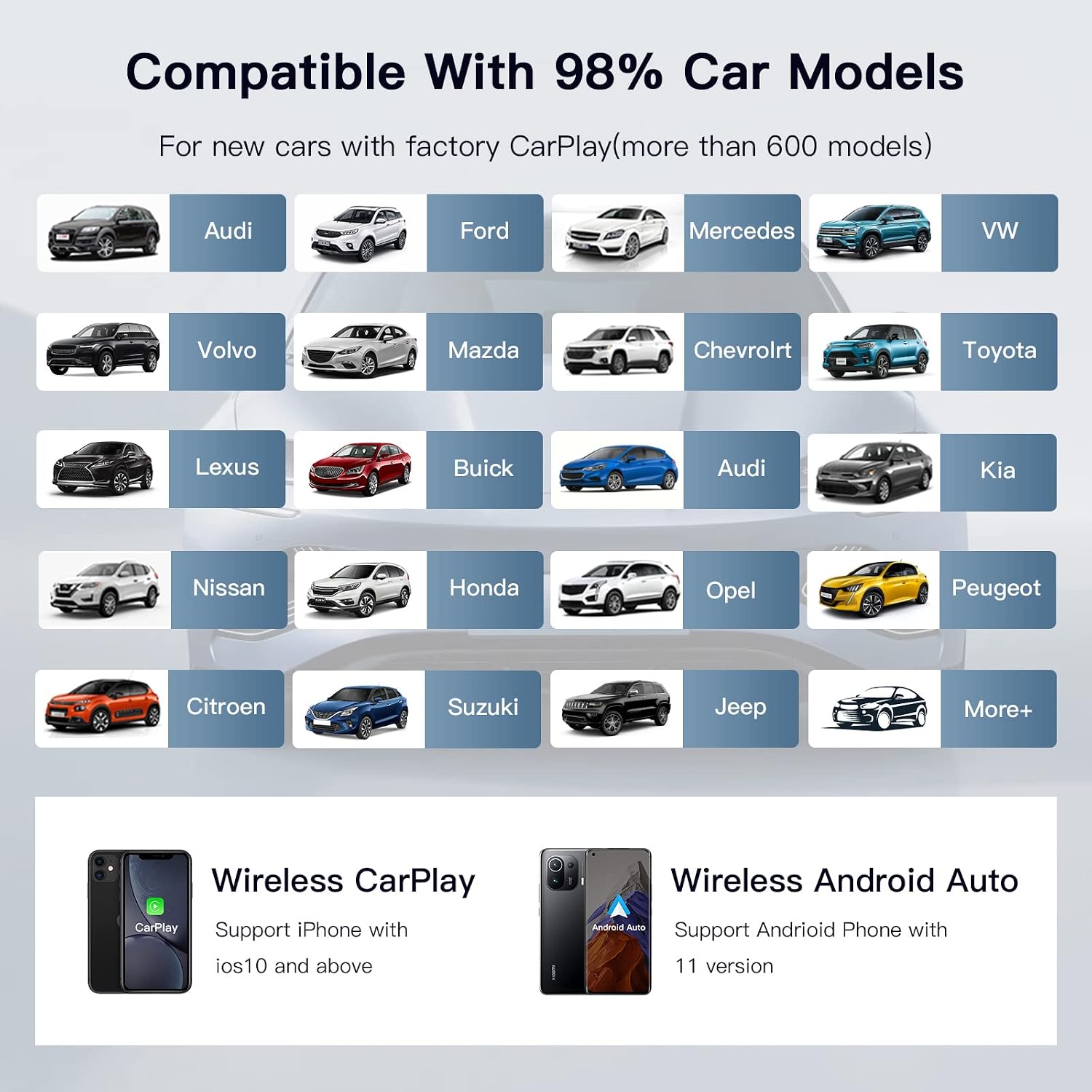
This image presents a visual list of car brands compatible with the CARabc H3 adapter, indicating broad compatibility with factory wired CarPlay systems.
4.2 Phone Compatibility
- Wireless Apple CarPlay: Requires iPhone with iOS 10 or above.
- Wireless Android Auto: Requires Android phone with Android 11 or above.
5. Setup Instructions
Follow these steps to set up your CARabc H3 adapter:
- Connect the Adapter: Using the provided USB-A to Type-C or Type-C to Type-C cable, connect the CARabc H3 AI Box to your car's USB port that supports wired Apple CarPlay.
- Device Boot-up: The adapter will power on automatically. Wait for the device to boot up and display its interface on your car's screen. This typically takes approximately 30 seconds.
- Pair Your Phone:
- For Wireless Apple CarPlay: On your iPhone, go to Settings > Bluetooth and select the CARabc device from the list to pair. Follow any on-screen prompts.
- For Wireless Android Auto: On your Android phone, ensure Bluetooth and Wi-Fi are enabled. Open the Android Auto application (if not already running) and follow the pairing instructions, selecting the CARabc device.
- Access Features: Once paired, you can select Wireless CarPlay, Wireless Android Auto, or the Android 11 system directly from your car's display.

This image demonstrates the CARabc H3 adapter's versatility, allowing users to seamlessly switch between three operating modes: a full Android 11 system, Apple CarPlay, and Android Auto.
6. Operating Instructions
The CARabc H3 adapter offers three primary operating modes:
6.1 Wireless CarPlay / Android Auto
- After initial pairing, your phone should automatically connect to the adapter when you start your car.
- Access navigation, music, calls, and messages directly from your car's display using the familiar CarPlay or Android Auto interface.
6.2 Android 11 System (AI Box Mode)
This mode transforms your car's display into an Android tablet, powered by the Qualcomm QCM2290 chip for smooth performance.
- Google Play Store: Access and download a wide range of applications such as Netflix, YouTube, Disney+, Spotify, TikTok, and more.
- Multimedia Playback: Enjoy streaming videos, music, and other content directly on your car's screen.
- Navigation: Utilize built-in GPS and various navigation apps available on the Play Store.
- Storage: Expand storage up to 128GB using a TF card for offline media.

The CARabc H3 adapter is depicted within its packaging, featuring the Google Play Store logo. Around it, numerous popular application icons are shown, illustrating the wide range of apps accessible through the device.
6.3 Control Methods
The CARabc H3 adapter supports your car's original control mechanisms for a seamless user experience:
- Steering Wheel Controls: Use your car's steering wheel buttons for audio playback, calls, and navigation.
- OEM Knobs Control: Navigate menus and adjust settings using your vehicle's factory-installed control knobs.
- Touch Screen Control: Interact directly with the interface on your car's touchscreen display.
- Voice Control: Utilize voice commands for hands-free operation.

This image highlights the CARabc H3 adapter's integration with a vehicle's existing control systems, showing a driver using steering wheel controls, OEM knobs, touchscreen, and voice control.
7. Maintenance
To ensure the longevity and optimal performance of your CARabc H3 adapter, follow these maintenance guidelines:
- Keep Clean: Regularly wipe the device with a soft, dry cloth. Avoid using liquid cleaners or abrasive materials.
- Avoid Extreme Temperatures: Do not expose the device to direct sunlight for extended periods or to extreme hot or cold temperatures, as this can affect its performance and lifespan.
- Secure Connection: Ensure the USB cables are securely connected to prevent accidental disconnections, which could interrupt operation.
- Software Updates: Periodically check for and install available online software updates to ensure the device has the latest features and bug fixes.
8. Troubleshooting
If you encounter issues with your CARabc H3 adapter, refer to the following common problems and solutions:
- Device Not Powering On:
- Ensure the USB cable is securely connected to both the adapter and the car's USB port.
- Verify that the car's USB port is functional and provides power (e.g., by connecting another device).
- Try using a different USB cable if available.
- No Display on Car Screen:
- Confirm your car has factory wired Apple CarPlay and a touchscreen.
- Ensure the adapter is fully booted up.
- Restart your car's infotainment system.
- Wireless CarPlay/Android Auto Not Connecting:
- Ensure Bluetooth and Wi-Fi are enabled on your phone.
- Forget the device from your phone's Bluetooth settings and re-pair.
- Check if your phone's operating system meets the compatibility requirements (iOS 10+ for CarPlay, Android 11+ for Android Auto).
- Restart both your phone and the CARabc H3 adapter (by unplugging and replugging).
- Apps Not Loading or Crashing:
- Ensure the adapter has a stable Wi-Fi connection (if streaming).
- Clear the cache of the problematic app through the Android system settings on the car screen.
- Check for system updates for the CARabc H3 adapter.
For persistent issues, please refer to the "Warranty and Support" section for contact information.
9. Warranty and Support
CARabc is committed to providing excellent customer service and product reliability.
- Warranty: The CARabc H3 Wireless CarPlay Android Auto Adapter comes with a One-Year Global Warranty from the date of purchase.
- Technical Support: We offer LIFETIME Technical Service Support. This includes assistance with online upgrades and reporting any product issues.
- Contact Support: For any questions, technical assistance, or warranty claims, please contact us via Amazon Email. Our reliable online technical support team is ready to assist you.
Your satisfaction is our priority.


