
1. Introduction
The TIMEKNOW CarPlay AI Box 2.0 is a versatile adapter designed to convert your vehicle's existing wired CarPlay system into a wireless experience, while also integrating Android Auto functionality and enabling direct access to popular streaming services like YouTube and Netflix on your car's display. This device enhances your in-car entertainment and connectivity without requiring complex modifications to your vehicle's original system.
2. Package Contents
Please verify that all items listed below are included in your package:
- Smart Android Box (Model: ZONE 1)
- USB to Type-C Cable
- Type-C to Type-C Cable
- HDMI Cable
- User Manual
- Packaging Box

Figure 2.1: Included components of the CarPlay AI Box 2.0.
3. Setup Guide
Follow these steps to set up your CarPlay AI Box 2.0 for the first time:
- Connect to Vehicle: Use the provided USB to Type-C cable or Type-C to Type-C cable to connect the Smart Android Box to your vehicle's USB data port. Ensure your car's head unit supports wired CarPlay.
- Power On: Once connected, the device will power on. The blue light on the device will flash, indicating it is powering on.
- Connect to Wi-Fi: On your car's head unit display, navigate to the device's interface. Connect the CarPlay AI Box 2.0 to a Wi-Fi network. This can be your home Wi-Fi (if within range) or a mobile hotspot from your smartphone.
- Firmware Update (Recommended): After connecting to Wi-Fi, check for any available firmware updates in the device's settings. It is highly recommended to perform updates to ensure optimal performance and access to the latest features. Ensure your car's engine is running during the update process, as it may take 7-10 minutes.
- Connect Smartphone: Turn on Wi-Fi and Bluetooth on your smartphone. Within the CarPlay AI Box 2.0 interface, select the option to connect your phone via Wireless CarPlay or Android Auto.

Figure 3.1: CarPlay AI Box 2.0 connected and displaying its main interface on a car's screen.
4. Operating Instructions
The CarPlay AI Box 2.0 offers a comprehensive suite of features for an enhanced driving experience:
4.1. Wireless CarPlay & Android Auto
- Access native CarPlay or Android Auto wirelessly, mirroring your phone's interface for navigation, calls, and messages.
- Enjoy seamless integration with your smartphone's core functions.
4.2. Streaming & Entertainment
- Directly access streaming applications such as YouTube, Netflix, and TikTok on your car's display.
- Utilize the TV Cast feature to mirror content from other devices.
- Connect USB storage devices (U-Disk) to play local media files (photos, videos).
4.3. Control Methods
- Touch Screen Control: Interact directly with the car's touchscreen display.
- Steering Wheel Control: Use your vehicle's existing steering wheel buttons for media playback and navigation.
- OEM Knob Control: Utilize the original equipment manufacturer (OEM) control knob for intuitive navigation through menus.
- Voice Control: Use voice commands for hands-free operation.

Figure 4.1: Various control methods and core functionalities of the device.
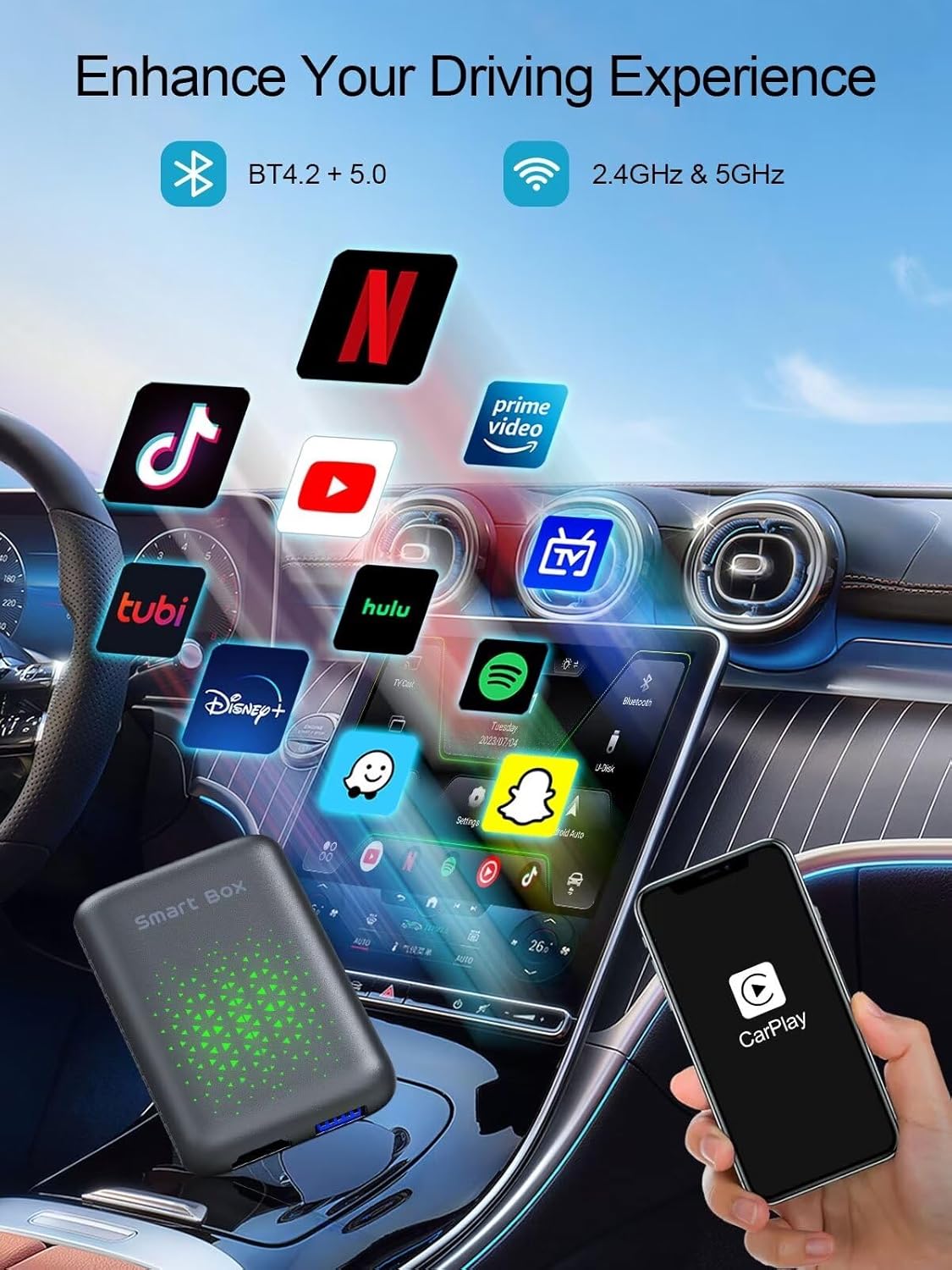
Figure 4.2: Enhance your driving experience with integrated streaming apps.
5. Maintenance
To ensure the longevity and optimal performance of your CarPlay AI Box 2.0, please observe the following maintenance guidelines:
- Keep the device clean by wiping it with a soft, dry cloth. Avoid abrasive cleaners or solvents.
- Protect the device from extreme temperatures, direct sunlight, and moisture.
- Ensure cables are not kinked or strained to prevent damage to the ports.
- Regularly check for and install firmware updates to benefit from performance improvements and new features.
6. Troubleshooting
If you encounter issues with your CarPlay AI Box 2.0, refer to the following common problems and solutions:
- Device Not Powering On: Ensure the USB cable is securely connected to both the device and the car's USB data port. Verify that the car's ignition is on.
- No Display on Car Screen: Check the HDMI cable connection if using HDMI output. Ensure your car's head unit is set to the correct input source.
- Wi-Fi/Bluetooth Connectivity Issues: Confirm that your Wi-Fi network is active and within range. Restart both the CarPlay AI Box 2.0 and your smartphone.
- CarPlay/Android Auto Not Connecting: Ensure the latest version of the respective app is installed on your smartphone. Verify Bluetooth pairing and Wi-Fi connection.
- Streaming Apps Not Loading/Buffering: Check your Wi-Fi signal strength. A strong and stable internet connection is required for streaming.
- "Do not operate while driving" Warning: This is a standard safety warning. You can often disable this warning in the device's general settings if permitted by local regulations and for passenger use only when the vehicle is stationary.
- Slow Performance: Clear the device's cache in the general settings. Ensure the device has the latest firmware update.
7. Specifications
| Feature | Detail |
|---|---|
| Brand | TIMEKNOW |
| Model Name | ZONE 1 |
| Product Dimensions | 3.34 x 2.16 x 0.66 inches |
| Item Weight | 7 ounces |
| Color | Grey |
| Connectivity Technology | HDMI |
| Connector Type | HDMI |
| Special Features | Wireless CarPlay, Android Auto, Magic Box 2.0 technology, access to YouTube, Netflix, and TikTok |
| Resolution | 4k |
| Supported Internet Services | Netflix, YouTube |
| Controller Type | Voice Control |
| Form Factor | Rectangular dongle |

Figure 7.1: The device features a 4-core smart chip for excellent performance.
8. Warranty and Support
For warranty information, technical support, or any inquiries regarding your TIMEKNOW CarPlay AI Box 2.0, please refer to the contact details provided on the product packaging or visit the official TIMEKNOW website. Keep your purchase receipt as proof of purchase for warranty claims.
