
Cooler Master TD500 MAX
Cooler Master TD500 MAX ATX Mid-Tower Case User Manual
Model: TD500 MAX | Brand: Cooler Master
Introduction
The Cooler Master TD500 MAX is a high-performance ATX mid-tower case designed for PC enthusiasts seeking maximum performance, ease of use, and exclusive features. It comes equipped with a custom Atmos 360 MAX AIO liquid cooler, a GX II Gold 850W ATX 3.0 PSU, and Mobius 120P ARGB PWM fans, simplifying the PC building process with pre-installed components and pre-routed cables. This manual provides essential information for setting up, operating, and maintaining your TD500 MAX case.
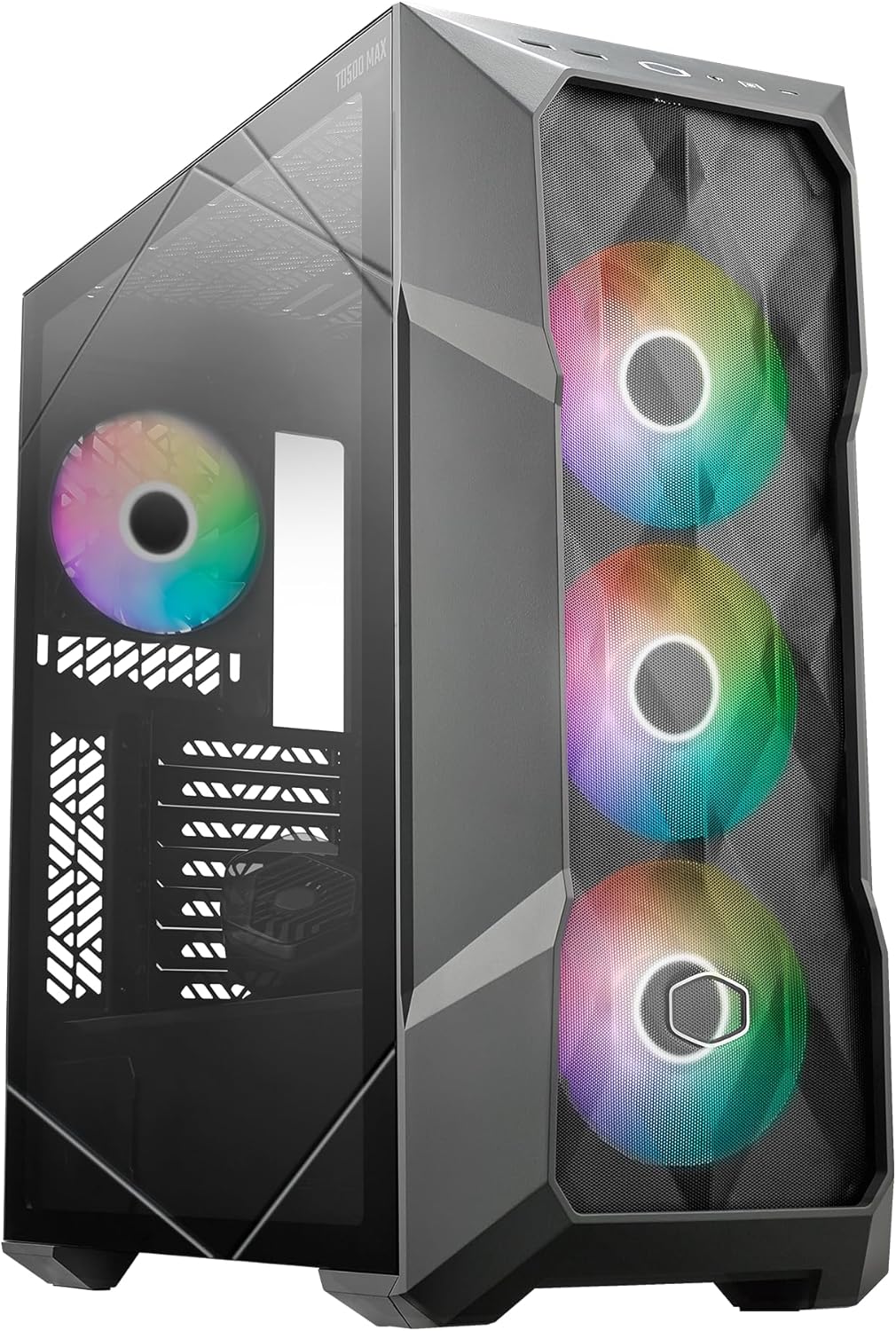
Figure 1: Front-left view of the Cooler Master TD500 MAX case, showcasing its angular design and three vibrant ARGB fans.
Key Features
- Patented Two-Stage Power Connector: This innovative design simplifies cable management, contributing to a cleaner and more organized internal build.

Figure 2: Detail of the patented two-stage power connector, designed for streamlined cable routing.
- Tailored AIO Cooling: Features a custom 38mm thick radiator and the Atmos 360 AIO, engineered for efficient cooling of demanding CPUs.

Figure 3: The custom 38mm Atmos 360 AIO radiator, providing robust CPU cooling.
- Advanced Airflow Design: Equipped with three Mobius 120P ARGB fans that enhance the Atmos radiator's performance, ensuring top-tier thermal management.

Figure 4: Visual representation of the advanced airflow design, highlighting intake and exhaust paths.
- ATX 3.0 Power Solution: Includes a pre-installed GXII Gold 850W ATX 3.0 Max PSU, offering optimal power delivery and simplifying the installation process.

Figure 5: The pre-installed power supply unit, ready for system integration.
- Versatile GPU Compatibility: Designed to accommodate graphics processing units up to 380mm in length, even with the pre-installed AIO on the front.

Figure 6: Illustration of the spacious interior, allowing for large graphics cards.
- Innovative Screw Stock Storage Pad: A convenient solution for securely storing screws during PC assembly and maintenance.

Figure 7: The dedicated screw storage pad, enhancing the building experience.
Setup Guide
1. Unboxing and Inspection
Carefully remove the TD500 MAX case from its packaging. Inspect for any signs of damage during transit. Ensure all pre-installed components (AIO, PSU, fans) are securely in place.
2. Motherboard Installation
The case features pre-installed standoffs for ATX motherboards. Gently align your motherboard with the standoffs and secure it using the provided screws. The innovative screw stock storage pad can be used to keep track of your screws.

Figure 8: Interior of the TD500 MAX, highlighting the spacious layout for component installation and pre-routed cables.
3. GPU and Component Installation
Install your graphics card into the appropriate PCIe slot. The case supports GPUs up to 380mm in length. Connect any additional storage drives (SSDs/HDDs) and RAM modules as per your motherboard's instructions.
4. Cable Management
The TD500 MAX comes with pre-routed cables for the PSU and front panel. Utilize the ample space behind the motherboard tray and the patented two-stage power connector for a clean and efficient cable management setup. Connect all necessary power cables from the pre-installed 850W ATX 3.0 PSU to your components.
5. AIO Cooler Connection
The Atmos 360 AIO is pre-installed. Ensure the CPU block is properly mounted and secured to your CPU. Connect the AIO pump and fan cables to the appropriate headers on your motherboard as per the AIO's specific instructions.
Operating Instructions
Once all components are installed and connected, close the side panels. Connect your monitor, keyboard, mouse, and power cable. Press the power button on the front I/O panel to start your system. The ARGB fans will illuminate, and the system will begin its boot sequence.
Airflow and Cooling
The TD500 MAX is designed for optimal airflow. The three Mobius 120P ARGB fans at the front provide strong intake, while the rear fan and top radiator (if additional fans are installed) facilitate exhaust. Ensure adequate space around the case for unrestricted airflow.
ARGB Lighting Control
The ARGB lighting of the Mobius fans can typically be controlled via your motherboard's RGB software or a dedicated ARGB controller if one is included or purchased separately. Refer to your motherboard's manual for specific ARGB header locations and software instructions.
Maintenance
Dust Filter Cleaning
To maintain optimal airflow and prevent dust buildup, regularly clean the dust filters located on the front, top, and bottom of the case. These filters are typically magnetic or slide-out for easy removal. Use compressed air or a soft brush to remove accumulated dust.
General Cleaning
Wipe the exterior of the case with a soft, damp cloth. Avoid using harsh chemicals or abrasive materials that could damage the finish or tempered glass panel.
Troubleshooting
- System Not Powering On:
- Ensure the power cable is securely connected to the PSU and the wall outlet.
- Verify the PSU switch is in the "ON" position.
- Check all internal power connections (24-pin motherboard, CPU, GPU, storage).
- Confirm front panel power button cables are correctly connected to the motherboard.
- Fans Not Spinning / ARGB Not Lighting Up:
- Check fan power cables and ARGB cables are securely connected to the motherboard or controller.
- Ensure the ARGB controller (if applicable) is powered and functioning.
- Verify motherboard BIOS settings for fan control and RGB.
- High Temperatures:
- Ensure all fans are spinning correctly and oriented for proper airflow (front intake, rear/top exhaust).
- Clean dust filters to prevent airflow restriction.
- Verify the AIO pump is running and the CPU block is making good contact with the CPU.
- Check thermal paste application on the CPU.
Specifications
| Feature | Detail |
|---|---|
| Brand | Cooler Master |
| Series | TD500 MAX |
| Model Number | TD500V2-MGNN85-SL0 |
| Case Type | Mid Tower |
| Motherboard Compatibility | ATX |
| Dimensions (LxWxH) | 19.65 x 19.69 x 8.27 inches |
| Item Weight | 25.1 pounds |
| Color | Gun Metal |
| Material | Stainless Steel, Metal |
| Pre-installed AIO | Atmos 360 MAX (38mm radiator) |
| Pre-installed PSU | GX II Gold 850W ATX 3.0 Max |
| Pre-installed Fans | 3x Mobius 120P ARGB PWM Fan |
| GPU Compatibility Length | Up to 380mm (with front AIO) |
| USB 3.0 Ports | 2 |
| Cooling Method | Water, Air |
Warranty and Support
For warranty information and technical support, please refer to the official Cooler Master website or contact their customer service. Keep your proof of purchase for warranty claims.
Online Resources: Visit the Cooler Master support page for FAQs, driver downloads, and additional product documentation.
Contact Support: Details for contacting Cooler Master customer service can be found on their official website.
Related documentsTD500 MAX


Ask a question about this manual
Ask about setup, troubleshooting, compatibility, parts, safety, or missing instructions. Manuals+ will review the question and use this page’s manual context to help answer it.