
Leapiture Leapiturefq90oshbgn
Leapiture P10 Car HUD Display User Manual
Model: Leapiturefq90oshbgn
Introduction
This manual provides detailed instructions for the installation, operation, maintenance, and troubleshooting of your Leapiture P10 Car HUD Display. This device is designed to enhance your driving experience by projecting essential vehicle data directly onto your windshield, allowing you to monitor key information without diverting your eyes from the road.
The P10 HUD Display is universally compatible with vehicles equipped with OBD II and EUOBD ports, offering a plug-and-play solution for automatic diagnosis systems. It features a multi-color TFT LCD display that automatically detects and displays the vehicle protocol upon the first scan.

Figure 1: The Leapiture P10 Car HUD Display, showcasing its compact design and clear digital readout of speed, voltage, and engine temperature.
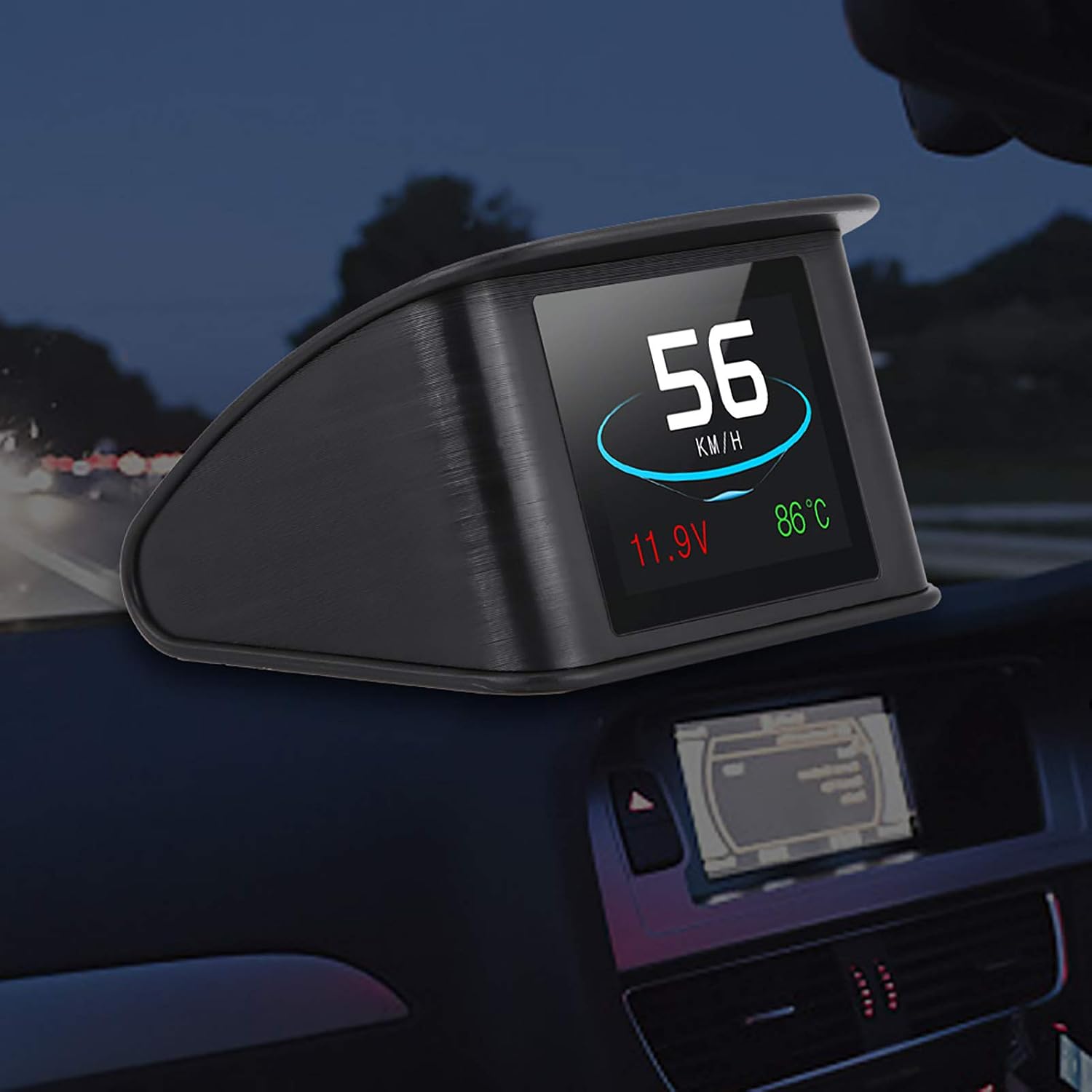
Figure 2: The P10 Car HUD Display seamlessly integrated into a car's dashboard, providing clear visibility of information during nighttime driving.
Package Contents
Upon opening the package, please verify that all the following items are included:
- 1 x Car HUD Display (P10 Unit)
- 1 x OBD2 Connecting Line
- 1 x Non-slip Pad
- 1 x User Manual (This document)

Figure 3: Contents of the P10 Car HUD Display package, including the main unit, OBD2 cable, and non-slip pad.
Note: Due to product updates, you may receive either the new or old type of the product. Both versions are fully functional and compatible.
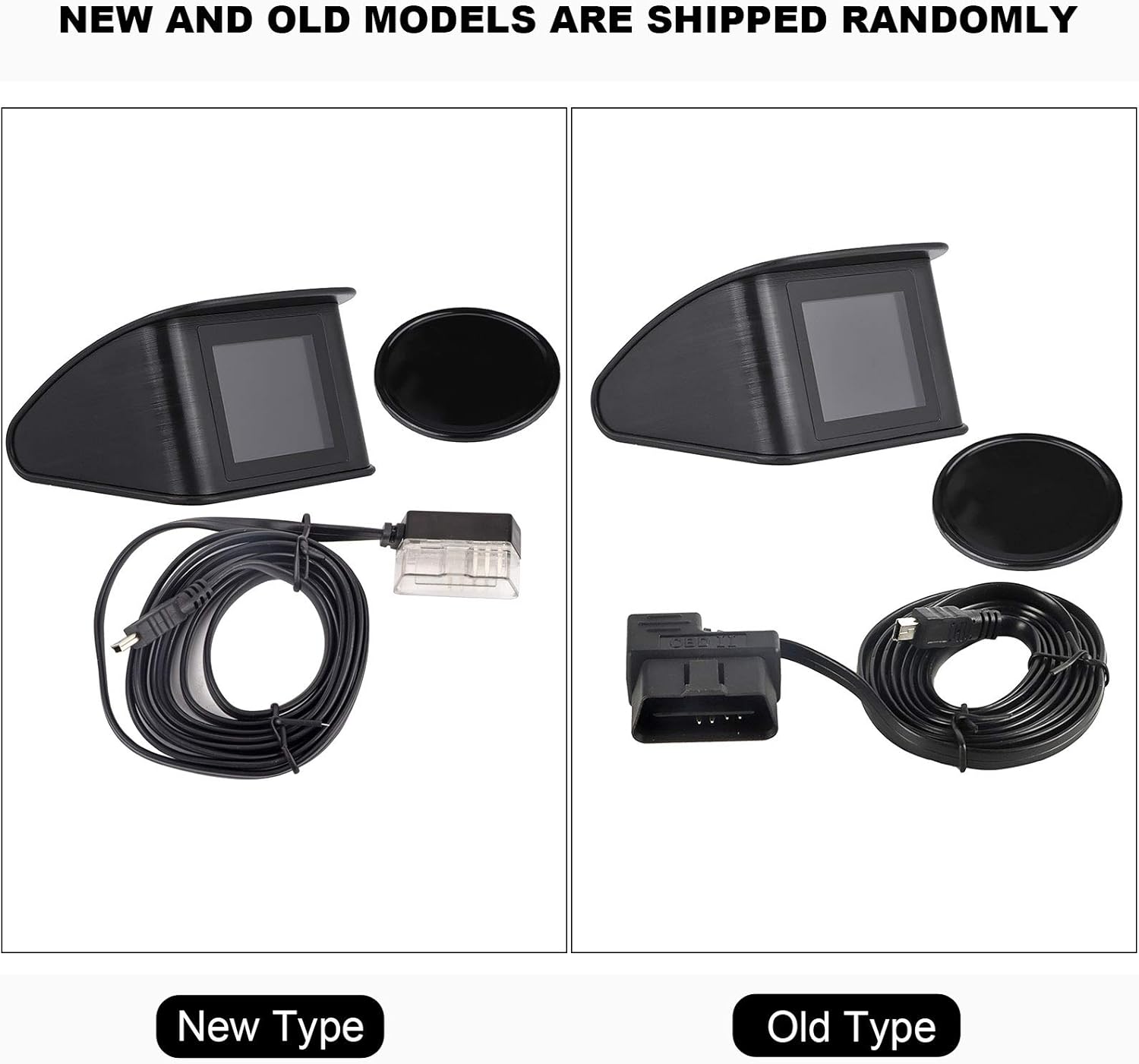
Figure 4: Visual comparison between the new and old types of the P10 Car HUD Display and their respective OBD2 connecting lines.
Setup and Installation
Before installation, ensure your vehicle is compatible with OBD II or EUOBD protocols. Most vehicles manufactured after 1996 in the USA, and after 2001 in Europe, are compatible.
Verify OBDII/EUOBD Compatibility: Open your vehicle's engine hood and locate the Vehicle Emission Control Information sticker. If it states "OBDII CERTIFIED" or "EUOBD", your vehicle is compatible.

Figure 5: Example of an OBDII certified sticker and the typical location of the 16-pin diagnostic link under the dashboard.
Locate and Connect OBD2 Port: Find the 16-pin diagnostic link (OBD2 port) in your vehicle, typically located under the dashboard on the driver's side. Connect the provided OBD2 connecting line firmly to this port.
Position the HUD Display: Place the P10 HUD Display on your dashboard using the non-slip pad. Ensure it is positioned where the projected information is clearly visible on your windshield without obstructing your view of the road. The device should be stable and not move during driving.
Power On: Once connected, start your vehicle. The HUD display will automatically power on and begin detecting the vehicle protocol. This process may take a few moments during the first use.
Operating Instructions
The P10 HUD Display provides a wealth of real-time vehicle data and diagnostic functions. The multi-color TFT LCD display ensures clear readability.
Displayed Information
The device can display the following critical information:
- Speed: Current vehicle speed.
- RPM: Engine Revolutions Per Minute.
- Water Temperature: Engine coolant temperature.
- Voltage: Vehicle battery voltage.
- Fuel Consumption: Instantaneous and average fuel consumption metrics.
- Driving Distance: Distance traveled during the current trip.
- Driving Time: Duration of the current trip.
- Alarms: Various alerts such as low voltage, high water temperature, and overspeed warnings.
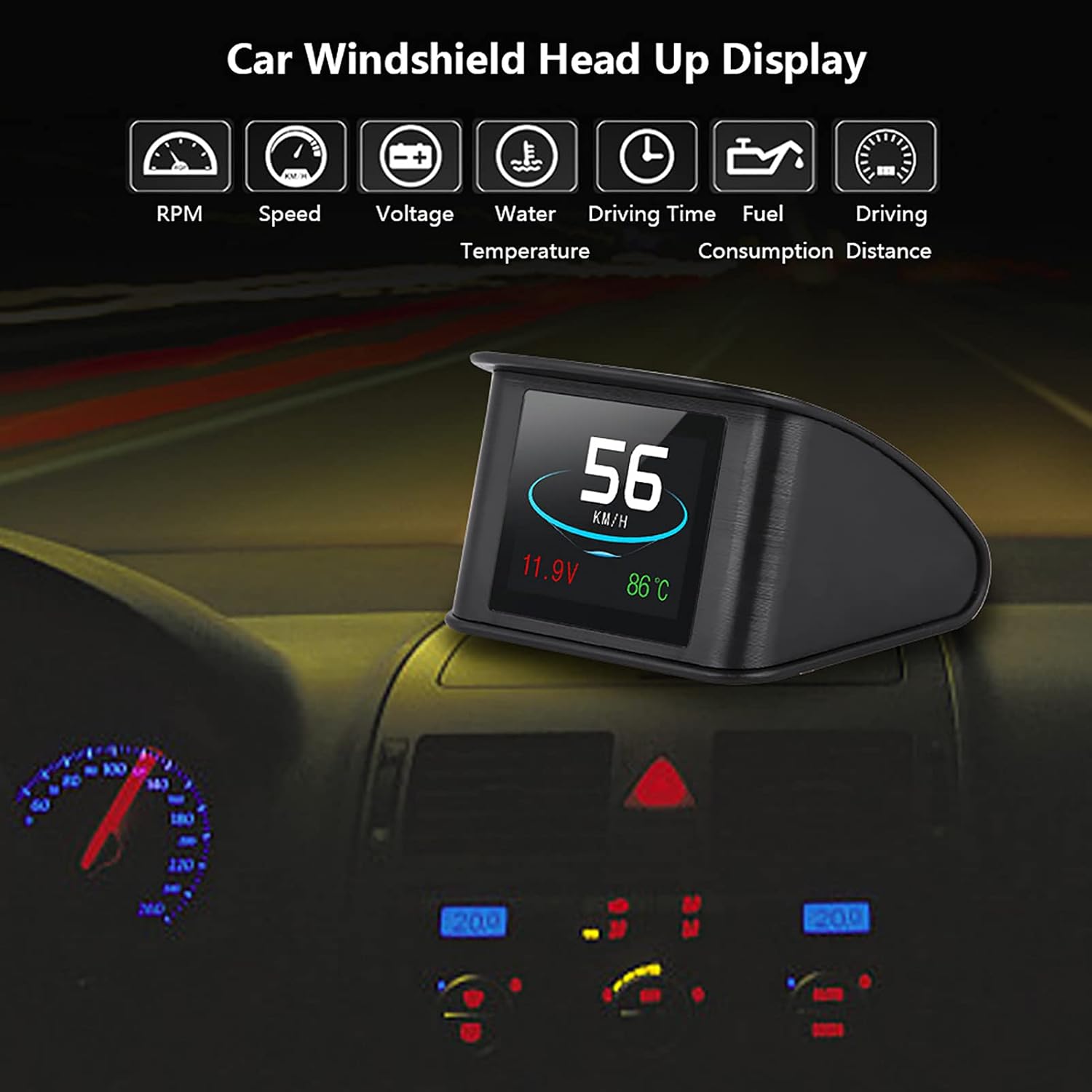
Figure 6: The P10 HUD Display interface, illustrating the range of data points it can display, including RPM, Speed, Voltage, Water Temperature, Driving Time, Fuel Consumption, and Driving Distance.
Advanced Functions
The P10 HUD Display offers enhanced functionality for comprehensive vehicle insights:
- Accelerating Competitive Mode: Measure your vehicle's acceleration performance.
- Brake Performance Test: Evaluate your vehicle's braking efficiency.
- Real-time Car Data Stream: Read and monitor live data from your vehicle's ECU.
- Engine Fault Code Diagnosis: Identify and display engine diagnostic trouble codes (DTCs).
- Eliminate Fault Code: Clear detected fault codes from your vehicle's system.
- Engine Fault Code Alarm: Receive alerts for detected engine issues.

Figure 7: Illustration of the P10 HUD Display's advanced functions, including brake performance test, accelerating test, driving distance measurement, fault code elimination, engine fault code diagnosis, and engine fault code alarm.
Display Modes and Settings
Users can switch between multi-function and simple function display modes to suit individual preferences. The device features a semicircle setting button and a USB interface on the back for configuration and potential firmware updates.

Figure 8: Rear view of the P10 HUD Display, highlighting the light sensor hole, semicircle setting button, and USB interface for adjustments and connectivity.
Maintenance
To ensure the longevity and optimal performance of your P10 Car HUD Display, follow these simple maintenance guidelines:
- Cleaning: Use a soft, dry cloth to gently wipe the display screen and housing. Avoid using abrasive cleaners, solvents, or spray directly onto the unit, as these can damage the surface or internal components.
- Storage: When not in use for extended periods, store the device in a cool, dry place away from direct sunlight and extreme temperatures.
- Cable Care: Ensure the OBD2 connecting line is not kinked, pinched, or subjected to excessive tension, which could damage the cable or connectors.
Troubleshooting
If you encounter issues with your P10 Car HUD Display, refer to the following common troubleshooting steps:
- No Display/Power:
- Ensure the OBD2 connecting line is securely plugged into both the HUD unit and the vehicle's OBD2 port.
- Verify that your vehicle is turned on (engine running or ignition in ON position).
- Check your vehicle's OBD2 port for power by testing with another OBD2 device if available.
- Incorrect Data Display:
- Ensure your vehicle is fully compatible with OBD II or EUOBD protocols.
- Restart the vehicle and the HUD unit to allow it to re-establish connection and protocol detection.
- If speed or other values seem off, check the unit's settings (using the semicircle button) for calibration options, if available.
- Alarms Not Functioning:
- Verify that alarm thresholds (e.g., overspeed, high water temperature) are correctly set in the device's settings.
- Ensure the alarm sound level is not set to minimum or muted.
- Engine Fault Code Issues:
- If the HUD displays a fault code, consult your vehicle's service manual or a professional mechanic for diagnosis.
- The "Eliminate fault code" function should only be used after the underlying issue has been resolved, as clearing codes without fixing the problem will result in the code reappearing.
If problems persist after attempting these steps, please refer to the support section for further assistance.
Specifications
| Feature | Specification |
|---|---|
| Model | Leapiture P10 |
| Material | Plastic, Electronic Components |
| Housing Color | Black |
| Display Color | Colorful |
| Environment Temperature | -40℃ ~ +80℃ (-40°F ~ +176°F) |
| Relative Humidity | 10% - 15% |
| Atmospheric Pressure | 86-106KPa |
| Alarm Sound Level | >=30dB(A) |
| Work Voltage | 9V~16V DC (12V DC/400mA) |
| Dimensions (L x W x H) | Approx. 73 x 68 x 46mm / 2.9 x 2.7 x 1.8in |
| Weight | Approx. 177g / 6.2 ounces |

Figure 9: Detailed dimensions of the P10 Car HUD Display unit.
Warranty and Support
For information regarding product warranty, returns, or technical support, please refer to the official Leapiture website or contact the seller directly through your purchase platform. Keep your proof of purchase for any warranty claims.
It is recommended to read all product instructions carefully before use to ensure correct usage and to prevent any potential issues.
Figure 10: A general warning emphasizing the importance of reading the product instructions carefully before use.
Ask a question about this manual
Ask about setup, troubleshooting, compatibility, parts, safety, or missing instructions. Manuals+ will review the question and use this page’s manual context to help answer it.