
Introduction
This manual provides detailed instructions for the installation, operation, and maintenance of your GYVCBREU Car Radio Stereo. Designed specifically for the Cadillac SRX models from 2009 to 2012, this unit features a 12.1-inch vertical touchscreen, Android operating system, CarPlay, Android Auto, GPS navigation, and various multimedia functions. Please read this manual thoroughly before installation and use to ensure proper functionality and safety.
1. Setup
1.1 Package Contents
- Main Head Unit (12.1-inch Vertical Screen)
- Power Harness
- GPS Antenna
- 4G Antenna
- USB Cables
- RCA Cables
- Canbus Protocol Box
- Rearview Camera Input Cable
- External Microphone
- Radio Antenna Adapter
1.2 Installation Overview
Professional installation is highly recommended. Ensure the vehicle's power is disconnected before beginning installation. The unit is designed for a direct fit into the Cadillac SRX 2009-2012 dashboard.

1.3 Wiring Connections
Carefully connect all cables as described below. Refer to the provided wiring diagram for your specific vehicle model.
- GPS Antenna Connection: Connect the GPS antenna to the designated port on the back of the head unit. Position the antenna in a location with a clear view of the sky for optimal signal reception.
- 4G Antenna Connection: If your unit supports 4G connectivity, connect the 4G antenna to its dedicated port.
- Radio Antenna Adapter: Connect the radio antenna adapter to the vehicle's existing radio antenna cable and then to the head unit.
- WiFi Signal Cable / Rearview Camera Input: Connect the WiFi signal cable and the rearview camera input plug. The yellow RCA connector is for the rearview camera video signal.
- USB Cables: Connect the 6-pin and 4-pin USB plug cables to their respective ports on the head unit. These are used for external USB devices and data transfer.
- RCA Cable Group: Connect the RCA cable group plug for audio/video input/output.
- Canbus Protocol Box: Connect the Canbus protocol box to the main wiring harness. This box ensures communication between the head unit and the vehicle's systems (e.g., steering wheel controls, climate control).
- Radio Power Plug: Connect the main radio power plug from the vehicle's harness to the head unit.
- External Microphone: Connect the external microphone to the designated port for improved call quality.

2. Operating
2.1 Basic User Interface Navigation
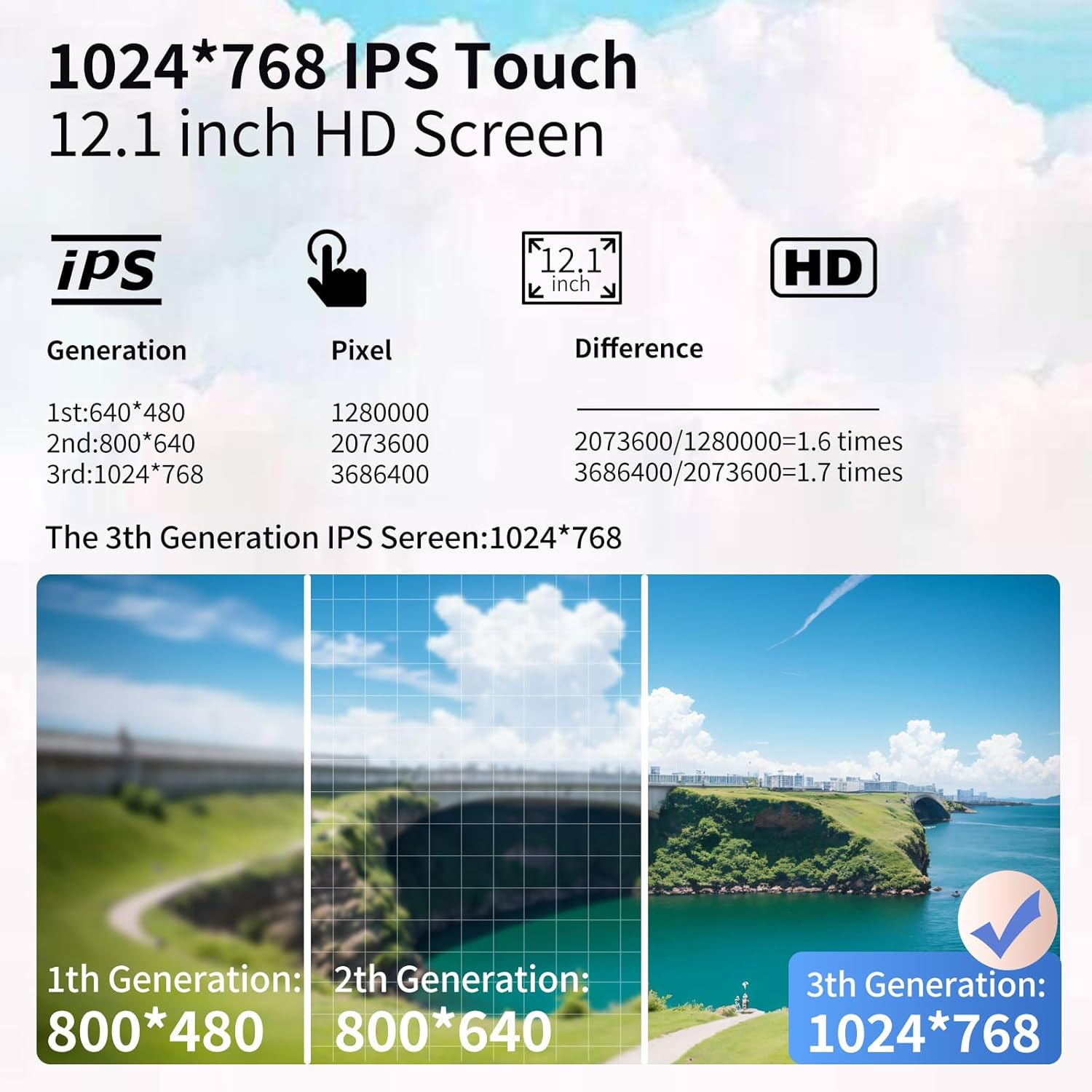
The 12.1-inch HD touchscreen provides intuitive control. Swipe left/right to navigate between app pages. Tap icons to launch applications. The bottom bar features quick access buttons for Home, A/C controls, and Back.
2.2 CarPlay & Android Auto
The unit supports both wired and wireless Apple CarPlay and Android Auto. Connect your smartphone to access navigation, phone contacts, messages, music, and voice assistants (Siri/Google Assistant).


2.3 GPS Navigation
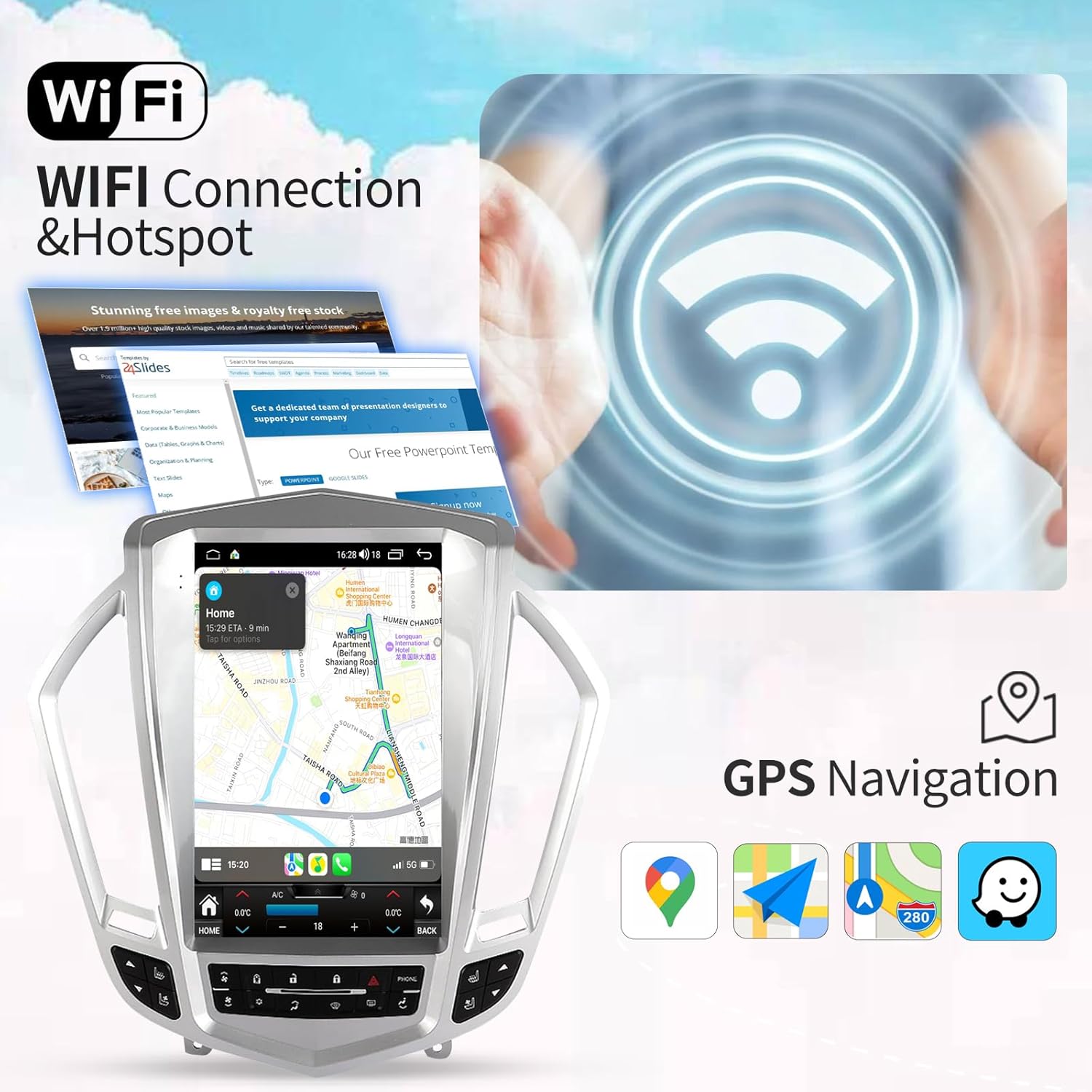
The built-in GPS module supports high-precision navigation with GPS + GLONASS. Use online or offline maps (Apple Maps, Google Maps, Waze) for reliable route guidance.
2.4 Bluetooth 5.0
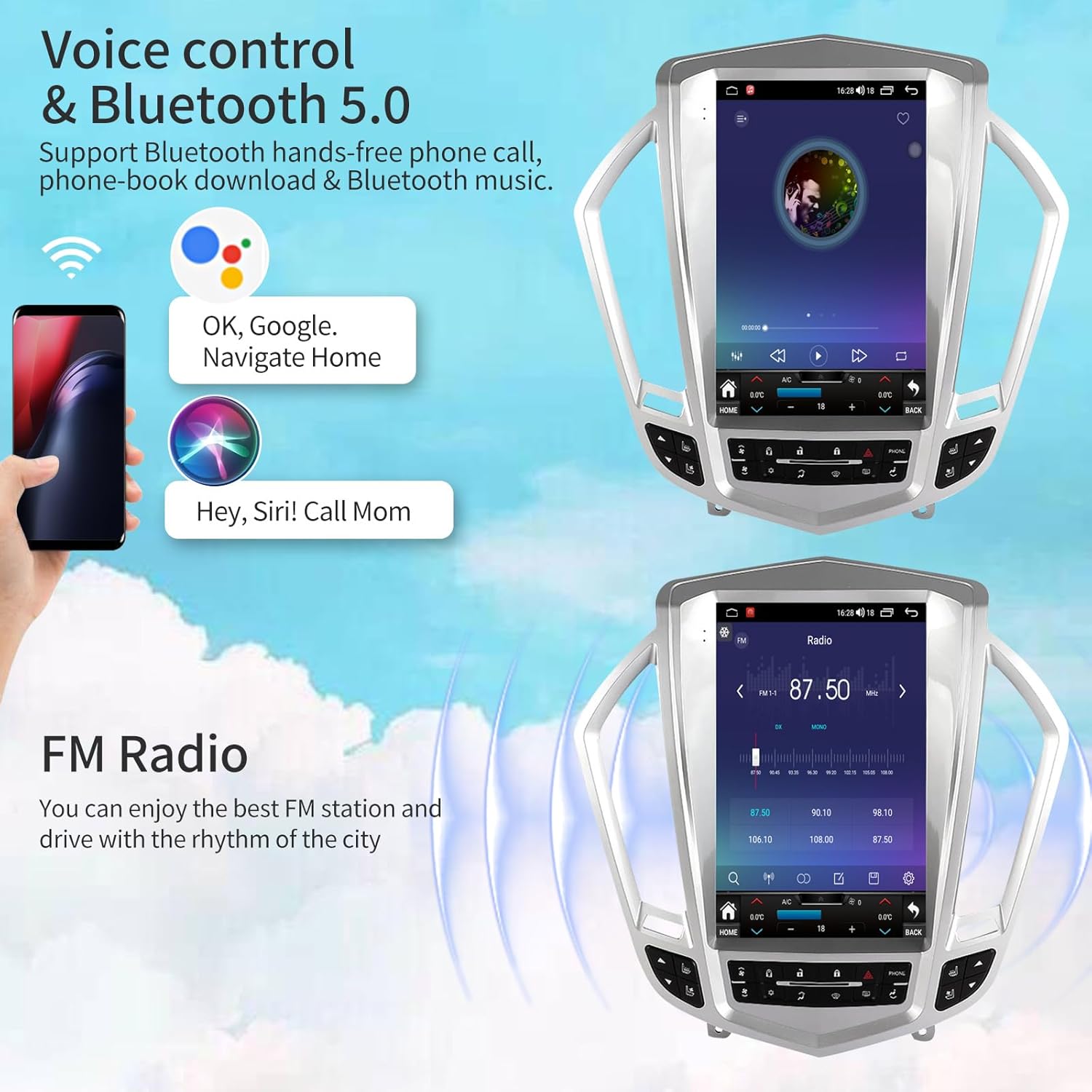
Connect your phone via Bluetooth 5.0 for hands-free calling, phonebook access, and wireless audio streaming.

2.5 FM/AM Radio
Tune into your favorite FM/AM radio stations. The unit supports RDS for additional station information.

2.6 Multimedia Playback
Play audio and video files from USB drives or streaming apps. The unit supports various formats for a rich entertainment experience.
2.7 DSP (Digital Sound Processor)
Customize your audio experience with the built-in DSP. Adjust equalizer settings, bass enhancement, and sound field to optimize sound quality.

2.8 Steering Wheel Control
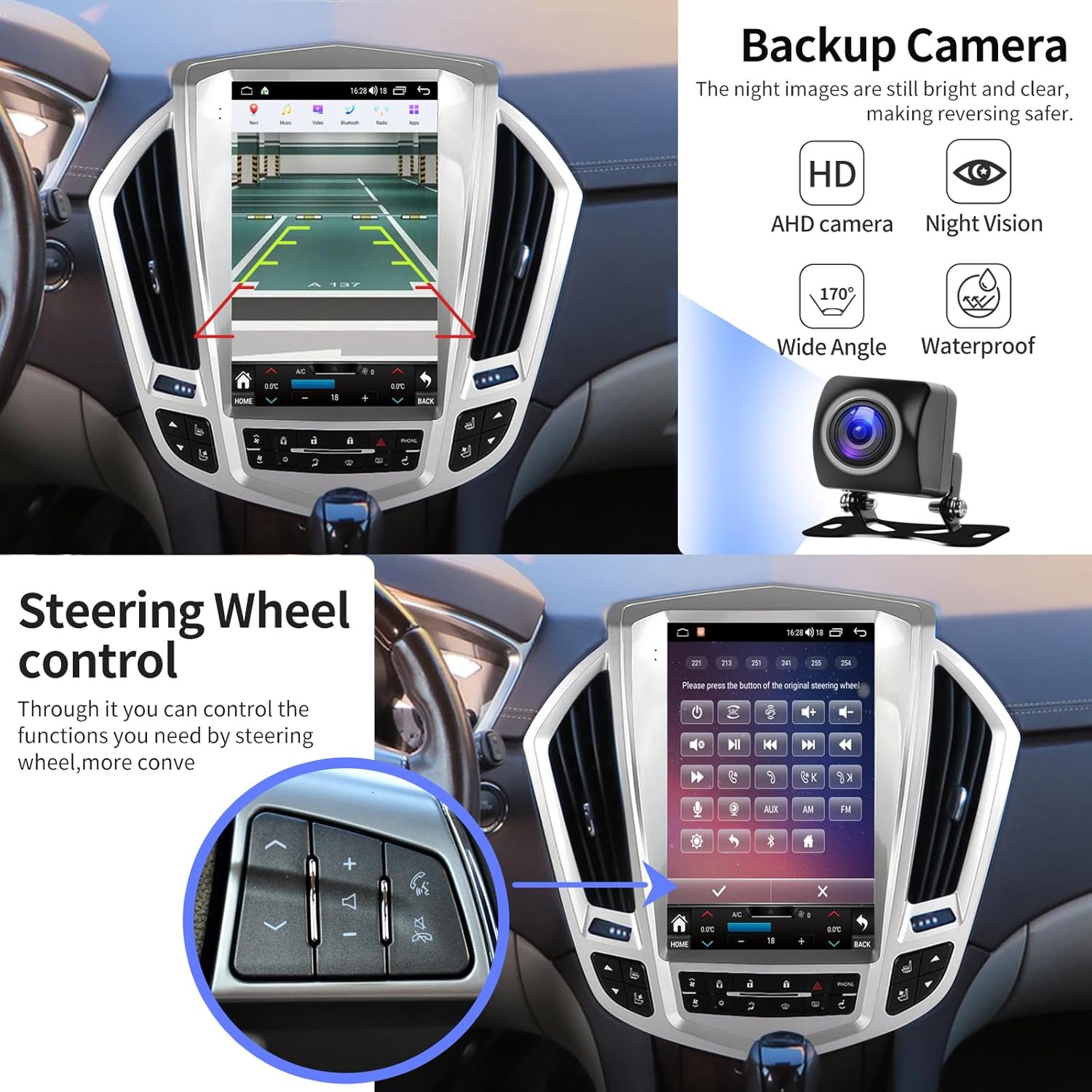
The unit supports original steering wheel controls, allowing you to manage audio, calls, and other functions without taking your hands off the wheel.
2.9 Backup Camera
When reversing, the screen automatically displays the rearview camera feed, enhancing safety and visibility.

2.10 Split Screen Display
Utilize the split-screen feature to run two applications simultaneously, such as navigation and music playback.

2.11 Voice Control
Use voice commands to control various functions, including navigation, calls, and music, for a hands-free experience.
3. Maintenance
3.1 General Care and Cleaning
- Wipe the screen and unit exterior with a soft, dry cloth.
- Avoid using harsh chemicals or abrasive cleaners.
- Keep the unit free from dust and debris.
3.2 Software Updates
Periodically check for software updates to ensure optimal performance and access to new features. Updates can typically be downloaded via Wi-Fi or USB.
4. Troubleshooting
If you encounter any issues, refer to the following common problems and solutions:
| Problem | Possible Cause | Solution |
|---|---|---|
| Unit does not power on | Loose power connection, blown fuse | Check power harness connections. Inspect vehicle fuses. |
| No sound | Incorrect wiring, volume too low, mute activated | Verify speaker wiring. Adjust volume. Check mute status. |
| GPS signal lost/inaccurate | GPS antenna obstruction or loose connection | Ensure GPS antenna has a clear view of the sky and is securely connected. |
| CarPlay/Android Auto not connecting | Bluetooth/Wi-Fi issues, phone compatibility | Ensure Bluetooth and Wi-Fi are enabled on both devices. Check phone compatibility and update phone OS. |
| Steering wheel controls not working | Canbus box not connected or configured | Verify Canbus box connection. Access steering wheel control learning settings in the unit. |
For further assistance, please contact customer service.
5. Specifications
| Feature | Detail |
|---|---|
| Model | B0CXDQRY91 |
| Compatible Vehicle | Cadillac SRX 2009-2012 |
| Display Size | 12.1 Inches |
| Operating System | Android |
| CPU | 8 Core |
| RAM | 4GB |
| ROM | 32GB |
| Connectivity | Bluetooth 5.0, Wi-Fi, 4G, USB |
| Special Features | Touchscreen, CarPlay, Android Auto, GPS, DSP, Steering Wheel Control, Backup Camera Support |
| Item Weight | 6.6 pounds |
| Product Dimensions | 12.1 x 12.1 x 12.1 inches |
6. Warranty and Support
Your GYVCBREU Car Radio Stereo comes with dedicated customer service. If you have any questions regarding compatibility, installation, or operation, please contact our support team. Our engineers are available to assist you promptly.
For technical support, please refer to the contact information provided with your purchase or on the manufacturer's website.