
1. Introduction
The Xinfrared One XH09 is a compact thermal imaging monocular designed to transform your Android smartphone into a powerful thermal camera. Utilizing advanced thermal technology, it provides enhanced visibility in low-light or no-light conditions, making it suitable for various applications such as wildlife observation, outdoor safety, and home inspections. This manual provides essential information for the proper setup, operation, and maintenance of your XH09 device.
2. Setup
2.1 Package Contents
Before proceeding, please verify that all items are present in your package:
- Xinfrared One XH09 Thermal Monocular
- USB-C Connection Cable
- Protective Cap
- Carrying Pouch
- User Manual (this document)

Figure 2.1: Contents of the Xinfrared One XH09 package. This image displays the XH09 thermal monocular, a smartphone grip, connection cables, a protective cap, and a carrying pouch, all neatly arranged on a wooden surface.
2.2 App Installation
The XH09 requires the "Thermal Eye X" application to function. This app is available for Android devices.
- Open the Google Play Store on your Android smartphone.
- Search for "Thermal Eye X".
- Download and install the application.
- Grant necessary permissions when prompted by the app.
2.3 Device Connection
Connect the XH09 thermal monocular to your Android smartphone via the USB-C port.
- Ensure the "Thermal Eye X" app is installed and open on your smartphone.
- Carefully plug the XH09 device into your smartphone's USB-C port.
- The app should automatically detect the device and display the thermal image.
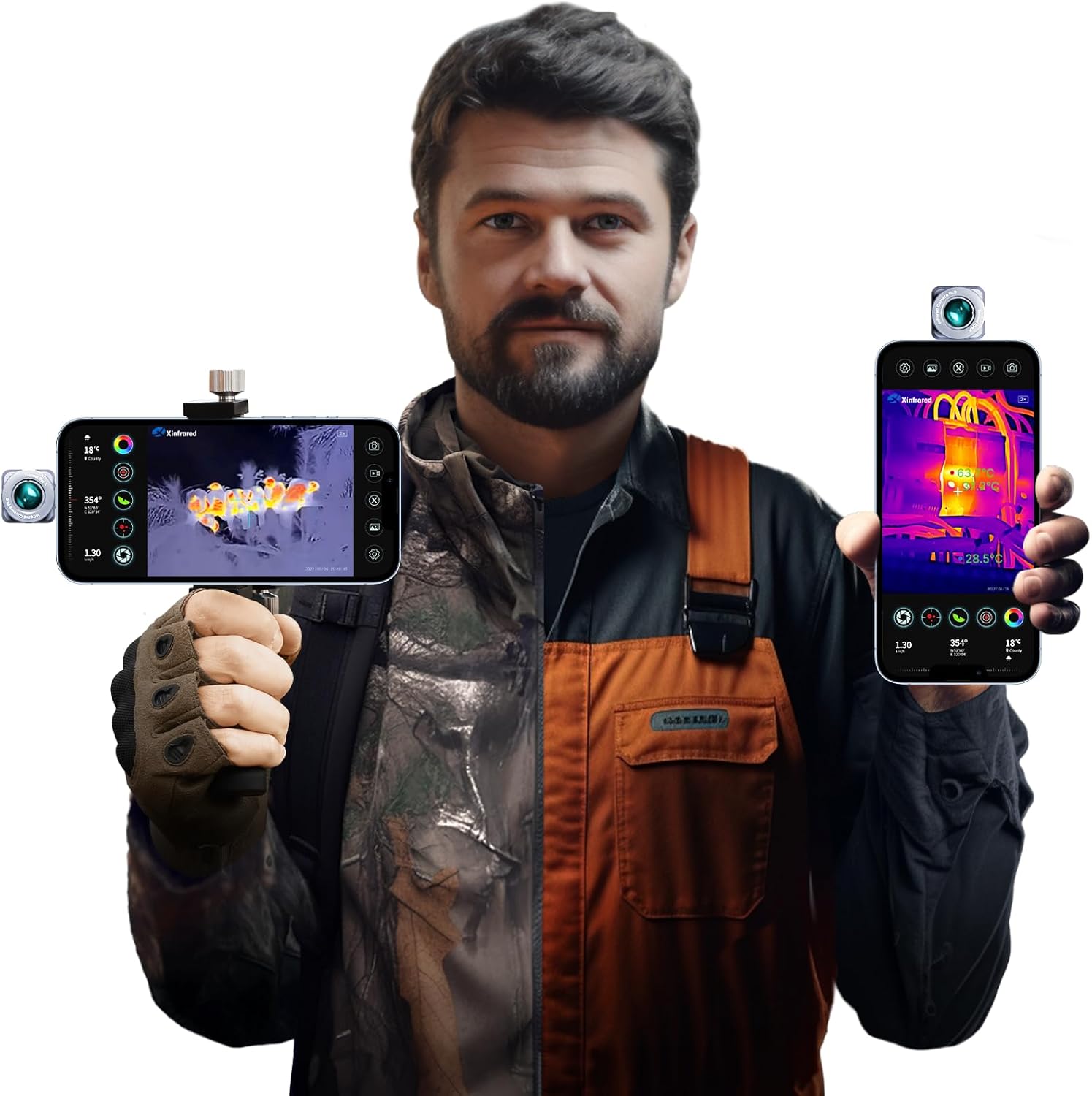
Figure 2.2: The Xinfrared XH09 thermal monocular connected to an Android smartphone. The image shows a user holding a smartphone with the XH09 attached, displaying a thermal view of a scene.
3. Operating Instructions
3.1 Basic Thermal Imaging
Once connected, the "Thermal Eye X" app will display a live thermal feed. The app interface provides various options for customizing your thermal view.
3.2 X³ Super Algorithm
The XH09 features the X³ Super Algorithm, which enhances the infrared (IR) resolution from 256×192 to an effective 512×384. This technology provides clearer and sharper thermal images, improving detail recognition.

Figure 3.1: Comparison of thermal image quality with X³ Super Algorithm activated versus disabled. The top image, with X³ activated, shows a significantly clearer thermal outline of a person compared to the bottom image where it is disabled.

Figure 3.2: Detailed view of the X³ Super Algorithm's effect on thermal resolution. This image illustrates how the algorithm upscales the effective IR resolution, resulting in a more defined and detailed thermal output.
3.3 Detection Range and Zoom
The XH09 thermal monocular offers a detection range of up to 870 meters, allowing for long-distance observation. It also features a 2-15x digital zoom for closer inspection of distant objects.

Figure 3.3: Visual comparison demonstrating the XH09's 870m detection capability. The top image shows a clear thermal outline of a person at a distance using the XH09, while the bottom image from another device shows less detail.

Figure 3.4: An illustration of the XH09's extended detection range. This image highlights the device's capacity to identify thermal signatures from up to 870 meters away, useful for various outdoor activities.

Figure 3.5: A user demonstrating the 2-15x digital zoom feature within the XH09 application. The image shows a thermal view of birds on a branch, with an inset displaying a zoomed-in section, indicating the device's magnification capabilities.
3.4 High Frame Rate
The XH09 operates at a 50Hz high frame rate, providing smooth and fluid thermal imaging, which is crucial for tracking moving targets without lag.

Figure 3.6: Comparison illustrating the benefit of the XH09's 50Hz high frame rate. The top image from the XH09 shows a clear, smooth thermal view of a moving person, contrasting with a blurrier image from a 9Hz device below.
3.5 Durability and Compatibility
The XH09 features a sturdy all-metal construction and an IP65 rating, offering protection against dust and water ingress, including heavy rain and ocean waves.

Figure 3.7: Visual representation of the XH09's IP65 rating. The image shows the device being subjected to simulated heavy rain and ocean waves, highlighting its robust design and resistance to environmental elements.
The device is designed for Android smartphones and can be used with various accessories like grips and tripods for enhanced usability.

Figure 3.8: The XH09 thermal monocular shown connected to different Android devices (smartphone, tablet) and mounted on a tripod and a handheld grip, illustrating its versatile compatibility and flexible usage options.
3.6 Application Scenarios
The XH09 is a versatile tool for:
- Wildlife Observation: Spot animals in low light or dense foliage.
- Wilderness Rescue: Locate individuals in challenging environments.
- Camping Safety: Enhance awareness of surroundings at night.
- Home Inspections: Identify heat loss, electrical issues, or plumbing leaks.

Figure 3.9: The XH09 presented as an essential survival tool for wilderness activities. The image shows a thermal view of a person in a natural setting, emphasizing its utility for rescue, camping, and wildlife observation.

Figure 3.10: Two distinct applications of the XH09 thermal camera. The left panel shows a person using the device for an inspection, highlighting its use in identifying thermal anomalies. The right panel depicts a deer in a thermal view, demonstrating its utility for outdoor observation.
3.7 Advanced Features
- Compound Bow Mode: Offers 8 professional hunting reticles and 5 color options for specialized targeting.
- Full HD/Highlight Mode: Provides options for detailed or emphasized thermal views.

Figure 3.11: The XH09's Compound Bow Mode interface, displaying a thermal image of a deer with a green reticle overlay. Below, various reticle shapes and color options are shown, indicating customization for specific uses.

Figure 3.12: A side-by-side comparison of Full HD and Highlight thermal imaging modes. The left image shows a detailed thermal view of a peacock in Full HD, while the right image in Highlight mode emphasizes the thermal signature for easier detection.
4. Maintenance
4.1 Cleaning
To maintain optimal performance, keep the XH09 lens and body clean.
- Use a soft, lint-free cloth to gently wipe the device.
- For the lens, use a specialized lens cleaning solution and cloth to avoid scratches.
- Do not use abrasive cleaners or solvents.
4.2 Storage
When not in use, store the XH09 in its protective carrying pouch in a cool, dry place, away from direct sunlight and extreme temperatures.
5. Troubleshooting
5.1 Device Not Detected
- Ensure the XH09 is securely plugged into your smartphone's USB-C port.
- Verify that the "Thermal Eye X" app is open and has the necessary permissions.
- Restart the app and reconnect the device.
- Check your smartphone's USB settings to ensure it supports external device connections.
5.2 Image Quality Issues
- Clean the XH09 lens as described in the Maintenance section.
- Ensure there are no obstructions between the device and the target.
- Adjust settings within the "Thermal Eye X" app, such as palette or contrast, to optimize the view.
5.3 App Crashing or Freezing
- Ensure your smartphone's operating system is up to date.
- Clear the app's cache or reinstall the "Thermal Eye X" app.
- Close other background applications to free up system resources.
6. Specifications
| Feature | Specification |
|---|---|
| Model Name | XH09 |
| IR Resolution (Effective) | 512x384 (with X³ Algorithm) |
| Detection Range | Up to 870 meters |
| Digital Zoom | 2-15x |
| Frame Rate | 50Hz |
| Compatibility | Android Smartphones (USB-C) |
| Ingress Protection (IP) Rating | IP65 |
| Product Dimensions | 11.8 x 7.9 x 3 inches |
| Item Weight | 2.07 pounds |
| Focal Length | 9 millimeters |
| Lens Coating | Multi-Coated |
| Focus Type | Manual Focus |
| Power Source | Rechargeable Battery (via smartphone) |
7. Warranty & Support
For any questions regarding product compatibility, technical support, or warranty claims, please contact Xinfrared customer service. Refer to the product packaging or the official Xinfrared website for the most current contact information.
It is recommended to keep your purchase receipt as proof of purchase for warranty purposes.


