
BlitzWolf BW-VT2EU
BlitzWolf BW-VT2 Mini Projector User Manual
Your comprehensive guide to setting up, operating, and maintaining your BlitzWolf BW-VT2 Mini Projector.
1. Product Overview
1.1 Package Contents
Please verify that all items are present in your package:
- BlitzWolf BW-VT2 Mini Projector
- Remote Control
- Power Adapter
- HDMI Cable
- User Manual (this document)
1.2 Device Layout
Familiarize yourself with the various parts and ports of your projector.
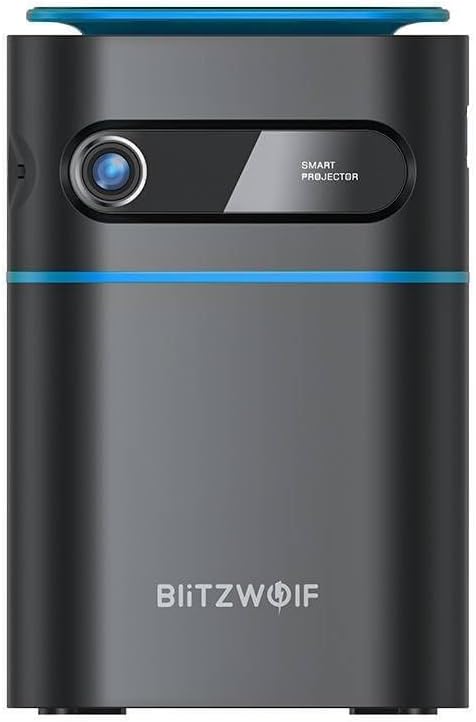
Figure 1.1: Front View. This image displays the front of the BlitzWolf BW-VT2 Mini Projector, highlighting the projection lens and the 'SMART PROJECTOR' branding.

Figure 1.2: Projector with Remote Control. This image shows the BlitzWolf BW-VT2 Mini Projector alongside its dedicated remote control, illustrating the compact size of both devices.
Figure 1.3: Rear View. The rear of the projector is shown, featuring ventilation grilles and various input/output ports.

Figure 1.4: Side View. This image highlights the side of the projector where additional connectivity options such as USB and HDMI ports are located.

Figure 1.5: Top View. The top surface of the projector is visible, featuring the integrated touch control panel for direct interaction.
1.3 Ports and Controls
- HDMI Port: Connect to laptops, game consoles, Blu-ray players, etc.
- USB Port: Connect USB flash drives for media playback.
- Audio Out (3.5mm) Port: Connect external speakers or headphones.
- DC IN Port: Connect the power adapter.
- Power Button: Turns the projector on/off.
- Focus Wheel: Adjusts image clarity.
- Touch Control Panel: Navigate menus and control playback directly on the device.
2. Setup Guide
2.1 Powering On
- Connect the power adapter to the DC IN port on the projector.
- Plug the power adapter into a wall outlet.
- Press and hold the Power Button on the projector or the remote control until the device powers on.
2.2 Initial Placement
For optimal viewing experience, consider the following:
- Place the projector on a stable, flat surface.
- Ensure there is adequate ventilation around the projector to prevent overheating.
- Position the projector perpendicular to the projection surface (wall or screen) for a rectangular image.
- Adjust the distance to achieve your desired screen size.
2.3 Focus Adjustment
After powering on, adjust the focus to ensure a clear image:
- Rotate the focus wheel located near the lens until the projected image appears sharp and clear.
2.4 Remote Control Setup
Insert batteries into the remote control before first use:
- Open the battery compartment cover on the back of the remote control.
- Insert two AAA batteries (not included), ensuring correct polarity (+/-).
- Close the battery compartment cover.
3. Operating Instructions
3.1 Navigation
You can navigate the projector's interface using either the remote control or the touch control panel on top of the device.
- Remote Control: Use the directional buttons (up, down, left, right) to move through menus and the 'OK' button to select.
- Touch Control Panel: Swipe and tap on the touch-sensitive surface to navigate.
3.2 Connecting Devices
The BW-VT2 supports various input sources:
- HDMI Input: Connect your laptop, game console, or other HDMI-enabled devices using an HDMI cable. Select the HDMI input source from the projector's menu.
- USB Input: Insert a USB flash drive into the USB port. The projector's media player will typically detect the drive automatically, allowing you to browse and play supported media files (videos, photos, music).
- Wi-Fi Connectivity: Navigate to the 'Settings' menu, then 'Network' or 'Wi-Fi'. Select your Wi-Fi network and enter the password to connect the projector to the internet. This enables access to online streaming apps and updates.
3.3 Android OS Features
As an Android-powered projector, the BW-VT2 offers smart functionalities:
- App Access: Download and install various streaming apps (e.g., Netflix, YouTube) directly from the pre-installed app store or by sideloading APKs.
- Settings: Customize display settings, audio output, network configurations, and system preferences through the Android settings menu.
- Screen Mirroring: Utilize built-in screen mirroring features (e.g., Miracast, AirPlay compatible apps) to project content from your smartphone or tablet wirelessly.
3.4 Audio Output
The projector has built-in speakers, but you can also connect external audio devices:
- 3.5mm Audio Out: Connect headphones or external speakers via the 3.5mm audio jack for enhanced sound.
4. Maintenance
Proper maintenance ensures the longevity and optimal performance of your projector.
4.1 Lens Cleaning
To maintain clear image quality, clean the projector lens regularly:
- Use a soft, lint-free cloth specifically designed for optical lenses.
- Gently wipe the lens in a circular motion.
- Avoid using abrasive cleaners or excessive force, which can scratch the lens.
4.2 Ventilation
Ensure proper airflow to prevent overheating:
- Do not block the ventilation vents on the projector.
- Operate the projector in a well-ventilated area.
- Periodically clean dust from the vents using a soft brush or compressed air.
4.3 Storage
When not in use, store your projector properly:
- Store the projector in a cool, dry place, away from direct sunlight and extreme temperatures.
- Use the original packaging or a protective case to prevent dust accumulation and physical damage.
5. Troubleshooting
Refer to this section for common issues and their solutions.
| Problem | Possible Cause | Solution |
|---|---|---|
| Projector does not power on. | No power connection; faulty power adapter. | Ensure power adapter is securely connected to both projector and outlet. Try a different outlet. |
| No image projected. | Incorrect input source selected; loose HDMI/USB cable. | Verify the correct input source is selected in the menu. Check cable connections. |
| Image is blurry. | Focus not adjusted; projector too close/far. | Rotate the focus wheel until the image is clear. Adjust projection distance if necessary. |
| No sound. | Volume too low; external audio device not connected properly. | Increase volume. Check connections to external speakers/headphones. Ensure audio output is set correctly in settings. |
| Wi-Fi connection issues. | Incorrect password; router issues; signal interference. | Re-enter Wi-Fi password. Restart router. Move projector closer to router. |
| Remote control not working. | Dead batteries; obstruction; remote not paired. | Replace batteries. Ensure no obstruction between remote and projector. |
6. Technical Specifications
Key specifications of the BlitzWolf BW-VT2 Mini Projector:
| Feature | Specification |
|---|---|
| Brand | BlitzWolf |
| Model Number | BW-VT2EU |
| Color | Black |
| Connectivity Technology | HDMI, USB, VGA, Wi-Fi |
| Display Resolution | 1920 x 1080 (Full HD) |
| Display Type | LCD, LED |
| Form Factor | Portable |
| Special Features | Portable, Android OS, Wi-Fi, HDMI, USB, VGA |
| Compatible Devices | Laptops, Smartphones, Game Consoles, Blu-ray Players, Media Players, Wi-Fi enabled devices |
| Recommended Uses | Home Cinema |
7. Warranty and Support
7.1 Manufacturer's Warranty
The BlitzWolf BW-VT2 Mini Projector comes with a 2-year manufacturer's warranty. This warranty covers defects in materials and workmanship under normal use. Please retain your proof of purchase for warranty claims.
7.2 Customer Support
If you encounter issues not covered in the troubleshooting section or require further assistance, please contact BlitzWolf customer support. Refer to the product packaging or the official BlitzWolf website for the most current contact information.
Related documentsBW-VT2EU


Ask a question about this manual
Ask about setup, troubleshooting, compatibility, parts, safety, or missing instructions. Manuals+ will review the question and use this page’s manual context to help answer it.