
roborock Q5 Max+
roborock Q5 Max+ Robot Vacuum User Manual
Model: Q5 Max+
Introduction
The roborock Q5 Max+ Robot Vacuum is designed to provide an effortless and efficient cleaning experience for your home. Featuring powerful suction, intelligent navigation, and a convenient self-empty dock, this device simplifies your cleaning routine. This manual provides essential information for setting up, operating, maintaining, and troubleshooting your robot vacuum to ensure optimal performance and longevity.

The roborock Q5 Max+ Robot Vacuum with its self-empty dock, ready for hands-free cleaning.
What's in the Box
Carefully unpack all components and ensure all items are present:
- Q5 Max+ Robot Vacuum
- Auto-Empty Dock
- Power Cable
- Dustbin
- Dust Bag x 2 (1 pre-installed)
- Side Brush x 1
- User Manual
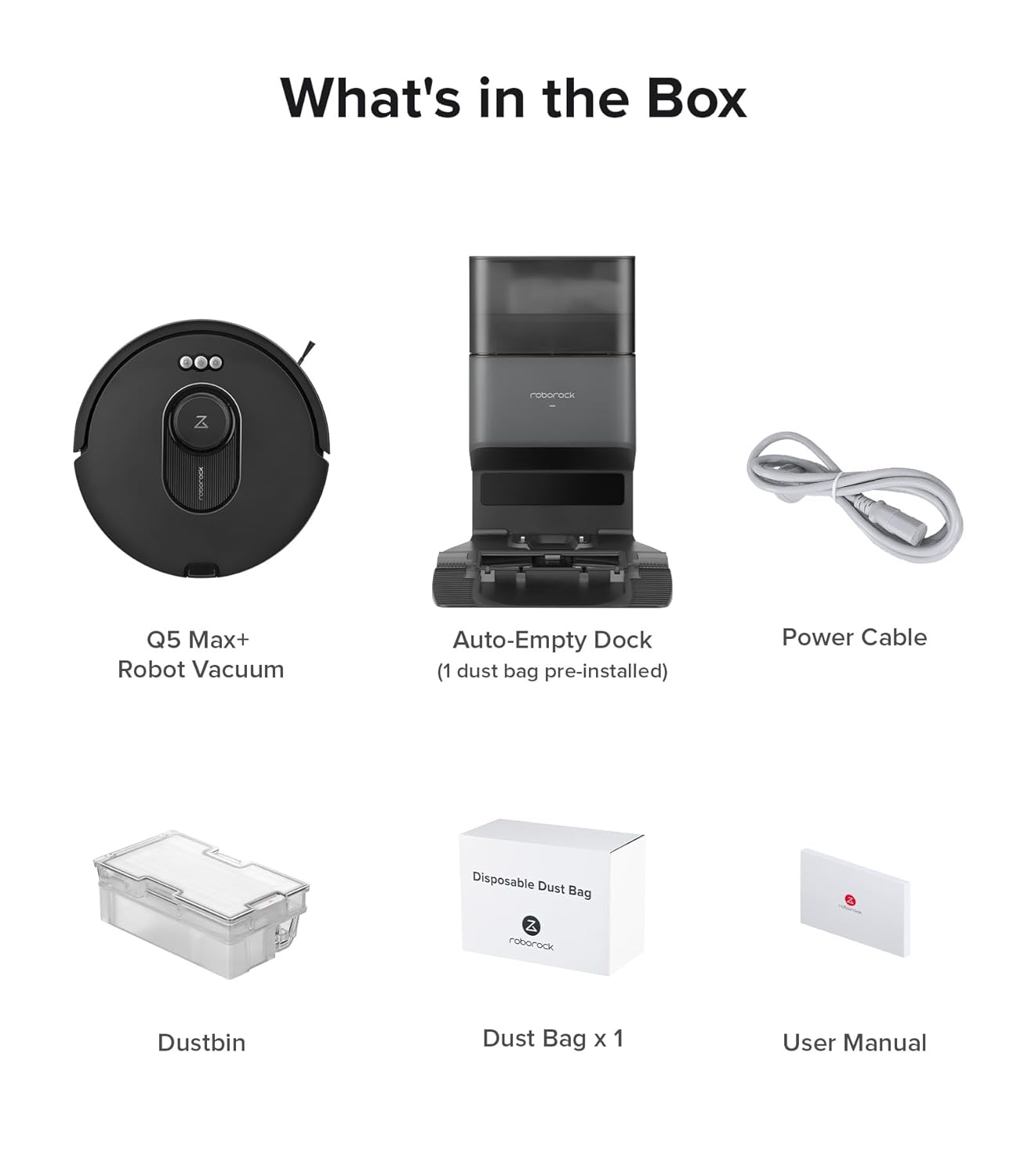
All components included with the roborock Q5 Max+ Robot Vacuum.
Setup
1. Docking Station Placement
Place the Auto-Empty Dock on a hard, flat surface (wood, tile, concrete) flat against a wall. Ensure at least 0.3 m (1 ft) of clearance on either side and 1 m (3 ft) both in front and above the dock. Make sure the location has good 2.4 GHz WiFi coverage for optimal app connectivity.
2. Initial Charge
Connect the power cable to the Auto-Empty Dock and plug it into a wall outlet. Place the robot vacuum onto the dock to begin charging. The robot will indicate its charging status.
3. App Download & Connection
- Download the "Roborock" app from your mobile app store.
- Reset WiFi on the robot by pressing and holding the designated buttons until you hear the "Resetting WiFi" alert. The WiFi indicator will flash slowly.
- Open the app, tap "Search for device," and follow the on-screen instructions to add your Q5 Max+ robot vacuum. Ensure your router uses a 2.4 GHz WiFi frequency for optimal performance.


Follow these steps to connect your robot vacuum to the Roborock app.
Operating
1. Basic Controls
The robot vacuum has physical buttons on its top for basic operations such as Start/Stop cleaning and returning to the dock.
2. App Control Features
The Roborock app provides extensive control over your Q5 Max+:
- Smart Mapping: The PreciSense LiDAR Navigation System creates detailed 3D maps of your home for efficient cleaning routes. It supports multi-level mapping for up to 4 floors.
- Customized Cleaning: Set emptying modes, adjust suction intensity (5500 Pa HyperForce suction), and create custom routines.
- No-Go Zones: Intuitively suggests and allows you to set virtual boundaries to keep the robot away from specific areas or prevent falls down stairs.
- Scheduling: Schedule cleaning times for specific rooms or the entire house.
- Child Lock: Activate child lock through the app or on the vacuum itself to prevent accidental starts.

The robot uses LiDAR for precise navigation and mapping.

Control various settings and cleaning modes through the Roborock app.
3. Voice Control
The Q5 Max+ is compatible with Alexa, Apple Siri, and Google Home. You can initiate cleaning, adjust settings, or send the robot back to its dock using simple voice commands.

Use voice commands with Alexa, Siri, or Google Home for hands-free operation.
Maintenance
1. Self-Empty Dock Dust Bag
The Auto-Empty Dock uses 2.5L disposable dust bags, allowing for up to 7 weeks of hands-free cleaning. When the bag is full, simply remove and replace it. The dock will automatically empty the robot's dustbin into the bag.
2. Robot Dustbin & Filter
While the dock self-empties, it's good practice to periodically check the robot's 770ml onboard dustbin and clean the filter. The filter is reusable but should be cleaned regularly to maintain suction performance.
3. DuoRoller Brush
The DuoRoller Brush efficiently collects dirt and pet hair. Periodically check the brushes for tangled hair and remove any debris. The design helps reduce tangling, but occasional manual cleaning is recommended.

The DuoRoller Brush effectively picks up hair and debris.
4. Side Brush & Sensors
Inspect the side brush for tangled hair or debris and clean as needed. Also, wipe down the cliff sensors on the underside of the robot periodically to ensure proper navigation and prevent falls.
Troubleshooting
- Robot not connecting to WiFi: Ensure your router is set to 2.4 GHz. If your home primarily uses a 5 GHz band, consider setting up a dual-band router or switching to a 2.4 GHz network.
- Dustbin not emptying: Check if the dust bag in the Auto-Empty Dock is full or if there are any blockages in the dock's suction path. Ensure the robot's internal dustbin is properly seated.
- Hair tangling on brushes: Regularly remove hair from the DuoRoller Brush and side brush. The DuoRoller design minimizes tangles, but some accumulation is normal.
- Robot getting stuck: Ensure no small objects or loose cables are on the floor. The robot's obstacle avoidance is effective for larger items, but smaller items or low-lying furniture may cause issues.
- Robot not charging: Verify the robot is correctly docked and the charging contacts on both the robot and the dock are clean.
- Resetting the device: If the robot is unresponsive, refer to the app or the physical buttons for a reset option. This typically involves holding down specific buttons for a few seconds.
Specifications
| Brand | roborock |
| Model Name | Q5 Max+ |
| Product Dimensions | 13.8"L x 17.3"W x 16.7"H (Docked) |
| Item Weight | 7.5 Pounds (Robot) |
| Suction Power | 5500 Pa HyperForce |
| Dustbin Capacity | 770 ml (Robot) |
| Dust Bag Capacity | 2.5 L (Dock) |
| Max Vacuuming Area | 3,767 sqft |
| Max Runtime | 240 minutes |
| Navigation System | PreciSense LiDAR |
| Battery Type | Lithium Ion |
| Connectivity | 2.4 GHz WiFi Only |

The Q5 Max+ offers extended runtime and large dustbin capacity.

Powerful 5500 Pa suction ensures thorough dirt removal.
Warranty and Support
For detailed warranty information and customer support, please refer to the official user manual PDF provided with your product or visit the roborock Store. You can also download the User Manual (PDF) directly from here.
Related documentsQ5 Max+


Ask a question about this manual
Ask about setup, troubleshooting, compatibility, parts, safety, or missing instructions. Manuals+ will review the question and use this page’s manual context to help answer it.