
1. Introduction
Thank you for choosing the Leadfan Android Stereo Radio. This unit is designed to enhance your driving experience with advanced features such as a 9-inch HD touchscreen, built-in Apple CarPlay, Android Auto, GPS navigation, Bluetooth 5.1, and support for a backup camera. This manual provides detailed instructions for installation, operation, maintenance, and troubleshooting to ensure optimal performance and longevity of your device.

Image 1.1: Leadfan Android Stereo Radio and included components (GPS antenna, backup camera, CarPlay/Android Auto icons).
2. Safety Information
Please read all safety instructions carefully before installation and operation. Failure to follow these guidelines may result in injury, damage to the device, or vehicle. Always prioritize safe driving practices.
- Do not operate the device in a way that distracts you from driving.
- Ensure all wiring is correctly connected to prevent short circuits or electrical hazards.
- Consult a professional for installation if you are unsure about any steps.
- Keep the screen clean and free from obstructions.
3. Package Contents
Verify that all items listed below are present in your package:
- Leadfan Android Stereo Radio Unit
- Back-up Camera
- Rear View Camera Cable
- USB Cables (multiple)
- GPS Antenna
- RCA Cable
- Power Cable
- User Manual
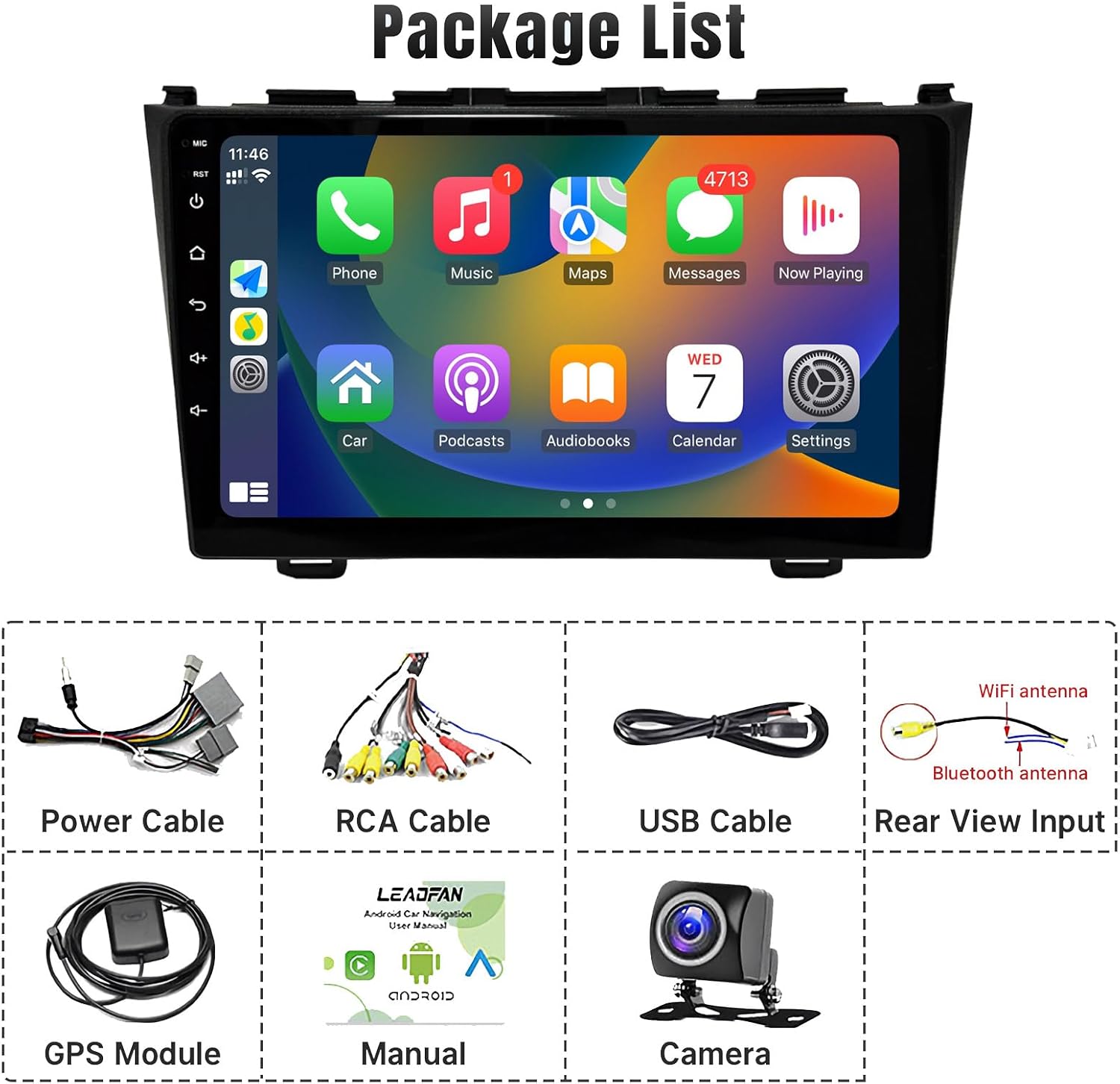
Image 3.1: Visual representation of the package contents.
4. Setup and Installation
This section guides you through the physical installation and initial setup of your stereo radio.
4.1 Vehicle Compatibility and Pre-installation Check
This unit is specifically designed for Honda CRV models from 2007 to 2011. It features a plug-and-play wiring harness for simplified installation.

Image 4.1: Comparison of the car dashboard before and after installing the Leadfan stereo.
Important Note: If your original car is equipped with a factory screen or additional speakers on the front dashboard (as shown in Figure 4.2), you may need to purchase an additional CANBUS wiring harness for proper functionality. Please verify your vehicle's specific configuration before proceeding.

Image 4.2: Specific car configurations that may require an additional CANBUS wiring harness.
4.2 Wiring and Mounting
The unit comes with a simplified wiring harness designed for easy connection. Connect the power cable, RCA cables, USB cables, and GPS antenna as per the provided wiring diagram. Ensure all connections are secure.

Image 4.3: Illustration of the simpler plug-and-play wiring provided with this product compared to traditional complex wiring.
For the backup camera installation, connect the camera to the dedicated rear view input. The screen will automatically switch to the camera view when the vehicle is in reverse. Refer to the wiring diagram for the reversing camera for detailed connection instructions.

Image 4.4: Detailed wiring diagram for the reversing camera.
4.3 Initial Power On
Once all connections are made, turn on your vehicle's ignition. The stereo unit should power on automatically. Follow any on-screen prompts for initial setup, such as language selection or time zone settings.
5. Operating Instructions
This section details the various functions and features of your Leadfan Android Stereo Radio.
5.1 Touch Screen Interface
The unit features a responsive 9-inch HD touchscreen. Navigate through menus and applications by tapping, swiping, and pinching. The larger display area provides a more comfortable viewing experience compared to smaller screens.

Image 5.1: Visual comparison highlighting the larger 9-inch display area of the Leadfan stereo.
5.2 Apple CarPlay & Android Auto
The stereo supports wireless Apple CarPlay and Android Auto. Connect your iOS or Android smartphone via Wi-Fi and Bluetooth using the pre-installed 'Zlink' app. This allows access to navigation, phone contacts, messages, music, and voice assistants (Siri/Google Assistant) directly from the stereo screen.

Image 5.2: The stereo display showing the Apple CarPlay and Android Auto interfaces.

Image 5.3: Demonstrates wireless CarPlay and Android Auto functionality, including voice command capabilities.
5.3 GPS Navigation
The unit comes with built-in offline maps. For online navigation, connect to a Wi-Fi hotspot. You can download various navigation apps from the app store.

Image 5.4: The GPS navigation screen displaying a map and various navigation app icons.

Image 5.5: GPS navigation in use, showing a driver's perspective with the map on the stereo screen.
5.4 FM Radio
Tune into your favorite radio stations using the built-in FM tuner. The unit supports unlimited preset stations and includes an equalizer for sound adjustment.

Image 5.6: The FM radio interface with frequency display and an overlay of the equalizer settings.
5.5 Bluetooth 5.1
Connect your smartphone via Bluetooth 5.1 for hands-free calling and audio streaming. Access your phone contacts and call history directly from the stereo.
Image 5.7: The Bluetooth interface showing a dial pad and contact list for hands-free calling.
5.6 Mirror Link
The Mirror Link function allows you to display your smartphone's screen directly onto the stereo. This supports both Android and iOS devices.
5.7 Reverse Function (Backup Camera)
When the vehicle is shifted into reverse, the screen automatically displays the view from the connected backup camera. The camera features a 170-degree ultra-wide angle, IP68 waterproof design, and IR night vision for improved safety.

Image 5.8: The stereo display showing the live feed from the backup camera with parking guidelines.
5.8 Steering Wheel Control (SWC)
After correct wiring and learning the steering wheel buttons in the system settings, you can control various functions of the stereo directly from your vehicle's steering wheel, such as volume, track skipping, and call management.
Image 5.9: The steering wheel control learning interface on the stereo, showing button assignments.
5.9 Split-Screen Functionality
The split-screen feature allows you to run two applications simultaneously on the display, such as navigation on one side and music playback on the other.

Image 5.10: The stereo screen demonstrating the split-screen feature with two applications running concurrently.
5.10 UI Desktop Switching
The system offers 38 different UI themes for desktop switching, allowing you to customize the appearance of your stereo interface.

Image 5.11: A collage of different UI desktop themes available for customization.
6. Maintenance
To ensure the longevity and optimal performance of your Leadfan Android Stereo Radio, follow these maintenance guidelines:
- Screen Cleaning: Use a soft, lint-free cloth slightly dampened with water or a screen cleaner specifically designed for electronics. Avoid abrasive materials or harsh chemicals.
- Software Updates: Periodically check for system updates through the device's settings menu (if available) to ensure you have the latest features and bug fixes.
- Environmental Conditions: Avoid exposing the unit to extreme temperatures, direct sunlight for prolonged periods, or excessive moisture.
- Cable Connections: Occasionally check all connected cables to ensure they are secure and free from damage.
7. Troubleshooting
If you encounter issues with your stereo radio, refer to the following common problems and solutions:
| Problem | Possible Cause | Solution |
|---|---|---|
| No Power | Incorrect wiring; Blown fuse; Vehicle power issue. | Check power cable connections; Inspect vehicle's fuse box; Consult a professional. |
| No Sound | Speaker wiring issues; Volume too low; Incorrect audio output settings. | Verify speaker connections; Increase volume; Check audio settings in the system. |
| GPS Not Working / Inaccurate | GPS antenna not connected or poorly positioned; No internet connection for online maps. | Ensure GPS antenna is securely connected and has a clear view of the sky; Connect to Wi-Fi for online maps. |
| Bluetooth Connection Issues | Bluetooth not enabled; Device not discoverable; Interference. | Ensure Bluetooth is on for both devices; Make stereo discoverable; Try re-pairing. |
| Backup Camera Not Displaying | Camera wiring incorrect; Camera faulty; Reverse trigger not connected. | Check camera power and video connections; Ensure reverse trigger wire is connected to vehicle's reverse light. |
If the problem persists after trying these solutions, please contact Leadfan customer support for further assistance.
8. Specifications
Detailed technical specifications for the Leadfan Android Stereo Radio:
| Feature | Specification |
|---|---|
| Operating System | Android 11 |
| Display Size | 9 Inches |
| Display Resolution | 1280x720 HD |
| RAM | 2GB |
| ROM | 32GB |
| Processor | 4-CORE |
| Bluetooth Version | 5.1 |
| Connectivity | Bluetooth, Wi-Fi |
| Special Features | Apple CarPlay, Android Auto, Mirror Link, GPS Navigation, Touchscreen, Waterproof (camera) |
| Audio Output Mode | Stereo |
| Mounting Type | Dashboard Mount |
| Item Weight | 2.5 pounds |
| Product Dimensions | 2.5 x 2.5 x 2.5 inches |
9. Warranty and Support
9.1 Warranty Information
The Leadfan Android Stereo Radio comes with a 1-year warranty from the date of purchase. This warranty covers manufacturing defects and ensures replacement availability within 12 months.

Image 9.1: Warranty icon indicating 12 months replacement.
9.2 Customer Support
Leadfan is committed to providing excellent customer service. We offer:
- Quick Reply Within 24 Hours
- 60 Days No Worry Return Policy
- Lifetime After-Sales Consult and Technical Support

Image 9.2: Leadfan's commitment to customer satisfaction and support.
If you have any questions or require technical assistance, please contact Leadfan via Amazon Email or visit the official Leadfan Store: Leadfan Amazon Store.


