
Blackview N1000
Blackview N1000 Mobile Phone User Manual
Model: N1000 | Brand: Blackview
1. Introduction and Overview
The Blackview N1000 is a robust 4G mobile phone designed for seniors, offering enhanced durability and user-friendly features. It combines the simplicity of a feature phone with the connectivity of a smartphone, supporting 4G dual SIM, Wi-Fi, and various social applications.

The Blackview N1000 mobile phone shown alongside its dedicated charging dock.

The N1000 is a rugged smartphone, built to withstand challenging environments.
Key Features:
- Durability: MIL-STD 810H & IP69 waterproof, drop-resistant, and dustproof design, making it suitable for outdoor enthusiasts or as a backup phone.
- Connectivity: 4G Dual SIM support, Bluetooth 4.2, Wi-Fi, and pre-installed social applications like Facebook, YouTube, and Google. Additional apps can be downloaded.
- Performance: Powered by a MediaTek MT6739 quad-core processor with 4GB ROM and up to 512GB expandable storage via TF card, ensuring smooth operation.
- Battery Life: Equipped with a 3300 mAh removable battery, offering up to 2-3 days of standby time. Supports both charging dock and Type-C charging.
- User Interface: Features a 2.4-inch screen with large characters and 300Nit brightness for clear viewing. Large physical buttons ensure precise input.
- Emergency Features: Includes a dedicated SOS button for quick emergency calls and message sending to up to 5 pre-set contacts.
- Multimedia: 2 MP rear camera, FM radio, music player, and pre-installed games for entertainment.
- Convenience: Integrated bright LED flashlight for enhanced safety at night.
2. Setup
2.1 Inserting SIM Cards and TF Card
The Blackview N1000 supports a 3-card slot design: two nano SIM cards and one TF (microSD) card for expandable storage.
- Carefully remove the back cover of the phone.
- Locate the SIM card slots (SIM1, SIM2) and the TF card slot.
- Insert your nano SIM cards into the designated slots with the gold contacts facing down.
- Insert the TF card into its slot until it clicks into place.
- Replace the back cover securely.

Illustration of the dual SIM and TF card slots for easy installation.
2.2 Charging the Battery
The phone comes with a 3300 mAh removable battery and offers two charging options: the included charging dock or a Type-C cable.
- Using the Charging Dock:
- Connect the Type-C cable to the charging dock and then to a power adapter.
- Place the Blackview N1000 phone into the charging dock, ensuring the charging contacts align. The phone will indicate charging.
- Using Type-C Cable Directly:
- Connect the Type-C cable directly to the charging port on the phone and then to a power adapter.
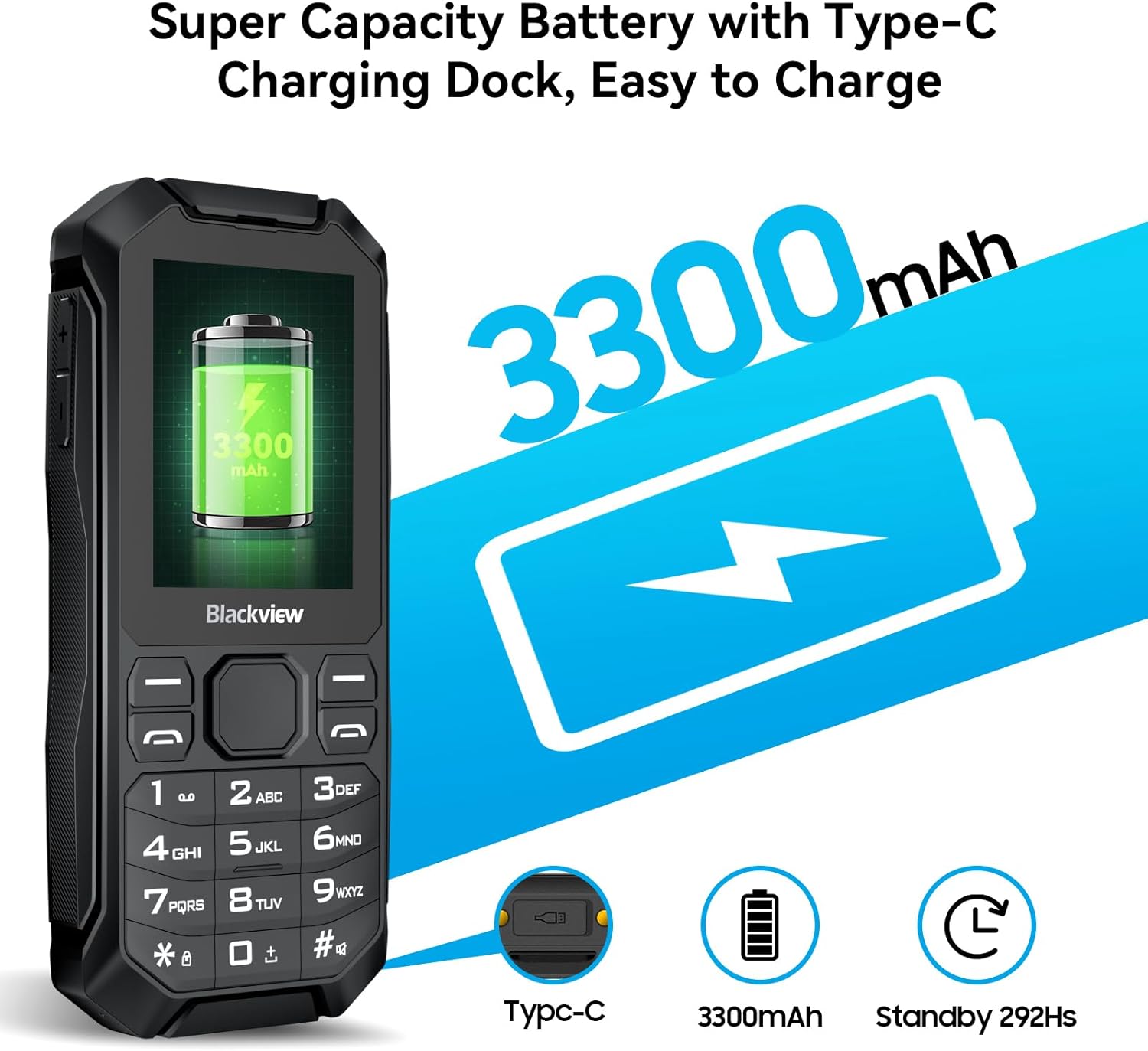
The phone features a large 3300mAh battery and supports convenient Type-C charging.
3. Operating Instructions
3.1 Basic Navigation and Interface
The Blackview N1000 operates on KaiOS, a simplified operating system designed for ease of use. Navigation is primarily done using the physical keypad and directional buttons.
- Use the directional pad (up, down, left, right) to navigate through menus and options.
- Press the center button to select an item.
- Use the left and right soft keys for context-sensitive actions displayed on the screen.
- The 2.4-inch screen displays large characters for improved readability.

The phone's simplified operating system provides easy access to essential functions and applications.
3.2 Making Calls and Sending Messages
- To make a call: Enter the phone number using the keypad and press the green call button.
- To send a message: Navigate to the "Messages" application, select "New Message," enter the recipient's number and your text, then send.
- The high-volume speaker ensures clear call quality.
3.3 SOS Emergency Function
The Blackview N1000 features a dedicated SOS button for emergencies. This function allows you to quickly alert pre-set contacts.
- Setting up SOS contacts: Access the SOS settings in the phone's menu to add up to 5 emergency contact numbers.
- Activating SOS: In an emergency, press and hold the SOS button (located on the front of the phone) for 3 seconds.
- The phone will automatically send an emergency message and then sequentially call the pre-set contacts until one answers.

The SOS emergency button provides quick access to help by contacting pre-set numbers.
3.4 Using the Flashlight
The phone includes a bright LED flashlight for convenience and safety.
- Ensure the keypad is unlocked.
- Press and hold the dedicated flashlight button on the side of the phone for 3 seconds to turn the LED flashlight on or off.
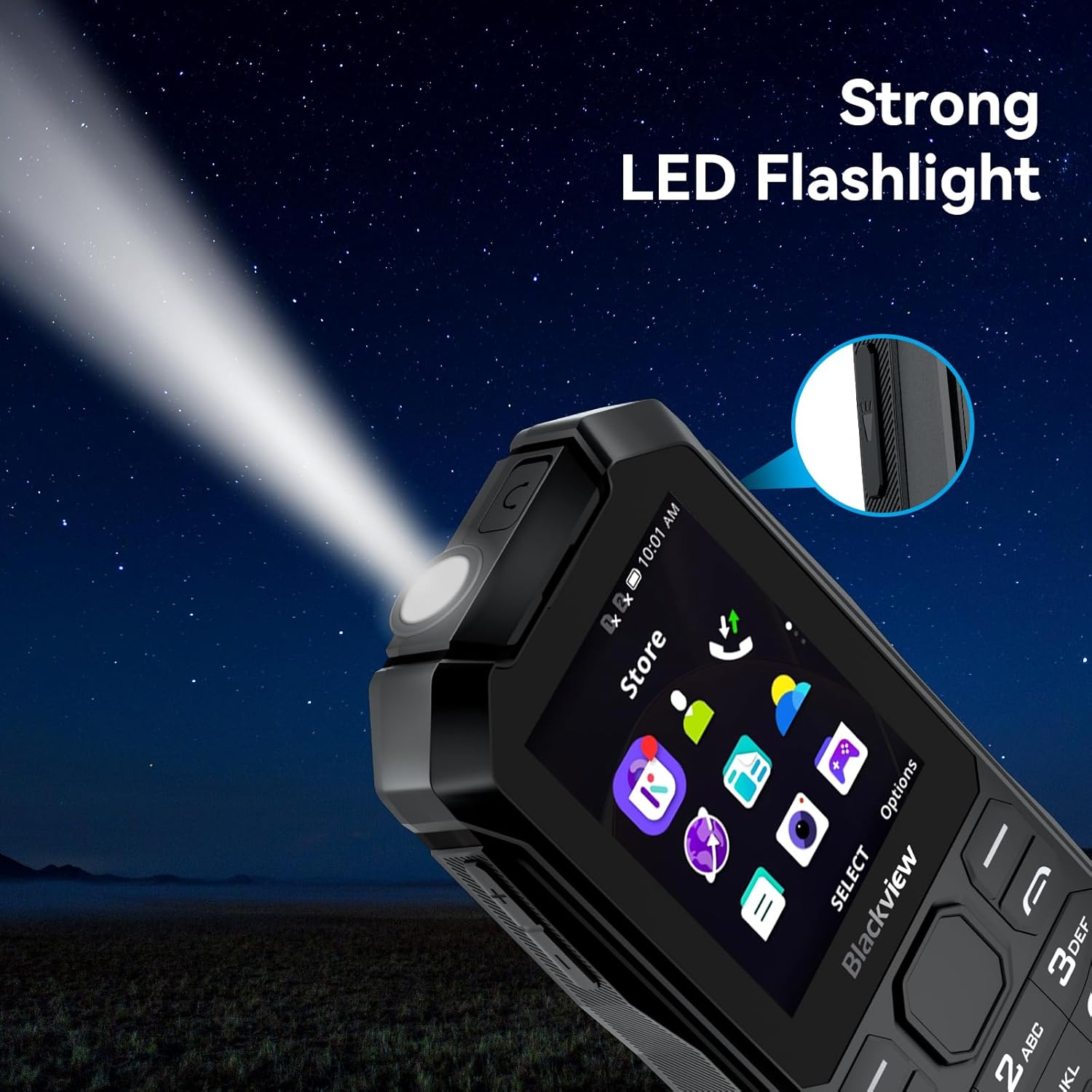
The integrated bright LED flashlight is useful for navigating in low-light conditions.
3.5 Multimedia and Other Functions
- Camera: Use the 2 MP rear camera to capture photos. Access it from the main menu.
- FM Radio: Plug in headphones (acting as an antenna) and access the FM radio application to listen to local stations.
- Music Player: Play audio files stored on the phone or TF card.
- Pre-installed Apps: Access Facebook, YouTube, Google, and other social media applications directly from the phone's interface.
- Additional Tools: The phone includes a browser, weather app, calculator, recorder, unit converter, clock, calendar, reminder, email, and QR code reader.
4. Maintenance
4.1 Cleaning and Care
- Use a soft, dry cloth to clean the phone's screen and body.
- Avoid using harsh chemicals, cleaning solvents, or strong detergents.
- Keep the charging ports and speaker grilles free from dust and debris.
4.2 Durability Features
The Blackview N1000 is built to be rugged, featuring MIL-STD 810H, IP68 waterproof, IP69K drop-proof, and 360° dustproof ratings.
- Waterproof (IP68): The phone can withstand immersion in water up to a certain depth and duration. Ensure all port covers are securely closed before exposure to water.
- Drop-proof (IP69K): Designed to endure drops from a certain height onto hard surfaces.
- Dustproof (360°): Protected against ingress of dust, making it suitable for dusty environments.
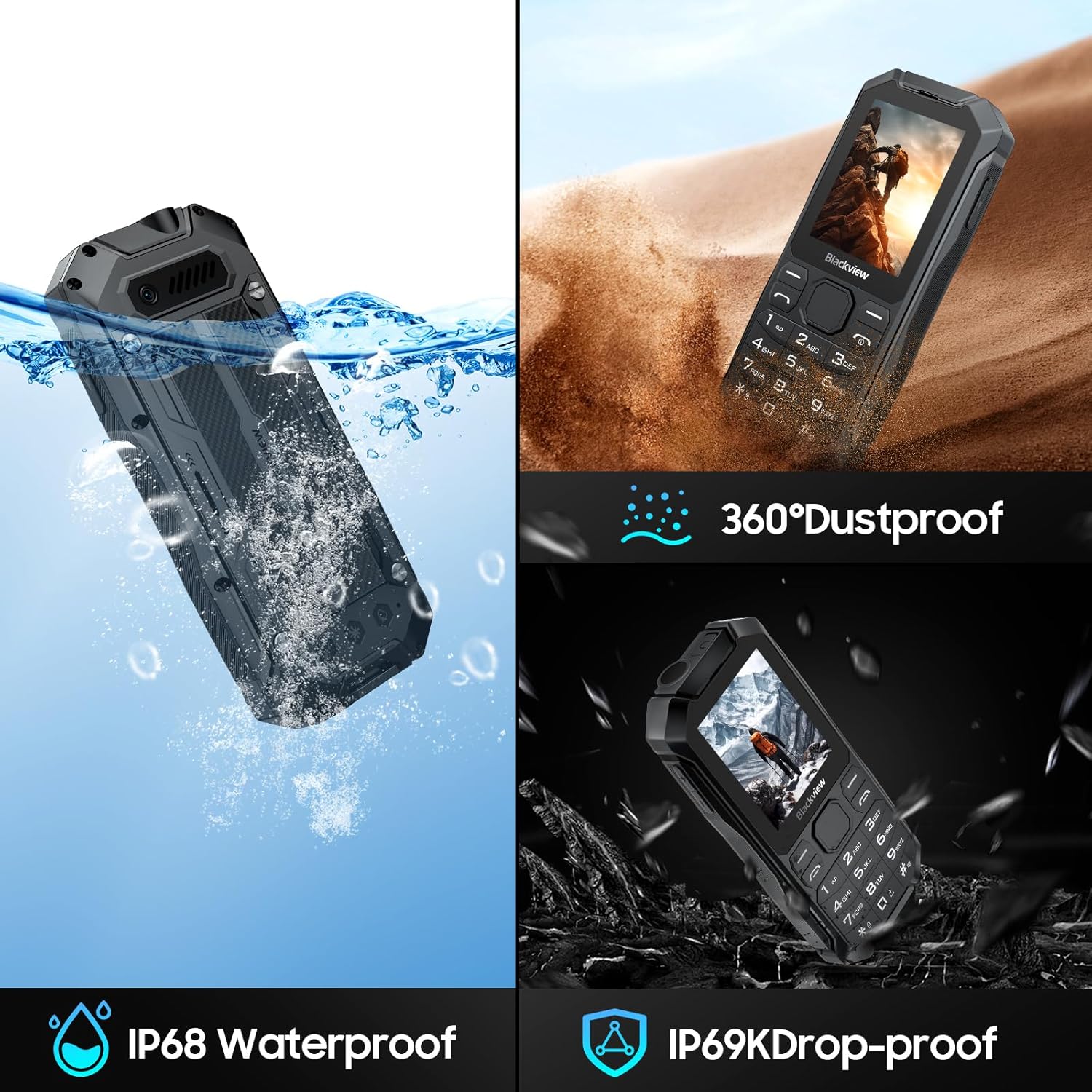
The phone's robust design ensures protection against water, drops, and dust.

The N1000 is designed to be waterproof, capable of withstanding splashes and submersion.
5. Troubleshooting
5.1 Common Issues and Solutions
| Issue | Possible Cause | Solution |
|---|---|---|
| Phone does not turn on | Low battery; Battery not properly inserted | Charge the phone for at least 30 minutes. Ensure the battery is correctly seated. |
| No network signal | SIM card not inserted correctly; Out of network coverage | Reinsert the SIM card. Move to an area with better network coverage. Check with your operator if the SIM is active. |
| Cannot hear caller / Caller cannot hear me | Volume too low; Microphone/speaker blocked | Adjust call volume. Ensure speaker and microphone are not covered. |
| Applications crashing or freezing | Insufficient memory; Software glitch | Close background applications. Restart the phone. Consider a factory reset if issues persist (backup data first). |
| Flashlight not working | Keypad locked; Software issue | Unlock the keypad. Restart the phone. |
If the issue persists after trying these solutions, please contact Blackview customer support.
6. Specifications
| Feature | Detail |
|---|---|
| Brand | Blackview |
| Model Name | N1000 |
| Color | N1000-Black |
| Product Type | Bar Phone |
| Operating System | KaiOS |
| Screen Size | 2.4 Inches |
| Screen Resolution | 320 x 240 pixels |
| RAM | 1 GB |
| Internal Storage (ROM) | 4 GB |
| Expandable Storage | Up to 512 GB via TF card |
| Processor | MediaTek MT6739 Quad-Core |
| Cellular Technology | 4G (Compatible with 2G/3G/4G operators) |
| Wireless Carrier | All carriers (Unlocked) |
| Connectivity | Bluetooth 4.2, Wi-Fi |
| Battery Capacity | 3300 mAh (Removable Lithium-ion) |
| Rear Camera | 2 Megapixels |
| Special Features | SOS Button, FM Radio, Music Player, Flashlight, Large Buttons, High Volume, Social Media Apps (Facebook, YouTube, Google), Email, QR Code Reader |
| Durability Ratings | MIL-STD 810H, IP68 Waterproof, IP69K Drop-proof, 360° Dustproof |
7. Warranty and Support
Blackview provides comprehensive support for the N1000 mobile phone.
7.1 Warranty Information
The Blackview N1000 mobile phone comes with a two-year warranty from the date of purchase. This warranty covers manufacturing defects and ensures that each unit has undergone detailed inspection before leaving the factory.
Please retain your proof of purchase for warranty claims.
7.2 Technical Support
Blackview offers lifetime technical support for the N1000. If you encounter any issues or have questions regarding the use of your device, please contact the seller or Blackview customer service.
For assistance, please write to the seller. Responses are typically provided within 24 hours.
For more information and support, you may visit the official Blackview store: Blackview Official Store
Related documentsN1000


Ask a question about this manual
Ask about setup, troubleshooting, compatibility, parts, safety, or missing instructions. Manuals+ will review the question and use this page’s manual context to help answer it.