
1. Introduction
This user manual provides detailed instructions for the assembly, operation, and maintenance of your FLEXISPOT Lite Electric Standing Desk. Please read this manual thoroughly before installation and use to ensure proper function and safety. Keep this manual for future reference.
2. Important Safety Information
Failure to follow these safety instructions may result in injury or damage to the product.
- The desk has a maximum load capacity of 70 kg (154 lbs). Do not exceed this weight limit.
- Assembly must be performed by an adult.
- Ensure all screws and bolts are securely tightened before use.
- Keep children and pets away from the desk during operation to prevent injury from moving parts.
- Do not place hands or other objects near the lifting mechanism while the desk is in motion.
- Disconnect power before cleaning or performing any maintenance.
- Use only the power adapter supplied with the desk.
- Avoid spilling liquids on the control panel or motor components.
3. Product Overview and Features
The FLEXISPOT Lite Electric Standing Desk is designed to promote a healthy work environment by allowing seamless transitions between sitting and standing positions. It features a robust motor, memory presets, and an anti-collision system.

Figure 3.1: FLEXISPOT Lite Electric Standing Desk setup with accessories.
Key Features:
- Ergonomic Design: Facilitates alternating between sitting and standing to reduce physical strain.
- Quiet and Durable Motor: Operates at less than 50 dB, ensuring a quiet workspace.
- Electric Height Adjustment with Memory: Easily adjust height with a control panel and save up to four preferred height settings.
- Robust Construction: Steel frame with a T-foot design provides stability and supports up to 70 kg.
- Spacious Desktop: 140x60 cm maple tabletop with rounded corners and integrated wire holes.
- Anti-Collision Rebound Function: Automatically stops and reverses if an obstruction is detected during movement.
- Integrated Accessories: Includes two hooks and a cup holder for convenience.
4. Setup and Assembly
This section outlines the general steps for assembling your FLEXISPOT Lite Electric Standing Desk. Refer to the separate assembly guide included in your package for detailed, step-by-step instructions and diagrams.
4.1 Unpacking
- Carefully open the packaging and remove all components.
- Place all parts on a clean, flat, and soft surface (e.g., a carpet) to prevent scratches.
- Verify that all parts listed in the assembly guide are present.
4.2 Component Identification
Familiarize yourself with the main components:
- Desktop sections
- Leg columns (lifting columns)
- Foot supports
- Control box
- Control panel
- Power adapter and cable
- Hardware (screws, bolts, tools)
- Accessories (hooks, cup holder)
4.3 Assembly Steps (General)
- Attach the lifting columns to the desktop frame.
- Secure the foot supports to the bottom of the lifting columns.
- Mount the control box and control panel to the underside of the desktop.
- Connect all cables from the motors to the control box, and then connect the power adapter.
- Attach the desktop sections together (if applicable) and secure them to the frame.
- Install the cup holder and hooks as desired.
Note: Refer to the detailed assembly manual for specific screw types, torque requirements, and visual aids for each step.
5. Operating Your Desk
This section explains how to use the control panel to adjust your desk height and utilize its features.

Figure 5.1: Smart Control Panel.
5.1 Control Panel Functions
- LED Display: Shows the current desk height in centimeters.
- Up/Down Buttons (▲ / ▼): Press and hold to continuously adjust the desk height upwards or downwards. Release the button to stop at the desired height.
- Sit/Stand Button (i): This button may function as a quick switch between a default sitting and standing height, or as a general indicator. Refer to your specific control panel model for exact functionality.
- Memory Preset Buttons (1, 2, 3, 4): These buttons allow you to save and recall up to four preferred height settings.
5.2 Setting Memory Presets
- Adjust the desk to your desired height using the Up/Down buttons.
- Press the 'M' or 'Set' button (if available, otherwise proceed to step 3). The display may flash.
- Immediately press one of the number buttons (1, 2, 3, or 4) to save the current height to that preset. The display will show 'S-' followed by the number, confirming the setting.
5.3 Recalling Memory Presets
Simply press the desired number button (1, 2, 3, or 4). The desk will automatically move to the saved height.
5.4 Anti-Collision Rebound Function
The desk is equipped with an anti-collision system. If the desk encounters an obstruction while moving up or down, it will automatically stop and reverse slightly to prevent damage or injury.
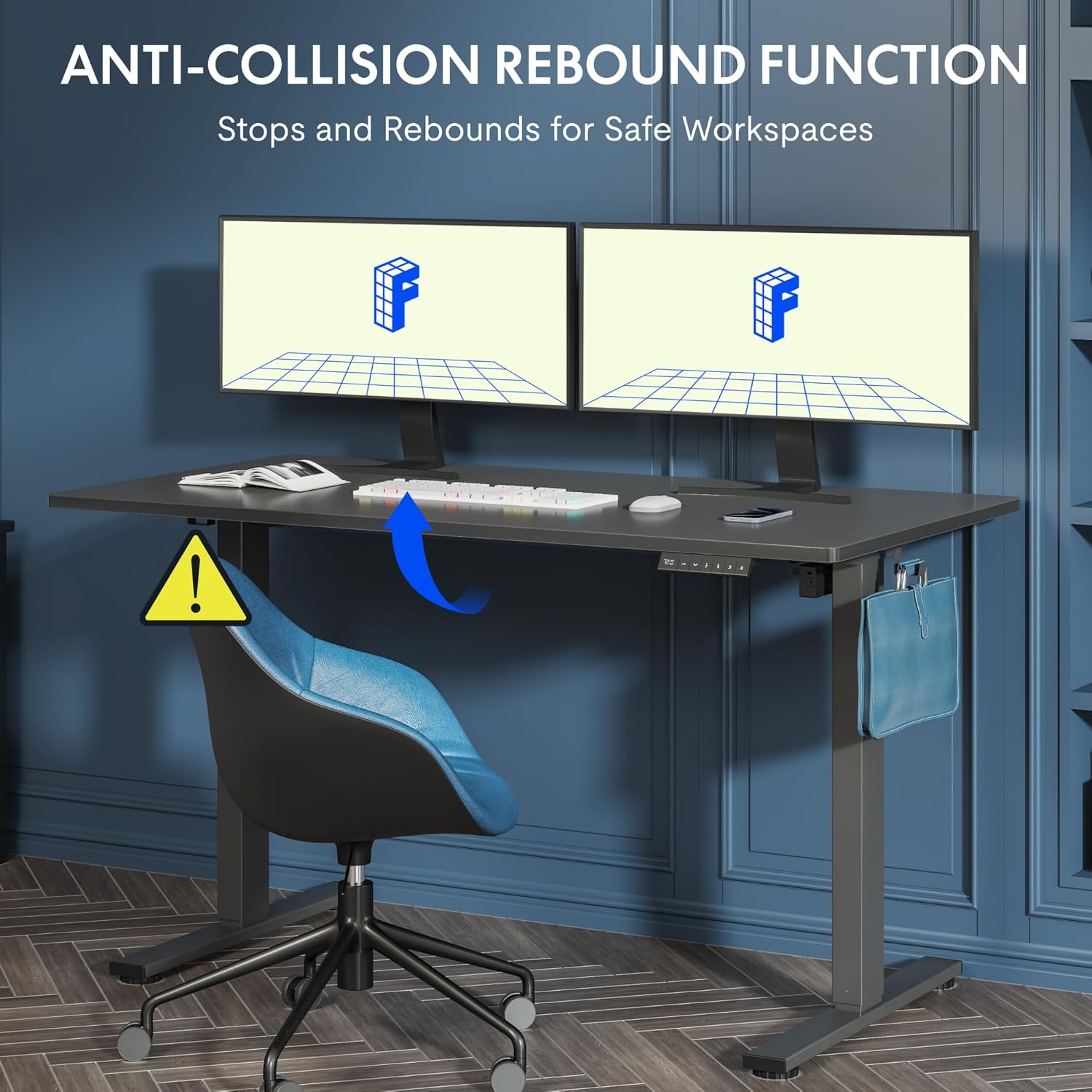
Figure 5.2: Anti-Collision Rebound Function in action.
6. Maintenance and Care
Regular maintenance ensures the longevity and optimal performance of your standing desk.
- Cleaning: Wipe the desktop and frame with a soft, damp cloth. Avoid abrasive cleaners or harsh chemicals.
- Inspection: Periodically check all screws and bolts to ensure they are tight. Retighten if necessary.
- Cable Management: Ensure all cables are neatly routed and not pinched or tangled, which could affect operation.
- Load Capacity: Do not overload the desk beyond its 70 kg capacity.
7. Troubleshooting Guide
If you encounter issues with your desk, refer to the following common problems and solutions:
| Problem | Possible Cause | Solution |
|---|---|---|
| Desk does not move or respond to controls. | Power cable disconnected; control box cable loose; motor cable loose. | Check all cable connections. Ensure the power cable is securely plugged into the wall outlet and the control box. |
| Desk moves unevenly or makes unusual noises. | Overload; loose screws; obstruction. | Reduce weight on the desk. Check and tighten all assembly screws. Ensure no obstructions are in the path of the lifting columns. |
| Desk stops moving unexpectedly. | Anti-collision system activated; motor overheating. | Check for obstructions and remove them. If no obstruction, allow the motor to cool down for 20 minutes before attempting operation again. |
| Error code displayed on control panel. | Specific system fault. | Refer to the detailed assembly manual for specific error code meanings and troubleshooting steps. If the issue persists, contact customer support. |
8. Technical Specifications

Figure 8.1: Desk Dimensions and Performance Metrics.
| Specification | Detail |
|---|---|
| Brand | FLEXISPOT |
| Model Number | QS1M-1460-IE |
| Color | White Frame + Maple Top |
| Desktop Dimensions (L x W) | 140 cm x 60 cm |
| Height Adjustment Range | 73.5 cm - 118 cm |
| Material | Wood (Maple Top), Metal (Alloy Steel Frame) |
| Maximum Load Capacity | 70 kg |
| Item Weight | 26.9 kg |
| Noise Level | < 50 dB |
| Adjustment Speed | 20 mm/s |
| Special Features | Ergonomic, Adjustable, Anti-Collision, Memory Presets |
9. Warranty and Customer Support
For warranty information, specific troubleshooting not covered in this manual, or to purchase replacement parts, please contact FLEXISPOT customer support directly. Refer to the product packaging or the official FLEXISPOT website for contact details.


