
1. Introduction
The STRONG Leap-S3+ Google TV Box is a powerful media streaming adapter designed to enhance your entertainment experience. It provides easy access to applications, games, and streaming services via Google Play, transforming your television into a comprehensive entertainment hub. This device supports advanced audio and video technologies, ensuring a high-quality viewing and listening experience.
2. Package Contents
Verify that all items are present in the package:
- STRONG Leap-S3+ Android TV Box
- Remote Control (with 2 AA batteries included)
- Power Adapter (DC 12V/1A)
- HDMI Cable
- User Manual (this document)

Image: The retail packaging of the STRONG Leap-S3+ Android TV Box, showing the device, remote control, and branding.
3. Setup Guide
- Connect to TV: Connect one end of the HDMI cable to the HDMI port on the STRONG Leap-S3+ box and the other end to an available HDMI input on your television.
- Connect Power: Plug the power adapter into the DC 12V/1A port on the box and then into a power outlet.
- Network Connection (Optional): For a wired connection, connect an Ethernet cable from your router to the LAN port on the box. For Wi-Fi, you will configure this during the initial setup on screen.
- Insert Batteries: Open the battery compartment of the remote control and insert the two AA batteries, ensuring correct polarity.
- Power On: Turn on your television and select the correct HDMI input source using your TV remote. The STRONG Leap-S3+ box should power on automatically.
- Initial Setup: Follow the on-screen instructions to complete the initial setup, including language selection, Wi-Fi connection (if not using Ethernet), and Google account login. Manual setup is recommended if automatic setup via Google Home encounters issues.

Image: Rear panel of the device illustrating the various connection ports including S/PDIF, HDMI, LAN, DC power input, and USB.
4. Operating Instructions
4.1. Remote Control Functions
The included remote control allows navigation through the Google TV interface. Key functions include:
- Navigation Pad: Use the directional buttons to move through menus and select items.
- OK Button: Confirms selections.
- Back Button: Returns to the previous screen.
- Home Button: Returns to the Google TV home screen.
- Google Assistant Button: Activates voice control for searching content or controlling the device.
- Volume Buttons: Adjusts the audio volume.
- Dedicated App Buttons: Quick access to popular streaming services like Netflix, YouTube, Disney+, and Prime Video.

Image: The remote control demonstrating the Google Assistant voice command feature, with a TV screen displaying search results.
4.2. Accessing Streaming Services and Apps
Once connected to the internet and logged into your Google account, you can access a wide range of content:
- Google Play Store: Download and install additional applications and games.
- Pre-installed Apps: Utilize dedicated buttons or navigate to pre-installed apps like Netflix, YouTube, Disney+, and Prime Video.
- Chromecast Built-in: Cast content directly from your mobile phone or other compatible devices to your TV screen.

Image: A smartphone screen mirroring content to a large television, demonstrating the Chromecast built-in feature.

Image: A television screen showing the Google TV interface with icons for various streaming applications, alongside the STRONG Leap-S3+ box and remote.
5. Key Features
- 4K UHD Resolution: Supports Ultra High Definition (UHD) 2160p resolution for crisp and detailed visuals.
- Dolby Vision: Provides enhanced HDR (High Dynamic Range) for superior brightness, contrast, and color accuracy.
- Dolby Atmos: Delivers immersive, multi-dimensional audio that moves around you, creating a realistic sound experience.
- Chromecast Built-in: Seamlessly cast movies, shows, photos, and more from your mobile device to your TV.
- Google Assistant: Use voice commands via the remote control to search for content, control playback, and manage smart home devices.
- Extensive Connectivity: Includes S/PDIF, HDMI, USB 2.0, LAN/Internet, Wi-Fi, and Bluetooth for versatile device connections and data transfer.

Image: Visual representation of 4K UHD 2160p resolution, highlighting fine detail.

Image: The Dolby Vision logo, indicating enhanced visual quality.

Image: The Dolby Atmos logo, representing immersive audio technology.
6. Maintenance
- Cleaning: Use a soft, dry cloth to clean the device. Do not use liquid cleaners or abrasive materials.
- Ventilation: Ensure the device is placed in a well-ventilated area to prevent overheating. Do not block ventilation openings.
- Software Updates: The device may receive automatic software updates. Ensure it is connected to the internet to receive these updates, which can improve performance and add new features.
- Storage: When not in use for extended periods, disconnect the power adapter and store the device in a cool, dry place.
7. Troubleshooting
| Problem | Possible Cause | Solution |
|---|---|---|
| No power/Device not turning on | Power adapter not connected or faulty. | Ensure the power adapter is securely connected to the device and a working power outlet. Check if the outlet is functional. |
| No picture on TV | Incorrect HDMI input selected on TV; HDMI cable loose or faulty. | Verify your TV is set to the correct HDMI input. Check HDMI cable connections at both ends. Try a different HDMI port or cable. |
| No sound | TV volume muted or too low; audio settings incorrect. | Increase TV volume. Check audio output settings on the STRONG Leap-S3+ box. Ensure Dolby Atmos is correctly configured if used. |
| Remote control not working | Batteries depleted or incorrectly inserted; remote not paired. | Replace batteries, ensuring correct polarity. Re-pair the remote control with the device if necessary (refer to on-screen instructions during initial setup or device settings). |
| Slow performance or freezing | Poor internet connection; too many apps running in background; insufficient storage. | Check your internet connection speed. Close unused applications. Clear cache or uninstall unnecessary apps to free up storage. Restart the device. |
| Automatic setup via Google Home fails | Connectivity issues or software glitch. | Proceed with manual setup directly on the TV screen using the remote control. This often resolves such issues. |
8. Specifications
| Feature | Detail |
|---|---|
| Brand | Strong |
| Model Name | LEAP-S3 plus |
| Color | White |
| Product Type | Box form factor |
| Connectivity Technology | Bluetooth, Ethernet, HDMI, USB, Wi-Fi |
| Connector Type | HDMI |
| Special Features | 4K UHD, Chromecast, Browser |
| Resolution | 4K (2160p) |
| Supported Internet Services | Apple TV, Disney, Free Sat/Free View, Freesat/Freeview, Google TV, Magenta TV, Browser, Netflix, Prime Video, RTL, Wow, YouTube |
| Controller Type | Remote Control |
| Compatible Devices | Smartphone, Television, Screen |
| Power Supply | DC 12V/1A |
| Dimensions (Approx.) | 9.6 cm x 9.6 cm x 2.3 cm (from image) |
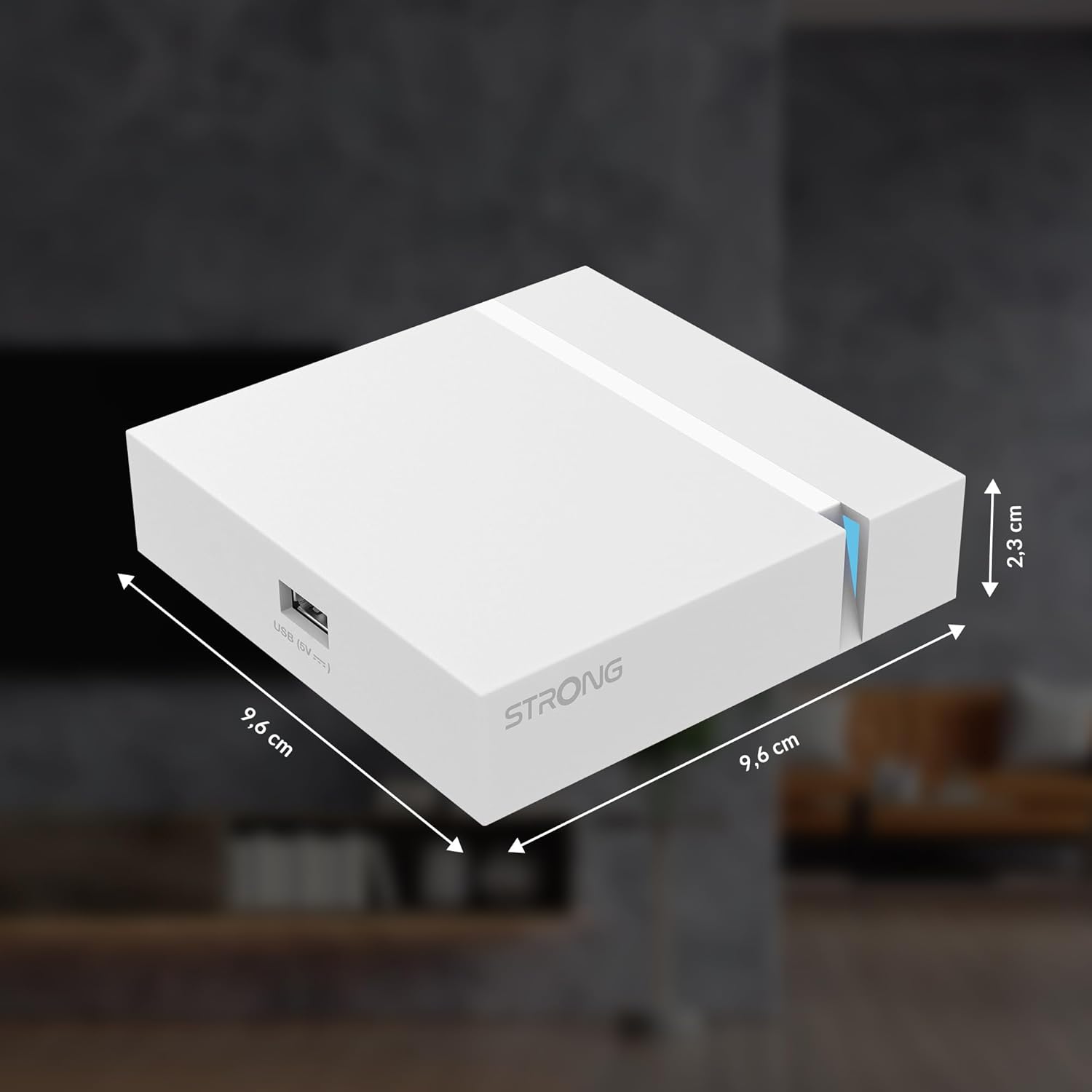
Image: The physical dimensions of the STRONG Leap-S3+ Android TV Box.
9. Warranty and Support
For warranty information and technical support, please refer to the documentation provided with your purchase or visit the official Strong website. Information regarding spare parts availability and software update guarantees is not available in this manual.


