
1. Introduction
Thank you for choosing the EDJO Folding Wireless Keyboard and Mouse Combo. This portable and versatile combo is designed to enhance your productivity across various devices, offering seamless connectivity and a comfortable typing experience. This manual provides detailed instructions for setup, operation, maintenance, and troubleshooting to ensure optimal performance.

Image 1.1: The EDJO Folding Wireless Keyboard and Mouse Combo, showcasing its compact design and included accessories.
2. Package Contents
Please verify that all items listed below are included in your package:
- 1 x EDJO Folding Wireless Keyboard
- 1 x EDJO Wireless Mouse
- 1 x Portable Hard Travel Case
- 1 x Adjustable Phone/Tablet Holder
- 1 x USB-C Charging Cable (for keyboard)
- 1 x 2.4G USB Receiver (stored in mouse battery compartment)
- 1 x User Manual

Image 2.1: Visual representation of all items included in the EDJO Folding Wireless Keyboard and Mouse Combo package.
3. Key Features
- Optimized Layout & Quiet Typing: The keyboard features a numeric keypad and 13 multimedia keys for enhanced functionality. Scissor-switch keys and a noise-reduced mouse ensure a quiet and focused work environment.
- Pocket-Size & Hard Travel Case: Designed for portability, the mini-size keyboard and mouse come with a stylish hard case and an adjustable phone holder, making it ideal for travel and mobile work setups. The hard carry case measures 25 x 13.5 x 4.5 cm (9.84 x 5.31 x 1.77 inches).
- Dual-Mode Connectivity (2.4G Wireless & Bluetooth): Connects effortlessly with up to 3 devices (BT1, BT2, and 2.4G) within a 33ft (10m) range. Compatible with Windows, Android, iOS, and Mac systems, supporting laptops, desktops, tablets, and smartphones.
- Rechargeable & Power Saving: The keyboard features a built-in rechargeable battery with a Type-C charging interface, providing up to 90 hours of continuous typing after a 2-3 hour charge. The mouse requires 1 x AA battery (not included). Both devices enter sleep mode after 10 minutes of inactivity to conserve power.
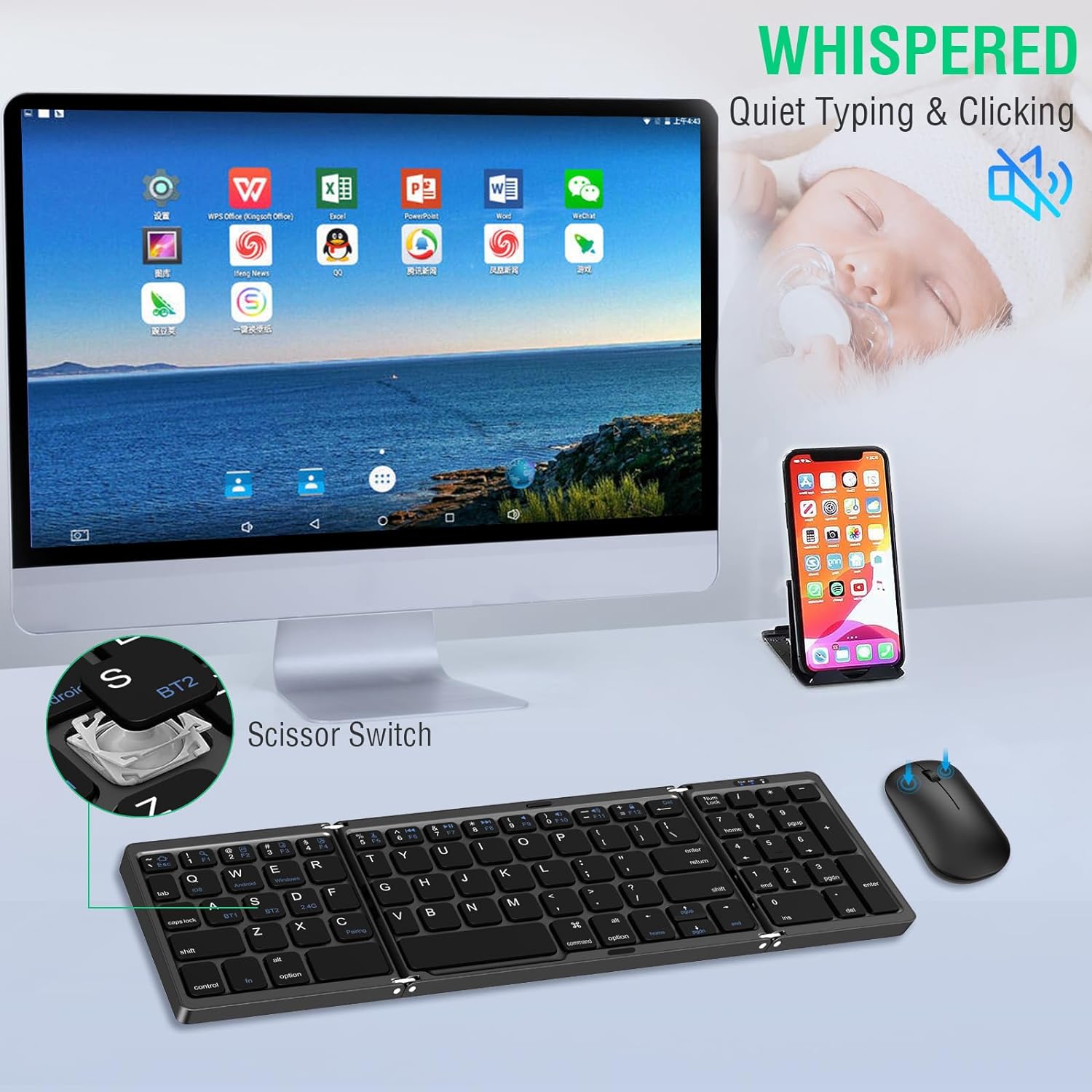
Image 3.1: Close-up of the keyboard highlighting the scissor-switch mechanism for quiet operation.
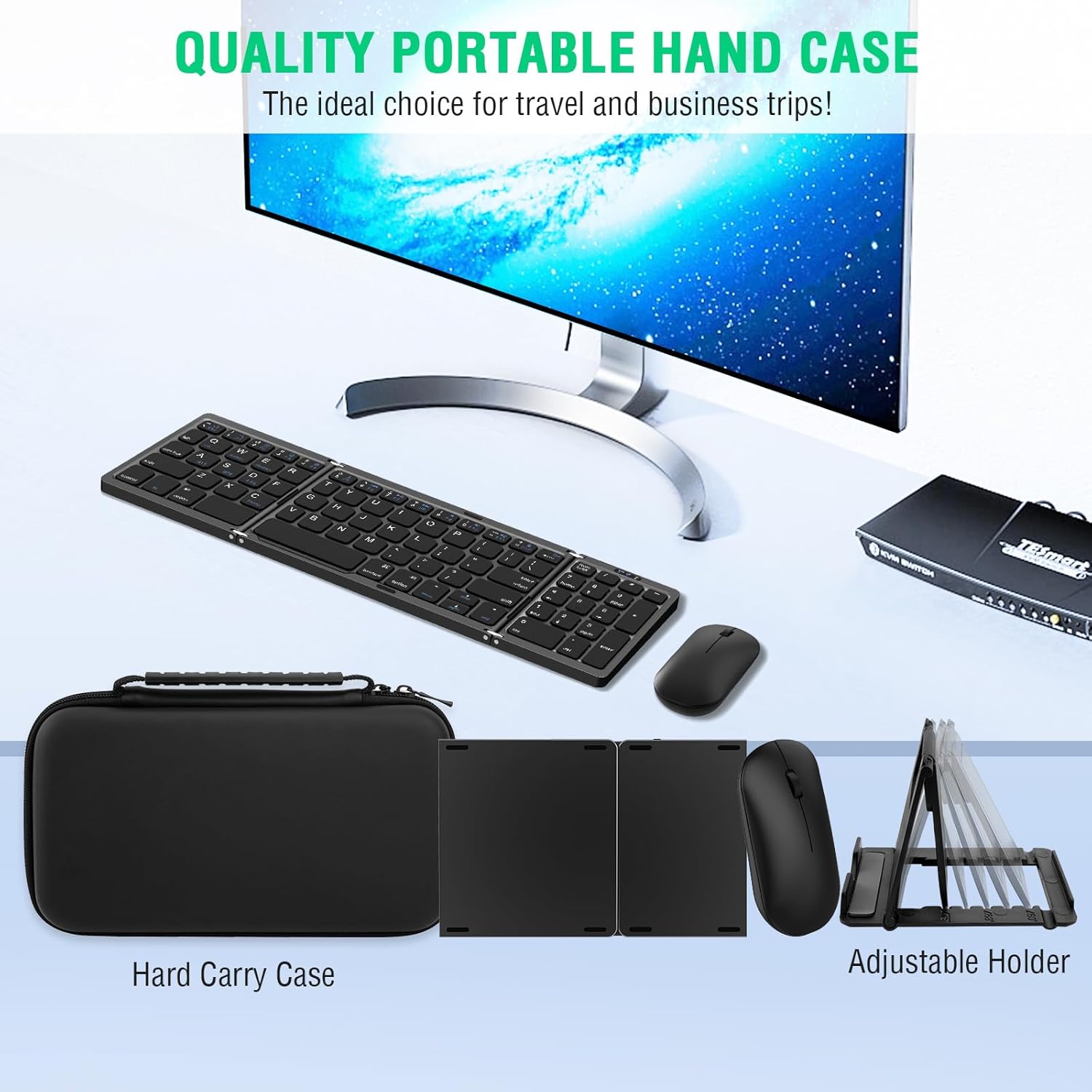
Image 3.2: The included hard travel case and adjustable holder, demonstrating the product's portability.

Image 3.3: Illustration of the keyboard and mouse connected to a monitor, tablet, and smartphone, highlighting multi-device compatibility.
4. Setup Instructions
4.1. Initial Charging and Battery Installation
- Keyboard Charging: Connect the provided USB-C cable to the keyboard's charging port and a power source. The charging/power indicator will illuminate. A full charge takes approximately 2-3 hours.
- Mouse Battery: Open the mouse battery compartment. Insert 1 x AA battery (not included). The 2.4G USB receiver is typically stored in this compartment.

Image 4.1: Visual guide for connecting the Type-C charging cable to the keyboard and installing the AA battery in the mouse.
4.2. 2.4G Wireless Connection
- Step 1: Plug the 2.4G USB Receiver into an available USB port on your device (PC, laptop, tablet).
- Step 2: On the keyboard, press Fn + D to select 2.4G mode. The 2.4G indicator light will flash blue.
- Step 3: On the mouse, ensure the power switch is ON and press the 2.4G button. The 2.4G indicator light will flash green.
- Step 4: The keyboard and mouse will automatically connect to your device.

Image 4.2: Illustrated steps for establishing a 2.4G wireless connection with the keyboard and mouse.
4.3. Bluetooth Connection (BT1/BT2)
- Step 1: On the keyboard, press Fn + A (for BT1) or Fn + S (for BT2) to select the desired Bluetooth channel. Then press Fn + C to enter pairing mode. The Bluetooth indicator light will flash blue.
- Step 2: On the mouse, ensure the power switch is ON and press the BT1 or BT2 button. The corresponding indicator light will flash blue.
- Step 3: On your device (smartphone, tablet, laptop), enable Bluetooth and search for available devices. Select "Bluetooth Keyboard" and "BT5.2 Mouse" from the list to pair.
- Step 4: Once paired, the indicator lights on the keyboard and mouse will stop flashing and remain solid.

Image 4.3: Illustrated steps for establishing a Bluetooth connection with the keyboard and mouse to a mobile device.
4.4. Video Guide: Setup and Features
Video 4.4: An official video demonstrating the setup process and key features of the EDJO Folding Wireless Keyboard and Mouse Combo.
5. Operating Instructions
5.1. Switching Between Connected Devices
The keyboard and mouse combo supports connection to up to three devices simultaneously (BT1, BT2, and 2.4G). To switch between devices:
- For 2.4G connection: Press Fn + D on the keyboard.
- For Bluetooth 1 (BT1): Press Fn + A on the keyboard.
- For Bluetooth 2 (BT2): Press Fn + S on the keyboard.
- For the mouse, simply press the corresponding BT1, BT2, or 2.4G button on its underside to switch.
5.2. Multimedia Keys
The keyboard includes 13 multimedia keys for quick access to various functions. These keys are typically activated by pressing the Fn key in combination with the desired function key (e.g., Fn + F1 for media playback controls).
5.3. Power Saving Mode
Both the keyboard and mouse are designed with an automatic power-saving feature. After 10 minutes of inactivity, they will enter sleep mode. To reactivate, simply press any key on the keyboard or any button on the mouse.
6. Specifications
| Feature | Detail |
|---|---|
| Brand | EDJO |
| Model | Folding Wireless Keyboard Mouse Combo |
| Connectivity Technology | Bluetooth, 2.4G USB |
| Compatible Devices | Laptop, Personal Computer, Smartphone, Tablet (Windows, Android, iOS, Mac) |
| Keyboard Battery | 1 Lithium Polymer battery (included), Type-C rechargeable |
| Mouse Battery | 1 x AA battery (not included) |
| Keyboard Continuous Typing Time | Up to 90 hours (after 2-3 hours charge) |
| Power Saving Mode | Automatic sleep after 10 minutes of inactivity |
| Color | Black |
| Item Weight | 1.32 pounds |
| Package Dimensions | 10.59 x 6.1 x 2.2 inches |

Image 6.1: Detailed dimensions of the EDJO Folding Wireless Keyboard and Mouse.
7. Troubleshooting
7.1. Connection Issues
- Keyboard/Mouse not connecting: Ensure both devices are powered on and fully charged (keyboard) or have fresh batteries (mouse). Verify that the correct connection mode (2.4G, BT1, or BT2) is selected on both the keyboard and mouse. For Bluetooth, ensure your device's Bluetooth is enabled and the devices are in pairing mode.
- Intermittent connection: Move the devices closer to your computer or mobile device. Avoid obstacles that may interfere with the wireless signal. Ensure no other wireless devices are causing interference.
7.2. Keyboard Not Typing / Mouse Not Responding
- Check power: Ensure both devices are powered on and not in sleep mode. Press any key/button to wake them up.
- Battery level: Recharge the keyboard if the battery is low. Replace the AA battery in the mouse if needed.
- Re-pair: Try re-pairing the keyboard and mouse with your device following the setup instructions.
8. Maintenance
- Cleaning: Use a soft, dry cloth to clean the surfaces of the keyboard and mouse. For stubborn dirt, a slightly damp cloth can be used, ensuring no moisture enters the device.
- Storage: When not in use, store the keyboard and mouse in the provided hard travel case to protect them from dust, spills, and physical damage.
- Battery Care: For the keyboard, avoid fully discharging the battery frequently. For the mouse, remove the AA battery if storing for extended periods to prevent leakage.
- Avoid Extreme Conditions: Do not expose the devices to extreme temperatures, humidity, or direct sunlight.
9. Warranty and Support
The EDJO Folding Wireless Keyboard and Mouse Combo comes with a 12-month warranty service. This warranty covers manufacturing defects and ensures product quality. In addition, EDJO provides 24-hour quick response technical support to assist with any issues you may encounter during use.
If you experience any problems or have questions, please do not hesitate to contact EDJO customer support. Contact information can typically be found on the product packaging or the official EDJO website.

Image 9.1: Icons representing EDJO's commitment to customer service, including hassle-free returns, 24-hour response, 12-month quality service, and lifetime technical support.