
TP-Link EAP773
TP-Link Omada WiFi 7 Wireless Access Point User Manual
Model: EAP773 | Brand: TP-Link
Omada BE11000 Ceiling Mount Tri-Band Wi-Fi 7 Access Point
1. Introduction
This manual provides comprehensive instructions for the installation, operation, and maintenance of your TP-Link Omada BE11000 Tri-Band Wi-Fi 7 Access Point (Model: EAP773). Designed for business environments, this access point offers advanced wireless capabilities including Wi-Fi 7 technology, a 10G Ethernet port, and seamless integration with the Omada Software Defined Networking (SDN) platform.
2. Package Contents
Verify that all items are present in your package:
- TP-Link Omada BE11000 Tri-Band Wi-Fi 7 Access Point (EAP773)
- Installation Guide
- Ceiling/Wall Mounting Kits
Note: A DC Power Adapter is NOT included with this model. The device requires a 12V, 3A power adapter for standalone operation if not using Power over Ethernet (PoE).
3. Product Overview
The EAP773 is a high-performance Wi-Fi 7 access point designed for robust and high-speed wireless connectivity.
3.1 Device Appearance

Figure 3.1: Top view of the EAP773 Access Point. This image displays the sleek, circular design of the access point, suitable for ceiling or wall mounting.

Figure 3.2: Bottom view of the EAP773 Access Point. This image highlights the connectivity options, including the 10G Ethernet port and DC power input.
3.2 Key Features
- BE11000 Tri-Band Wi-Fi 7: Achieves speeds of 5760 Mbps (6 GHz) + 4320 Mbps (5 GHz) + 574 Mbps (2.4 GHz), significantly reducing buffering.
- 10G Port: Features a 10 Gigabit PoE+ port to unlock the full potential of Wi-Fi 7 and ensure high-speed wired connectivity.
- Clear 6 GHz Band: Utilizes the new 6 GHz band for cleaner and wider band resources, minimizing interference.
- 320 MHz Bandwidth: Supports up to 320 MHz bandwidth for increased simultaneous transmissions and faster speeds.
- Low Latency and Interference: Multi-Link Operation (MLO) and Multi-RUs enhance network performance by optimizing data transmission across multiple bands.
- Omada SDN Support: Integrates seamlessly with the Omada Software Defined Networking platform for centralized management.
- Advanced Wireless Technologies: Supports Mesh WiFi, Seamless Roaming, Band Steering, Load Balancing, Airtime Fairness, and Beamforming.

Figure 3.3: Wi-Fi 7 Speed Comparison. This chart illustrates the significant speed improvements offered by the EAP773 compared to previous Wi-Fi standards.
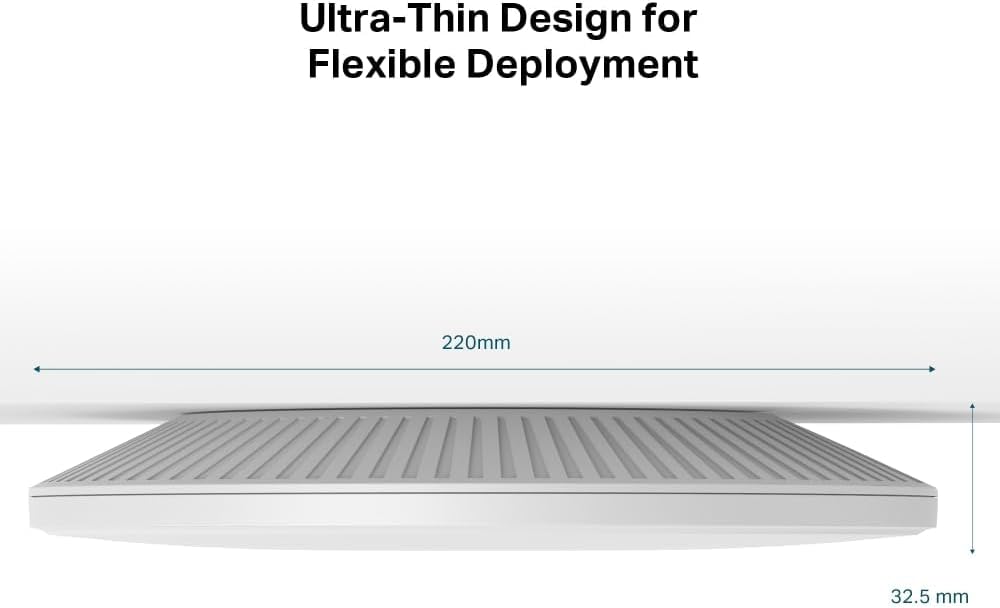
Figure 3.4: Ultra-Thin Design. The image highlights the compact and discreet form factor of the EAP773, measuring 32.5 mm in thickness.
4. Setup
4.1 Physical Installation
The EAP773 is designed for ceiling or wall mounting. Use the provided Ceiling/Wall Mounting Kits to securely install the access point in your desired location. Ensure the mounting surface is stable and can support the device's weight.
4.2 Powering the Device
The EAP773 can be powered via Power over Ethernet (PoE) or a DC power adapter.
- PoE: Connect an Ethernet cable from a PoE+ (802.3at) compliant switch or PoE injector to the 10G Ethernet port on the access point. This will provide both power and data connectivity.
- DC Power Adapter: If PoE is not available, connect a 12V, 3A DC power adapter (not included) to the DC power input port.
4.3 Network Connection
Connect the 10G Ethernet port of the EAP773 to your network's uplink. For optimal performance and to fully utilize the Wi-Fi 7 capabilities, a 10 Gigabit per second uplink is recommended. However, 5 Gigabit per second or 2.5 Gigabit per second uplinks will also suffice depending on your network requirements.
4.4 Initial Configuration
The EAP773 can be managed in two primary ways:
- Omada SDN Controller: For centralized management of multiple Omada devices, use an Omada Hardware Controller, Software Controller, or Cloud-based Controller. This platform integrates access points, switches, and gateways.
- Standalone Mode: For single access point deployments, the EAP773 can be configured via its web user interface (WebUI) or the Omada App.
Refer to the Installation Guide for detailed steps on initial setup and configuration via your preferred management method.

Figure 4.1: Seamless Integration into Omada SDN. This diagram shows how the EAP773 fits into a larger Omada network, managed by different controller options.
5. Operating
5.1 Wi-Fi 7 Performance
The EAP773 leverages Wi-Fi 7 (802.11be) to deliver exceptional wireless performance. Key technologies include:
- Tri-Band Operation: Simultaneous operation on 2.4 GHz, 5 GHz, and 6 GHz bands to distribute network traffic efficiently.
- 320 MHz Channels: Wider channels in the 6 GHz band allow for higher data rates and increased throughput.
- Multi-Link Operation (MLO): Enables devices to transmit and receive data simultaneously across different frequency bands and channels, significantly boosting speeds and reducing latency. To achieve optimal speeds, ensure your client devices and network infrastructure support MLO.
- Multi-Resource Units (Multi-RUs): Improves efficiency by allowing multiple smaller resource units to be allocated to different users within a single channel.
With MLO active, the EAP773 can achieve download speeds exceeding 2 Gbps and upload speeds over 1.9 Gbps, enabling rapid file transfers (e.g., a 33 GB file in approximately 3 minutes over Wi-Fi).
5.2 Seamless Roaming
When integrated into an Omada SDN network, the EAP773 supports seamless roaming. This feature allows wireless clients to move between access points without experiencing interruptions in connectivity, ensuring a smooth and continuous user experience across large areas.

Figure 5.1: Seamless Roaming. This image depicts how multiple EAP773 units provide continuous Wi-Fi coverage, allowing devices to transition smoothly between them.
6. Maintenance
- Firmware Updates: Regularly check for and install the latest firmware updates via the Omada SDN Controller or the device's WebUI to ensure optimal performance, security, and access to new features.
- Cleaning: Keep the access point clean and free from dust accumulation. Use a soft, dry cloth for cleaning. Avoid using liquid cleaners or aerosols.
- Environmental Considerations: Ensure the access point is installed in a well-ventilated area to prevent overheating. While designed to operate under various conditions, excessive heat can impact performance and longevity.
7. Troubleshooting
If you encounter issues with your EAP773, consider the following common troubleshooting steps:
- No Power: Verify that the PoE connection is active or that the 12V 3A DC power adapter is correctly connected and functioning.
- No Network Connectivity: Check the Ethernet cable connection to the 10G port. Ensure the uplink switch port is active and configured correctly.
- Poor Wi-Fi Performance:
- Confirm that client devices support Wi-Fi 7 and MLO for optimal speeds.
- Check for potential interference from other wireless devices.
- Ensure the access point is positioned optimally for coverage.
- Verify that MLO is active on your Omada controller or standalone configuration.
- Device Unresponsive: Perform a soft reset by power cycling the device. If the issue persists, use the reset button (refer to the Installation Guide for location and procedure) to restore factory defaults.
For further assistance, consult the detailed troubleshooting section in the full Installation Guide or contact TP-Link Support.
8. Specifications
| Feature | Detail |
|---|---|
| Model Name | EAP773 |
| Product Dimensions | 11.2 x 10.2 x 3.6 inches |
| Item Weight | 4.95 pounds |
| Frequency Band Class | Tri-Band (2.4 GHz, 5 GHz, 6 GHz) |
| Wireless Communication Standard | 802.11be (Wi-Fi 7) |
| Connectivity Technology | Ethernet, Wi-Fi |
| Special Features | Beamforming, Remote Access, Multi-Link Operation (MLO), Multi-RUs, 320 MHz Bandwidth, Omada SDN Support, Mesh WiFi, Seamless Roaming, Band Steering, Load Balancing, Airtime Fairness |
| Recommended Uses | Business |
9. Warranty and Support
Your TP-Link Omada EAP773 Access Point comes with a 5-Year Warranty. For warranty claims or technical support, please visit the official TP-Link support website or contact their customer service.
For details regarding the Cloud-based Controller and other Omada SDN features, please contact TP-Link directly.
Related documentsEAP773


Ask a question about this manual
Ask about setup, troubleshooting, compatibility, parts, safety, or missing instructions. Manuals+ will review the question and use this page’s manual context to help answer it.