
ESR 6B014
ESR Rebound Magnetic Keyboard Case 360 User Manual
Model: 6B014
1. Introduction
The ESR Rebound Magnetic Keyboard Case 360 is designed to enhance your iPad experience by providing a versatile keyboard and protective case. It features a detachable back case, a multifunctional trackpad, and multiple viewing angles to support various tasks from typing to browsing.
2. Compatibility
This keyboard case is specifically designed for the following iPad models:
- iPad Air 13" (M3 2025)
- iPad Air 13" (M2 2024)
To verify your iPad model number, check the back of your device. Compatible model numbers include A3268, A3269, A3271 for iPad Air 13" (M3 2025) and A2898, A2899, A2900 for iPad Air 13" (M2 2024).
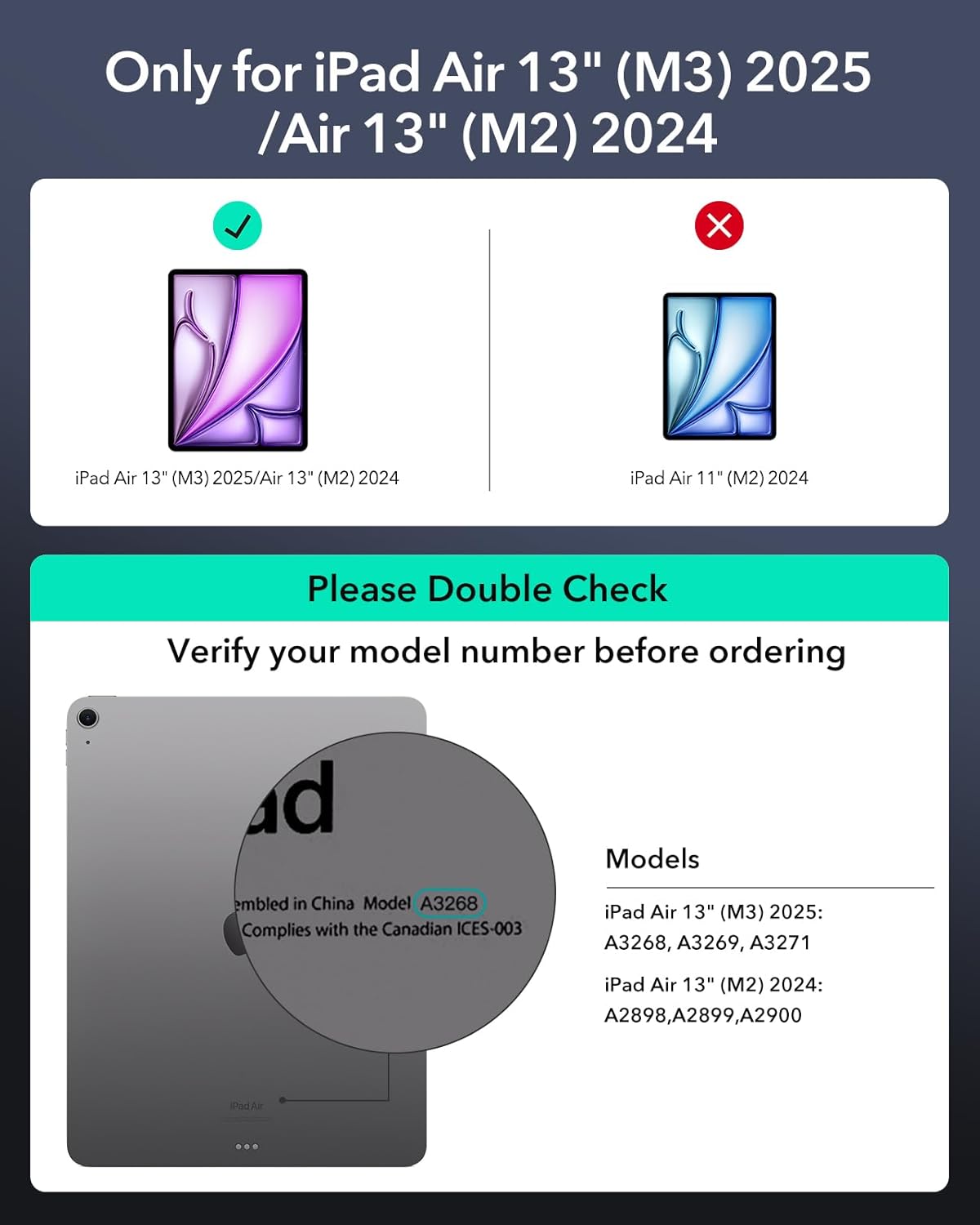
Image: Compatibility chart and how to check your iPad model number.
3. What's in the Box
Your ESR Rebound Magnetic Keyboard Case 360 package includes:
- ESR Rebound Magnetic Keyboard Case 360
- USB Cable (for charging the keyboard)
4. Setup
4.1 Attaching Your iPad
The case features a detachable back cover that magnetically attaches to your iPad. Simply align your iPad with the magnetic back cover until it snaps into place. The back cover can be used independently for protection even when the keyboard is not attached.

Image: Detachable back case and magnetic compatibility.
4.2 Bluetooth Pairing
- Ensure your keyboard is charged.
- Turn on the keyboard using the power switch.
- On your iPad, go to Settings > Bluetooth.
- Turn on Bluetooth.
- The keyboard will appear as "ESR Keyboard" under "Other Devices". Tap on it to connect.
- Confirm the pairing request on your iPad.
4.3 Charging the Keyboard
Connect the provided USB cable to the charging port on the keyboard and to a compatible USB power adapter. The keyboard uses a USB-C port for charging. A full charge provides extended battery life, with up to 1 year of standby time or 3 months of day use (2 hours a day with backlit keys off).
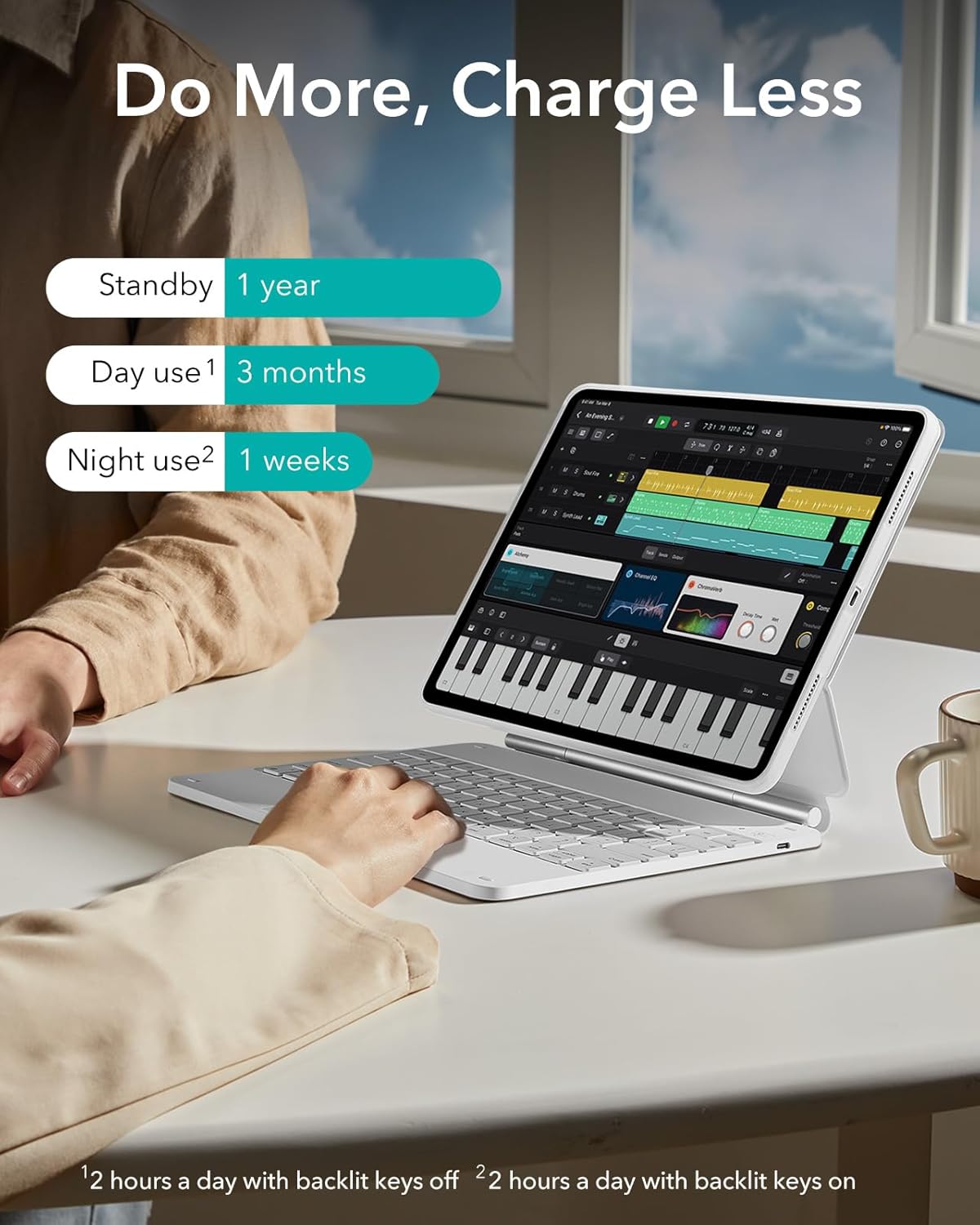
Image: Battery life and charging information.
5. Operating Instructions
5.1 Adjusting Viewing Angles
The magnetic stand allows for quick and easy adjustment of viewing angles, providing optimal comfort for various activities such as typing, viewing, and browsing. Simply open the case to set the perfect angle.

Image: Powerful versatility in typing, viewing, and browsing modes.

Image: Quick-set magnetic stand for optimal viewing angles.
5.2 Using the Trackpad
The multifunctional trackpad supports various gestures for smooth and accurate control of your iPad. These include clicking, scrolling, zooming, and navigating to the home screen.

Image: Multifunctional trackpad with gesture support.
5.3 Keyboard Backlight
The keyboard features backlit keys. To adjust the backlight brightness or change colors, use the dedicated function keys on the keyboard. Refer to the keyboard layout for specific key functions.
5.4 Apple Pencil Storage
The case includes a secure magnetic clasp designed to hold and protect your Apple Pencil, ensuring it stays in place when not in use.

Image: Secure magnetic clasp for Apple Pencil protection.
6. Maintenance
To ensure the longevity of your ESR Rebound Magnetic Keyboard Case 360, follow these maintenance guidelines:
- Cleaning: Use a soft, damp cloth to wipe down the exterior of the case and keyboard. Avoid harsh chemicals or abrasive materials.
- Storage: When not in use, keep the case closed to protect the screen and keyboard. Store in a cool, dry place away from direct sunlight.
- Handling: Avoid dropping the case or exposing it to extreme temperatures or liquids.
7. Troubleshooting
7.1 Bluetooth Connectivity Issues
If your keyboard is not connecting to your iPad:
- Ensure the keyboard is turned on and fully charged.
- Make sure Bluetooth is enabled on your iPad (Settings > Bluetooth).
- Forget the device on your iPad (if previously paired) and attempt to pair again.
- Restart both your iPad and the keyboard.
- Ensure the keyboard is within the effective Bluetooth range (typically 10 meters or 33 feet).
7.2 Trackpad Not Responding
If the trackpad is unresponsive or clicks are not registering:
- Ensure the keyboard is properly connected via Bluetooth.
- Check iPad settings for trackpad sensitivity (Settings > Accessibility > Touch > AssistiveTouch > Tracking Sensitivity).
- Clean the trackpad surface to remove any debris or smudges.
- Restart the keyboard and iPad.
7.3 Keyboard Not Charging
If the keyboard is not charging:
- Verify that the USB cable is securely connected to both the keyboard and the power source.
- Try a different USB-C cable and/or power adapter.
- Ensure the power source is functional.
8. Specifications
| Model Name | 6B014 |
| Brand | ESR |
| Color | White |
| Material | Polyurethane (PU), Aluminum, Thermoplastic Polyurethane (TPU), Polycarbonate |
| Number of Keys | 78 |
| Keyboard Layout | QWERTY |
| Power Source | Rechargeable battery |
| Item Weight | 3.17 pounds |
| Package Dimensions | 12.52 x 9.61 x 1.14 inches |
| Date First Available | January 29, 2024 |
9. Warranty and Support
For warranty information and customer support, please visit the official ESR website or contact their customer service directly. You can also visit the ESR Store on Amazon for more product details and assistance.
Related documents6B014

Ask a question about this manual
Ask about setup, troubleshooting, compatibility, parts, safety, or missing instructions. Manuals+ will review the question and use this page’s manual context to help answer it.