
1. Introduction
Thank you for choosing the ESR Rebound 360 Series Keyboard Case. This manual provides detailed instructions to help you set up, operate, and maintain your new keyboard case, enhancing your iPad Air 13-inch experience.
1.1 Compatibility
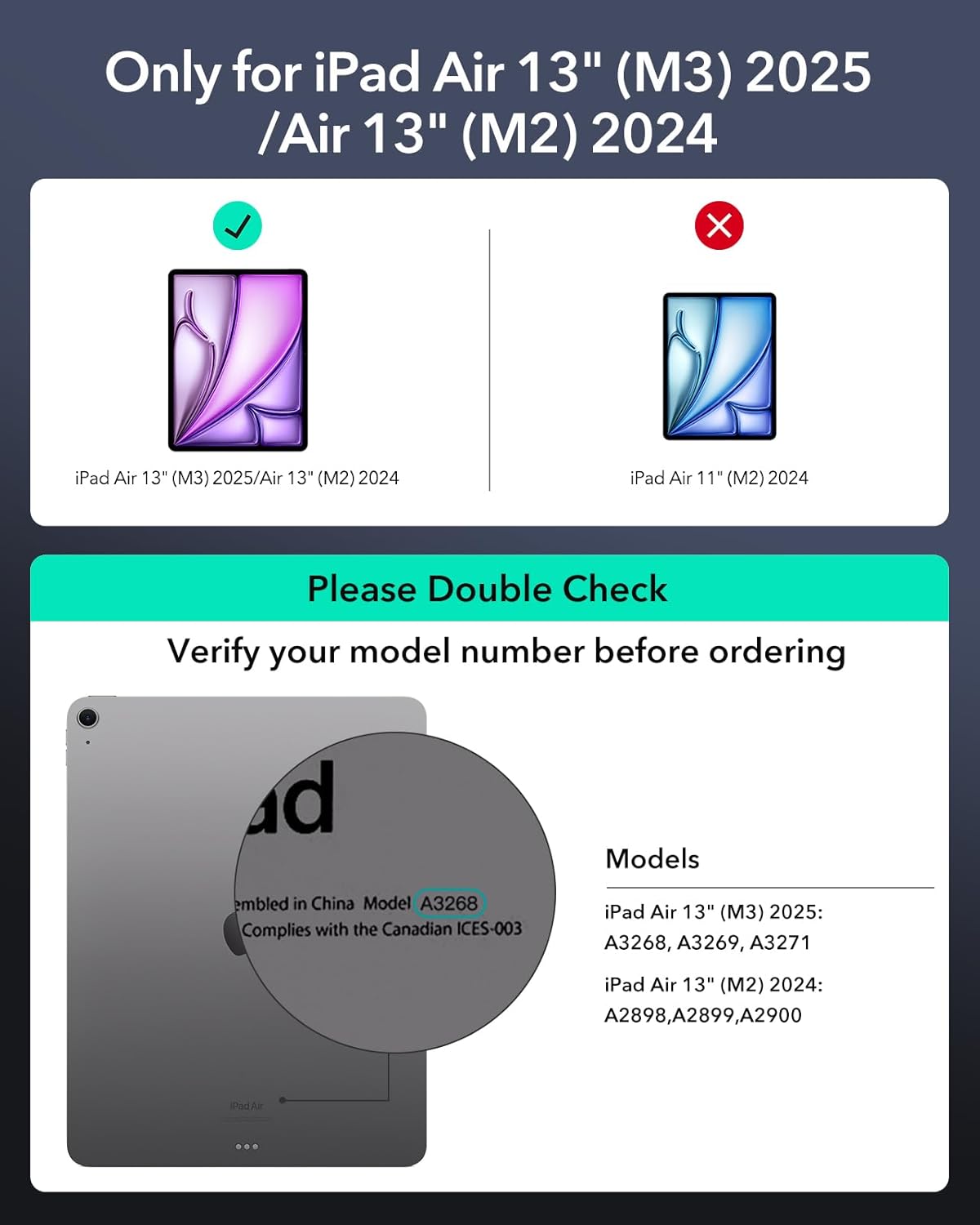
This keyboard case is specifically designed for the iPad Air 13-inch (M2, 2024) and iPad Air 13-inch (M3, 2025) models. Please verify your iPad model number before use to ensure compatibility.
2. Key Features
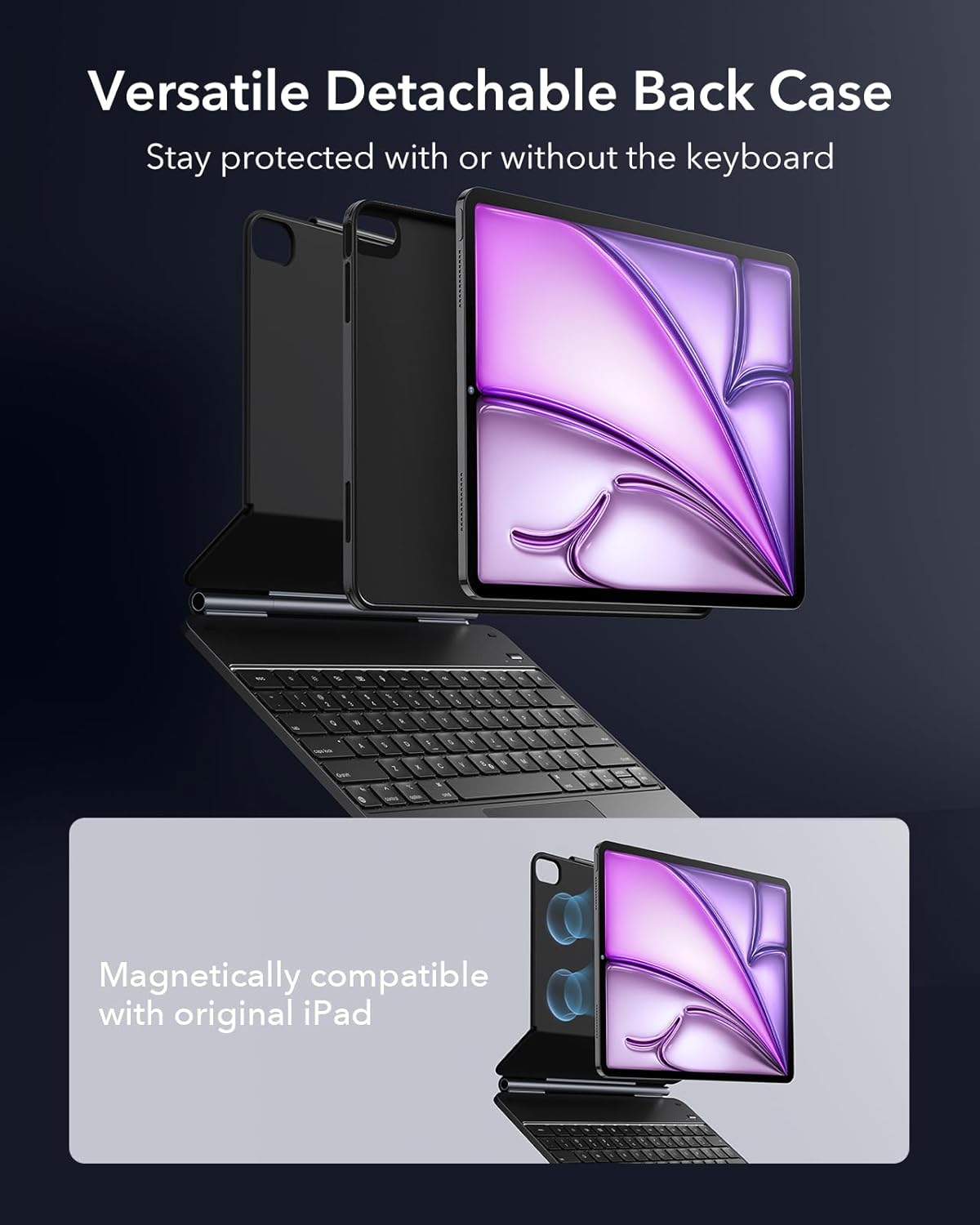
- Detachable Magnetic Case: Allows for flexible use of your iPad with or without the keyboard.
- Multi-Touch Trackpad: Provides precise navigation and supports multi-finger gestures for enhanced productivity.
- Easy-Set Magnetic Stand: Offers stable viewing in both portrait and landscape modes with adjustable angles.
- Backlit Keyboard: Features adjustable backlighting for comfortable typing in various lighting conditions.
- Pencil Protection: Includes a secure magnetic clasp to keep your Apple Pencil safe and charged.
- Durable Materials: Constructed from Polyurethane (PU), Thermoplastic Polyurethane (TPU), Aluminum, and Polycarbonate for robust protection.




3. Setup Guide
3.1 Charging the Keyboard
Before first use, fully charge the keyboard using the provided USB cable. Connect the USB cable to the charging port on the keyboard and a compatible USB power adapter.
3.2 Attaching the iPad
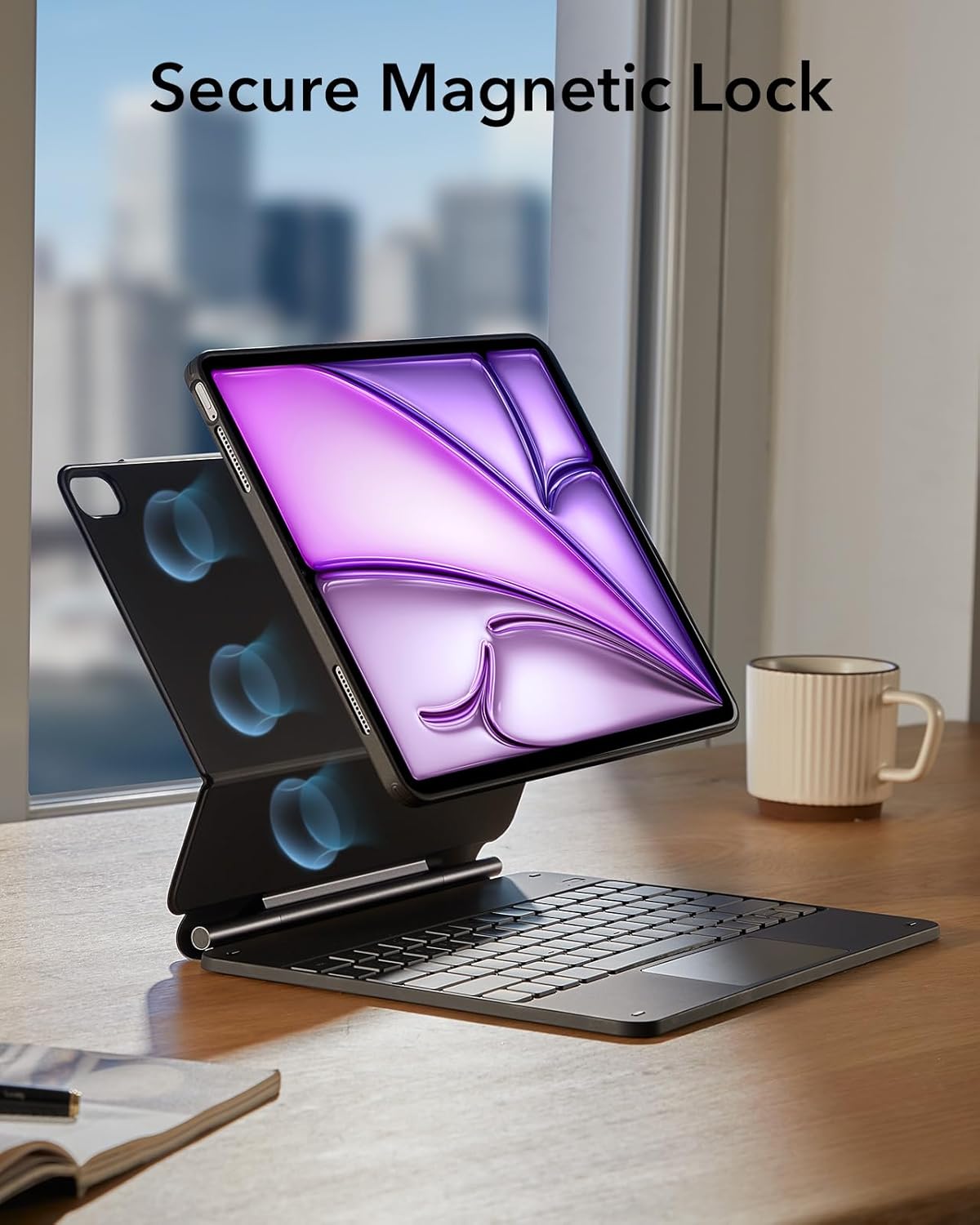
Align your iPad (with the detachable case installed) with the magnetic back of the keyboard stand. The strong magnets will securely snap the iPad into place.
3.3 Bluetooth Pairing
- Ensure the keyboard is charged and powered on.
- On your iPad, go to Settings > Bluetooth.
- Turn on Bluetooth.
- The keyboard will appear as a discoverable device (e.g., "ESR Keyboard"). Tap on it to pair.
- Once paired, the Bluetooth indicator light on the keyboard will turn solid, and your iPad will show it as connected.
4. Operating Instructions
4.1 Using the Keyboard
The full-size QWERTY keyboard provides a comfortable typing experience. Use the function keys (F1-F12) for quick access to iPad features like media control, volume, and screen brightness.
Backlight Adjustment
Press the dedicated backlight key (often an icon resembling a sun or light bulb) to cycle through brightness levels or turn the backlight on/off. The keyboard supports single-color backlighting.
4.2 Using the Multi-Touch Trackpad
The integrated trackpad allows for precise cursor control and supports various multi-touch gestures for efficient navigation within iPadOS.
- Click: Tap or press the trackpad.
- Scroll: Use two fingers to scroll up or down.
- Zoom: Pinch with two fingers to zoom in or out.
- Go Home: Swipe up with three fingers.
4.3 Adjusting the Stand & Modes
The magnetic stand allows for versatile viewing angles and modes:
- Typing Mode: Position the iPad at an angle suitable for typing on the keyboard.
- Viewing Mode: Adjust the stand to a comfortable angle for watching videos or presentations.
- Portrait Mode: The unique design allows you to rotate your iPad to portrait orientation for reading or browsing.
4.4 Detaching the Case
The inner case holding your iPad is magnetically attached to the keyboard. Gently pull the iPad away from the keyboard to detach it. This allows you to use your iPad as a standalone tablet while still protected by its slim case.
5. Maintenance
5.1 Cleaning Instructions
To clean your keyboard case, use a soft, damp cloth. Avoid using harsh chemicals or abrasive materials, as they may damage the Polyurethane (PU), Thermoplastic Polyurethane (TPU), Aluminum, or Polycarbonate surfaces.
5.2 Battery Care
To prolong battery life:
- Fully charge the keyboard before extended periods of non-use.
- Avoid exposing the keyboard to extreme temperatures.
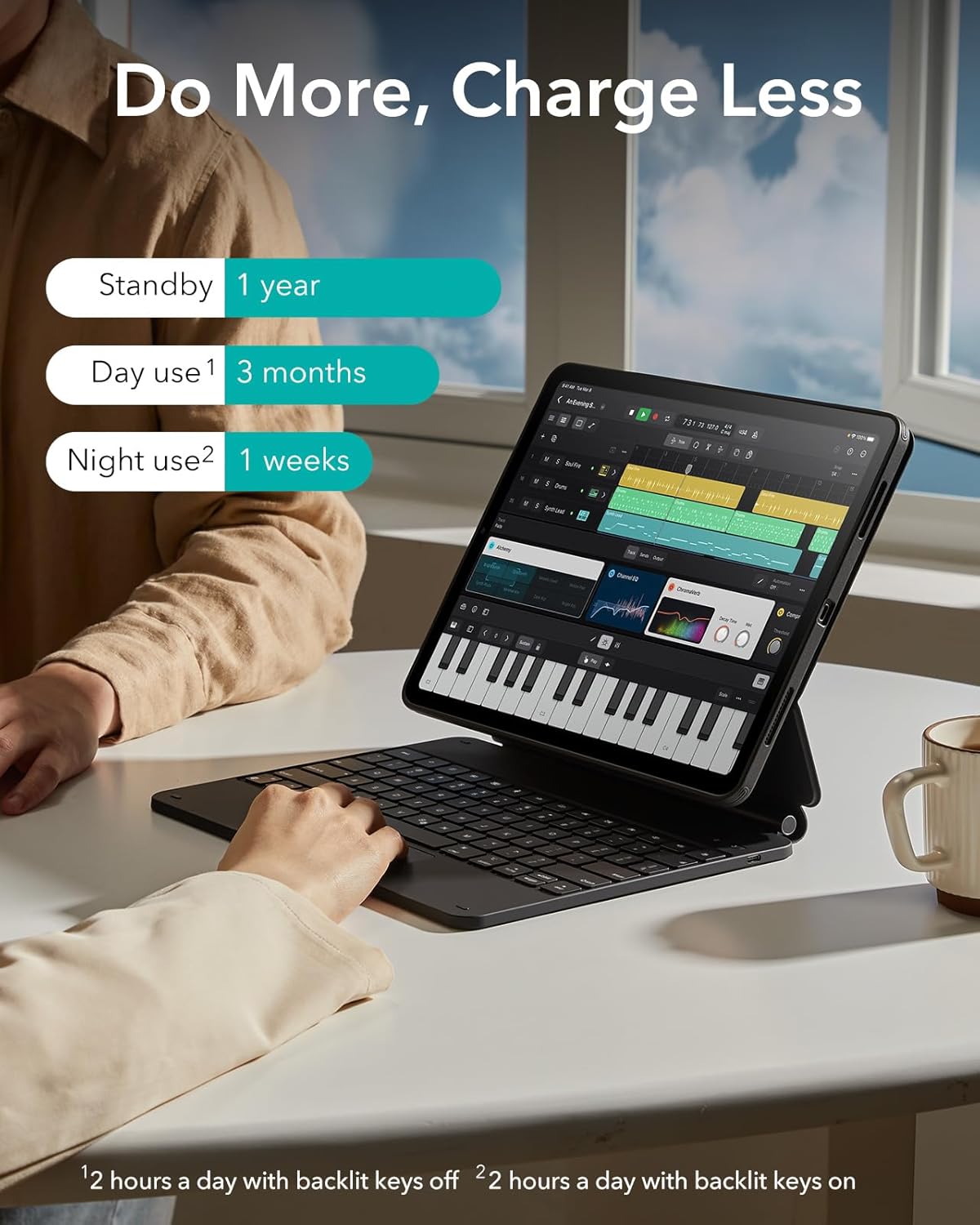
- Typical battery life: Up to 1 year standby, 3 months day use (2 hours/day with backlight off), 1 week night use (2 hours/day with backlight on).
6. Troubleshooting
6.1 Keyboard Not Connecting
- Ensure the keyboard is charged and powered on.
- Check if Bluetooth is enabled on your iPad.
- Forget the device in iPad's Bluetooth settings and re-pair.
- Restart your iPad and the keyboard.
6.2 Trackpad Not Responding
- Ensure the keyboard is properly connected via Bluetooth.
- Check iPadOS settings for trackpad functionality.
- Clean the trackpad surface.
6.3 Backlight Issues
- Ensure the keyboard has sufficient battery charge.
- Press the backlight adjustment key to cycle through settings.
7. Specifications
| Feature | Detail |
|---|---|
| Model Name | 6B014 |
| Product Dimensions | 11.23 x 9.48 x 1.04 inches |
| Item Weight | 3.12 pounds |
| Materials | Polyurethane (PU), Thermoplastic Polyurethane (TPU), Aluminum, Polycarbonate |
| Keyboard Layout | QWERTY |
| Power Source | Battery Powered |
| Keyboard Backlighting | Single Color |
| Included Components | USB Cable |
8. Warranty and Support
ESR products are designed and manufactured to the highest quality standards. For warranty information and customer support, please visit the official ESR website or contact their customer service team directly. Keep your purchase receipt as proof of purchase.
Online Support: www.esrgear.com
