

1. Introduction
Thank you for choosing the ieGeek ZY-C1 5MP Outdoor Solar Security Camera. This manual provides essential information for the proper installation, operation, and maintenance of your new security camera. Please read it thoroughly before use and retain it for future reference.
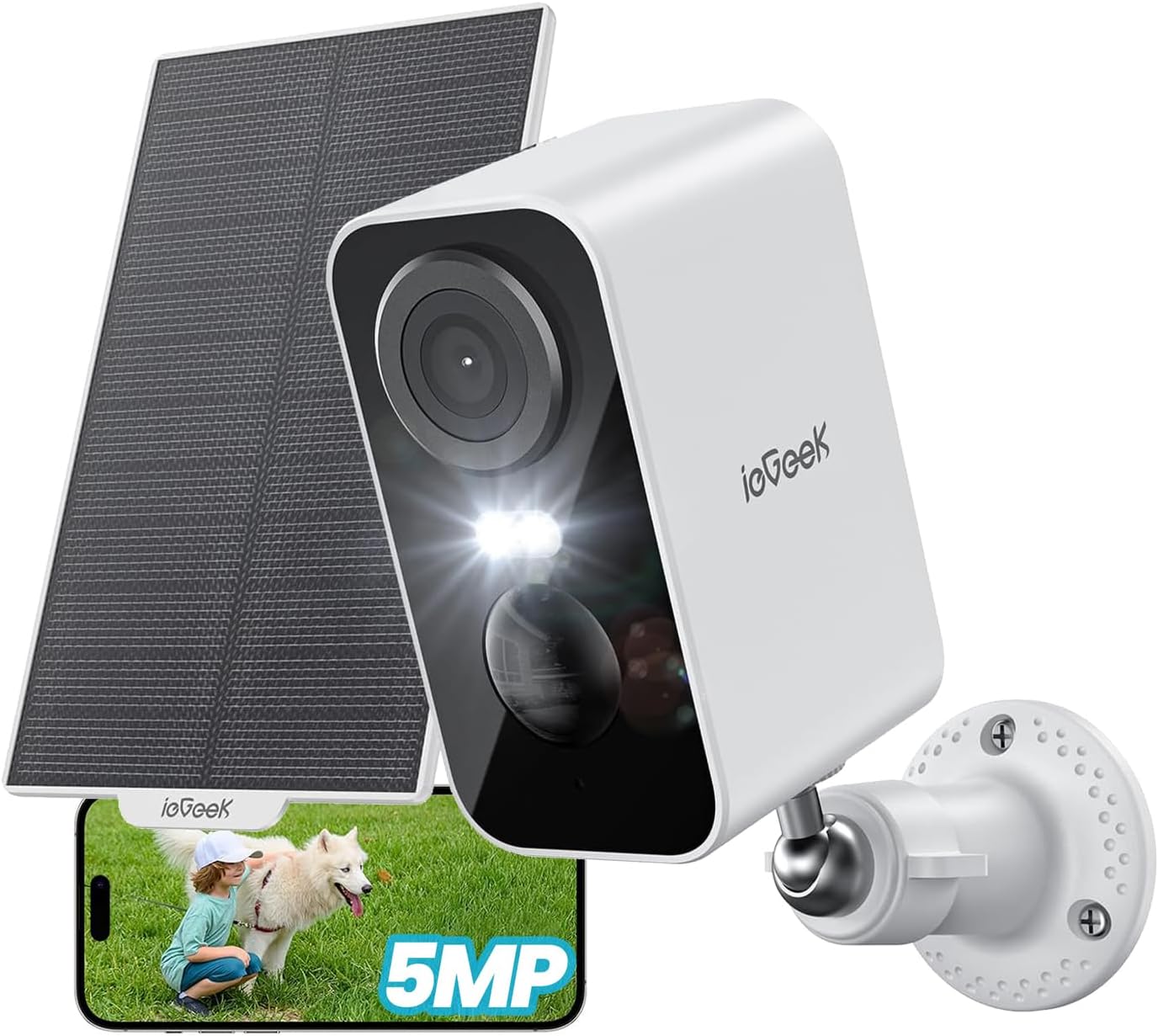
Figure 1: ieGeek ZY-C1 Camera with Solar Panel and App Interface
The ieGeek ZY-C1 is a high-resolution, wireless outdoor security camera designed for reliable surveillance. It features solar and USB charging, advanced motion detection, color night vision, two-way audio, and remote monitoring capabilities, ensuring comprehensive protection for your property.
2. Package Contents
Please check the package to ensure all items are present:
- Battery Security Camera x 1
- Solar Panel x 1
- Mounting Stands x 2
- Screws x 6
- Anchors x 6
- Power Cable (USB) x 1
- User Manual x 1

Figure 2: Included Components
3. Setup and Installation
3.1 Charging the Camera
Before initial use, fully charge the camera's built-in 5200mAh battery using the provided USB power cable. This ensures optimal performance and a stable connection during setup.
3.2 App Download and Account Registration
- Download the "ieGeek Cam" app from your smartphone's app store (iOS or Android).
- Register for a new account or log in if you already have one.
3.3 Connecting the Camera to Wi-Fi
- Open the ieGeek Cam app and tap the "+" icon to add a new device.
- Follow the on-screen instructions to connect the camera to your 2.4GHz Wi-Fi network. Ensure your camera is within 15 meters of your Wi-Fi router for a stable connection.
- Scan the QR code displayed on your phone with the camera lens. You will hear a confirmation sound once connected.
3.4 Mounting the Camera and Solar Panel
The camera and solar panel are designed for outdoor use and can be wall-mounted. Choose a location with optimal sunlight exposure for the solar panel and a clear view for the camera.
- Mark the drilling points using the mounting stands as a template.
- Drill holes and insert the anchors.
- Secure the mounting stands to the wall using the provided screws.
- Attach the camera and solar panel to their respective stands.
- Adjust the angle of the solar panel to maximize direct sunlight exposure.

Figure 3: Camera and Solar Panel Installation
4. Operating Instructions
4.1 Live View and Remote Monitoring
Access real-time video feed from your camera via the ieGeek Cam app on your smartphone or tablet. You can monitor your property from anywhere with an internet connection.

Figure 4: Remote Monitoring via Smartphone
4.2 Motion Detection and Alerts
The camera features a PIR motion sensor with an advanced human detection algorithm to minimize false alarms. When motion is detected, the camera will:
- Send push notifications to your smartphone.
- Initiate recording (6-second free cloud storage for 1 week, or to an inserted SD card).
- Activate sound and light deterrence (siren alarm and spotlight) if configured.

Figure 5: Motion Detection and Instant Alarm
4.3 Night Vision
The ZY-C1 camera provides clear surveillance even in low-light conditions with its color night vision capability. It utilizes both white and infrared LEDs.
- Infrared Night Vision: Provides black and white video in complete darkness, with a range of up to 15 meters.
- Color Night Vision: When motion is detected, the white LEDs can illuminate the area, providing full-color video footage.

Figure 6: Color Night Vision in Action
4.4 Two-Way Audio
Communicate with visitors or deter intruders using the built-in microphone and speaker. Simply tap the microphone icon in the app to speak.

Figure 7: Two-Way Audio Control
4.5 Storage Options
The camera supports both local and cloud storage for recorded footage.
- MicroSD Card: Insert a microSD card (up to 128GB, not included) for local storage. The camera supports automatic overwriting of old footage.
- Cloud Storage: Enjoy free 6-second cloud storage for 1 week. Paid cloud storage plans may also be available for extended storage.

Figure 8: Local and Cloud Storage
4.6 Alexa Integration
The ieGeek ZY-C1 is compatible with Alexa. You can use voice commands to view your camera feed on compatible Alexa-enabled devices.
- Example command: "Alexa, show me the front door."

Figure 9: Alexa Voice Control
5. Maintenance
5.1 Battery Charging
The camera is equipped with a 5200mAh rechargeable battery. It can be charged via the integrated solar panel or the provided USB cable.
- Solar Charging: Ensure the solar panel is positioned to receive at least 2 hours of direct sunlight daily for continuous operation. Adjust the panel's angle as needed.
- USB Charging: If solar charging is insufficient (e.g., during prolonged cloudy weather or heavy snow), you can charge the camera using the USB cable and a standard 5V/2A USB power adapter (not included).

Figure 10: Solar Power and Internal Battery
5.2 Weather Resistance
The ieGeek ZY-C1 camera has an IP65 rating, making it waterproof and dustproof. It is designed to withstand various weather conditions, including rain, sun, and snow, with an operating temperature range of -10°C to 55°C.

Figure 11: IP65 Weatherproof Design
5.3 Cleaning
Periodically clean the camera lens and solar panel with a soft, damp cloth to ensure clear image quality and efficient solar charging. Do not use harsh chemicals or abrasive materials.
6. Troubleshooting
- Camera not connecting to Wi-Fi: Ensure the camera is within 15 meters of your 2.4GHz Wi-Fi router. Check that your Wi-Fi password is correct.
- Frequent false alarms: Adjust the motion detection sensitivity to "Medium" in the app settings. Ensure the detection area is configured to avoid irrelevant zones.
- Weak detection sensitivity: Increase the motion detection sensitivity in the app settings.
- Camera not detecting vehicles: If you want to detect vehicles, ensure that human detection is turned OFF in the app settings, as the human detection algorithm may filter out non-human motion.
- Battery draining quickly: Ensure the solar panel receives adequate direct sunlight daily. Reduce the frequency of motion detection events or live view access if possible.
- Poor image quality: Clean the camera lens. Ensure there are no obstructions in the camera's field of view. Check your Wi-Fi signal strength.
7. Specifications
| Feature | Specification |
|---|---|
| Model | ZY-C1 |
| Color | White |
| Video Resolution | 5MP (2560P) |
| Frame Rate | 15 fps |
| Night Vision Range | 15 meters |
| Connectivity | 2.4GHz Wi-Fi |
| Power Source | Solar, Battery Powered (5200mAh) |
| Material | ABS, PC |
| Water Resistance | IP65 |
| Operating Voltage | 3.7 Volts |
| Wattage | 5 W |
| Product Dimensions | 47 x 54 x 90 mm |
| Weight | 320 g |
| Storage Options | MicroSD (up to 128GB), Cloud Storage |
| Special Features | Video recording, automatic overwrite, 5MP image sensor, human detection, two-way audio, IP65 weather resistance, 15M night vision range, night vision, siren alarm, Alexa compatible |
8. Warranty and Support
8.1 Warranty Information
The ieGeek ZY-C1 security camera comes with a 24-month quality warranty from the date of purchase. This warranty covers manufacturing defects and ensures the product meets its specified quality standards. Please retain your proof of purchase for warranty claims.
8.2 Technical Support
For any technical assistance, troubleshooting, or inquiries regarding your ieGeek ZY-C1 camera, please contact ieGeek customer support. Our team is dedicated to providing the best support to ensure your satisfaction.
- Refer to the ieGeek official website for contact details.
- Check the ieGeek Cam app for in-app support options.

Figure 12: Support Options


