
1. Introduction
Thank you for choosing the iSinbox A30 Smart Projector. This manual provides essential information for setting up, operating, and maintaining your device. The iSinbox A30 offers a high-brightness 1000 ANSI lumen display, native 1080P resolution with 4K support, and advanced features like auto focus and auto keystone correction. Enjoy seamless streaming with built-in Wi-Fi 6 and versatile connectivity options including Bluetooth 5.3.
2. What's in the Box
Upon opening your iSinbox A30 Smart Projector package, please verify that all the following items are included:
- iSinbox A30 Smart Projector
- Remote Control
- Power Cable
- HDMI Cable
- AV Cable
- User Manual
- Adjustable Foot Screw

Figure 2.1: The iSinbox A30 Smart Projector shown with its included accessories, including the remote control, various cables, and the user manual.
3. Initial Setup
3.1 Power Connection
- Connect the power cable to the projector's power input port.
- Plug the other end of the power cable into a standard electrical outlet.
- Press the power button on the projector or remote control to turn on the device.
3.2 Placement and Projection
Position the projector on a stable surface. The iSinbox A30 supports various projection methods:
- Front Projection: Place the projector in front of the screen.
- Rear Projection: Place the projector behind a translucent screen.
- Ceiling Projection: Mount the projector upside down on the ceiling.
- Tabletop Projection: Place the projector on a table.

Figure 3.1: Illustration of different projection setups, including tabletop, stand, and ceiling mounting, demonstrating the projector's versatility.
3.3 Automatic Focus and Keystone Correction
The iSinbox A30 features automatic focus and keystone correction for a clear and rectangular image. After powering on or moving the projector, the system will automatically adjust the image. If manual adjustment is needed, navigate to the 'Focus' or 'Keystone' settings in the menu.

Figure 3.2: Visual representation of the auto-focus and auto-keystone correction features, ensuring a sharp and perfectly shaped image without manual intervention.
4. Operating Instructions
4.1 Network Connection (Wi-Fi)
To access online streaming services and browser functions, connect your projector to a Wi-Fi network:
- From the home screen, navigate to Settings.
- Select Communication or Network.
- Choose Wi-Fi and turn it On.
- Select your desired Wi-Fi network from the list.
- Enter the password if prompted and confirm.
The iSinbox A30 supports Wi-Fi 6 for a stable and high-speed connection, ideal for streaming and gaming.

Figure 4.1: Depiction of the projector utilizing Wi-Fi 6 for seamless content delivery, highlighting its capability for smooth gaming and video playback.
4.2 Adjusting Focus and Keystone Manually
While the projector offers automatic adjustments, you can fine-tune the focus and keystone manually:
- From the home screen, navigate to Settings.
- Select Focus to adjust image sharpness. Use the remote control's navigation buttons to achieve optimal clarity.
- Select Keystone for image shape correction. Choose Four-Point Correction for precise adjustments to each corner of the projected image.
4.3 Using Streaming Applications and Browser
The iSinbox A30 comes with pre-installed streaming applications like Netflix, YouTube, and Prime Video. You can also use the built-in browser to access other online content.
- From the home screen, select the icon for the desired application (e.g., Netflix, YouTube).
- For web browsing, select the Open Browser icon.
4.4 Audio Output
The projector features a built-in 10W HiFi speaker with Dolby Audio and DTS-HD Master Audio support for an immersive sound experience. You can also connect external audio devices via Bluetooth 5.3.
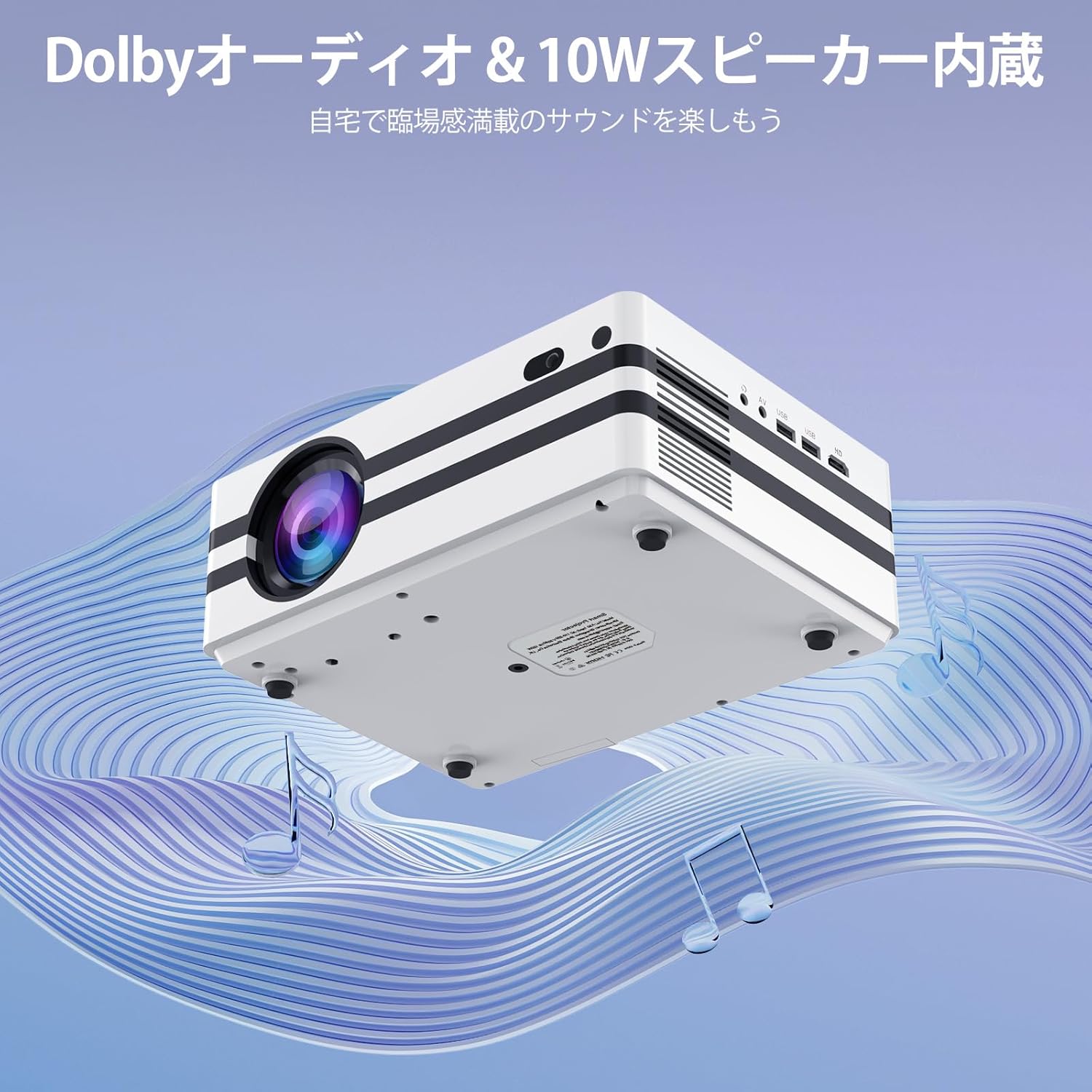
Figure 4.2: The projector's integrated 10W speaker system, featuring Dolby Audio, designed to deliver rich and clear sound directly from the device.
4.5 External Device Connectivity
The iSinbox A30 offers multiple ports for connecting various external devices:
- HDMI: Connect laptops, gaming consoles (PS3, PS4), TV sticks, and other HDMI-enabled devices.
- USB (x2): Connect USB drives for media playback or external keyboards/mice.
- AV: Connect older devices using the provided AV cable.
- Bluetooth 5.3 (Bidirectional): Connect to Bluetooth speakers/headphones (BT-OUT) or use your smartphone/tablet as a source (BT-IN).

Figure 4.3: Overview of the projector's various input and output ports, including HDMI, USB, and AV, illustrating how different devices can be connected.
5. Maintenance
5.1 Cleaning the Dust Filter
To ensure optimal performance and longevity of your projector, it is recommended to regularly clean the internal dust filter. A clean filter helps maintain proper airflow and prevents overheating.
- Locate the dust filter cover on the side or bottom of the projector.
- Carefully remove the cover.
- Gently remove the dust filter.
- Use a soft, dry cloth or a small brush to remove any accumulated dust. Do not use water or liquid cleaners.
- Reinsert the clean filter and replace the cover securely.

Figure 5.1: Diagram illustrating the location and recommended method for cleaning the projector's internal dust filter to maintain performance.
6. Troubleshooting
This section addresses common issues you might encounter with your iSinbox A30 projector.
| Problem | Possible Cause | Solution |
|---|---|---|
| No Power | Power cable not connected; Power outlet issue. | Ensure power cable is securely connected to both projector and outlet. Test outlet with another device. |
| Blurry Image | Focus not adjusted; Projector too far/close to screen. | Use auto-focus or manually adjust focus via settings. Adjust projection distance. |
| Distorted Image (Trapezoid) | Keystone not corrected; Projector not perpendicular to screen. | Use auto-keystone or manually adjust keystone via settings. Reposition projector. |
| No Sound | Volume too low; Muted; External audio device not connected properly. | Increase volume. Check if muted. Ensure external speakers are connected and powered on. |
| No Wi-Fi Connection | Incorrect password; Router issue; Out of range. | Verify Wi-Fi password. Restart router. Move projector closer to router. |
7. Specifications
Key technical specifications for the iSinbox A30 Smart Projector:
| Feature | Specification |
|---|---|
| Brand | iSinbox |
| Model Name | A30 |
| Brightness | 1000 ANSI Lumens |
| Native Resolution | 1080P (Supports 4K) |
| Display Technology | Mini LED |
| Screen Size | Up to 300 inches |
| Aspect Ratio | 16:9 |
| Connectivity | Wi-Fi 6, Bluetooth 5.3 (Bidirectional), HDMI, USB (x2), AV |
| Special Features | Auto Focus, Auto Keystone Correction, Short Throw |
| Speaker | 10W HiFi Built-in Speaker, Dolby Audio & DTS-HD Master Audio compatible |
| Operating System | Android |
| Supported Streaming Services | Amazon Prime Video, YouTube, Netflix |
| Product Weight | 2.52 kg |
| Dimensions (Package) | 29.6 x 26.1 x 17.4 cm |
8. Warranty and Support
The iSinbox A30 Smart Projector comes with a standard manufacturer's warranty. For detailed warranty information, including coverage period and terms, please refer to the warranty card included in your product packaging or visit the official iSinbox website.
If you encounter any issues or require technical assistance, please contact iSinbox customer support through the contact information provided on the official website or your purchase platform. Please have your product model (A30) and purchase details ready when contacting support.


