
Lisowod L01Pro
Lisowod Mini Projector User Manual
Model: L01Pro
Portable Smart Projector
1. Introduction
Thank you for purchasing the Lisowod Mini Projector. This compact and powerful device is designed to provide a vivid 1080P FHD viewing experience with advanced features like automatic keystone correction and electric focus. Its portable design, complete with a convenient strap, makes it ideal for travel and various entertainment needs. This manual will guide you through the setup, operation, and maintenance of your new projector.
2. Important Safety Information
- Do not expose the projector to rain or moisture to prevent fire or electric shock.
- Ensure proper ventilation. Do not block ventilation openings.
- Use only the power adapter supplied with the projector.
- Avoid looking directly into the projector lens when the lamp is on, as the bright light can damage your eyes.
- Keep the projector away from heat sources and direct sunlight.
- Do not attempt to disassemble or repair the projector yourself. Refer all servicing to qualified personnel.
3. Package Contents
Please check the package contents carefully. If any items are missing or damaged, contact your retailer.
- Lisowod Mini Projector (L01Pro)
- Power Adapter
- HDMI Cable
- Remote Control
- User Manual
4. Product Overview
Projector Components

Figure 4.1: Front view of the Lisowod Mini Projector, showcasing its compact design, lens, and key features like 1080P FHD, Auto Keystone, Electric Focus, 2.4+5G Wi-Fi, and Bluetooth connectivity.
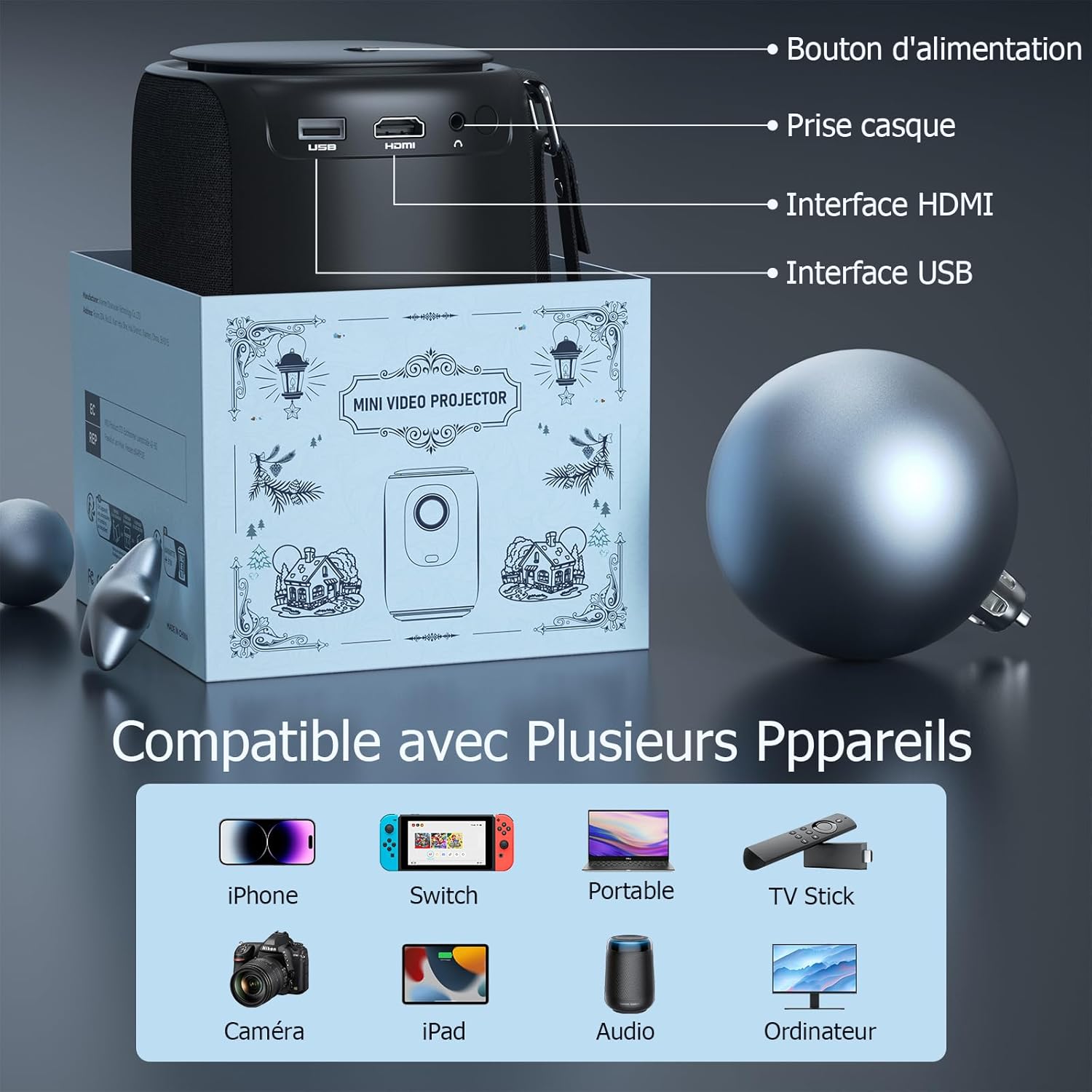
Figure 4.2: Rear view of the projector, indicating the power button, headphone jack, HDMI interface, and USB interface for various connections.
Key Features
- 1080P FHD Display: Delivers vivid and immersive images.
- Automatic Keystone Correction (±50°): Automatically corrects distorted images vertically for a perfect rectangular display.
- Electric Focus: Achieve clear images quickly with a single click on the remote control, eliminating manual adjustments.
- Dual-band Wi-Fi (2.4G+5G): Provides smoother and lower latency connectivity for streaming and gaming.
- Bidirectional Bluetooth & Integrated Stereo Speakers: Can be used as a Bluetooth speaker and offers Hi-Fi sound effects.
- Portable Strap Design: Convenient for carrying the projector during travel.
5. Setup Guide
5.1 Powering On
- Connect the power adapter to the projector's power input port.
- Plug the power adapter into a wall outlet.
- Press the power button on the projector or the remote control to turn it on.
5.2 Initial Placement
Place the projector on a stable, flat surface. Ensure there is adequate space around the projector for ventilation.
5.3 Adjusting Focus and Keystone
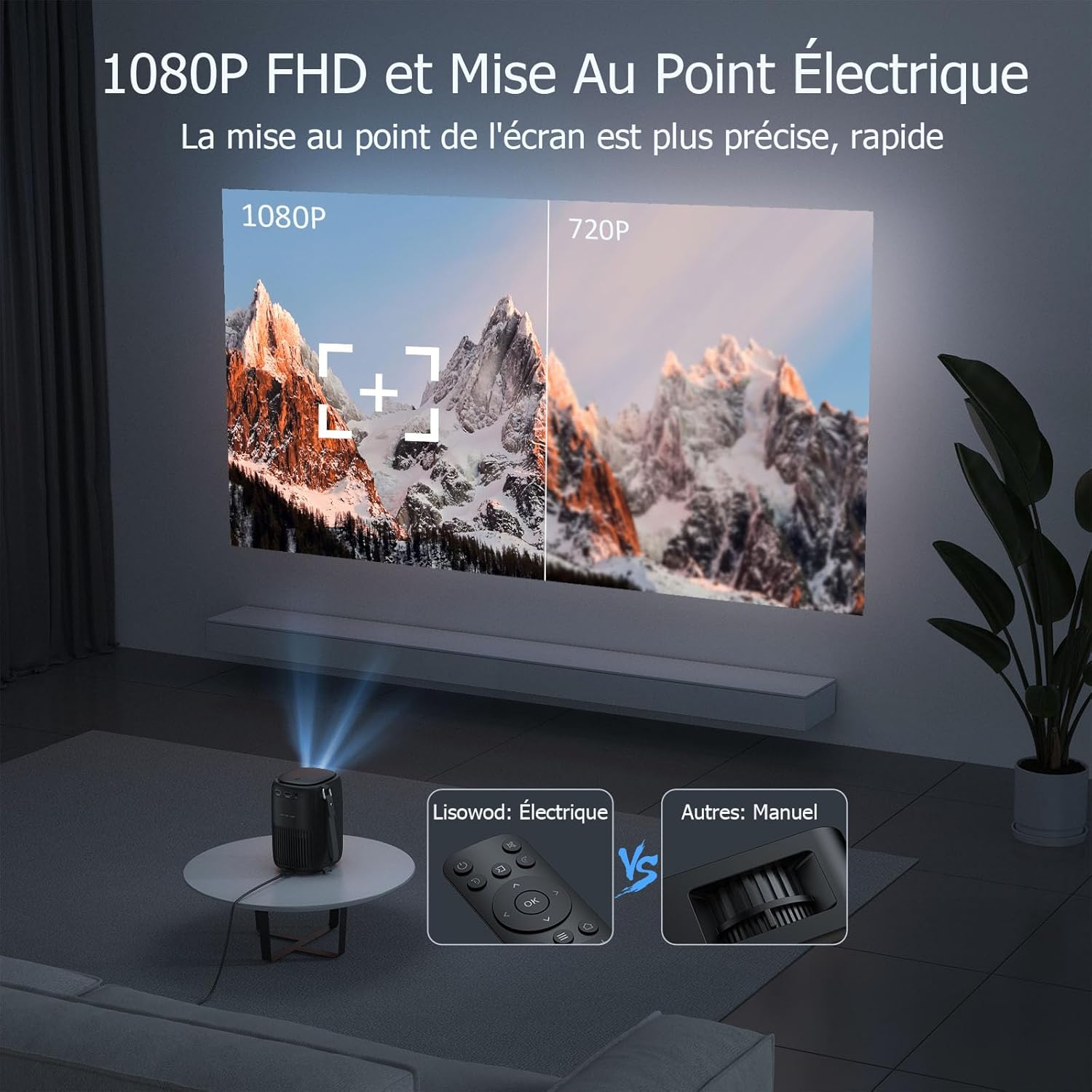
Figure 5.1: Illustrates the precision of 1080P FHD and the ease of electric focus compared to manual focus.

Figure 5.2: Demonstrates the automatic keystone correction feature, which adjusts the image shape automatically.
- Electric Focus: Use the remote control to adjust the focus. The built-in high-precision infrared sensor allows for quick and clear image acquisition with a single click.
- Automatic Keystone Correction: The projector features automatic keystone correction, which automatically adjusts the image vertically (up and down) if the projector is not perfectly aligned with the screen.
6. Operating Instructions
6.1 Connecting Devices
The projector is compatible with a variety of devices:
Figure 6.1: The projector supports connections with various devices including iPhone, Switch, Laptops, TV Sticks, Cameras, iPads, Audio devices, and Computers.
- HDMI: Connect laptops, game consoles, TV sticks, or other media players using the provided HDMI cable.
- USB: Insert a USB drive to play media files directly.
- Smartphone/Tablet: Connect your smartphone or tablet for screen mirroring (specific adapter or app may be required, refer to device instructions).
- Audio Output: Connect external speakers or headphones via the headphone jack for enhanced audio.
6.2 Wi-Fi Connection

Figure 6.2: Demonstrates the advantage of 2.4G+5G Wi-Fi for smoother and lower latency performance.
- Navigate to the Wi-Fi settings in the projector's menu.
- Select your desired Wi-Fi network (supports both 2.4GHz and 5GHz).
- Enter the password and connect.
6.3 Bluetooth Audio

Figure 6.3: Highlights the projector's bidirectional Bluetooth and integrated stereo speakers, allowing it to function as a Bluetooth speaker.
- Go to the Bluetooth settings in the projector's menu.
- Enable Bluetooth and search for available devices.
- Select your Bluetooth speaker or headphones to pair.
6.4 Using Streaming Services (Netflix, Amazon Prime, etc.)
Due to copyright restrictions, direct casting or HDMI connection from a phone/tablet for services like Netflix, Amazon Prime, etc., may not display video (only audio). To enjoy videos from these platforms, you must connect a dedicated TV stick (e.g., Amazon Fire TV Stick, Google Chromecast) to the projector's HDMI port.
7. Maintenance and Care
- Cleaning the Lens: Use a soft, lint-free cloth specifically designed for optical lenses. Do not use abrasive cleaners or solvents.
- Cleaning the Projector Body: Wipe the surface with a soft, dry cloth. For stubborn stains, use a slightly damp cloth and then dry thoroughly.
- Ventilation: Ensure the ventilation openings are clear of dust and debris. Use a soft brush or compressed air to gently clean them.
- Storage: When not in use for extended periods, store the projector in a cool, dry place, preferably in its original packaging or a protective case.
8. Troubleshooting
| Problem | Possible Cause | Solution |
|---|---|---|
| No image displayed | Power cable not connected; Input source incorrect; Device not powered on. | Check power connection; Select correct input source (HDMI, USB); Ensure connected device is on. |
| Image is blurry | Focus not adjusted; Projector too far/close to screen. | Use the remote control to adjust electric focus; Adjust projection distance. |
| Image is distorted (trapezoid shape) | Projector not perpendicular to screen. | The projector has automatic keystone correction. Ensure it's on a stable surface. If manual adjustment is needed, check menu settings. |
| No sound | Volume too low; Muted; External audio device not connected properly; Source device audio settings. | Increase volume; Unmute; Check external speaker connection; Adjust audio output on source device. |
| Cannot play Netflix/Amazon Prime Video | Copyright restrictions on direct casting/HDMI from phone/tablet. | Connect a dedicated TV stick (e.g., Amazon Fire TV Stick, Google Chromecast) to the projector's HDMI port. |
| Remote control not working | Batteries low/dead; Obstruction between remote and projector. | Replace batteries; Remove any obstructions; Point remote directly at the projector's IR receiver. |
9. Technical Specifications
| Feature | Specification |
|---|---|
| Brand | Lisowod |
| Model Number | L01Pro |
| Maximum Display Resolution | 1920 x 1080 (1080P FHD) |
| Connectivity Technology | HDMI, USB, Wi-Fi (2.4G+5G), Bluetooth |
| Display Type | LCD |
| Image Contrast Ratio | 20000:1 |
| Brightness | 158 Lumens |
| Form Factor | Portable |
| Mounting Type | Table Mount |
| Included Components | Adapter, HDMI Cable, Remote Control |
| Compatible Devices | Laptop, Game Console, Smartphone, Other Media Players, Speaker |
10. Warranty and Support
Your Lisowod Mini Projector is covered by a standard manufacturer's warranty. Please refer to the warranty card included in your package for specific terms and conditions, including the warranty period and coverage details.
For technical support, troubleshooting assistance, or warranty claims, please contact Lisowod customer service through the retailer where you purchased the product or visit the official Lisowod website for contact information.
Please have your model number (L01Pro) and purchase information ready when contacting support.
Related documentsL01Pro


Ask a question about this manual
Ask about setup, troubleshooting, compatibility, parts, safety, or missing instructions. Manuals+ will review the question and use this page’s manual context to help answer it.