
Blackview Blackview Tab 16 Pro
Blackview Tab 16 Pro Android 14 Tablet
User Manual
Introduction
Welcome to the user manual for your new Blackview Tab 16 Pro Android 14 Tablet. This guide provides detailed instructions on setting up, operating, maintaining, and troubleshooting your device to ensure you get the most out of its advanced features. Please read this manual thoroughly before using your tablet.

Figure 1: Blackview Tab 16 Pro Tablet and Included Accessories.
1. Setup
1.1 Unboxing and Initial Inspection
Carefully remove all items from the packaging. Verify that all components listed in the 'Box Contents' section are present and undamaged.

Figure 2: Box Contents of the Blackview Tab 16 Pro.
1.2 Charging the Tablet
Before first use, fully charge the tablet using the provided 18W PD fast charger and USB cable. Connect the USB cable to the tablet's Type-C port and the adapter to a power outlet. The charging indicator will show the charging status.
1.3 Powering On/Off
- To Power On: Press and hold the Power button on the side of the tablet until the Blackview logo appears.
- To Power Off: Press and hold the Power button, then select 'Power off' from the options that appear on the screen.
1.4 Installing SIM and TF Cards
The Blackview Tab 16 Pro supports dual 4G LTE SIM cards and a TF card for expandable storage up to 1TB.
- Locate the SIM/TF card tray on the side of the tablet.
- Insert the provided SIM ejector tool into the small hole next to the tray to pop it open.
- Place your Nano-SIM cards and/or TF card into the designated slots on the tray, ensuring correct orientation.
- Gently push the tray back into the tablet until it clicks into place.

Figure 3: Inserting SIM Cards into the Blackview Tab 16 Pro.
1.5 Initial Setup Wizard
Upon first power-on, the tablet will guide you through an initial setup process. Follow the on-screen prompts to select your language, connect to Wi-Fi, set up your Google account, and configure basic settings.
2. Operating the Tablet
2.1 Display Features
The Blackview Tab 16 Pro features an 11-inch FHD+ IPS display with 2K resolution, offering a clear and vibrant visual experience. It supports Widevine L1 for high-definition streaming from platforms like Netflix, Disney+, and Amazon Prime Video.
- Eye Comfort Modes: The tablet includes Reading Mode, Eye Comfort Mode, and Night Mode to reduce eye strain during prolonged use. These can be accessed in the display settings.

Figure 4: Display Features and Widevine L1 Support.
2.2 Camera Usage
The tablet is equipped with a 13MP rear camera and an 8MP front camera, enhanced with AI features for clearer photos and videos.
- Taking Photos/Videos: Open the Camera app and select your desired mode (Photo, Video, Portrait, etc.). Tap the shutter button to capture.
- AI Enhancements: Features like AI Face Detection and Face Center Algorithms improve photo quality and video calls.

Figure 5: Camera Features of the Blackview Tab 16 Pro.
2.3 Connectivity
The Tab 16 Pro supports various connectivity options for seamless online experience and data transfer.
- 4G LTE: Insert a SIM card to access mobile data and make calls.
- 5G WiFi: Supports dual-band 2.4G/5G Wi-Fi for stable and fast internet connections.
- Wireless Projection: Easily cast your tablet's screen to compatible TVs or projectors.
- Bluetooth 5.0: Connect wireless accessories like headphones, keyboards, and mice.

Figure 6: High-Speed WiFi and Wireless Projection.
2.4 Productivity Features
The tablet is designed for enhanced productivity, supporting various modes and applications.
- PC Mode 2.0: Connect a wireless keyboard and mouse (sold separately) to transform your tablet into a PC-like experience for work and study.
- Split View 2.0: Multitask efficiently by running two applications side-by-side on the screen.
- Notebook App 2.0: Tailored for note-taking with the included stylus.
- Pre-installed WPS Office Suite: Access Word, Excel, and PowerPoint functionalities.
- Included Stylus Pen: For precise input, drawing, and note-taking.
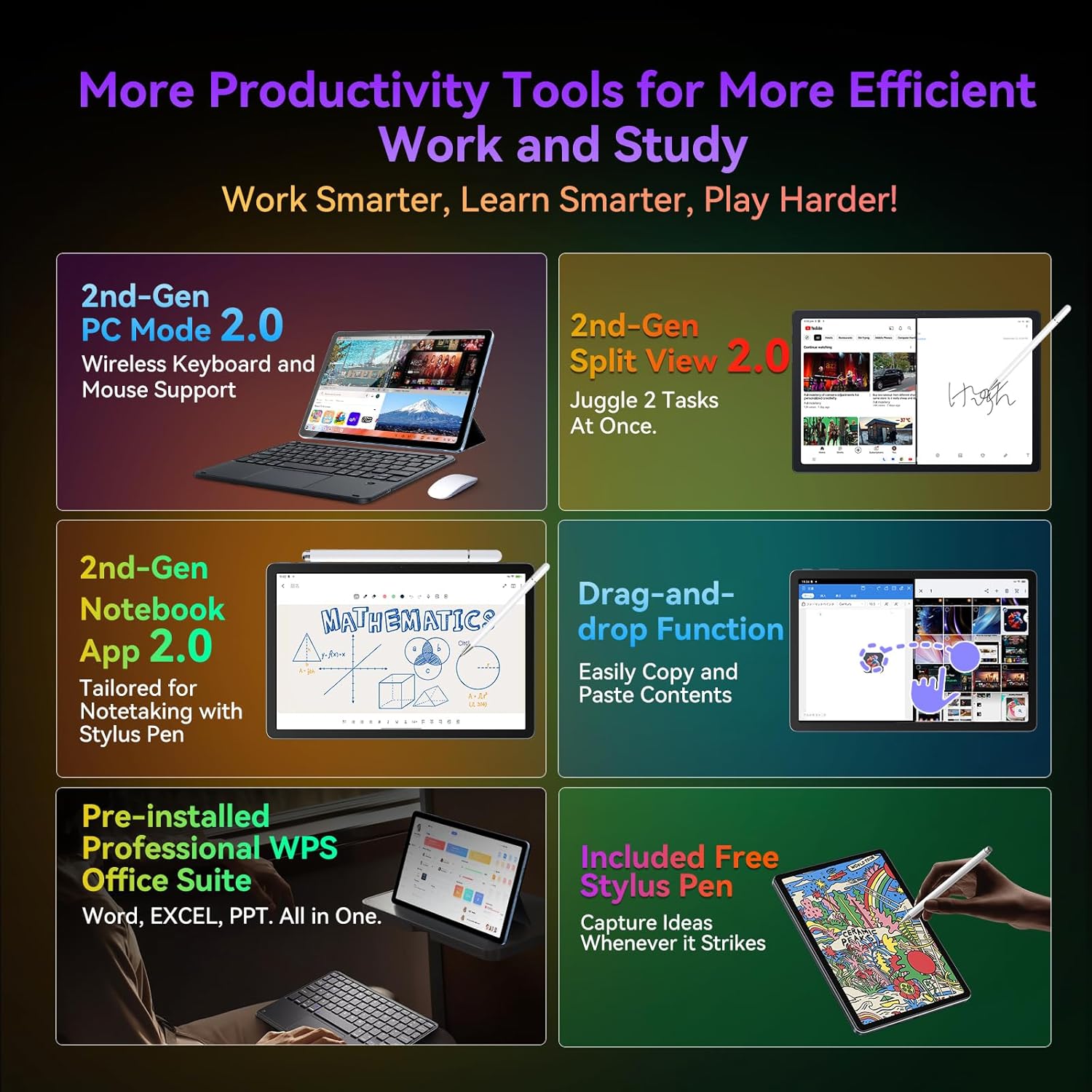
Figure 7: Productivity Tools for Work and Study.
2.5 Battery Management
The 7700mAh battery provides extended usage time. Utilize the 18W PD fast charging for quick power-ups.
- AI Charging Protection: Optimizes charging to prolong battery lifespan.
- AI Power Saving Mode: Helps conserve battery when not in active use.

Figure 8: Battery Capacity and Fast Charging.
3. Maintenance
3.1 Cleaning the Tablet
Use a soft, lint-free cloth to clean the screen and body of the tablet. Avoid using harsh chemicals or abrasive materials that could damage the surface.
3.2 Software Updates
Regularly check for and install software updates to ensure your tablet has the latest features, security patches, and performance improvements. You can usually find this option in the tablet's 'Settings' under 'System' or 'About tablet'.
3.3 Battery Care
To maximize battery life, avoid exposing the tablet to extreme temperatures. It is recommended to keep the battery charge between 20% and 80% for optimal long-term health.
4. Troubleshooting
This section addresses common issues you might encounter with your Blackview Tab 16 Pro.
| Problem | Possible Cause | Solution |
|---|---|---|
| Tablet won't turn on | Low battery; System crash | Charge the tablet for at least 30 minutes. Press and hold the Power button for 10-15 seconds to force restart. |
| Cannot connect to Wi-Fi | Incorrect password; Router issue; Wi-Fi disabled | Double-check password. Restart router. Ensure Wi-Fi is enabled in settings. Forget network and reconnect. |
| Apps are slow or crashing | Too many apps running; Low storage; App bug | Close background apps. Clear app cache/data. Free up storage. Update the app or tablet software. |
| Stylus not responding | Stylus issue; Screen protector interference | Ensure stylus tip is clean. Try restarting the tablet. Check if screen protector is too thick or incompatible. |
If you encounter issues not listed here or if the suggested solutions do not resolve the problem, please contact Blackview customer support for assistance.
5. Specifications
Below are the key technical specifications for the Blackview Tab 16 Pro:
| Feature | Specification |
|---|---|
| Model Name | Blackview Tab 16 Pro Tablet |
| Operating System | Android 14 |
| Processor | UNISOC T616 Octa-core (2x A75 @2.0GHz + 6x A55 @1.8GHz) |
| Graphics Processor | ARM Mali-G57 @750MHz |
| RAM | 16 GB (8 GB LPDDR4X + 8 GB Expansion) |
| Internal Storage | 256 GB |
| Expandable Storage | Up to 1 TB via Micro TF card |
| Display Size | 10.95 Inches |
| Display Resolution | 2560x1600 pixels (2K FHD+ IPS) |
| Rear Camera | 13 MP |
| Front Camera | 8 MP |
| Battery Capacity | 7700 mAh |
| Charging | 18W PD Fast Charge |
| Connectivity | 4G LTE Dual SIM, 5G WiFi (802.11ac), Bluetooth 5.0 |
| Dimensions (L x W x H) | 24.6 x 17 x 0.85 cm |
| Weight | 1.16 kg |
| Special Features | PC Mode, Stylus Support, Widevine L1, Facial Recognition |
6. Warranty and Support
6.1 Warranty Information
The Blackview Tab 16 Pro comes with a two-year warranty from the date of purchase. This warranty covers manufacturing defects and quality-related issues under normal use. Please retain your proof of purchase for warranty claims.
6.2 Contacting Support
For any questions, technical assistance, or warranty claims, please contact Blackview customer service. You can typically reach them through the following methods:
- Via Amazon: On the product page, click 'Add to Cart' then click on the seller's name. Under 'Add to Cart', click 'Ask a question' in the top right corner.
- Via Email: You may also contact customer service via email. Refer to your product packaging or the official Blackview website for specific email addresses.
- Order History: Go to your Amazon account, navigate to 'Order History', find your order, and select 'Contact Seller'.
Blackview is committed to providing the best product service available and aims to respond to all inquiries within 24 hours.

Figure 9: Blackview Customer Service and Warranty Information.
Related documentsBlackview Tab 16 Pro


Ask a question about this manual
Ask about setup, troubleshooting, compatibility, parts, safety, or missing instructions. Manuals+ will review the question and use this page’s manual context to help answer it.