
1. Introduction
Thank you for choosing the Yoidesu 1080P HD Door Peephole Camera. This device is designed to enhance your home security by providing a wide-angle view of your doorstep, remote monitoring capabilities, and night vision. Please read this manual carefully before installation and operation to ensure proper use and optimal performance.
2. Package Contents
Verify that all items are present in your package:
- 1 x Door Peephole Camera
- 1 x Power Cable (Micro USB)
- 1 x User Manual
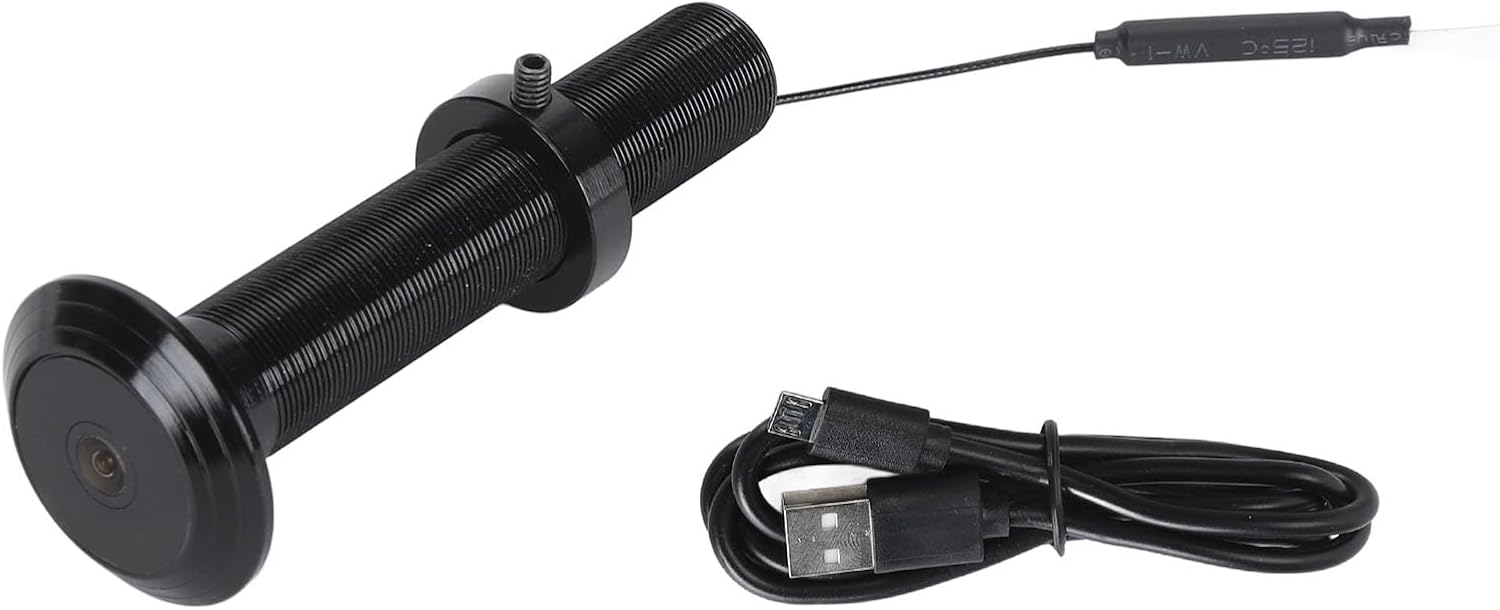
Image: The Yoidesu Door Peephole Camera shown alongside its Micro USB power cable.
3. Product Specifications
| Feature | Specification |
|---|---|
| Resolution | 1920 x 1080 (1080P HD) |
| Lens Angle | 220 Degrees |
| Night Vision | Supported (High power infrared lights, ICR infrared filter) |
| Connection | Mobile App (Tuya) |
| Wi-Fi Compatibility | 2.4GHz or 5.0GHz |
| Storage Options | Cloud Storage or Built-in Storage (e.g., 64GB variant) |
| Charging Interface | Micro USB |
| Material | Aluminum Alloy, Glass Lens |
| Door Thickness Compatibility | 2cm to 7.9cm (0.5cm error margin) |
| Peephole Diameter Compatibility | 15mm to 30mm (2mm margin) |
| Item Weight | 2.99 ounces (approx. 84g) |
4. Product Features
- 220-Degree Wide Angle Lens: Provides an expansive view of your doorstep, minimizing blind spots and offering a comprehensive perspective of visitors.
- 1080P HD Video: Captures high-definition video, allowing for clear identification of individuals at your door.
- Smart Connectivity with Tuya App: Enables remote monitoring of your front door and real-time notifications on your smartphone when motion is detected.
- Day and Night Vision: Equipped with high-power infrared night vision lights and an ICR infrared filter, the camera automatically adapts to lighting conditions, providing clear footage even in complete darkness.
- Durable Construction: Features an aluminum alloy casing and reinforced glass lens for corrosion resistance and protection against intentional damage.
- Two-Way Talk: Allows for direct communication with visitors at your door through the mobile application.
5. Safety Information
Please observe the following safety guidelines:
- Do not expose the device to extreme temperatures, direct sunlight, or moisture.
- Avoid using harsh chemicals or abrasive cleaners on the camera.
- Ensure the power cable is not damaged or pinched during installation.
- Keep the device out of reach of children.
- Only use the provided power cable or a certified equivalent.
6. Setup and Installation
6.1 Door Compatibility Check
Before installation, ensure your door meets the following criteria:
- Door Panel Thickness: Between 2cm and 7.9cm (0.79 to 3.11 inches).
- Peephole Diameter: Between 15mm and 30mm (0.59 to 1.18 inches).
6.2 Physical Installation
- Remove Existing Peephole: Carefully unscrew and remove your traditional door peephole.
- Insert Camera: Insert the Yoidesu Door Peephole Camera into the existing peephole opening from the outside of the door. Ensure the camera lens faces outwards.
- Secure Camera: From the inside of the door, thread the securing nut onto the camera body and tighten it until the camera is firmly in place. Do not overtighten.
- Connect Power: Connect the Micro USB power cable to the camera's power interface.

Image: The Yoidesu Door Peephole Camera installed on an exterior wall, demonstrating its placement.
6.3 App Connection (Tuya App)
- Download App: Download the 'Tuya Smart' app from your smartphone's app store (iOS or Android).
- Register/Log In: Open the app and register for a new account or log in if you already have one.
- Add Device: Tap the '+' icon or 'Add Device' button in the app. Select 'Security & Video Surveillance' and then 'Smart Camera' or 'Doorbell'.
- Follow On-Screen Prompts: Power on the camera. The app will guide you through connecting the camera to your home Wi-Fi network (ensure it's a 2.4GHz or 5.0GHz network). This typically involves scanning a QR code displayed on your phone with the camera.
- Device Ready: Once connected, the camera will appear in your Tuya app, ready for use.
7. Operating Instructions
7.1 Remote Monitoring
Open the Tuya app on your smartphone. Select your Yoidesu Door Peephole Camera from the device list to view live video feed from your doorstep anytime, anywhere.

Image: An illustration showing remote detection of a person at the door and an alarm message being sent to a mobile phone via the app.
7.2 Night Vision
The camera automatically switches between day and night mode based on ambient light conditions. In low-light environments, the infrared night vision lights will activate, providing clear black-and-white footage.

Image: A split image demonstrating the clear view provided by the camera during the day and its effective night vision capabilities in darkness.
7.3 Two-Way Talk
When viewing the live feed, use the microphone and speaker icons within the Tuya app to initiate two-way communication with visitors at your door.
7.4 Storage Card Recording and Playback
The camera supports recording to a built-in storage card (if applicable to your model) or cloud storage (subscription may be required). When the storage card is full, older recordings will be automatically overwritten. You can access and play back recorded footage directly through the Tuya app.

Image: A family watching video playback on a screen, illustrating the recording and playback feature of the camera.
8. Maintenance
- Cleaning the Lens: Gently wipe the camera lens with a soft, dry, lint-free cloth to remove dust or smudges. Do not use liquid cleaners.
- Firmware Updates: Periodically check the Tuya app for available firmware updates to ensure optimal performance and security.
- Power Cycle: If the camera becomes unresponsive, disconnect the power cable, wait 10 seconds, and then reconnect it to perform a power cycle.
9. Troubleshooting
9.1 Camera Not Connecting to Wi-Fi
- Ensure your Wi-Fi network is 2.4GHz or 5.0GHz compatible.
- Check that the Wi-Fi password entered in the app is correct.
- Move the camera closer to your Wi-Fi router during setup.
- Restart your router and try connecting again.
9.2 Poor Video Quality
- Clean the camera lens for any smudges or dirt.
- Ensure a stable Wi-Fi connection. Weak signals can affect streaming quality.
- Check app settings for video resolution options.
9.3 No Motion Detection Notifications
- Verify that motion detection is enabled in the Tuya app settings for the camera.
- Check your phone's notification settings to ensure the Tuya app is allowed to send notifications.
- Adjust the motion detection sensitivity in the app.
9.4 Two-Way Talk Not Working
- Ensure your phone's microphone is enabled for the Tuya app.
- Check the volume settings on your phone and within the app.
- Verify a stable internet connection for both the camera and your phone.
10. Warranty and Support
For warranty information or technical support, please refer to the contact details provided with your purchase or visit the official Yoidesu website. Keep your purchase receipt as proof of purchase.