
Introduction
This manual provides comprehensive instructions for the setup, operation, and maintenance of your 7KEYS Retro Typewriter Mechanical Gaming Keyboard (Model TW1868). Designed with a vintage aesthetic and modern functionality, this keyboard offers multiple connection options and customizable RGB backlighting for an enhanced user experience.

Image: The 7KEYS Retro Typewriter Mechanical Gaming Keyboard, showcasing its unique design with round keycaps, RGB backlighting, and an included wrist rest.
Package Contents
Verify that all items listed below are included in your package:
- 1 x TW1868 Retro Bluetooth Mechanical Keyboard
- 1 x 1.5m USB-C to USB-A Coiled Cable
- 1 x US User Manual
- 2 x Outemu Blue Switches (extra)
- 1 x Switch Puller
- 1 x 2.4G Wireless Receiver
- 1 x Ergonomic Leather Wrist Rest
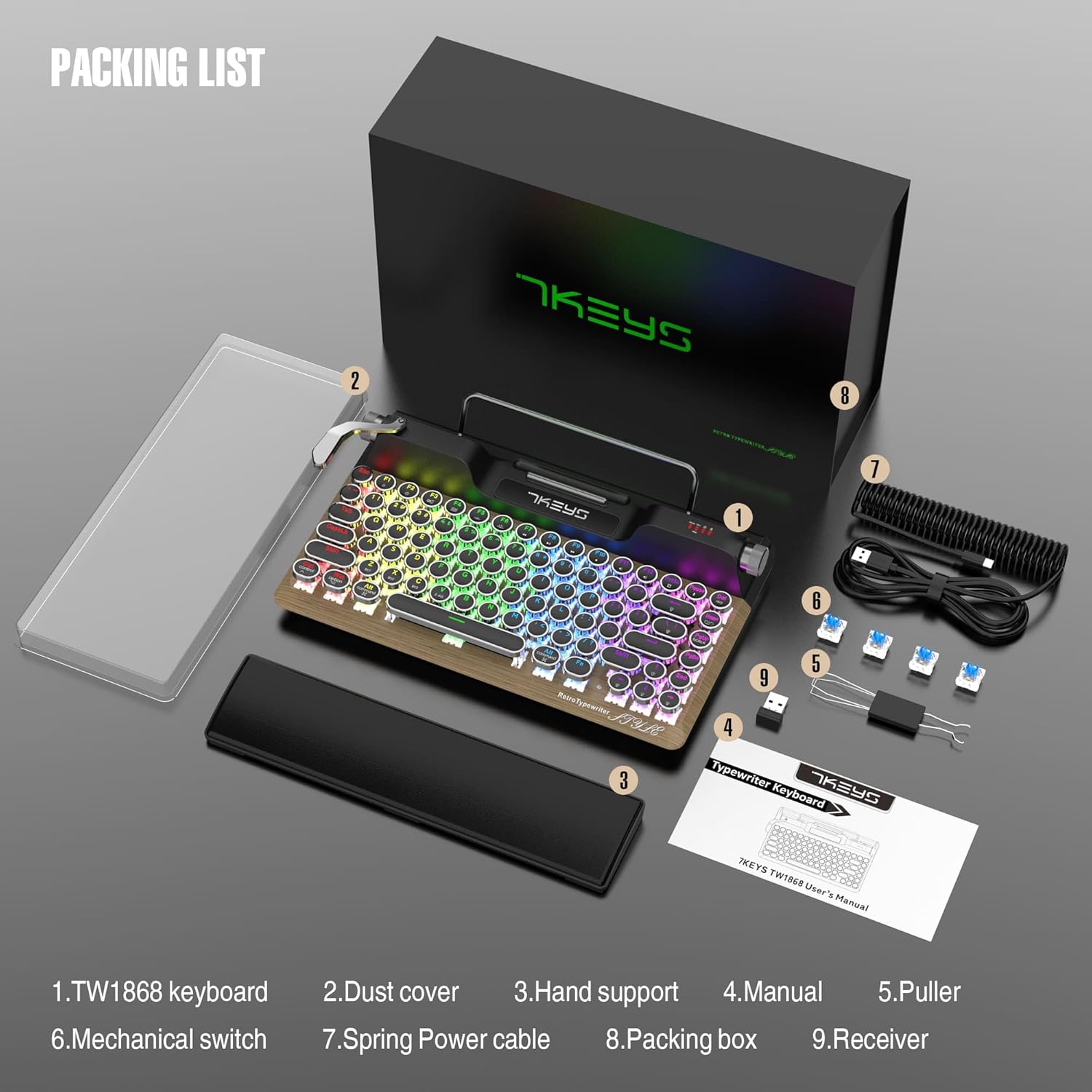
Image: All components included in the 7KEYS keyboard package, neatly arranged.
Setup
System Compatibility Switch
The keyboard supports both Windows and Mac operating systems. Locate the "Mode Win / Mac" switch on the top right side of the keyboard. Toggle the switch to select your desired operating system. A green light indicates Mac mode, while no green light indicates Windows mode.
Wired Connection
- Ensure the toggle switch at the bottom of the keyboard is set to "TypeC".
- Connect the USB-A end of the provided coiled cable to an available USB port on your computer.
- Plug the Type-C end of the cable into the Type-C port on the keyboard. The keyboard will automatically be recognized and ready for use.
2.4G Wireless Connection
- Flip the toggle switch at the bottom of the keyboard to the "2.4G" position.
- Insert the 2.4G wireless receiver into an available USB port on your computer. The keyboard should connect automatically.
Bluetooth Connection
The keyboard supports up to three Bluetooth devices (BT1, BT2, BT3).
- Flip the toggle switch at the bottom of the keyboard to the "BT" position.
- To pair with a device, long press the FN + Z (for BT1), FN + X (for BT2), or FN + C (for BT3) keys until the white light above the corresponding key blinks quickly. This indicates pairing mode.
- On your device (PC, laptop, tablet, or phone), enable Bluetooth and search for available devices. Select "7KEYS TW1868" from the list to connect.
- Once paired successfully, the Bluetooth indicator light will stop flashing and remain solid, indicating a stable connection.
- To switch between paired Bluetooth devices, short press FN + Z, FN + X, or FN + C.
Video: A demonstration of wired, 2.4G wireless, and Bluetooth connection methods for the 7KEYS TW1868 keyboard, including pairing steps for various devices.
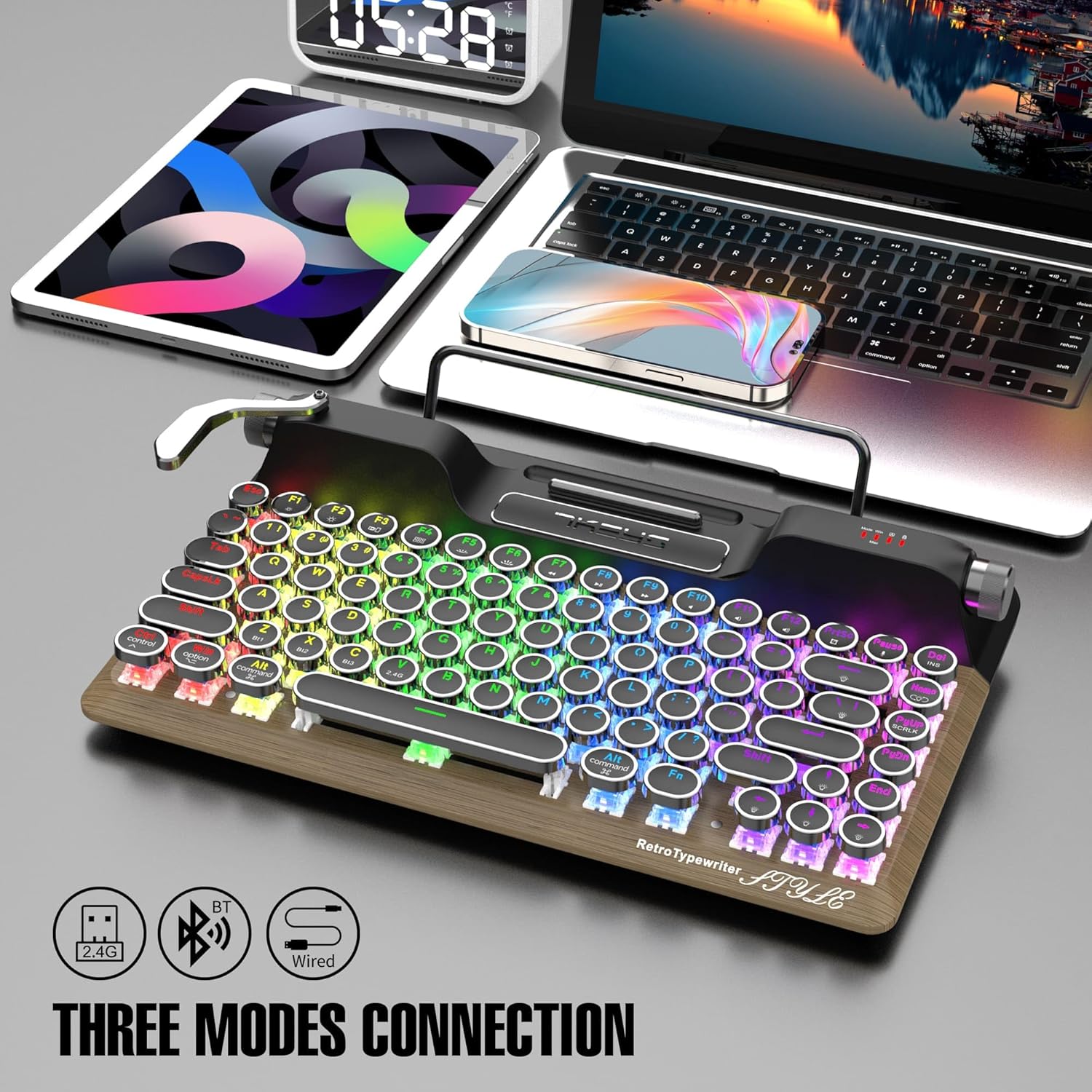
Image: The keyboard highlighting its versatile connectivity options: 2.4G wireless, Bluetooth, and wired USB-C.
Operating Instructions
RGB Backlight Control
The keyboard features true RGB backlighting with over 14 modes. The unique "pull rod" lever on the left side of the keyboard functions as a backlight mode switcher.
- To cycle through different RGB lighting effects, gently pull the lever to the right.
- To adjust the brightness of the backlight, rotate the knob located on the top right side of the keyboard.
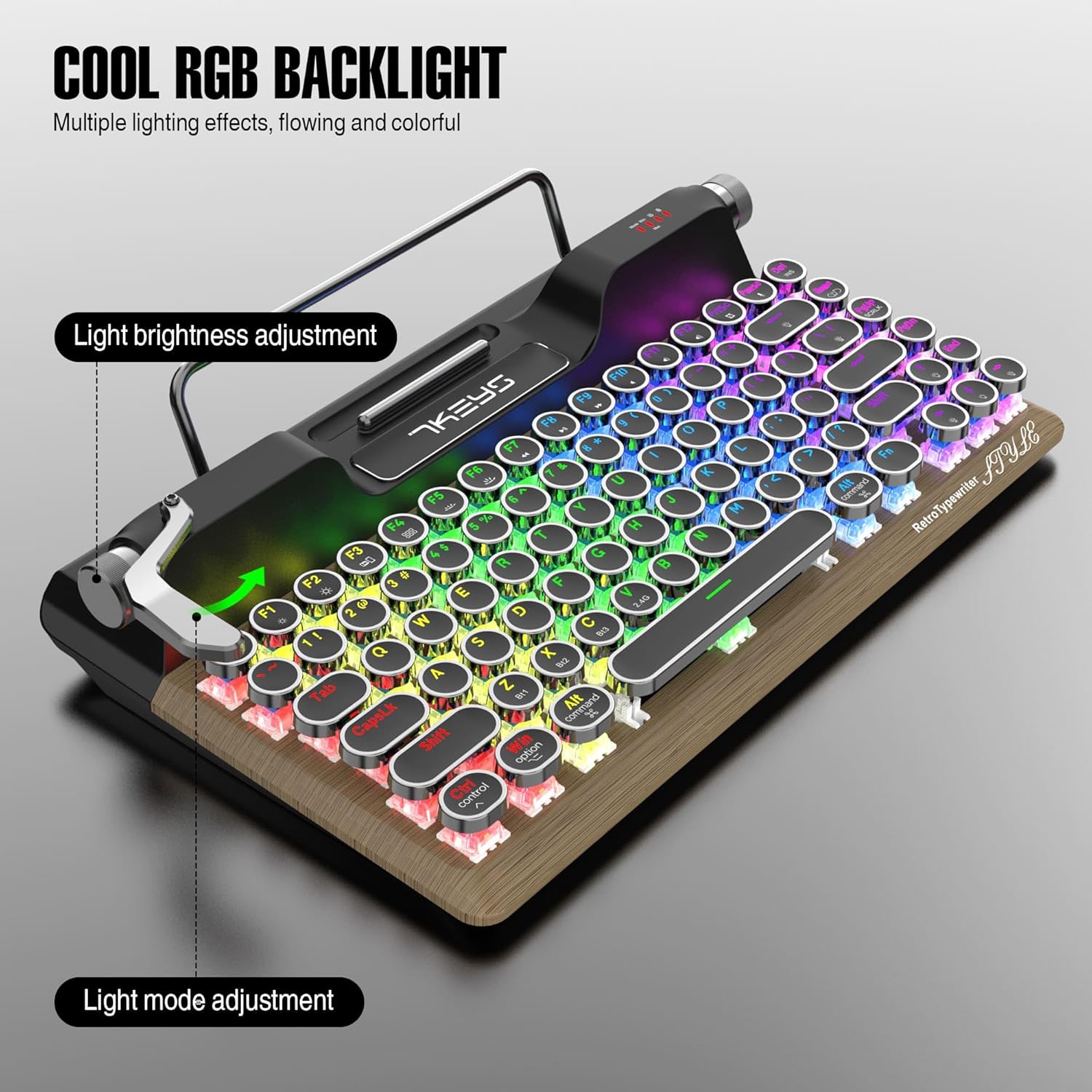
Image: Close-up of the keyboard illustrating the light brightness adjustment knob and the light mode adjustment lever.
Volume Adjustment
The metal scroll wheel on the top right of the keyboard allows for easy volume control.
- Rotate the scroll wheel clockwise to increase volume.
- Rotate the scroll wheel counter-clockwise to decrease volume.
Tablet/Phone Holder
The integrated stand at the top of the keyboard is designed to securely hold your tablet or smartphone, transforming your setup into a compact workstation. This feature is particularly convenient for mobile productivity.
Video: A demonstration of the TW1868 keyboard's features, including the tablet/phone holder, RGB lighting effects, and the satisfying clicky sound of the mechanical switches.
Maintenance
Cleaning
To maintain the keyboard's appearance and functionality:
- Use a soft, dry cloth to wipe down the keyboard surface and keycaps.
- For deeper cleaning, use a can of compressed air to remove dust and debris from between the keycaps.
- Avoid using harsh chemicals or abrasive materials, as they may damage the finish.
Switch Replacement (Hot-Swappable)
The 7KEYS TW1868 keyboard features hot-swappable OUTEMU blue switches, allowing you to easily replace them without soldering. This is useful for customization or replacing a faulty switch.
- Gently pull the keycap off the switch using the provided keycap puller.
- Insert the switch puller around the switch, ensuring it grips both sides.
- Pull the switch straight up to remove it from the PCB.
- Align the pins of the new switch with the holes on the PCB.
- Press the new switch firmly into place until it clicks. Ensure it is seated properly to avoid bent pins.
- Replace the keycap.

Image: Detailed view of the keyboard's pluggable mechanical switches, demonstrating their easy removal and replacement.
Troubleshooting
| Problem | Possible Cause | Solution |
|---|---|---|
| Keyboard not responding (Wireless) | Low battery; Incorrect connection mode; Receiver not plugged in; Device Bluetooth off. | Charge the keyboard; Ensure switch is on 2.4G or BT; Plug in receiver; Enable Bluetooth on device. |
| Keys not registering or double-typing | Dust/debris under keycap; Faulty switch. | Clean under keycap with compressed air; Replace the switch using the switch puller. |
| RGB backlight not working | Backlight turned off; Low battery. | Use the pull rod to cycle through modes or adjust brightness; Charge the keyboard. |
| Cannot connect via Bluetooth | Not in pairing mode; Device already connected to another channel; Interference. | Long press FN+Z/X/C to enter pairing mode; Ensure previous connection is disconnected; Move closer to device. |
Specifications
| Feature | Detail |
|---|---|
| Model Number | TW1868 |
| Connectivity Technology | USB-C (Wired), 2.4G Wireless, Bluetooth 5.0 |
| Compatible Devices | Laptop, PC, Tablet, Smartphone (Mac, iOS, Windows, Android) |
| Keyboard Type | Mechanical, Hot-Swappable |
| Switch Type | OUTEMU Blue Switches (Clicky) |
| Keycaps | Round, Retro Punk Style |
| Number of Keys | 83 |
| Backlighting | True RGB (14+ modes) |
| Battery | 3000mAh Lithium Ion (included) |
| Product Dimensions | 13 x 6 x 2 inches |
| Item Weight | 4.84 pounds |
| Special Features | Ergonomic, Wrist Rest, Rechargeable, Hot-Swappable, Integrated Tablet/Phone Holder, Volume Knob, RGB Light Control Lever |
| Color | Wood+Palm Rest |
Warranty and Support
7KEYS provides a limited warranty for this product. For detailed warranty information, technical support, or service inquiries, please refer to the official 7KEYS website or contact their customer service directly. Please retain your proof of purchase for warranty claims.
