
Introduction
The MUNBYN Portable Wireless Printer ITP04 is designed for convenience and efficiency, offering inkless thermal printing for various document types. Its compact size and wireless capabilities make it an ideal solution for printing on the go, whether for personal or professional use. This manual will guide you through the setup, operation, and maintenance of your new printer.
Key Features:
- Portable & Compact: Weighing only 750g and measuring 28.3cm in length, it's highly portable with a built-in 2600mAh battery for all-day use.
- Inkless Printing Technology: Utilizes thermal printing, eliminating the need for ink, toner, or ribbons. Supports thermal paper in various sizes.
- Device Adaptability: Supports Bluetooth connectivity for iOS and Android smartphones, and USB connection for Windows and Mac computers.
- More Printing Options: Features a built-in stopper to adjust paper slot width for 216mm/210mm/107mm/77mm/57mm (US letter/A4/4"/3"/2") thermal paper, supporting both rolls and fanfold paper.
- Trustworthy Brand: MUNBYN provides video tutorials, printing tips, telephone, and 24/7 online computer remote help.
What's in the Box
- 1 MUNBYN ITP04 Portable Printer
- 1 Roll of Thermal Paper
- 1 USB-Type C Cable
- 1 A-C Adapter
- 1 User Manual
Setup
1. Physical Setup & Paper Loading
The MUNBYN ITP04 printer supports various thermal paper sizes, including US Letter, A4, and smaller widths. It can accommodate both roll paper and fanfold paper.
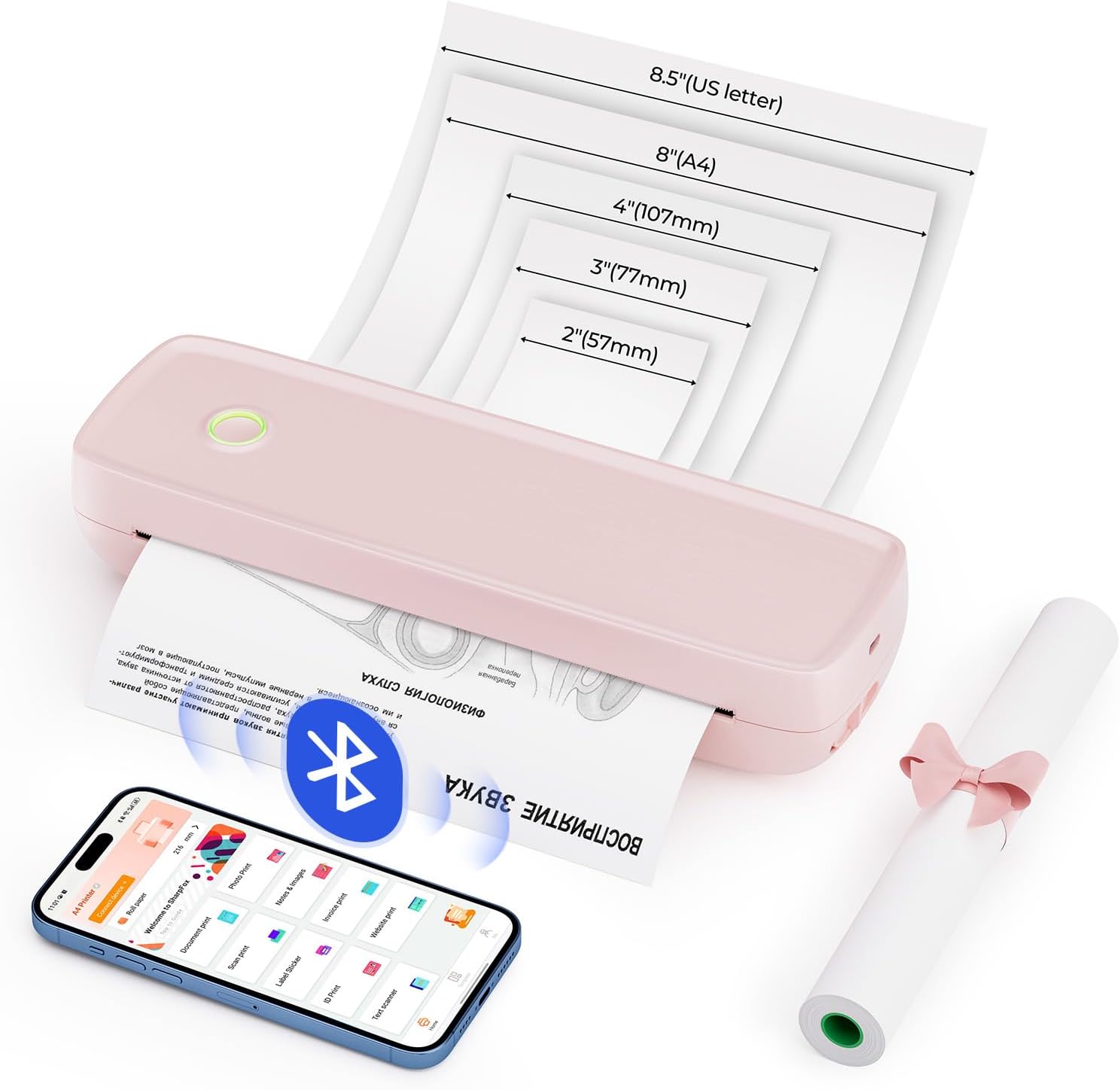
Image Description: A pink MUNBYN ITP04 printer is shown with different paper sizes (US Letter, A4, 4", 3", 2") fanning out from its output slot, illustrating its versatility in paper compatibility. A smartphone with the printer app and a roll of thermal paper are also visible.

Image Description: Two images demonstrate paper loading. The top image shows fanfold paper being inserted into the printer's rear slot. The bottom image shows a roll of thermal paper being placed inside the printer's compartment after opening the top cover.
2. Software Setup
Mobile Device Connection (Android & iOS)
For mobile printing, download the "SharpFox" app from your device's app store. The app facilitates seamless Bluetooth connection and allows you to print various file formats directly from your smartphone or tablet.

Image Description: A pink MUNBYN ITP04 printer is shown on a desk alongside an iPad and two smartphones (Android and iOS), indicating Bluetooth connectivity. The SharpFox app icon is prominently displayed with App Store and Google Play badges, instructing users to download the app.
Desktop Connection (Windows & Mac)
For printing from your computer, connect the printer using the provided USB cable. A USB-Type C adapter is required for Mac connections. Drivers must be installed for proper functionality.

Image Description: A pink MUNBYN ITP04 printer is connected via a USB cable to a MacBook Pro, illustrating the wired connection method for desktop computers. The image also indicates compatibility with both Mac OS and Windows.
Mac OS Driver Installation
Video Description: This official MUNBYN video provides a step-by-step guide on how to download and install the printer driver for Mac OS, and how to initiate printing from a Mac computer.
Windows OS Driver Installation
Video Description: This official MUNBYN video demonstrates the process of downloading and installing the printer driver for Windows OS, and guides users through the steps to print from a Windows computer.
Operating Instructions
Printing from Mobile Devices
Once the SharpFox app is installed and your printer is connected via Bluetooth, you can easily print documents, photos, or even scan and print directly from the app. The app supports various file formats including Word, Excel, PPT, TXT, and JPG.

Image Description: A three-step guide shows how to print using the SharpFox app: 1. Download the app. 2. Connect the portable printer via the app. 3. Select the file or image and print. The app interface displays options for document print, photo print, scan print, and more.
Printing from Desktop Computers
After installing the necessary drivers and connecting your printer via USB, you can print documents directly from your Windows or Mac computer. Ensure the printer is selected as the output device in your application's print dialogue.

Image Description: Two construction workers are shown reviewing blueprints on a table, with a pink MUNBYN ITP04 printer actively printing a document. A tablet is also on the table, suggesting wireless connectivity for on-site printing needs.
Video Description: This official MUNBYN video highlights the portability and convenience of the ITP04 printer, showcasing its ability to print documents anytime and anywhere, emphasizing its wireless capabilities.
Maintenance
Daily Maintenance
Regular maintenance ensures optimal performance and longevity of your MUNBYN ITP04 printer. The primary maintenance task involves cleaning the print head.
Video Description: This official MUNBYN video demonstrates the daily maintenance routine for the ITP04 printer, focusing on how to clean the print head to ensure consistent print quality.
Troubleshooting
If you encounter any issues with your MUNBYN ITP04 printer, please refer to the troubleshooting section in the included User Manual. Common issues often relate to connectivity, paper loading, or driver installation. Ensure your device is properly connected, the paper is loaded correctly, and the latest drivers are installed.
Specifications
| Feature | Detail |
|---|---|
| Brand | MUNBYN |
| Model Name | B8 (ITP04-PK) |
| Printing Technology | Thermal |
| Connectivity Technology | Bluetooth, Wire (USB Type C) |
| Printer Output | Monochrome |
| Max Printspeed Monochrome | 5 ppm |
| Maximum Print Resolution | 203 Dots Per Inch |
| Maximum Media Size | 8.5 x 14 inch |
| Sheet Size Support | A4/US Letter/Legal/4"/3"/2" Inches |
| Item Weight | 0.353 ounces (approx. 750g) |
| Product Dimensions | 2.11 x 10.59 x 3.21 inches |
| Battery | 2600mAh (included) |
Warranty & Support
MUNBYN offers a lifetime warranty for the ITP04 Portable Wireless Printer. For any questions or assistance, please utilize our 24/7 online support, including video tutorials, printing tips, and remote help.
You can also refer to the official User Manual (PDF) for detailed instructions.

