
CLABEL 221B
CLABEL 221B Thermal Label Maker Machine User Manual
Model: CT221B
1. Introduction
This user manual provides comprehensive instructions for the operation, maintenance, and troubleshooting of your CLABEL 221B Thermal Label Maker Machine. Please read this manual carefully before using the device to ensure proper functionality and to extend the product's lifespan.

Image: The CLABEL 221B Thermal Label Maker Machine, a compact gray and white device, shown alongside a roll of white thermal labels. The printer displays a sample label with "CLABEL 221B Barcode Label Printer" and a barcode.
2. Product Overview
2.1 Key Features
- Cost-Saving Freedom: Supports various brands of thermal paper, eliminating reliance on expensive proprietary supplies.
- Rich Label Selection: Compatible with thermal labels 25 to 50 mm wide, including transparent, colored, and round labels.
- One-Click Connection: Supports Bluetooth connection via the "Clabel trade" application for smartphones (iOS, Android) and USB connection for computers (Windows).
- Powerful App: The "Clabel trade" app offers extensive design features including text, formulas, symbols, and pre-made templates, with batch printing capabilities.
- Portable and Multifunctional: Equipped with a rechargeable battery for up to 4 hours of continuous use, weighing only 240 grams. Suitable for home, office, and retail use.
2.2 Package Contents
The CLABEL 221B package typically includes:
- CLABEL 221B Thermal Label Maker Machine
- USB Cable
- Roll of Labels (as indicated by "Labels" in included components)
- User Manual (this document)
3. Setup
3.1 Initial Power On
To power on the device, press and hold the power button located on the side of the printer until the indicator light illuminates. The blue light will blink, indicating it is ready for connection.

Image: A visual guide showing five steps to connect the CLABEL 221B via Bluetooth. Step 1 shows pressing the power button, Step 2 shows enabling Bluetooth on a phone, Step 3 shows opening the app, Step 4 shows selecting the printer, and Step 5 shows editing a label.
3.2 Loading Labels
Follow these steps to correctly install thermal labels into your CLABEL 221B printer:
- Squeeze the pressure points on the sides of the printer and pull upwards to open the top cover.
- Switch the baffle lock to the "OPEN" position.
- Load the label paper roll into the compartment, ensuring it is positioned on the left side. Push the baffle to the left to fit the label width snugly.
- Pull out a small part of the label paper, extending it past the print head. Switch the baffle lock to "CLOSE" and then close the top cover firmly until it clicks.

Image: A sequence of four images demonstrating the label installation process. It shows opening the cover, adjusting the baffle, inserting the label roll, and closing the cover.
4. Operating Instructions
4.1 Connecting to a Smartphone (Bluetooth)
The CLABEL 221B connects wirelessly to your smartphone via Bluetooth. Ensure your printer is powered on and the blue light is blinking.
- Download the "Clabel trade" application from the App Store (iOS) or Google Play Store (Android).
- Enable Bluetooth on your smartphone.
- Open the "Clabel trade" app. The app will guide you to connect to the printer.
- Within the app, search for available devices and select "CT221B" to establish the connection.
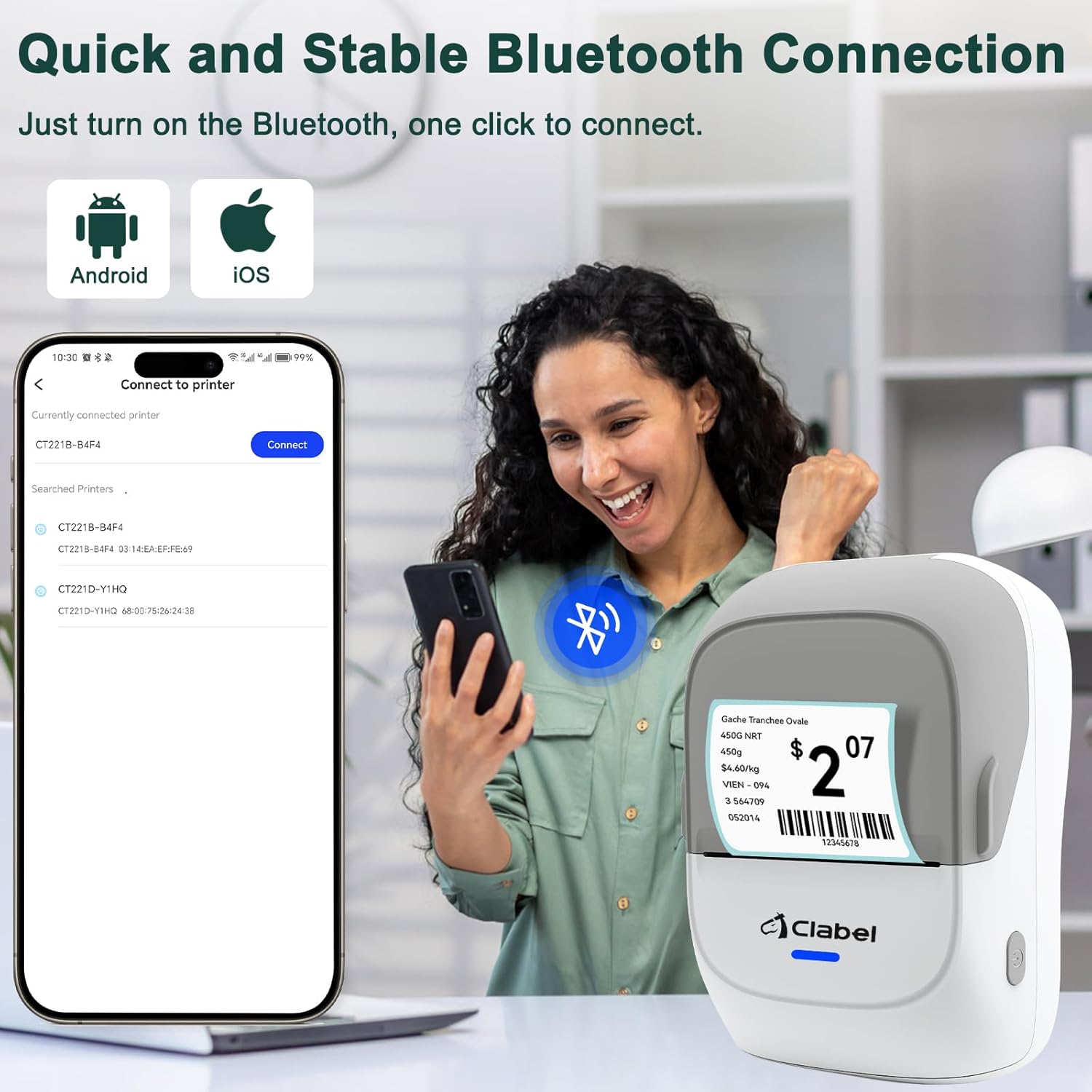
Image: A user connecting the CLABEL 221B printer to a smartphone. The phone screen shows the "Connect to printer" interface within the app, listing available printers. The printer itself is shown with a sample label.
4.2 Connecting to a Computer (USB)
For Windows PC users, the CLABEL 221B can also be connected via USB. Note that laptop connections may be unstable according to product information.
- Connect the printer to your computer using the provided USB cable.
- Download and install the necessary software for Windows from the official CLABEL website (refer to product packaging or manufacturer's website for download link).
- Once the software is installed, you can design and print labels directly from your computer.

Image: The CLABEL 221B printer connected to a laptop via a USB cable. The laptop screen displays a label design interface, indicating PC compatibility for label editing and printing.
4.3 Using the "Clabel trade" App
The "Clabel trade" app is a powerful tool for designing and managing your labels. It offers a wide range of customization options:
- Design Freedom: Create labels with custom text, formulas, hundreds of symbols, and various fonts.
- Templates: Utilize numerous pre-made templates for quick label creation.
- Barcode & QR Code: Generate and print barcodes and QR codes for various applications.
- Batch Printing: Improve efficiency by printing multiple labels in a single batch.
- Save & Recall: Easily store and retrieve your designed label documents for future use.

Image: Multiple screenshots of the "Clabel trade" app, showcasing its features for label personalization, multi-template support, PDF printing, and various editing tools like text, barcode, QR code, and image insertion.
4.4 Supported Label Types and Sizes
The CLABEL 221B supports thermal labels with a width ranging from 25 mm to 50 mm (0.98 inches to 1.96 inches). It is compatible with various label styles, including white, transparent, colored, round, retail, product, price, clothing, and decorative labels. Note that it is not suitable for continuous paper.

Image: An illustration demonstrating the variety of thermal label styles and sizes that the CLABEL 221B printer can support, including retail, product, price, clothing, and decorative labels with dimensions.
4.5 Applications
The CLABEL 221B is versatile and can be used for various labeling needs:
- Home Storage: Organize containers, boxes, and shelves.
- Office: Label files, documents, and office supplies.
- Shipping: Create shipping labels for packages.
- Retail: Price tagging, product identification, and inventory management.

Image: A four-panel image showcasing the practical uses of the CLABEL 221B label printer, including labeling items for home storage, office organization, shipping packages, and retail product pricing.
5. Maintenance
Regular maintenance ensures the longevity and optimal performance of your CLABEL 221B printer.
5.1 Cleaning the Print Head
The print head is a crucial component and should be cleaned periodically to prevent print quality issues. Use a cotton swab lightly dampened with isopropyl alcohol to gently wipe the print head. Allow it to dry completely before closing the cover and resuming operation.
5.2 General Cleaning
Wipe the exterior of the printer with a soft, dry cloth. Avoid using abrasive cleaners or solvents that could damage the device's surface.
5.3 Storage
Store the printer in a cool, dry place away from direct sunlight and extreme temperatures. If storing for an extended period, ensure the battery is partially charged (around 50%) to maintain battery health.
6. Troubleshooting
If you encounter issues with your CLABEL 221B, refer to the following common problems and solutions:
| Problem | Possible Cause | Solution |
|---|---|---|
| Printer does not turn on. | Low battery or power issue. | Charge the printer using the USB cable. Ensure the charging indicator light is on. |
| Cannot connect via Bluetooth. | Bluetooth not enabled, app issue, or printer not discoverable. |
|
| Poor print quality (faint, blank lines). | Dirty print head, incorrect label loading, or low battery. |
|
| Labels are not feeding correctly. | Labels jammed, incorrectly loaded, or wrong label type. |
|
| App crashes or is finicky. | Software bug, compatibility issue, or insufficient device resources. |
|
7. Specifications
| Feature | Detail |
|---|---|
| Brand | CLABEL |
| Model Name | 221B-Gray White (CT221B) |
| Printing Technology | Thermal |
| Connectivity Technology | USB, Bluetooth |
| Compatible Devices | Smartphones (iOS, Android), PC (Windows) |
| Maximum Media Size | 50 mm (1.96 inches) width |
| Print Media | Labels (25-50mm width) |
| Maximum Black and White Print Resolution | 203 DPI |
| Maximum Print Speed (Monochrome) | 55 ppm |
| Item Weight | 250 Grams (8.8 ounces) |
| Product Dimensions | 5.12 x 3.54 x 2.76 inches |
| Battery Life | Up to 4 hours continuous printing (rechargeable) |
8. Warranty and Support
CLABEL provides a warranty for the 221B barcode label printer. Specific warranty terms and conditions, including duration and coverage, are typically provided with your product purchase or can be found on the official CLABEL website. Please retain your proof of purchase for warranty claims.
For technical support, troubleshooting assistance beyond this manual, or warranty inquiries, please contact CLABEL customer service through their official website or the contact information provided with your product.
You can visit the official CLABEL Store for more information: CLABEL Store on Amazon
Related documents221B


Ask a question about this manual
Ask about setup, troubleshooting, compatibility, parts, safety, or missing instructions. Manuals+ will review the question and use this page’s manual context to help answer it.