
1. Product Overview
The OPTFOCUS USB WiFi Adapter is a compact and efficient wireless network receiver designed to provide high-speed internet connectivity for your desktop PC or laptop. This adapter supports WiFi 6 (802.11ax) for Windows 10/11 systems, offering speeds up to 286Mbps, and WiFi 5 (802.11n) for Windows 7/8 systems with speeds up to 150Mbps. Its driver-free installation on compatible Windows versions makes it easy to set up and use.

Image: The OPTFOCUS USB WiFi Adapter, a compact black and silver device with "Driver Free 286Mbps" and "WiFi 6" markings.
Key Features:
- High-Speed Connectivity: Up to 286Mbps wireless transmission rate.
- Driver-Free Installation: Automatic installation on Windows 10/11.
- Advanced Security: Supports 64/128-bit WEP, 128-bit WPA (TKIP/AES), MIC, IV Expansion, Shared Key Authentication, and IEEE 802.1X.
- Wide Compatibility: Compatible with 802.11b/g/n/ax devices and Windows 7, 10, 11 operating systems.
- Compact Design: Mini USB form factor for discreet integration.

Image: A graphic highlighting the adapter's features: WIFI6 USB ADAPTER, 286Mbps, Mini, Fast, Free Drive, Plug and Play.
2. Package Contents
Please verify that all items are present in the package:
- 1 x OPTFOCUS USB WiFi Adapter
- 1 x User Manual (this document)
3. Setup and Installation
System Requirements:
- Operating System: Windows 7, Windows 10, Windows 11.
- USB Port: Available USB 2.0 or 3.0 port.
- Important Note: This adapter does NOT support PlayStation (PS) or macOS operating systems. For Windows 7/8, it operates at WiFi 5 (150Mbps Max). For Windows 10/11, it supports WiFi 6 (286Mbps Max).

Image: A diagram illustrating compatibility with Windows XP, 7, 8, 8.1, and 10. Note: The product feature bullets specify Windows 7, 10, 11, and explicitly state PS/MacOS NOT SUPPORTED. The text description clarifies current compatibility.
Installation Steps:
- Insert the Adapter: Locate an available USB port on your desktop PC or laptop. Carefully insert the OPTFOCUS USB WiFi Adapter into the USB port.
- Automatic Driver Installation (Windows 10/11): For Windows 10 and Windows 11, the adapter is designed to be driver-free. The operating system should automatically detect the device and install the necessary drivers. This process may take a few moments.
- Driver Installation (Windows 7/8): For Windows 7 and Windows 8, you may need to allow the system to search for and install the driver automatically. If automatic installation does not occur, please refer to the troubleshooting section or check the manufacturer's website for driver downloads.
- Verify Installation: Once the driver is installed, the adapter should appear in your computer's network adapters list. You can usually find this in "Network and Sharing Center" or "Network & Internet settings" in Windows.

Image: A diagram showing the USB WiFi adapter plugged into a desktop PC, receiving a WiFi signal from a router in another room, enabling wireless internet access for the desktop.
4. Operating Instructions
Connecting to a Wireless Network:
- Access Network Settings: Click on the Wi-Fi icon in the system tray (usually in the bottom-right corner of your screen) to open the list of available wireless networks.
- Select Network: Choose your desired Wi-Fi network (SSID) from the list.
- Enter Password: If prompted, enter the network security key (Wi-Fi password) and click "Connect".
- Confirm Connection: Once connected, the Wi-Fi icon will indicate a successful connection, and you should be able to access the internet.

Image: A visual representation of the adapter's function, showing a router transmitting WiFi, the wireless network card (adapter) inserting into a host PC, and the desktop PC receiving the WiFi signal.
Soft AP Function (Wi-Fi Hotspot):
The adapter supports Soft AP functionality, allowing your computer to act as a Wi-Fi hotspot. This enables other devices, such as smartphones or tablets, to connect to your computer's internet connection wirelessly.
- Enable Mobile Hotspot (Windows 10/11): Go to "Settings" > "Network & Internet" > "Mobile hotspot".
- Share Connection: Select the internet connection you want to share (e.g., Ethernet or another Wi-Fi connection if your PC has two network adapters).
- Turn On Hotspot: Toggle the "Mobile hotspot" switch to "On". You can customize the network name (SSID) and password in the settings.
- Connect Other Devices: Other devices can now search for your computer's hotspot name and connect using the password you set.

Image: A diagram illustrating the Soft AP function, where a laptop with the USB WiFi adapter shares its internet connection, allowing other devices like phones and other computers to connect wirelessly.
5. Maintenance
The OPTFOCUS USB WiFi Adapter is designed for durability and requires minimal maintenance. Follow these guidelines to ensure optimal performance and longevity:
- Keep Clean: Periodically wipe the adapter with a soft, dry cloth to remove dust or debris. Avoid using liquid cleaners.
- Proper Handling: Avoid dropping the adapter or subjecting it to strong impacts.
- Storage: When not in use, store the adapter in a cool, dry place away from direct sunlight and extreme temperatures.
- USB Port Care: Ensure the USB port on your device is clean and free of obstructions before inserting the adapter.
6. Troubleshooting
| Problem | Possible Cause | Solution |
|---|---|---|
| Adapter not detected / No Wi-Fi networks found. |
|
|
| Slow Wi-Fi speed. |
|
|
| Cannot connect to a specific network. |
|
|
| "PS/MACOS NOT SUPPORTED" warning. |
|
|
7. Specifications
| Model | B0CS5NLTSM |
| Brand | OPTFOCUS |
| Hardware Interface | USB |
| Data Transfer Rate | 286 Megabits Per Second (Mbps) |
| Wireless Standards | 802.11b/g/n/ax (WiFi 6) |
| Frequency Band | 2.4GHz |
| Security Features | 64/128-bit WEP, 128-bit WPA (TKIP/AES), MIC, IV Expansion, Shared Key Authentication, IEEE 802.1X |
| Compatible Operating Systems | Windows 7, Windows 10, Windows 11 (Note: MacOS and PS are NOT supported) |
| Product Dimensions (L x W x H) | 0.8 x 0.2 x 0.6 inches (20mm x 6mm x 15mm approx.) |
| Item Weight | 0.247 ounces (7 Grams) |
| Color | Black |
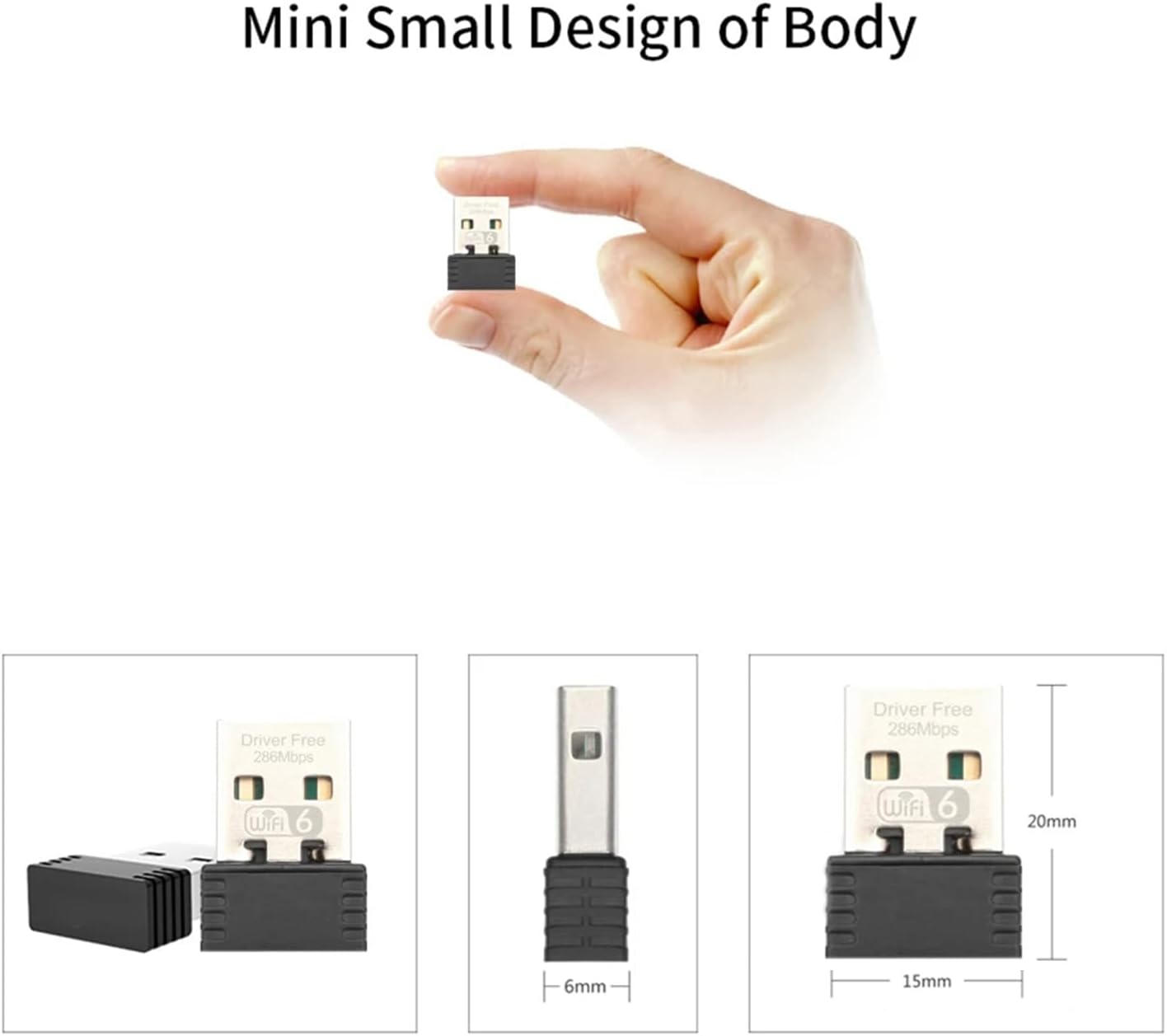
Image: A visual representation of the adapter's small size, shown held between fingers and with detailed dimensions (20mm length, 6mm width, 15mm height).
8. Warranty and Support
For warranty information and technical support, please refer to the product packaging or contact the manufacturer directly. You can typically find support contact details on the official OPTFOCUS website or through your purchase platform.
Manufacturer: Leitong Tec
Date First Available: January 12, 2024