
Introduction
Thank you for choosing the Silicon Power SR30 8-in-1 Docking Station. This manual provides essential information for setting up, operating, and maintaining your device. Please read these instructions carefully to ensure proper use and optimal performance of your docking station.
Product Features and Components
The SR30 8-in-1 Docking Station expands the connectivity of your USB-C enabled device, offering a comprehensive solution for various peripherals and displays.
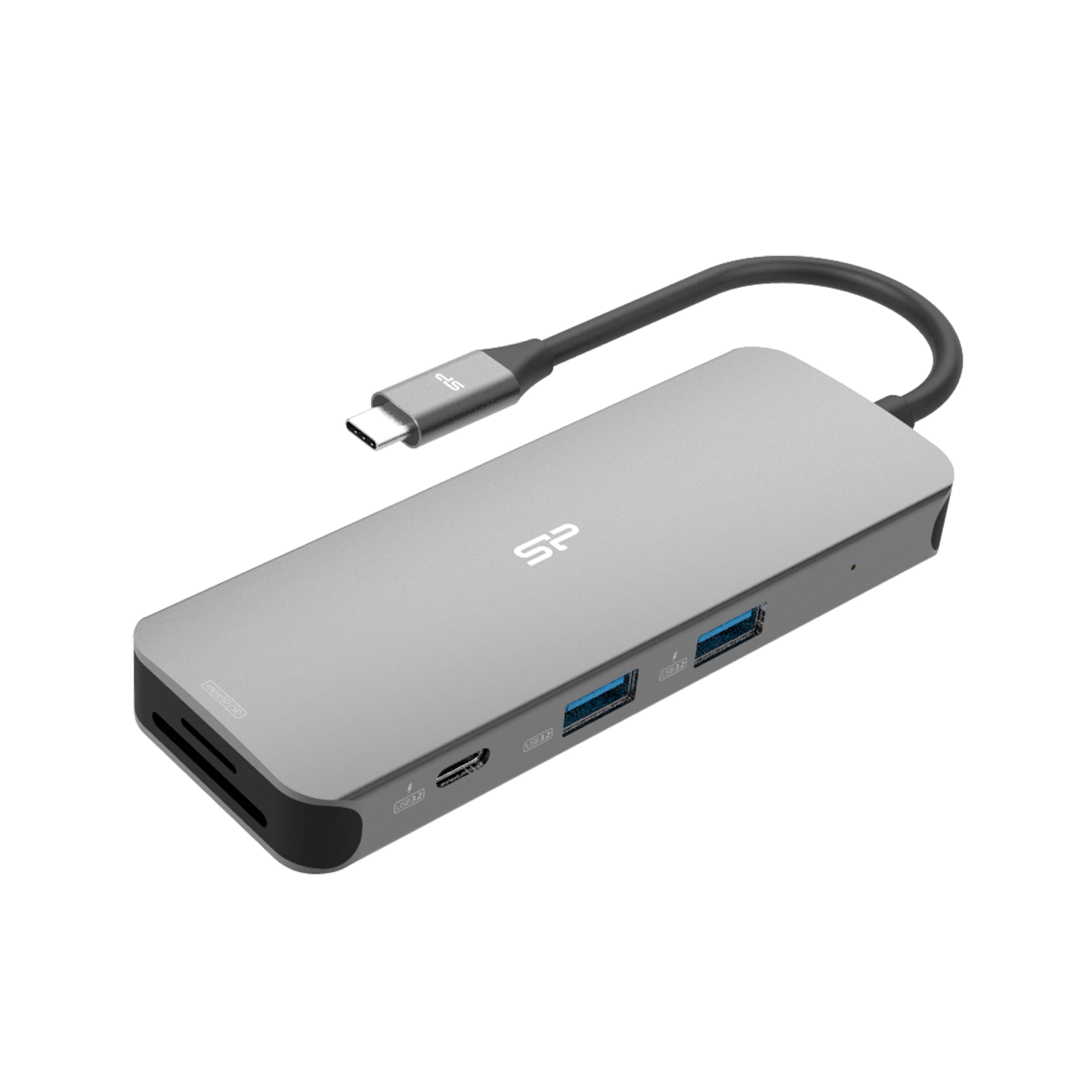
Figure 1: Top view of the Silicon Power SR30 8-in-1 Docking Station.
Key Features:
- USB-C 3.0 PD Input Port: For power delivery to the host device, supporting up to 100W pass-through charging (85W to host, 15W for hub operation).
- USB-C 3.2 Gen 1 Port: For data transfer.
- 2x USB-A 3.2 Gen 1 Ports: For connecting USB-A peripherals and data transfer.
- 4K HDMI Port: For connecting an external display with up to 4K Ultra HD @60Hz resolution.
- Gigabit Ethernet Port: For a stable wired network connection.
- SD Card Slot: For reading and writing standard SD cards.
- microSD Card Slot: For reading and writing microSD cards.
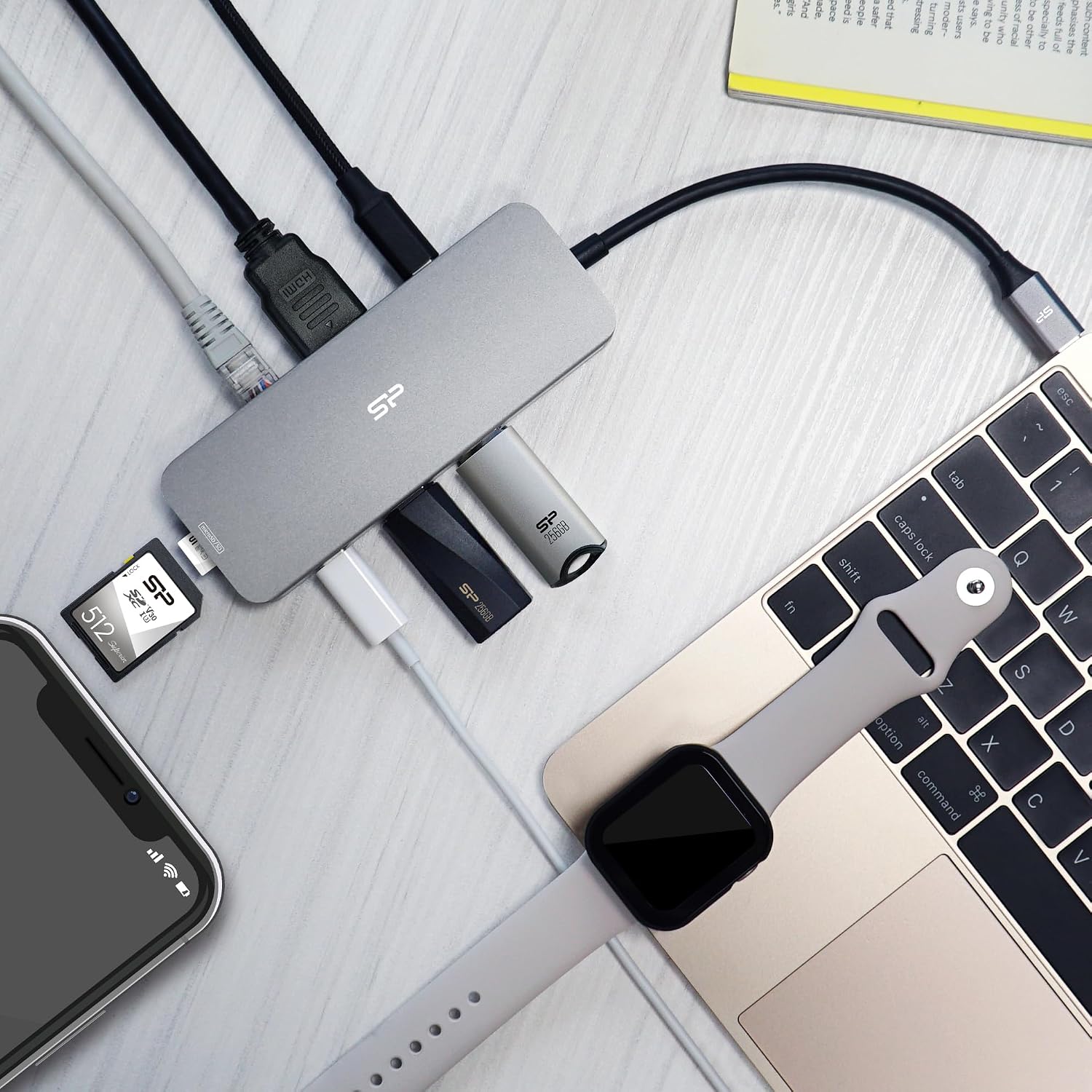
Figure 2: The SR30 docking station connected to a laptop, demonstrating various port usages including HDMI, Ethernet, and USB devices.
Setup Guide
Follow these steps to set up your SR30 docking station:
- Connect to Host Device: Plug the integrated USB-C cable from the SR30 docking station into the USB-C port of your laptop, tablet, or smartphone. Ensure your host device's USB-C port supports DisplayPort Alternate Mode (Alt Mode) for video output and Power Delivery for charging.
- Connect Power Adapter (Optional but Recommended): For optimal performance and to charge your host device, connect your original USB-C power adapter to the USB-C PD input port on the SR30 docking station. The docking station supports up to 100W power input, delivering up to 85W to your host device.
- Connect Peripherals:
- HDMI Display: Connect an HDMI cable from your monitor or TV to the HDMI port on the SR30.
- Ethernet Network: Connect an Ethernet cable from your router or modem to the Gigabit Ethernet port on the SR30.
- USB Devices: Plug your USB-A and USB-C peripherals (e.g., mouse, keyboard, external hard drive, USB flash drive) into the corresponding USB ports on the SR30.
- Memory Cards: Insert SD or microSD cards into their respective slots.

Figure 3: A user connecting various devices to the SR30 docking station, including USB drives and an SD card.
Operating Instructions
Video Output (HDMI)
Once connected, your host device should automatically detect the external display. You may need to adjust display settings (e.g., resolution, extended/mirrored display) in your operating system's display preferences. The HDMI port supports resolutions up to 4K Ultra HD at 60Hz.
Data Transfer (USB-A, USB-C, SD/microSD)
Connect your USB devices or insert memory cards. Your host device will recognize them as external storage or input devices. Data transfer speeds will depend on the connected device and the USB 3.2 Gen 1 standard.
Network Connection (Gigabit Ethernet)
After connecting an Ethernet cable, your host device should establish a wired network connection. This provides a more stable and often faster internet connection compared to Wi-Fi.
Power Delivery
When a USB-C power adapter is connected to the SR30's PD input port, the docking station will pass power through to charge your host device. Ensure your power adapter provides sufficient wattage for your laptop's needs.
Troubleshooting
- No Display Output:
- Ensure your host device's USB-C port supports DisplayPort Alt Mode.
- Check that the HDMI cable is securely connected to both the docking station and the monitor.
- Try a different HDMI cable or monitor.
- Restart your host device.
- No Power Delivery to Host Device:
- Verify that your USB-C power adapter is connected to the SR30's PD input port.
- Ensure your power adapter is functional and provides adequate wattage.
- Check the USB-C connection between the docking station and your host device.
- USB Devices Not Recognized:
- Ensure the docking station is properly connected to your host device.
- Try connecting the USB device to a different port on the SR30.
- Connect the USB device directly to your host device to confirm it is functional.
- No Ethernet Connection:
- Check the Ethernet cable connection to both the SR30 and your router/modem.
- Verify that your network settings on the host device are configured correctly for a wired connection.
- Try a different Ethernet cable.
If issues persist, please refer to the support section for further assistance.
Specifications
| Model | SR30 |
| Host Connection | USB-C 3.2 Gen 1 |
| Ports | 1x USB-C 3.0 PD Input (up to 100W), 1x USB-C 3.2 Gen 1, 2x USB-A 3.2 Gen 1, 1x 4K HDMI, 1x Gigabit Ethernet, 1x SD Card Slot, 1x microSD Card Slot |
| Video Output | HDMI: Up to 4K Ultra HD @60Hz |
| Power Delivery | Up to 100W pass-through (85W to host device) |
| Dimensions | 6.54 x 3.27 x 1.14 inches (Package Dimensions) |
| Weight | 4.6 ounces |
| Material | Aluminum construction |
Maintenance
To ensure the longevity and optimal performance of your SR30 docking station:
- Cleaning: Use a soft, dry, lint-free cloth to clean the exterior of the docking station. Avoid using liquid cleaners or aerosols.
- Storage: Store the docking station in a cool, dry place away from direct sunlight and extreme temperatures.
- Handling: Avoid dropping the device or subjecting it to strong impacts. Do not attempt to disassemble the unit.
Warranty and Support
The Silicon Power SR30 8-in-1 Docking Station comes with a 1.5-year limited warranty. For warranty claims, technical support, or further assistance, please contact SP Silicon Power customer service through their official website or the retailer where the product was purchased. Please have your product model and purchase information ready when contacting support.
Product Videos
Watch these official product videos for additional information and demonstrations:
Video 1: Product overview and features demonstration.
Video 2: Detailed explanation of connectivity options and use cases.
Video 3: Demonstration of 4K HDMI output capabilities.
Video 4: Guide to connecting and using the Gigabit Ethernet port.
Video 5: Quick setup and usage tips for the SR30 docking station.


