
1. Introduction
This manual provides detailed instructions for the installation, operation, and maintenance of your Blindsmart Zigbee Hub with Antenna. This device acts as a central coordinator for your Zigbee smart home devices, offering integration with Apple HomeKit and compatibility with Tuya Zigbee devices. It features a wired Ethernet connection for stable performance and an external antenna for enhanced signal range.

Image 1.1: The Blindsmart Zigbee Hub with its external antenna connected. The hub is white and rectangular, designed for central placement in a smart home setup.
2. What's in the Box
Please verify that all items are present in the package:
- Homekit ZigBee Hub x1
- User Manual x1 (This document)
- Power cable x1 (Type-C)
- Network cable x1 (Ethernet)

Image 2.1: The included accessories: an external antenna, an Ethernet network cable, and a Type-C power cord. These components are essential for the hub's operation.
3. Product Overview and Features
The Blindsmart Zigbee Hub is designed to be the central control unit for your smart home, offering robust connectivity and broad compatibility.
Key Features:
- 2-in-1 Zigbee Hub and Antenna: Functions as a Zigbee coordinator, enabling communication between multiple Zigbee devices. The external antenna enhances signal strength and coverage throughout your home.
- Apple Home Homekit Integration: Seamlessly integrates with Apple HomeKit, allowing control and automation of Zigbee devices via Siri, the Home app, or other HomeKit-compatible applications.
- Wired Smart Home Automation Hub: Equipped with a wired Ethernet port for direct connection to your router or switch, ensuring a reliable and stable network connection for your smart home ecosystem.
- Expandable and Compatible: Supports a wide array of Tuya Zigbee devices, including smart lights, switches, and sensors. Note that compatibility may vary; it is recommended to use devices verified by Zemismart for optimal performance.
- Easy to Set Up: Features a user-friendly application for straightforward setup and management of Zigbee devices. Users can create custom scenes, schedules, and automations to control various smart devices.
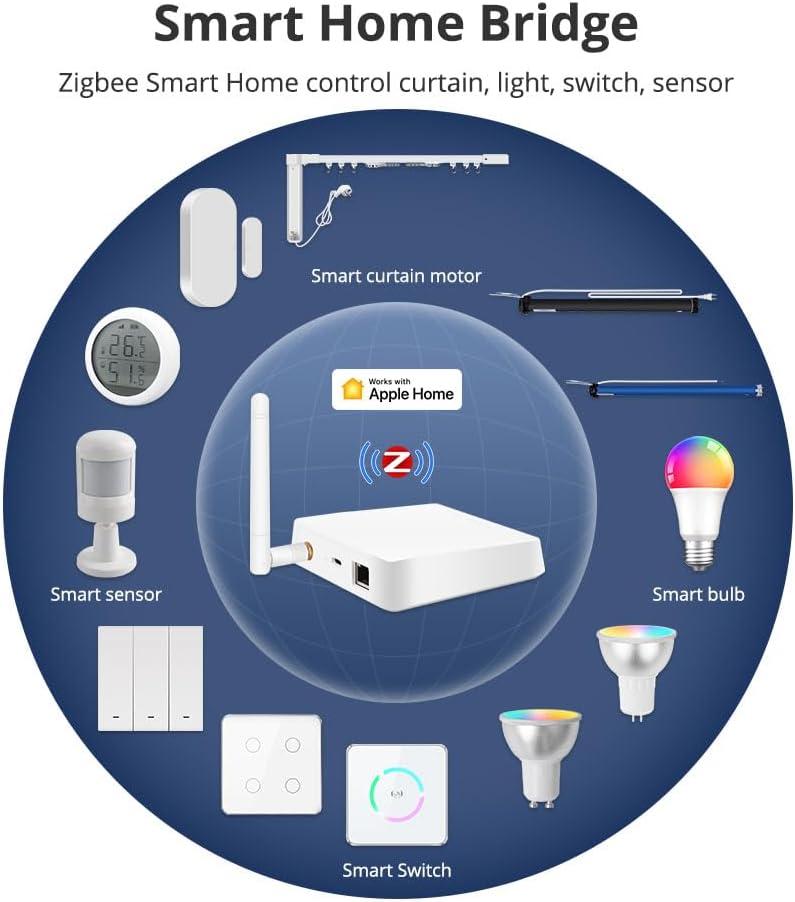
Image 3.1: A diagram illustrating the Zigbee Hub as a central bridge connecting various smart home devices such as smart curtain motors, sensors, bulbs, and switches within an Apple Home environment.

Image 3.2: An aerial view diagram of a house showing the Zigbee Hub's signal propagation. Blue waves indicate the extended signal range provided by the external antenna, covering multiple rooms.
4. Specifications

Image 4.1: A visual representation of the hub's dimensions (98mm x 98mm x 26.5mm) and a table detailing its technical parameters.
| Parameter | Value |
|---|---|
| Product Name | ZemiSmart Zigbee Hub |
| Product Model | ZMHK-01(2nd Gen) |
| Input Power | 5V=1A (Direct Current) |
| Standby Power | ≤0.5W |
| Internet Port | 10/100Mbps Ethernet |
| Wireless Protocol | ZigBee |
| Working Temperature | -10°C ~ +45°C |
| Working Humidity | 10% to 90%RH (non-condensing) |
| Product Dimensions | 3.85 x 3.85 x 1.04 inches (98 x 98 x 26.5 mm) |
| Item Weight | 8.3 ounces |
| Hardware Interface | Ethernet |
| Color | White |
| Compatible Devices | Tuya Zigbee devices |
| Data Link Protocol | Ethernet |
5. Setup Guide
5.1. Physical Connection
- Connect the Antenna: Screw the external antenna onto the designated port on the side of the Zigbee Hub. Ensure it is securely fastened.
- Connect Network Cable: Insert one end of the provided Ethernet network cable into the RJ45 port on the Zigbee Hub. Connect the other end to an available LAN port on your home router or network switch.
- Connect Power: Insert the Type-C power cable into the power input port on the Zigbee Hub. Plug the other end of the power cable into a suitable power adapter (5V=1A, not always included) and then into a wall outlet. The hub's indicator light should illuminate, indicating it is powered on.
5.2. App Integration
The ZemiSmart Zigbee Hub can be controlled via the Apple Home app or the Tuya app.

Image 5.1: Screenshots of the Apple Home app and the Tuya app interfaces, demonstrating how the hub can be managed through both platforms.
For Apple Home App:
- Ensure your iPhone or iPad is connected to the same Wi-Fi network as your Zigbee Hub.
- Open the Home app on your Apple device.
- Tap the + icon in the top right corner and select Add Accessory.
- Scan the HomeKit setup code located on the hub or its packaging. Follow the on-screen prompts to add the hub to your HomeKit setup.
- Once the hub is added, you can begin adding compatible Zigbee devices through the Home app.
For Tuya App:
- Download and install the Tuya Smart or Smart Life app from your device's app store.
- Register or log in to your account.
- Tap the + icon in the top right corner to add a device.
- Select Gateway (Zigbee) or search for the specific hub model.
- Follow the in-app instructions to connect the hub. This usually involves confirming the hub's indicator light status and ensuring your phone is on the same network.
- Once the hub is connected, you can add compatible Tuya Zigbee devices through the Tuya app.
6. Operating Instructions
6.1. Adding Zigbee Devices
After successfully setting up your Zigbee Hub, you can begin adding compatible Zigbee devices:
- Ensure the Zigbee device you wish to add is powered on and in pairing mode (refer to the device's specific manual for pairing instructions).
- Open the Home app (for HomeKit devices) or the Tuya app (for Tuya Zigbee devices).
- Navigate to the section for adding new devices or accessories.
- The app will search for nearby Zigbee devices in pairing mode. Select your device from the list and follow the on-screen prompts to complete the pairing process.
6.2. Creating Scenes and Automations
Automate your home by creating scenes and intelligent linkages:
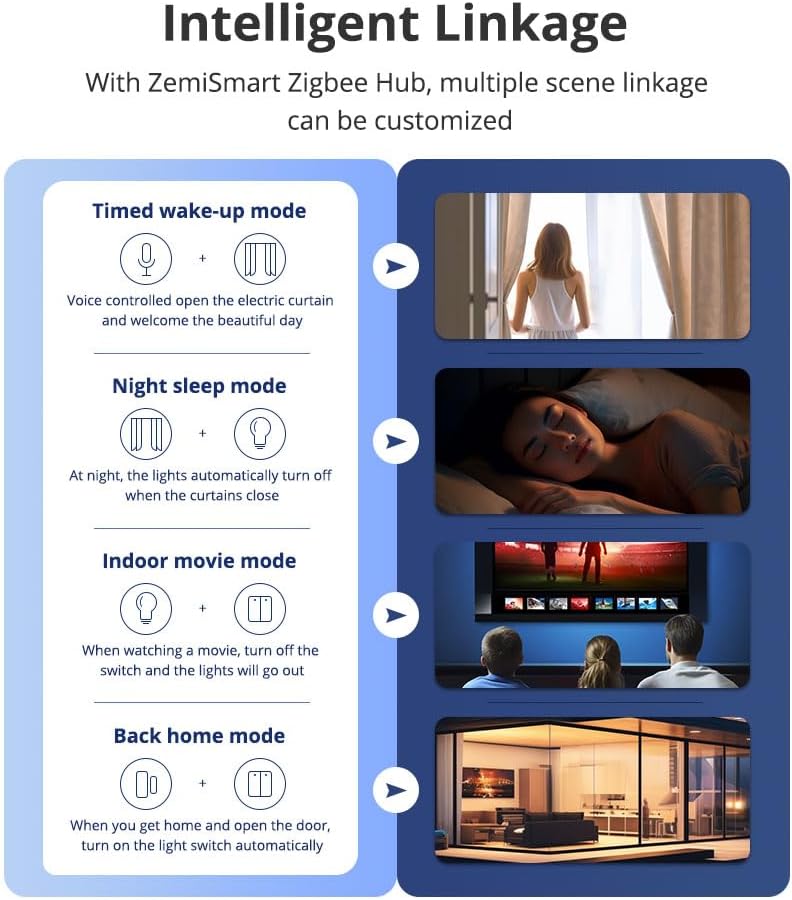
Image 6.1: Examples of intelligent linkage modes: Timed wake-up, Night sleep, Indoor movie, and Back home modes, illustrating how different devices can be coordinated.
- Timed Wake-up Mode: Configure your smart curtains to open and lights to gradually brighten at a set time.
- Night Sleep Mode: Set lights to automatically turn off and curtains to close when you activate this mode.
- Indoor Movie Mode: Automatically dim lights and close curtains when you start a movie.
- Back Home Mode: Have lights turn on and doors unlock automatically when you arrive home.
These automations can be configured within the Apple Home app or the Tuya app, depending on the devices and ecosystem you are using.
6.3. Voice Control
Control your connected devices using voice commands through compatible smart assistants:

Image 6.2: A kitchen scene demonstrating voice control with smart speakers (Apple HomePod, Amazon Echo, Google Home). Examples of commands include "Hey Siri, close the kitchen curtains." and "Alexa, turn on the kitchen light."
- Apple HomeKit (Siri): Once integrated with HomeKit, you can use Siri on your Apple devices (iPhone, HomePod, Apple Watch) to control your Zigbee devices. For example, say "Hey Siri, turn off the living room lights."
- Amazon Alexa: If your Tuya app is linked to Alexa, you can use Alexa-enabled devices (Echo, Echo Dot) for voice control. For example, say "Alexa, dim the bedroom lamp."
- Google Assistant: Similarly, if your Tuya app is linked to Google Assistant, you can use Google Assistant-enabled devices (Google Home, Nest Hub) for voice control. For example, say "Hey Google, set the thermostat to 72 degrees."
7. Maintenance
- Cleaning: Use a soft, dry cloth to clean the exterior of the hub. Avoid using liquid cleaners or abrasive materials.
- Firmware Updates: Periodically check for firmware updates through the Apple Home app or Tuya app. Keeping the firmware updated ensures optimal performance, security, and compatibility with new devices.
- Placement: Ensure the hub is placed in a central location within your home, away from large metal objects or other sources of interference, to maximize Zigbee signal coverage.
8. Troubleshooting
- Hub Not Powering On: Ensure the power cable is securely connected to the hub and a working power outlet. Verify the power adapter is functioning correctly.
- No Network Connection: Check if the Ethernet cable is properly connected to both the hub and your router/switch. Confirm your router has an active internet connection. Try restarting both the hub and your router.
- Cannot Add Zigbee Devices:
- Ensure the Zigbee device is in pairing mode.
- Verify the device is compatible with the Blindsmart Zigbee Hub (especially for Tuya devices, check Zemismart verification).
- Move the device closer to the hub during the pairing process.
- Reset the Zigbee device and try pairing again.
- Poor Signal Strength: Relocate the hub to a more central position in your home. Ensure the external antenna is properly attached and oriented. Avoid placing the hub near large electronic appliances or metal structures that may cause interference.
- App Control Issues: Ensure your smartphone is connected to the internet. Check if the hub's indicator light shows a stable connection. Restart the app or your phone if necessary.
9. Warranty and Support
For warranty information and technical support, please refer to the official Blindsmart website or contact their customer service directly. Keep your purchase receipt as proof of purchase for any warranty claims.
Manufacturer: Blindsmart


