
Transcend ESD360C
Transcend 1TB External SSD ESD360C User Manual
Model: ESD360C
1. Introduction
This manual provides comprehensive instructions for the Transcend 1TB External SSD ESD360C. It covers setup, operation, maintenance, and troubleshooting to ensure optimal performance and data integrity. The ESD360C is a high-speed, portable solid-state drive designed for versatile data storage across various devices and operating systems.
2. Package Contents
Verify that your package contains the following items:
- Transcend ESD360C Portable SSD
- USB Type-C to Type-C Cable
- USB Type-C to Type-A Cable
3. Product Overview
The Transcend ESD360C features a compact, credit-card sized design with a durable casing. It is equipped with a USB-C port for high-speed connectivity.

Image 1: The Transcend ESD360C Portable SSD, shown in its gray casing.

Image 2: The ESD360C connected via USB-C to a laptop, highlighting its compact size and connectivity.
4. Setup and Initial Use
4.1 Connecting the SSD
Connect the ESD360C to your device using the provided USB Type-C to Type-C cable or the USB Type-C to Type-A cable, depending on your device's available ports. Ensure the connection is secure.
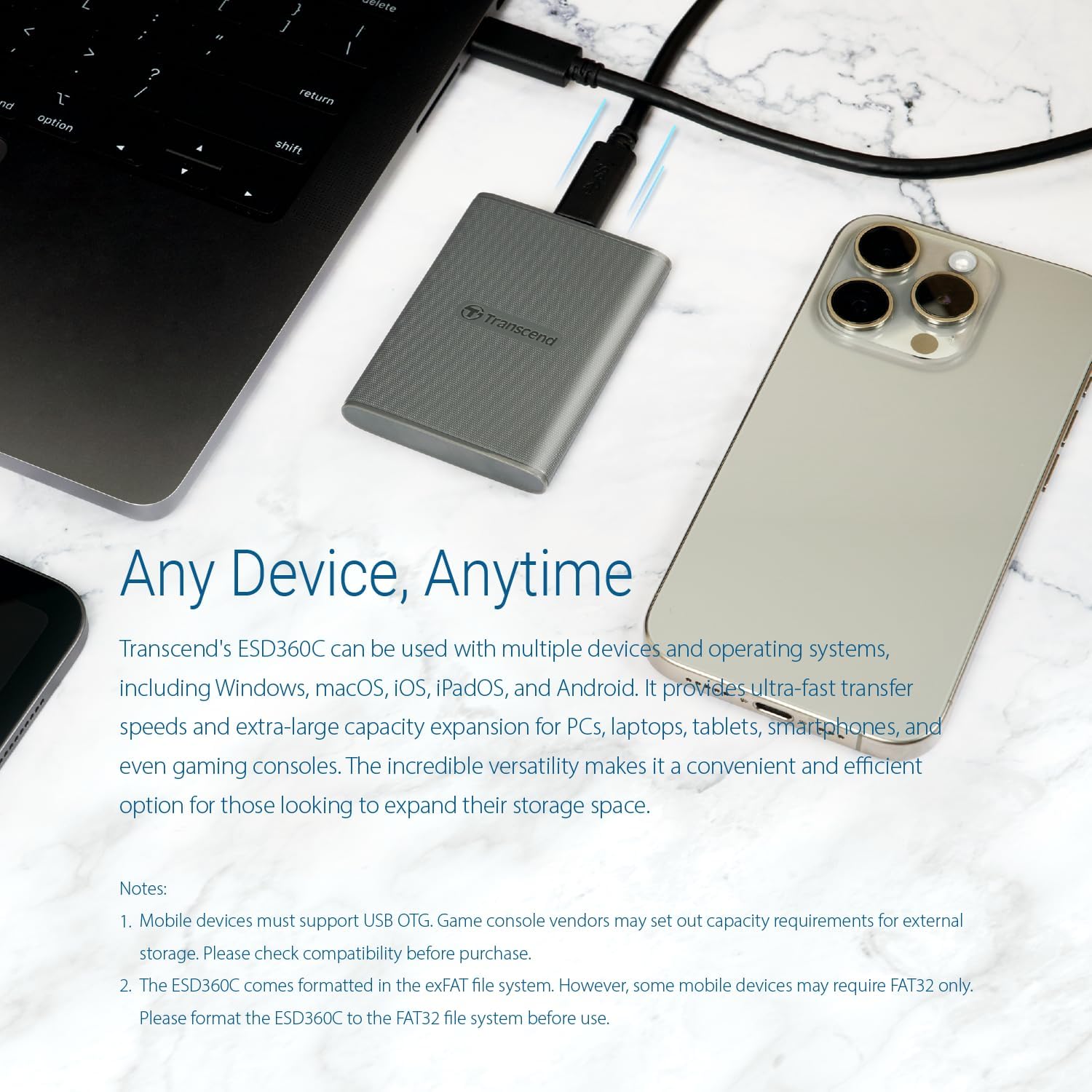
Image 3: The ESD360C connected to a laptop via USB-C, demonstrating its compatibility with various devices.
4.2 Device Compatibility
The ESD360C supports a wide range of operating systems and devices, including:
- Windows
- macOS
- iOS
- iPadOS
- Android
- Gaming Consoles (e.g., PS5, Xbox, Steam Deck, ROG Ally, MSI Claw)
For mobile devices, ensure they support USB On-The-Go (OTG). Game console vendors may have specific capacity requirements for external storage; verify compatibility before purchase.
4.3 Initial Formatting
The ESD360C comes pre-formatted in the exFAT file system, which offers broad compatibility across Windows and macOS. However, some mobile devices may require FAT32. If your mobile device does not recognize the drive, you may need to reformat the ESD360C to FAT32 using your computer's disk utility before use.
5. Operating the SSD
5.1 High-Speed Data Transfer
The ESD360C utilizes a USB 3.2 Gen 2x2 interface, enabling read/write speeds of up to 2000 MB/s. This allows for rapid transfer of large files, such as documents, media, and game data.

Image 4: Visual representation of the ESD360C's 20Gbps transfer speeds, capable of up to 2000 MB/s.
5.2 One-Touch Auto-Backup
The ESD360C features a dedicated button for one-touch auto-backup. This function requires the Transcend Elite software to be installed on your computer. Once configured, pressing this button initiates an instant data backup according to your settings in Transcend Elite.
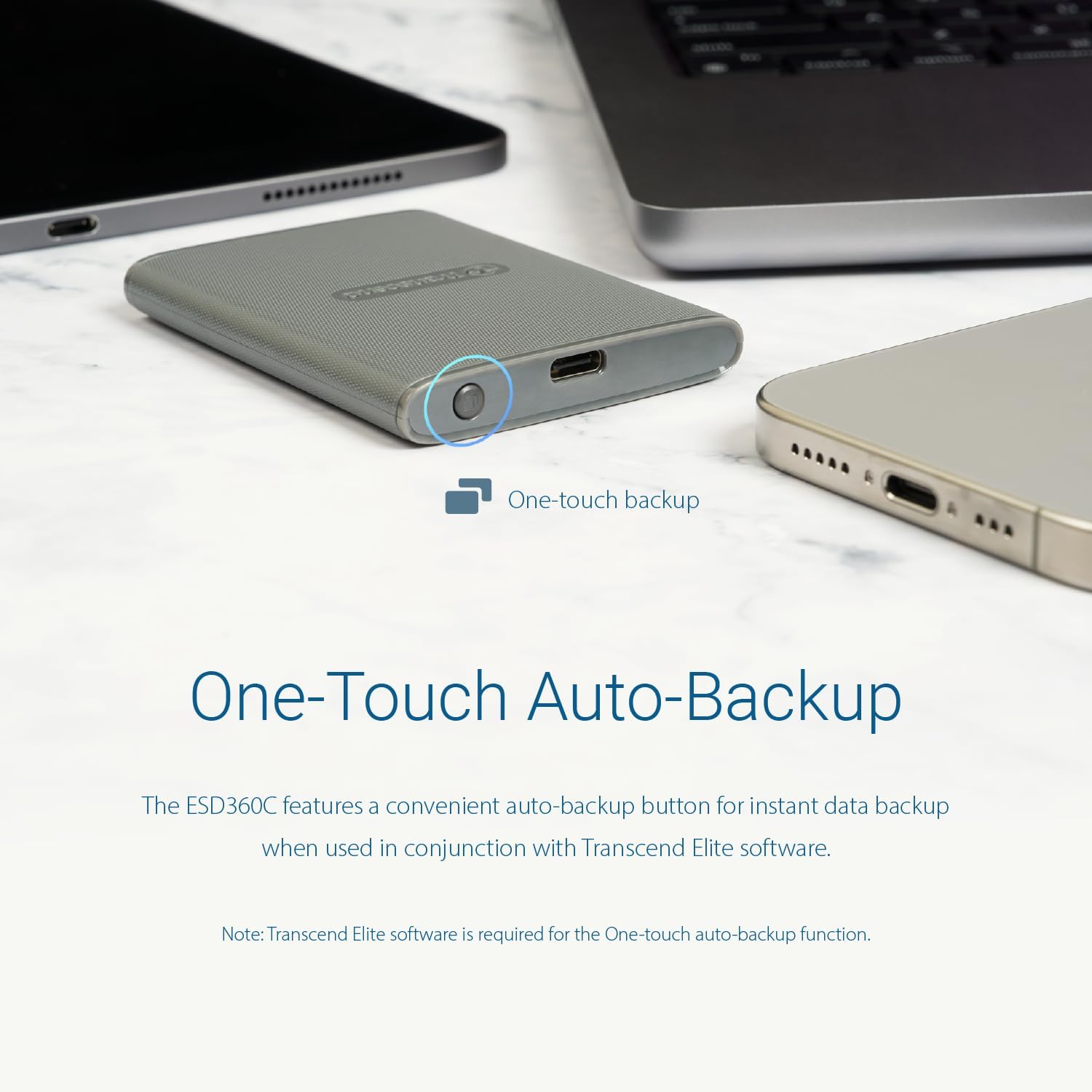
Image 5: The ESD360C with its one-touch backup button circled, indicating its function.
5.3 Transcend Elite Software
Transcend Elite is an advanced data management software compatible with Windows, macOS, and Android. It offers several features to enhance your SSD experience:
- Backup: Perform instant and scheduled backups of your data.
- Restore: Recover data from any point in your backup task list.
- Encryption: Protect your files with powerful 256-bit AES encryption.
- Decryption: Decrypt files previously encrypted with Elite.
- Cloud Backup: Back up files to Google Drive or Dropbox.
- Disk Lock: Lock and unlock the entire portable SSD for enhanced security.
Download Transcend Elite from Transcend's official website or the Google Play Store.

Image 6: An overview of Transcend Elite software features, including backup, restore, encryption, and disk lock.
One-Time Password (OTP) for Disk Unlock
If you forget your disk password, Transcend Elite supports a one-time password (OTP) function. Click "Forgot Password" in Transcend Elite, and an OTP will be sent to your registered email. Enter this OTP to unlock your ESD360C.

Image 7: Screenshot illustrating the One-Time Password (OTP) feature within Transcend Elite for unlocking the SSD.
6. Maintenance and Care
6.1 Physical Durability
The ESD360C is designed for durability, meeting MIL-STD-810G US military drop-test standards for drops up to 3 meters. Its anti-scratch and anti-shock casing helps maintain its condition. While robust, avoid intentionally dropping or striking the product.
6.2 Software Updates and Drive Health
Regularly check for firmware updates and monitor drive health using Transcend's dedicated utilities. The exclusive Transcend SCOPE Utility (available for Windows) allows you to view drive health information and apply available firmware updates. Keeping your software and firmware updated ensures optimal performance and security.
7. Troubleshooting
7.1 Drive Not Recognized
- Ensure the USB cable is securely connected to both the SSD and your device.
- Try a different USB port on your device.
- Test with the alternative USB cable provided (Type-C to Type-A or Type-C to Type-C).
- For mobile devices, confirm USB OTG support and consider reformatting to FAT32 if exFAT is not recognized.
- Check your computer's Disk Management (Windows) or Disk Utility (macOS) to see if the drive is detected but uninitialized or unformatted.
7.2 Slow Data Transfer Speeds
- Ensure you are connected to a USB 3.2 Gen 2x2 compatible port on your device for maximum speeds. Older USB ports (e.g., USB 2.0, USB 3.0/3.1 Gen 1) will result in lower speeds.
- Verify that your operating system and drivers are up to date.
- Performance can vary based on host hardware, software, usage, and the type/size of files being transferred. Transferring many small files is typically slower than transferring a few large files.
- Avoid running intensive applications during large data transfers.
7.3 Unexpected Disconnections
- Ensure the USB cable is not loose or damaged. Try a different cable.
- Connect the SSD directly to your computer's USB port, avoiding USB hubs if possible.
- Check your device's power management settings to ensure USB ports are not being powered down to save energy.
- Update your device's USB drivers.
- Monitor the drive's temperature during heavy use. While designed to dissipate heat, extreme temperatures can sometimes affect stability.
8. Specifications
| Feature | Detail |
|---|---|
| Model Number | TS1TESD360C |
| Digital Storage Capacity | 1 TB |
| Hard Drive Interface | USB 3.2 Gen 2x2 |
| Connectivity Technology | USB |
| Read/Write Speed | Up to 2000 MB/s |
| Color | Gray |
| Item Weight | 4.9 ounces |
| Special Features | Data Recovery Service, Portable, MIL-STD-810G Drop-Test Compliant |
| Compatible Devices | Android, Desktop, Gaming Console, Tablet, iPhone |
9. Warranty Information
The Transcend ESD360C comes with a Five-year Limited Warranty. For detailed terms and conditions, please refer to the official Transcend website or the warranty card included with your product.
10. Support and Resources
For further assistance, technical support, driver downloads, and additional product information, please visit the official Transcend website:
Related documentsESD360C


Ask a question about this manual
Ask about setup, troubleshooting, compatibility, parts, safety, or missing instructions. Manuals+ will review the question and use this page’s manual context to help answer it.