
Blackview Wave6C Blakcview phone 2024US
Blackview Wave 6C Unlocked Android Phone User Manual
Model: Wave6C Blakcview phone 2024US
Product Overview
The Blackview Wave 6C is a versatile unlocked Android smartphone designed for daily use, featuring a large display, long-lasting battery, and efficient performance. It runs on the latest Android 13 GO operating system with Doke OS 4.0 Go for enhanced user experience.

Image: Front and back view of the Blackview Wave 6C smartphone, showcasing its sleek design and camera module.

Image: Promotional image highlighting the Blackview Wave 6C's stylish design and long-lasting battery, featuring phones in various colors.
Getting Started: Setup
1. Package Contents
Before you begin, ensure all items are present in the box:
- Blackview Wave 6C Smartphone
- Power Adapter
- USB Cable
- SIM Tray Ejector
- Phone Case (TPU Protective Case)
2. SIM and Micro SD Card Installation
The Blackview Wave 6C supports dual Nano SIM cards and one Micro SD/TF card simultaneously. Use the provided SIM tray ejector tool to open the tray.
- Locate the SIM tray on the side of the phone.
- Insert the SIM tray ejector tool into the small hole next to the tray and press gently until the tray pops out.
- Place your Nano SIM card(s) and/or Micro SD card into the designated slots on the tray. Ensure the gold contacts are facing down.
- Carefully push the tray back into the phone until it is flush with the device body.
Note: SIM/SD cards are not included with the phone. The device supports up to 1TB of external storage via Micro SD.
3. Initial Charging
Before first use, it is recommended to fully charge your Blackview Wave 6C. The phone is equipped with a 5100mAh battery and supports 10W fast charging via its Type-C port.
- Connect the USB cable to the phone's Type-C port.
- Connect the other end of the USB cable to the power adapter.
- Plug the power adapter into a wall outlet.
- The charging indicator will appear on the screen.

Image: Diagram illustrating the 5100mAh large battery and Type-C charging port of the Blackview Wave 6C.
4. Power On and Initial Setup
Press and hold the Power button until the Blackview logo appears. Follow the on-screen prompts to complete the initial setup:
- Select your language and region.
- Connect to a Wi-Fi network (supports 2.4GHz Wi-Fi).
- Sign in with your Google account or create a new one.
- Set up screen lock (PIN, pattern, password).
- Set up Face ID for quick and secure unlocking.
- Review and accept terms and conditions.

Image: Visual representation of key features including Face ID, 3.5mm audio jack, GPS navigation, and B1 level security protection.
Operating Your Device
Display and User Interface
The Blackview Wave 6C features a 6.52-inch HD+ display with a resolution of 720x1600 pixels and a 60Hz refresh rate. It utilizes In-cell technology and supports 10-point touch for a responsive and immersive visual experience. AI brightness dimming and eye protection mode help reduce eye fatigue.

Image: A visual emphasizing the 6.52-inch large screen of the Blackview Wave 6C, showcasing vibrant display capabilities.
Performance and Storage
Powered by an Octa-core processor, the Wave 6C ensures smooth multitasking and efficient operation. It comes with 4GB of RAM (expandable) and 32GB of internal storage, which can be expanded up to 1TB using a Micro SD card.

Image: Illustration detailing the Octa-core processor, 4GB RAM, 32GB ROM, and expandable memory up to 256GB (note: product description states 1TB, image says 256GB, will use 1TB as per product description).
The advanced RAM expansion technology allows you to virtually increase RAM to 4GB, enabling smoother application performance and easier switching between apps.

Image: Graphic illustrating the RAM and ROM configuration, emphasizing expanded memory for better performance.
Camera Features
Capture moments with the 8MP ultra-clear rear camera and take vivid selfies with the 5MP front camera. The phone supports 1080P video recording and includes AI Beauty and Natural Portrait Mode for enhanced photo quality.

Image: Overview of the Blackview Wave 6C's smart camera system, highlighting the 8MP rear and 5MP front cameras.

Image: Example of Natural Portrait Mode, demonstrating its ability to capture vivid facial features and atmospheric photos.
Battery Life and OTG Function
The 5100mAh mega battery provides extended usage, offering up to 7 hours of continuous video playback, 35 hours of music playback, or 792 hours of standby time. An improved smart battery system optimizes energy efficiency. The phone also supports USB OTG (On-The-Go) function, allowing it to act as a power bank to charge other devices.
Image: Visual representation of the 5100mAh battery and its Type-C charging capability.
Navigation and Connectivity
The Wave 6C supports multiple navigation systems including GPS, GLONASS, and Galileo for accurate positioning. It is compatible with 4G networks (FDD: B2/B3/B4/B5/B7/B12/B13/B17/B26/B66), 3G WCDMA (B2/B4/B5), and 2G GSM (850/900/1800/1900 B2/B3/B5/B8).
Compatible GSM Carriers: T-mobile, Speedtalk, Mint Mobile, BTC, MetroPCS, H2O, Movistar, Telcel, Tigo, Claro, Ultra Mobile, Tello, Bell Wireless, Rogers Wireless, Chatr, Telus, Fido, FIZZ.
Not Compatible with CDMA Carriers: AT&T, Cricket Wireless, Verizon, Straight Talk, U.S.Cellular.
Maintenance and Care
General Care
- Cleaning: Use a soft, lint-free cloth to clean the screen and body. Avoid abrasive materials or harsh chemicals.
- Protection: The phone comes with a free TPU protective case. It is recommended to use this case to reduce damage from drops and impacts.
- Temperature: Avoid exposing the phone to extreme temperatures (hot or cold) or direct sunlight for prolonged periods.
- Water Resistance: This device is not rated for water resistance. Avoid contact with liquids.

Image: The Blackview Wave 6C in Midnight Black, showcasing its slim profile and the included protective case.
Software Updates
Regularly check for system updates to ensure your phone has the latest features, security patches, and performance improvements. You can usually find this option in Settings > System > System update.
Troubleshooting
If you encounter issues with your Blackview Wave 6C, refer to the common solutions below:
Battery Draining Quickly
- Close unused applications running in the background.
- Reduce screen brightness or enable adaptive brightness.
- Disable Wi-Fi, Bluetooth, and GPS when not in use.
- Check battery usage in Settings > Battery to identify power-hungry apps.
- Utilize the Smart Power Saving features within Doke OS 4.0 Go.
Slow Performance / Apps Crashing
- Clear cache for frequently used apps (Settings > Apps > [App Name] > Storage & cache > Clear cache).
- Restart the phone regularly to clear temporary data.
- Ensure sufficient storage space is available. Delete unnecessary files or move them to the Micro SD card.
- Utilize the RAM expansion feature to allocate more virtual RAM.
Network Connectivity Issues (Wi-Fi/Cellular)
- Wi-Fi: Ensure you are connecting to a 2.4GHz Wi-Fi network, as the phone does not support 5GHz Wi-Fi. Restart your router.
- Cellular: Verify that your SIM card is properly inserted and activated. Check your signal strength. Ensure your carrier is compatible with the phone's network bands.
- Toggle Airplane Mode on and off.
- Reset network settings (Settings > System > Reset options > Reset Wi-Fi, mobile & Bluetooth).
Phone Restarts Unexpectedly
- Ensure the phone's software is up to date.
- Check for any recently installed apps that might be causing instability and uninstall them.
- Perform a factory reset as a last resort (Note: This will erase all data on your phone. Back up important data first.).
Specifications
| Feature | Detail |
|---|---|
| Model Name | USRR2024-WAVE6C-Black |
| Operating System | Android 13 GO (with Doke OS 4.0 Go) |
| Display Size | 6.52 Inches |
| Resolution | 720 x 1600 pixels |
| Refresh Rate | 60 Hz |
| Processor | Octa-core (1.6 GHz CPU Speed) |
| RAM | 4 GB (expandable) |
| Internal Storage | 32 GB |
| Expandable Storage | Up to 1 TB (Micro SD/TF card) |
| Rear Camera | 8 MP |
| Front Camera | 5 MP |
| Battery Capacity | 5100 mAh Lithium Polymer |
| Charging | 10W Fast Charging, Type-C |
| Connectivity | Wi-Fi (2.4GHz), Cellular (4G FDD, 3G WCDMA, 2G GSM), Bluetooth |
| Navigation | GPS, GLONASS, Galileo |
| Audio Jack | 3.5 mm |
| Special Features | Face ID Unlock, USB OTG Support, Smart-K Box Speaker |
| Dimensions | 6.81 x 5.94 x 2.05 inches (Package) |
| Item Weight | 14 ounces (191g for phone only) |
| Color | Black (also available in Lilac Purple, Mint Blue) |
| Manufacturer | Blackview |
| Country of Origin | China |
Warranty and Support
Blackview provides comprehensive support for its products. The Blackview Wave 6C comes with a 2-year guarantee service.
Customers can enjoy a 24-month free repair warranty and lifetime technician support through the Blackview Official Flagship Store.
Should any issues arise with your device, please reach out to Blackview customer service for prompt assistance. Strict examination procedures are imposed from design to production to ensure high quality and user satisfaction.
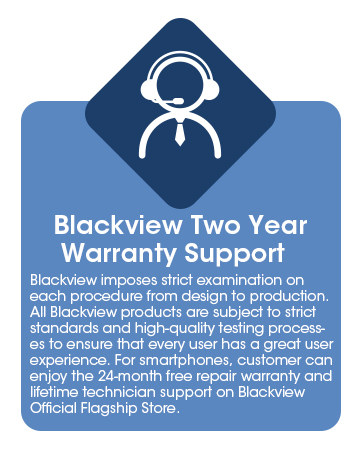
Image: Icon representing Blackview's two-year warranty support, emphasizing customer service.
For more information and support, visit the Blackview Official Flagship Store.
Ask a question about this manual
Ask about setup, troubleshooting, compatibility, parts, safety, or missing instructions. Manuals+ will review the question and use this page’s manual context to help answer it.