
1. Introduction
The NuPhy Air96 V2 is a 100-key wireless mechanical keyboard designed for versatility and performance. It features an ultra-slim profile, multi-device compatibility, and a high polling rate for a responsive user experience. This manual provides essential information for setting up, operating, and maintaining your keyboard.
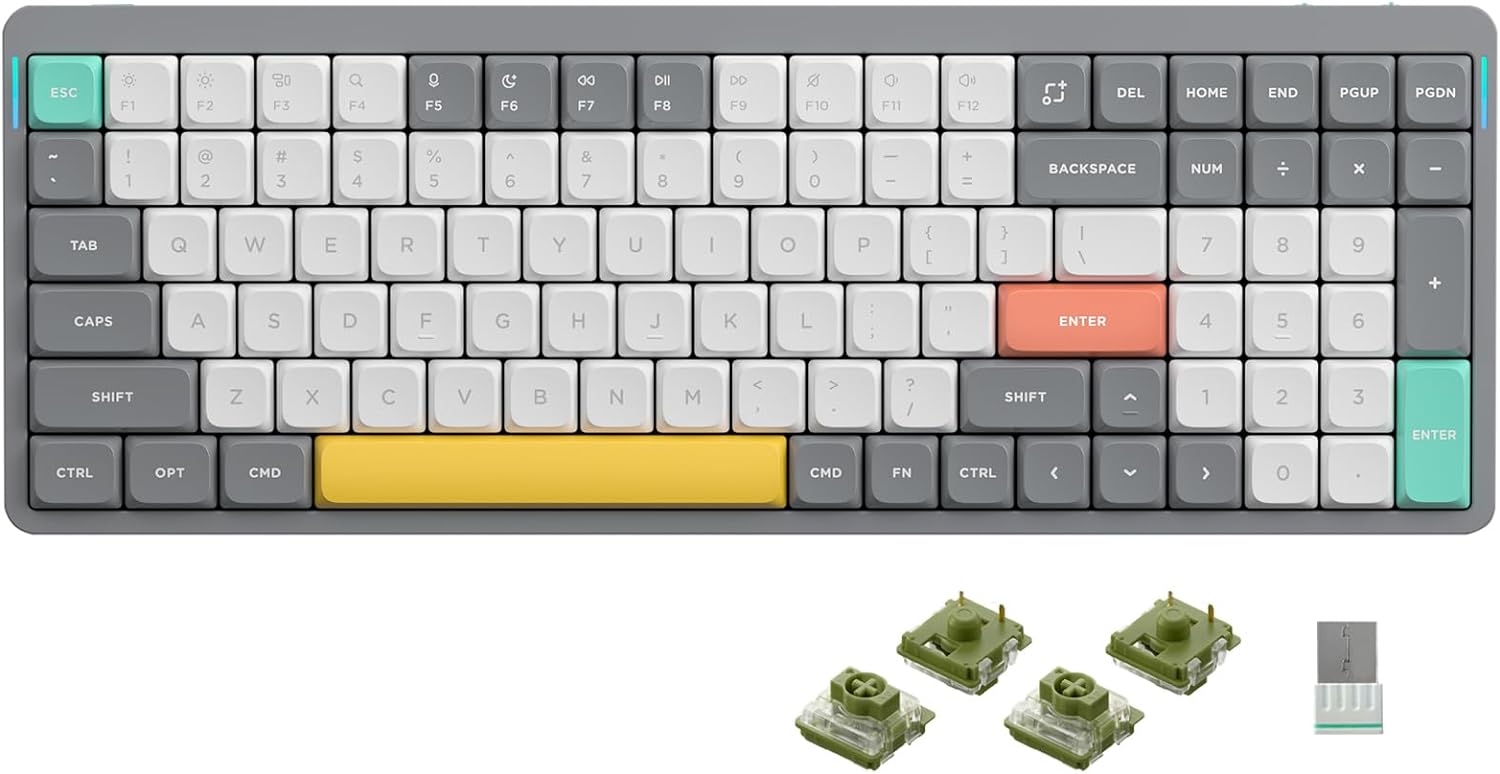
Image: Top view of the NuPhy Air96 V2 Wireless Mechanical Keyboard in grey with white, grey, yellow, red, and teal keycaps.
2. What's in the Box
- NuPhy Air96 V2 Wireless Mechanical Keyboard
- Keycap Puller
- USB-C Cable
- 2.4GHz Receiver
- Extra Keycaps (various colors)
- Extra Switches (for hot-swappable models)
- Quick Guide
- Q&A Document
Video: An unboxing video demonstrating the contents of the NuPhy Air96 V2 Mechanical Keyboard package.
3. Setup
3.1 Initial Charging
Before first use, connect the keyboard to a USB power source using the provided USB-C cable to ensure the 4000mAh battery is fully charged. The LED light bar on the side of the keyboard indicates power status.
3.2 Operating System Selection
Locate the operating system switch on the side of the keyboard. Toggle it to either 'WIN' for Windows/Linux or 'MAC' for macOS, depending on your host device.
3.3 Adjustable Feet
The keyboard features adjustable feet on the underside. These can be set to different heights to optimize typing comfort and ergonomics. Simply flip them out to your preferred angle.

Image: Bottom view of the NuPhy Air96 V2 keyboard, highlighting the transparent base and the red adjustable feet.
4. Operating Instructions
4.1 Connection Modes
The Air96 V2 supports three connection methods: Bluetooth 5.1, 2.4GHz wireless, and wired (USB-C). Use the switch on the side of the keyboard to select your desired mode: 'OFF', 'WIRED', or 'WIRELESS'.
- Wired Connection: Connect the USB-C cable from the keyboard to your device.
- 2.4GHz Wireless: Plug the 2.4GHz receiver into your device's USB port. Select 'WIRELESS' mode on the keyboard.
- Bluetooth 5.1: Select 'WIRELESS' mode. On your device, search for and pair with 'NuPhy Air96 V2'. The keyboard supports simultaneous connection to up to 4 devices, allowing for easy switching.
4.2 Multi-Device Switching
When connected via Bluetooth to multiple devices, use the designated function keys (e.g., Fn + 1, 2, 3, or 4) to switch between paired devices. Refer to the Quick Guide for specific key combinations.
4.3 RGB Backlighting and Sidelit Effects
The keyboard features customizable RGB backlighting for individual keys and RGB sidelit effects. Use the keyboard's console or specific key combinations (e.g., Fn + arrow keys or other designated keys) to adjust brightness, color, and lighting patterns. The sidelit feature provides additional ambient lighting.
Video: A demonstration of the NuPhy Halo96 V2 mechanical keyboard's RGB backlighting and sidelit effects.
4.4 QMK/VIA Compatibility
The Air96 V2 supports QMK/VIA, allowing advanced users to remap keys, create macros, and customize keyboard layouts. Download the VIA software and the appropriate JSON file from the official NuPhy website to access these features.

Image: A screenshot of the VIA software interface, illustrating the key remapping capabilities for the NuPhy Air96 V2 keyboard.
4.5 Hot-Swappable Switches
The keyboard features hot-swappable switch sockets, allowing you to change mechanical switches without soldering. Use the provided switch puller to remove existing switches and insert new ones. Ensure compatibility with low-profile Gateron switches.

Image: A diagram illustrating the hot-swappable feature of the NuPhy Air96 V2 keyboard, along with its three connection options: USB-C, 2.4GHz, and Bluetooth.
5. Maintenance
5.1 Cleaning
To clean the keyboard, first disconnect it from all power sources. Use the provided keycap puller to carefully remove keycaps. Wipe the keycaps and keyboard surface with a soft, damp cloth. For deeper cleaning, use compressed air to remove debris from between switches.
5.2 Battery Care
To prolong battery life, avoid fully discharging the keyboard frequently. Charge the keyboard when the battery indicator shows low power. If storing the keyboard for an extended period, charge it to approximately 50% and store in a cool, dry place.
6. Troubleshooting
- Connectivity Issues: Ensure the keyboard is in the correct mode (Bluetooth, 2.4GHz, or Wired) for your device. For wireless connections, verify the receiver is properly inserted or Bluetooth is enabled and paired. Try restarting both the keyboard and the host device.
- Lighting Malfunctions: Check the keyboard's manual for specific key combinations to reset lighting effects or adjust brightness. Ensure the battery has sufficient charge, as low power can affect lighting performance.
- Keys Not Responding: If individual keys are not responding, ensure the switches are properly seated in their sockets. For hot-swappable models, try reseating the switch or replacing it with a spare.
- Firmware Updates: Periodically check the official NuPhy website for firmware updates. Updates can resolve bugs and improve performance. Follow the provided instructions carefully when performing firmware updates.
7. Specifications
| Feature | Specification |
|---|---|
| Product Dimensions | 14.69 x 5.2 x 0.53 inches (373.4 x 132.5 x 13.5 mm) |
| Item Weight | 1.46 pounds (663 grams) |
| Connectivity Technology | Bluetooth 5.1, 2.4GHz, USB-C |
| Polling Rate | Up to 1000Hz (wireless mode) |
| Battery Capacity | 4000mAh |
| Battery Life | 35-120 hours (backlight on), up to 220 hours (backlight off) |
| Compatible Devices | Laptop, PC, Tablet (Windows, macOS, Linux) |
| Keycap Material | Two-tone PBT |
| Frame Material | Aluminum alloy |
| Bottom Case Material | ABS |
| Special Feature | RGB Backlit, Hot-swappable switches, QMK/VIA support |

Image: The NuPhy Air96 V2 keyboard displayed with its key dimensions, weight, battery capacity, and material specifications.
8. Warranty and Support
Specific warranty details are not provided in the product information. For support, please visit the official NuPhy store or contact their customer service. You can find more information at the NuPhy Store on Amazon.

