
AYA NEO AYA NEO Slide 7
AYA NEO Slide Handheld Gaming PC User Manual
Model: AYA NEO Slide 7 | Brand: AYA NEO
Introduction
This manual provides comprehensive instructions for setting up, operating, maintaining, and troubleshooting your AYA NEO Slide handheld gaming PC. Please read this manual thoroughly to ensure proper usage and to maximize your device's performance and longevity.
What's in the Box
Upon unboxing your AYA NEO Slide, you should find the following items:
- AYA NEO Slide Handheld Gaming PC
- 65W Charger with regional plug adapters (UK, EU, SE Asia)
- 2x USB Type-C to Type-A Adapters
- USB Type-C Cable
- User Guides and Documentation

The AYA NEO Slide handheld gaming PC and its included accessories, neatly arranged in the box.
Product Overview
Dimensions and Weight
The AYA NEO Slide measures approximately 8.8 inches (22.6 cm) in length, 3.5 inches (9.0 cm) in width, and 1.1 inches (2.8 cm) in thickness. It weighs around 650 grams (1.43 pounds), offering a portable yet substantial feel.

Side view of the AYA NEO Slide, highlighting its compact form factor.
Display
The 6-inch IPS touchscreen features a 1080P (1920 x 1080 pixels) resolution, 368 PPI, 400 nits brightness, 120% sRGB color gamut volume, 100% sRGB color gamut coverage, and 85% DCI-P3. The screen offers excellent quality with vibrant colors and good brightness, providing an immersive visual experience for gaming and multimedia.
Front view of the AYA NEO Slide displaying a game on its 6-inch IPS screen.
Controls and Ports
The device features standard gaming controls including Hall effect sensor analog sticks, a D-pad, and gaming buttons (A, B, X, Y). Two additional buttons are available for the AYA Space overlay, providing quick access to system settings. On the top edge, you will find shoulder buttons (L1, R1) and Hall effect triggers (L2, R2), alongside macro buttons which can be customized via the AYA Space software. The power button, located on the top, includes a built-in fingerprint sensor for secure login. Adjacent to it are the volume rocker and a USB Type-C port. The bottom edge houses a second USB4 Type-C port and a covered Micro SD card slot for expandable storage.

Top view of the AYA NEO Slide, showing the shoulder buttons, triggers, power button with fingerprint sensor, volume rocker, and USB-C port.

Bottom view of the AYA NEO Slide, revealing the second USB4 Type-C port and the Micro SD card slot.
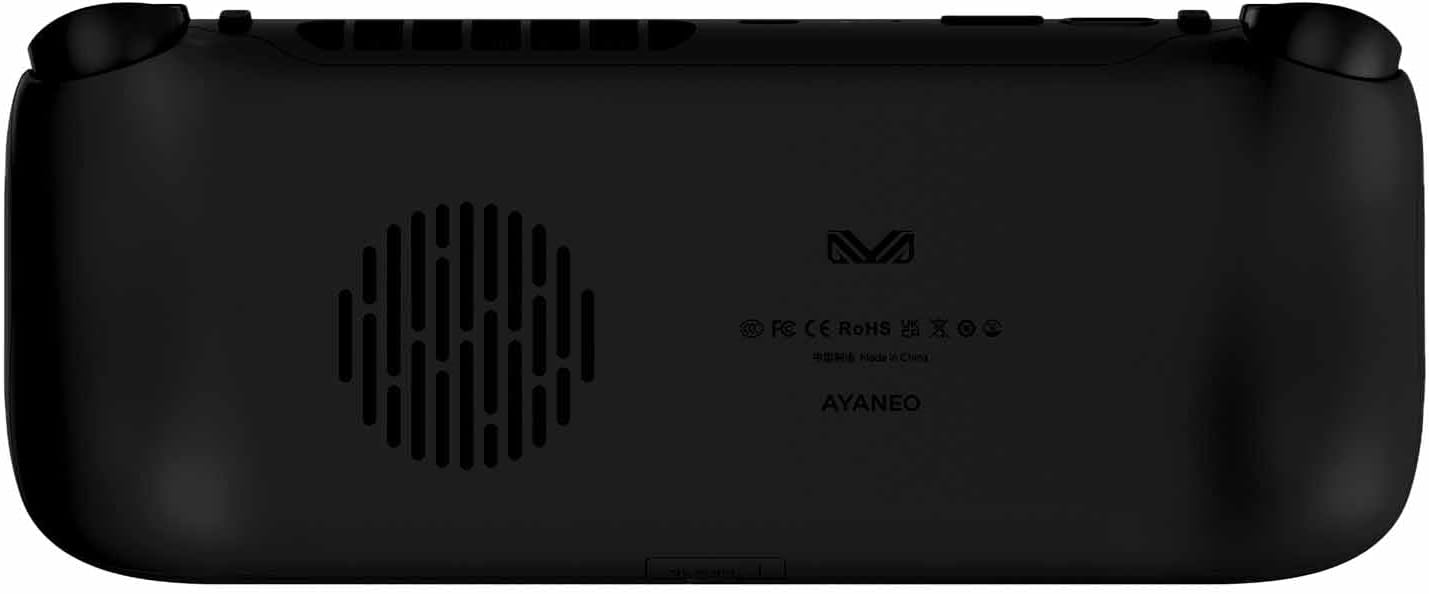
Rear view of the AYA NEO Slide, showing the ergonomic grips and ventilation.
Sliding Keyboard Mechanism
A unique feature of the AYA NEO Slide is its sliding screen, which reveals a full QWERTY keyboard underneath. The sliding mechanism is designed for smooth operation and snaps securely into place. For optimal functionality and to prevent damage, always slide the screen from the middle, avoiding pushing from the corners. Once the screen is slid up, it can be further adjusted by pushing it back to achieve a 10 to 30-degree angle. This angled position is particularly useful when resting the device flat on a surface, such as a desk, for comfortable typing or viewing.
The AYA NEO Slide with its screen slid up, revealing the full QWERTY keyboard and gaming controls.
Setup
Initial Setup
- Charging: Before first use, fully charge your AYA NEO Slide using the provided 65W charger and USB Type-C cable. Connect the charger to either USB Type-C port on the device.
- Power On: Press and hold the power button (located on the top edge) until the screen illuminates.
- Initial Configuration: Follow the on-screen prompts to complete the Windows 11 setup process. This includes selecting your language, region, connecting to Wi-Fi, and setting up user accounts.
Operating Instructions
General Operation
The AYA NEO Slide runs on Windows 11 64-bit Home Edition, providing a familiar PC environment. Utilize the touchscreen for intuitive navigation or the integrated QWERTY keyboard for typing and command input. The Hall effect joysticks and triggers offer precise and responsive control for all your gaming needs.
AYA Space Software
The AYA Space software provides a convenient overlay for quick adjustments to system settings without interrupting your gameplay. You can easily change screen resolutions, adjust Thermal Design Power (TDP) settings to balance performance and battery life, and customize the functions of the macro buttons. Regular updates to AYA Space are released to enhance functionality and user experience.
Performance & Benchmarks
Technical Specifications
| Component | Specification |
|---|---|
| Processor | AMD Ryzen 7 7840U (8 cores / 16 threads, up to 5.1GHz at 28W TDP) |
| Graphics | AMD Radeon 780M (12 cores, 2700MHz) |
| RAM | 32GB DDR5 (Options: 16GB/32GB/64GB LPDDR5X) |
| Storage | 2TB NVMe SSD (Options: 512GB/2TB/4TB M.2 2280 PCIe 4.0 SSD) |
| Display | 6-inch 1080P IPS Touchscreen (368 PPI, 400 nits) |
| Wireless Connectivity | WiFi 6E, Bluetooth 5.2 |
| Battery | 46.2Wh (12000mAh) Lithium Polymer |
| Operating System | Windows 11 64-bit Home Edition |
Benchmark Results
The AYA NEO Slide, powered by the AMD Ryzen 7 7840U processor, demonstrates strong performance in various benchmarks. While some system benchmarks showed results slightly below average compared to other handhelds with similar processors, its graphics performance, particularly in 3DMark tests, was among the highest. During demanding gaming sessions, the battery life is approximately 1 hour when running at 28W TDP with highest settings. The highest recorded fan noise was 63dB, and the highest temperature reached 46°C. Performance can vary based on graphics drivers, which are continuously updated by AMD.
Official product video showcasing the AYA NEO Slide's features and performance benchmarks.
Emulation Performance
The AMD Ryzen 7 7840U processor excels in emulation across various platforms. Older systems, including 8-bit, 16-bit, PS1, and Dreamcast, run perfectly, even supporting 1080P rendering resolutions for enhanced visuals. For more demanding emulators like Citra (3DS) and Yuzu/Ryujinx (Nintendo Switch), performance is generally very good. Users may experience initial shader cache lags on higher demanding games during their first run, but subsequent play-throughs are typically smoother. Lower demanding games on these emulators run exceptionally well. PS3 emulation has also seen significant improvements this year, with many compatible games running at full speed on the AYA NEO Slide.
Video demonstrating the AYA NEO Slide's capabilities in running various emulators and games.
Maintenance
Care and Cleaning
- Cleaning: Use a soft, dry, lint-free cloth to clean the device's exterior. For the screen, use a screen-specific cleaning solution and a microfiber cloth. Avoid using harsh chemicals, abrasive materials, or excessive moisture.
- Storage: Store your AYA NEO Slide in a cool, dry place away from direct sunlight and extreme temperatures.
- Battery Care: To prolong battery life, avoid fully discharging the device frequently. If storing for extended periods, ensure the battery is charged to around 50-70%.
Troubleshooting
Common Issues and Solutions
- Device Not Powering On: Ensure the battery is sufficiently charged. Connect the charger and wait a few minutes before attempting to power on again. If the issue persists, try a different USB-C cable or charger.
- Performance Dips in Games: Check the TDP settings in the AYA Space software. Higher TDP settings generally provide better performance but consume more power. Ensure your graphics drivers are up to date.
- Shader Cache Lags in Emulators/Games: This is common on the first run of certain demanding games or emulators as the system compiles shaders. Subsequent runs should be smoother as the cache is built.
- Wi-Fi/Bluetooth Connectivity Issues: Restart the device and your router/Bluetooth accessory. Ensure the device is within range and there are no obstructions. Check for updated wireless drivers.
- Screen Not Responding: Perform a hard reset by holding down the power button for 10-15 seconds until the device shuts down, then power it on normally.
Warranty & Support
For detailed warranty information, terms, and conditions, please refer to the official AYA NEO website or the warranty card included with your product. Keep your proof of purchase, such as your receipt or order confirmation, as it will be required for any warranty claims or technical support requests. For technical assistance, driver updates, or further inquiries, please visit the AYA NEO support portal or contact their customer service directly.
Ask a question about this manual
Ask about setup, troubleshooting, compatibility, parts, safety, or missing instructions. Manuals+ will review the question and use this page’s manual context to help answer it.