
WESECUU 8050
WESECUU Light Bulb Security Camera Model 8050 User Manual
Model: 8050
1. Introduction
This manual provides detailed instructions for the installation, operation, and maintenance of your WESECUU Light Bulb Security Camera Model 8050. Please read this manual thoroughly before using the product to ensure proper function and safety.

Image 1.1: WESECUU Light Bulb Security Camera Model 8050 (Two Pack) and smartphone interface.
2. Safety Information
- Ensure the power supply is disconnected before installation or maintenance.
- The camera is designed for E27 light sockets (100V~240V). Use only with compatible sockets.
- Avoid exposing the camera to extreme temperatures, humidity, or direct water spray. While rated IP65 for outdoor use, proper placement is crucial to prevent water ingress into the socket.
- Do not attempt to disassemble or repair the camera yourself. Contact customer support for assistance.
- Keep out of reach of children.
3. Package Contents
Verify that all items are present in your package:
- WESECUU Light Bulb Security Camera(s)
- E27 Light Socket Adapter
- Instruction Manual (this document)
4. Product Overview
The WESECUU Light Bulb Security Camera Model 8050 offers comprehensive surveillance features in a discreet light bulb form factor. Key features include:
- 2K FHD Resolution: Provides clear and detailed video footage.
- Dual-Band WiFi: Supports both 2.4GHz and 5GHz wireless networks for flexible connectivity.
- 360° Coverage: Pan 355° and Tilt 90° for a wide viewing area.
- Color Night Vision: Equipped with floodlights and IR lights for clear, colored images in low-light conditions.
- Two-Way Talk: Built-in microphone and speaker for real-time communication.
- Smart Human Detection: Reduces false alarms by focusing on human shapes.
- Motion Tracking: Automatically follows detected objects.
- 24/7 Recording: Supports cloud storage and local TF card storage (up to 128GB, not included).
- Alexa Compatibility: Integrate with Amazon Alexa for voice control and viewing.


Image 4.1: Various views of the WESECUU Light Bulb Security Camera.
5. Setup Instructions
5.1 Physical Installation
- Power Off: Ensure the power to the light socket is turned off at the circuit breaker before beginning installation.
- Screw In: Carefully screw the WESECUU Light Bulb Security Camera into a standard E27 light socket. If your existing socket is not E27, use the provided E27 light socket adapter.
- Power On: Restore power to the light socket. The camera will power on and initiate its self-test.

Image 5.1: Easy installation into an E27 light socket.
5.2 App Download and Connection
- Download App: Search for the 'Eseecloud' app in your smartphone's app store (iOS or Android) and download it.
- Register Account: Open the Eseecloud app and follow the on-screen instructions to register a new account or log in if you already have one.
- Add Device: In the app, tap the '+' icon to add a new device.
- Bluetooth Quick Connection: Enable Bluetooth on your smartphone. The app will guide you through the Bluetooth quick connection process to detect and pair with the camera.
- WiFi Configuration: Select your 2.4GHz or 5GHz WiFi network and enter the password. Ensure your phone is connected to the same WiFi network during this step.
- Completion: Once connected, you can name your camera and begin live viewing.

Image 5.2: The camera supports both 2.4GHz and 5GHz WiFi networks.
6. Operating Instructions
6.1 Live View and Playback
- Open the Eseecloud app and select your camera from the device list to access the live view.
- Use the playback function to review recorded footage from your cloud storage or TF card.
6.2 Pan, Tilt, and Zoom (PTZ) Control
The camera offers a 355° horizontal pan and 90° vertical tilt. Use the controls within the Eseecloud app to adjust the camera's viewing angle.

Image 6.1: Camera demonstrating auto-tracking and PTZ capabilities.
6.3 Two-Way Talk
To use the two-way talk feature, tap the microphone icon in the live view interface of the Eseecloud app. You can speak through your phone, and your voice will be projected through the camera's speaker. Similarly, you can hear audio from the camera's location through your phone.

Image 6.2: Illustration of the two-way voice communication feature.
6.4 Motion Detection and Alerts
- Enable Detection: In the app settings, enable motion detection and smart human detection. This will filter alerts to primarily notify you of human presence.
- Alerts: When motion or a human is detected, the camera will send real-time notifications to your smartphone.
- Motion Tracking: If enabled, the camera will automatically track the detected object within its field of view.
- Siren: An audible siren can be activated via the app to deter intruders.

Image 6.3: Human detection and real-time alert functionality.
6.5 Night Vision
The camera automatically switches between day and night vision modes. It utilizes six floodlights and six IR lights to provide clear, colored images even in complete darkness.
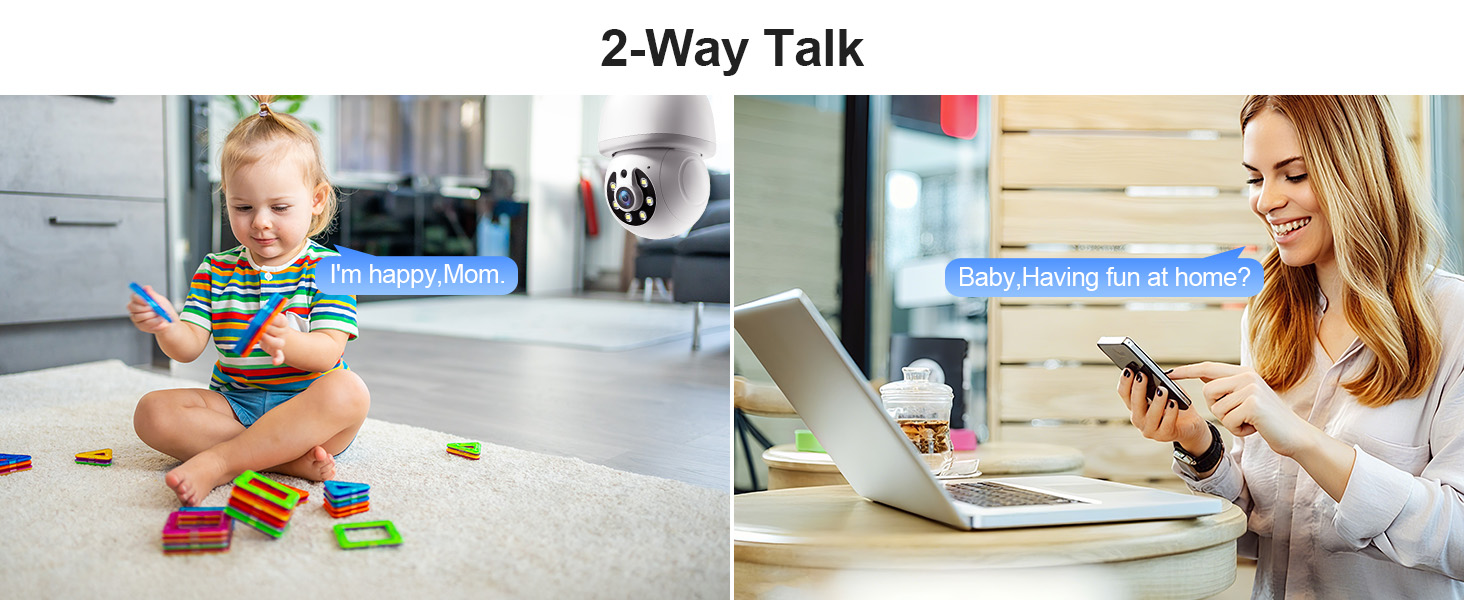
Image 6.4: Comparison of infrared and 2K full-color night vision.
6.6 Recording and Storage
The camera supports continuous 24/7 recording. You have two storage options:
- Cloud Storage: Subscribe to the Eseecloud app's cloud storage service for remote access to your recordings.
- TF Card Storage: Insert a TF (microSD) card (up to 128GB, not included) into the camera's slot for local recording.

Image 6.5: 24/7 recording options with cloud and SD card storage.
6.7 Alexa Integration
The WESECUU camera is compatible with Amazon Alexa. To connect:
- Open the Alexa app on your smartphone.
- Go to 'Skills & Games' and search for 'Eseecloud'.
- Enable the Eseecloud skill and link your Eseecloud account.
- Discover devices. You can then use voice commands like "Alexa, show me the [camera name]" on compatible Alexa devices with screens.

Image 6.6: Camera integration with Amazon Alexa.
6.8 Patrol Guard Mode
The Patrol Guard mode allows you to set multiple distinct viewpoints (presets). The camera will automatically cycle through these preset positions at custom intervals, providing continuous monitoring of different areas.

Image 6.7: Visualization of the Patrol Guard mode with multiple presets.
7. Maintenance
- Cleaning: Gently wipe the camera lens and body with a soft, dry cloth. Do not use harsh chemicals or abrasive cleaners.
- Firmware Updates: Regularly check the Eseecloud app for available firmware updates to ensure optimal performance and security.
- Storage: If storing the camera for an extended period, disconnect it from power and store it in a cool, dry place.
8. Troubleshooting
| Problem | Possible Cause | Solution |
|---|---|---|
| Camera not connecting to WiFi | Incorrect WiFi password; camera too far from router; incorrect WiFi band selected. | Verify WiFi password. Move camera closer to router. Ensure you are connecting to a 2.4GHz or 5GHz network as supported. Restart camera and router. |
| Poor image quality | Dirty lens; insufficient lighting; network bandwidth issues. | Clean the camera lens. Ensure adequate lighting for optimal color night vision. Check your internet speed. |
| No motion detection alerts | Motion detection disabled; sensitivity too low; app notifications blocked. | Enable motion detection and human detection in the app. Adjust sensitivity settings. Check your phone's notification settings for the Eseecloud app. |
| Two-way talk not working | Microphone/speaker permissions not granted; volume too low. | Check app permissions on your phone. Adjust volume settings in the app and on your phone. |
| TF card not recording | TF card full or corrupted; not inserted correctly. | Format the TF card in the app. Reinsert the TF card. Replace with a new TF card if corrupted. |
9. Specifications
| Feature | Specification |
|---|---|
| Model Name | 8050 |
| Indoor/Outdoor Usage | Indoor, Outdoor (IP65 rated) |
| Video Capture Resolution | 2K (3 MP Maximum Webcam Image Resolution) |
| Connectivity Technology | Wireless (Wi-Fi 2.4G/5G) |
| Power Source | Corded Electric (E27 light socket, 100V~240V) |
| Controller Type | Amazon Alexa |
| Mounting Type | Ceiling Mount |
| Special Features | 2-Way Audio, Image Sensor, Color Night Vision, Human Detection, Motion Tracking |
| Storage Options | Cloud Storage, TF Card (up to 128GB, not included) |
| Product Dimensions | 1 x 1 x 1 inches |
| Item Weight | 1.1 pounds |
10. Customer Support
For technical assistance, troubleshooting not covered in this manual, or warranty inquiries, please contact WESECUU customer support through the contact information provided with your purchase or on the official WESECUU website.
Related documents8050


Ask a question about this manual
Ask about setup, troubleshooting, compatibility, parts, safety, or missing instructions. Manuals+ will review the question and use this page’s manual context to help answer it.