
Ebitcam RBX-S60
Ebitcam 4G LTE Cellular Security Camera
Model: RBX-S60 User Manual
1. Product Overview
The Ebitcam RBX-S60 is a solar-powered 4G LTE cellular security camera designed for outdoor use, offering 24/7 recording capabilities and 2K live streaming. It features a 360° viewing angle with pan and tilt functionality, color night vision, and a PIR motion sensor for accurate alerts. This camera is ideal for monitoring remote locations without Wi-Fi access, such as wildlife areas, farms, or construction sites.

Figure 1: Ebitcam RBX-S60 Cellular Security Camera with included 20W Solar Panel.
2. What's in the Box
- Ebitcam Cellular Trail Camera (RBX-S60)
- 20W Solar Panel
- Mounting Bracket and Screws
- USB Charging Cable
- ELOTCLUB SIM Card (with 300M data)
- User Manual
3. Setup Guide
3.1 SIM Card and SD Card Installation
- Locate the SIM card and SD card slot on the camera body. This is typically protected by a rubber cover.
- Gently open the cover.
- Insert the provided ELOTCLUB SIM card into the SIM card slot with the gold contacts facing down and the notched corner aligned correctly.
- Insert a compatible Micro SD card (not included, up to 128GB recommended) into the SD card slot for local storage of recordings.
- Ensure both cards are fully seated. Close the rubber cover firmly to maintain waterproof integrity.

Figure 2: Proper insertion of the SIM card into the camera's designated slot.
3.2 Powering On and Initial Charge
- Connect the 20W solar panel cable to the charging port on the camera.
- The camera is equipped with a 15000mAh rechargeable battery. For first-time use, it is recommended to fully charge the camera using the provided USB cable and a 5V/2A power adapter (not included) before relying solely on solar power.
- Ensure the power switch on the camera is in the 'ON' position.

Figure 3: The camera and solar panel mounted, showing the connection for continuous power.
3.3 App Download and Device Pairing
- Download the 'UBox' app from your smartphone's app store (iOS App Store or Google Play Store).
- Register for a new account or log in if you already have one.
- In the UBox app, tap the '+' icon to add a new device.
- Follow the on-screen instructions to scan the QR code on the camera or manually enter the device ID to pair the camera with your account.
- Ensure your phone has a stable internet connection during the pairing process.
3.4 Mounting the Camera
- Choose a mounting location that provides the desired viewing angle and allows the solar panel to receive maximum direct sunlight throughout the day.
- Use the included mounting bracket and screws to securely attach the camera and solar panel to a wall, tree, or pole.
- Adjust the angle of the solar panel to optimize sun exposure.
4. Operating Instructions
4.1 Live Streaming and Remote Access
- Open the UBox app on your smartphone.
- Select your camera from the device list to view the live 2K video feed.
- You can access the live stream and control the camera from anywhere with cellular network coverage.
4.2 Pan and Tilt Control
- Within the live view interface of the UBox app, use the on-screen controls to remotely adjust the camera's viewing angle.
- The camera supports 355° horizontal pan and 100° vertical tilt, providing comprehensive coverage of the area.

Figure 4: The camera's pan and tilt capabilities allow for a wide field of view, controllable via the app.
4.3 Recording Modes
- 24/7 Continuous Recording: The camera is designed to record continuously. This mode is active when the battery level is above 30%.
- Event Recording: If the battery level drops below 30%, the camera will automatically switch to event-triggered recording to conserve power. Recordings are initiated by motion detection.
- Recorded footage can be accessed and reviewed through the UBox app.
4.4 Night Vision
- The camera features 2K color night vision, providing clear and detailed images even in low-light conditions.
- The spotlight for color night vision may need to be manually activated within the UBox app settings.

Figure 5: Visual comparison demonstrating the clarity of 2K color night vision versus daytime footage.
4.5 Motion Detection and Alerts
- The integrated PIR motion sensor detects heat signatures, minimizing false alarms from non-human movement.
- When motion is detected, the camera will send instant alerts to your smartphone via the UBox app.
- Sensitivity settings for motion detection can be adjusted in the app.
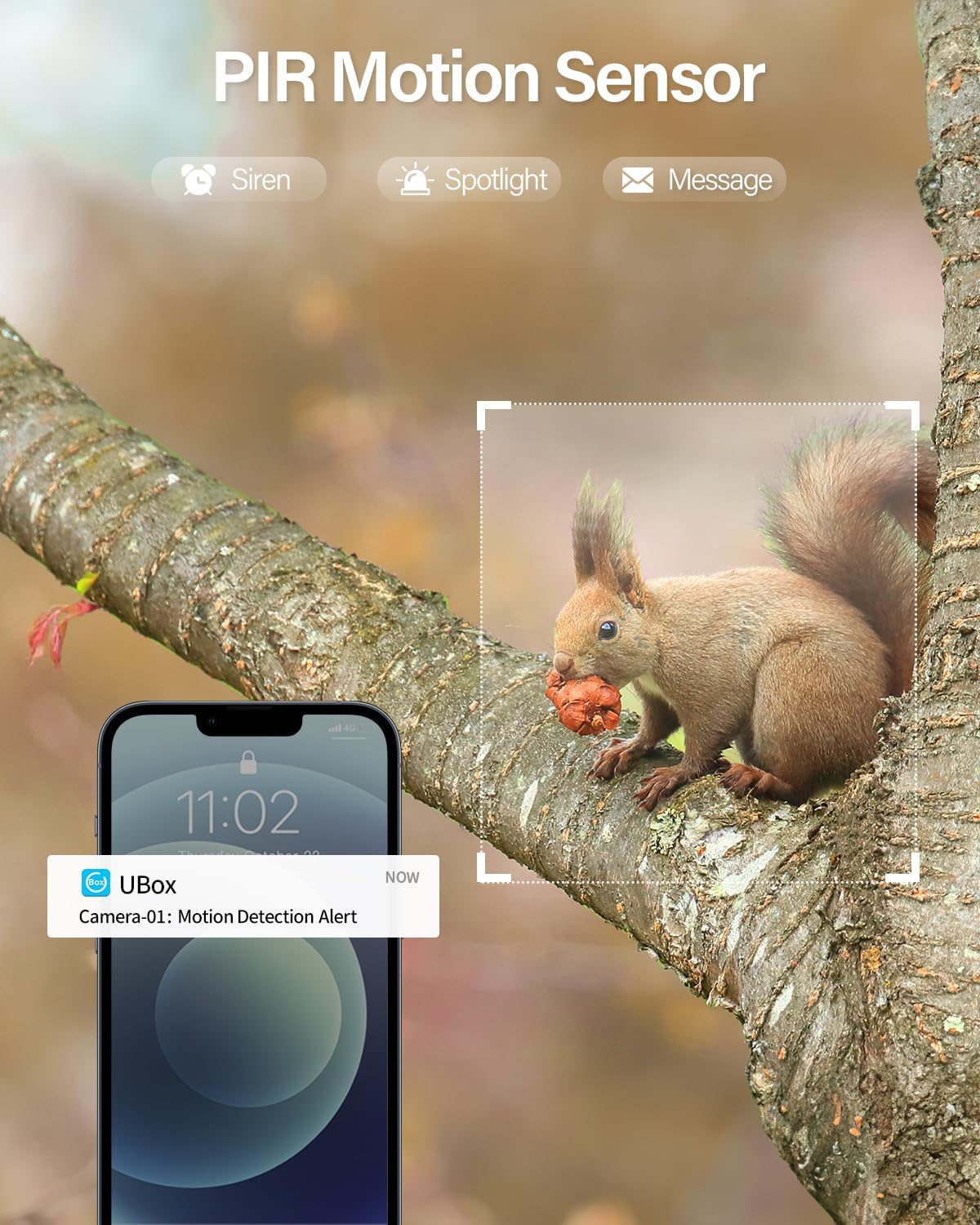
Figure 6: An example of a motion detection alert received on a smartphone via the UBox app.
4.6 Two-Way Talk
- Utilize the two-way talk feature through the UBox app to communicate with individuals near the camera.
- This function acts as an intercom, allowing you to speak and listen remotely.
5. Maintenance
- Cleaning: Periodically clean the camera lens and the surface of the solar panel with a soft, damp cloth to ensure optimal performance and charging efficiency. Avoid abrasive cleaners.
- Battery Management: Monitor the battery level via the UBox app. Ensure the solar panel is positioned to receive adequate sunlight for continuous charging.
- Firmware Updates: Check the UBox app regularly for available firmware updates. Keeping the camera's firmware updated ensures optimal performance and access to new features.
- Data Plan: Ensure your cellular data plan for the SIM card remains active to maintain remote connectivity and recording capabilities.

Figure 7: The Ebitcam RBX-S60 features a high-capacity 15000mAh battery and a 20W solar panel for extended operation.
6. Troubleshooting
- Camera Not Powering On/Charging:
- Ensure the power switch is in the 'ON' position.
- Verify the solar panel cable is securely connected to the camera.
- Check if the solar panel is receiving direct sunlight. If not, reposition it.
- Try charging the camera directly using the USB cable and a power adapter. - No Connectivity/Camera Offline:
- Confirm the SIM card is correctly inserted and activated with an active data plan.
- Check the cellular signal strength in the camera's location via the UBox app.
- Restart the camera by turning it off and on.
- Ensure your smartphone has a stable internet connection. - Poor Video Quality:
- Clean the camera lens with a soft cloth.
- Ensure there is adequate lighting in the monitored area, especially at night (activate spotlight if needed).
- Check cellular signal strength; a weak signal can affect streaming quality. - Motion Detection Issues:
- Ensure the PIR sensor is not obstructed.
- Adjust the motion detection sensitivity settings in the UBox app.
- Test the detection range and angle. - Two-Way Talk Not Working:
- Check the microphone and speaker settings within the UBox app.
- Ensure your phone's volume is up and the app has microphone permissions.
- Verify cellular signal strength for clear audio transmission.
7. Specifications
| Feature | Specification |
|---|---|
| Model Name | RBX-S60 |
| Indoor/Outdoor Usage | Outdoor |
| Power Source | Solar Powered |
| Connectivity Technology | 4G LTE Cellular |
| Connectivity Protocol | Cellular |
| Video Capture Resolution | 2K |
| Pan/Tilt Range | 355° Horizontal, 100° Vertical |
| Battery Capacity | 15000mAh Lithium Ion (included) |
| Solar Panel Wattage | 20 watts |
| Motion Sensor | PIR Motion Sensor |
| Night Vision | 2K Color Night Vision |
| Compatible Devices | Smartphone (UBox App) |
| Dimensions (L x W x H) | 5.79 x 3.15 x 2.76 inches |
| Item Weight | 6.43 pounds |
8. Warranty and Support
For warranty information, technical support, or any inquiries regarding your Ebitcam RBX-S60 camera, please refer to the contact information provided on the Ebitcam official website or within the UBox application's 'About Us' section. Please have your model number (RBX-S60) and purchase details ready when contacting support.
You can also visit the Ebitcam store on Amazon for additional resources and product information: Ebitcam Amazon Store
Related documentsRBX-S60

Ask a question about this manual
Ask about setup, troubleshooting, compatibility, parts, safety, or missing instructions. Manuals+ will review the question and use this page’s manual context to help answer it.