
1. Introduction
This manual provides essential information for the safe and efficient use of your GEMBIRD TSL-PS-S4U-01-W Power Strip. Please read these instructions carefully before operating the device and retain them for future reference.
2. Safety Information
- Do not exceed the maximum load rating of the power strip.
- Do not connect multiple power strips together.
- This device is intended for indoor use only.
- Keep away from water and high humidity environments.
- Do not disassemble or modify the power strip.
- Ensure the power plug is fully inserted into the wall outlet.
- Keep out of reach of children.
3. Product Overview
The GEMBIRD TSL-PS-S4U-01-W is a multi-functional power strip designed to provide convenient power distribution for various electronic devices. It features multiple AC outlets and USB charging ports.
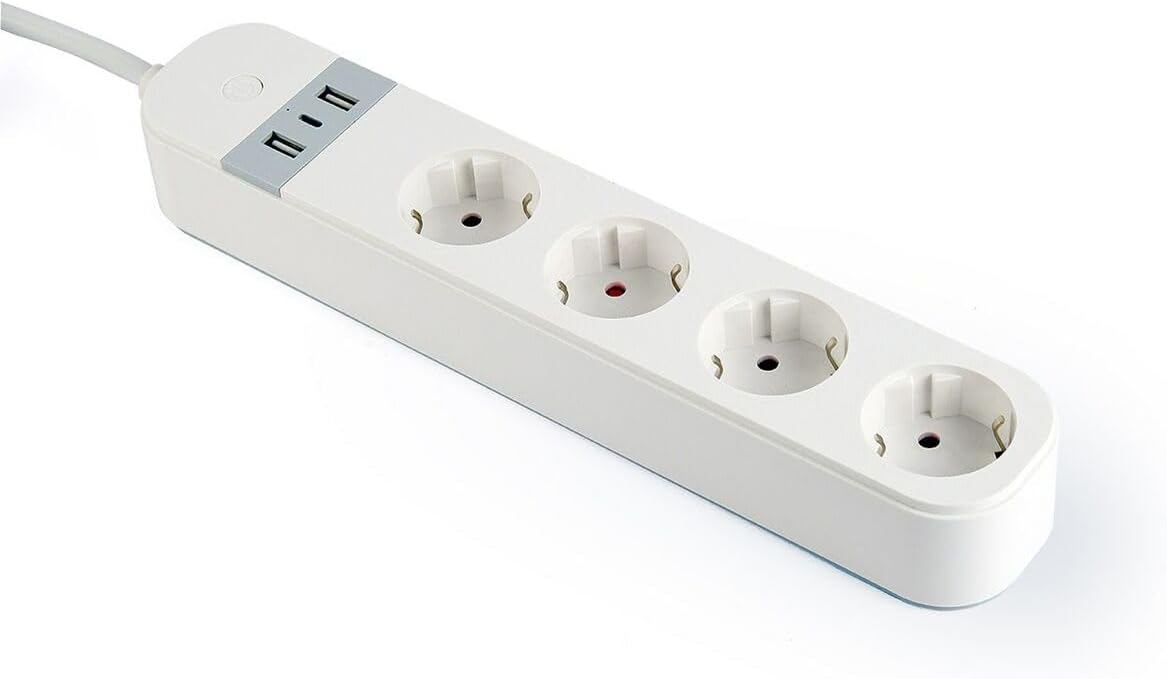
Figure 1: GEMBIRD TSL-PS-S4U-01-W Power Strip. This image displays the GEMBIRD TSL-PS-S4U-01-W Power Strip. It is white in color and features three Type E electrical outlets arranged in a line. At one end, there is a control panel with two USB-A charging ports and a small circular power button with an LED indicator. A power cable extends from this end. The overall design is sleek and rectangular.
4. Setup
- Unpack: Carefully remove the power strip from its packaging.
- Placement: Place the power strip on a stable, dry surface, away from heat sources and direct sunlight. Ensure adequate ventilation around the unit.
- Connect to Power: Plug the power strip's main cable into a grounded wall outlet.
- Power On: Press the power button on the power strip. The LED indicator will illuminate, indicating the unit is powered on.
5. Operating Instructions
5.1 Using AC Outlets
- Ensure the power strip is turned on (LED indicator illuminated).
- Plug your electronic devices into the available AC outlets.
- To turn off power to all connected devices, press the power button. The LED indicator will turn off.
5.2 Using USB Charging Ports
- Connect your USB-powered devices (e.g., smartphones, tablets) to the USB charging ports using appropriate USB cables.
- The USB ports are active when the power strip is turned on.
6. Maintenance
- Cleaning: Disconnect the power strip from the wall outlet before cleaning. Use a soft, dry cloth to wipe the surface. Do not use liquid cleaners or aerosols.
- Storage: When not in use for extended periods, store the power strip in a cool, dry place.
- Inspection: Periodically inspect the power cord and the power strip for any signs of damage. If damage is found, discontinue use immediately.
7. Troubleshooting
| Problem | Possible Cause | Solution |
|---|---|---|
| Power strip not turning on. | Not plugged into wall outlet; wall outlet not active; power button not pressed. | Ensure power strip is securely plugged in. Test wall outlet with another device. Press the power button firmly. |
| Devices not charging via USB. | Power strip is off; faulty USB cable; device not compatible. | Ensure power strip is on. Try a different USB cable. Check device's charging requirements. |
| Overload indicator (if present) is on. | Too many devices connected, exceeding maximum load. | Unplug some devices to reduce the load. Reset the power strip by turning it off and on. |
8. Specifications
| Feature | Detail |
|---|---|
| Model Number | TSL-PS-S4U-01-W |
| Brand | Gembird |
| Color | White |
| AC Outlets | 3 (Type E) |
| USB Ports | 2 (Type A) |
| Cable Length | 1.5 m |
| Features | LED Indicator |
| Certifications | RoHS, CE |
| Product Dimensions | 3.74 x 2.56 x 12.99 inches |
| Item Weight | 660 Grams |
| Manufacturer | GEMBIRD |
9. Warranty Information
GEMBIRD products are manufactured to high-quality standards. For specific warranty terms and conditions, please refer to the warranty card included with your purchase or visit the official GEMBIRD website. Keep your proof of purchase for warranty claims.
10. Support
For technical support, product inquiries, or assistance with troubleshooting, please contact GEMBIRD customer service. Contact details can typically be found on the product packaging or the official GEMBIRD website.


